
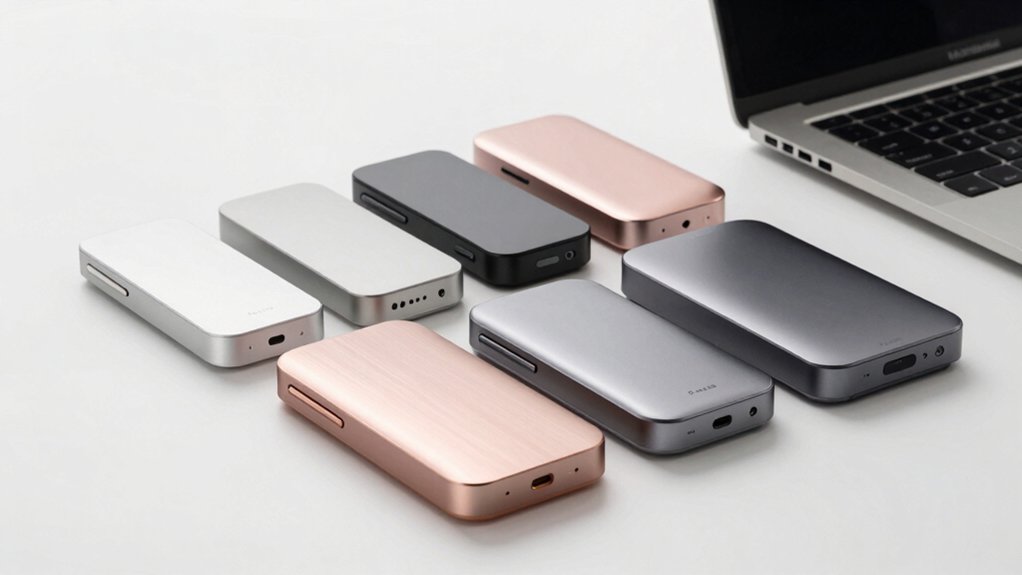

If you’re working on a Mac and need faster file transfers, you’ll want to explore external NVMe enclosures that connect via USB-C or USB4. These devices house M.2 NVMe drives and dramatically boost your workflow speed compared to standard external drives. You’ve got several solid options, each with different speed ratings, cooling systems, and price points. Understanding which enclosure fits your Mac model and budget requires examining key specifications and real-world performance data—details we’ll break down next.
| UGREEN SSD Enclosure USB-C External M.2 NVMe Adapter |
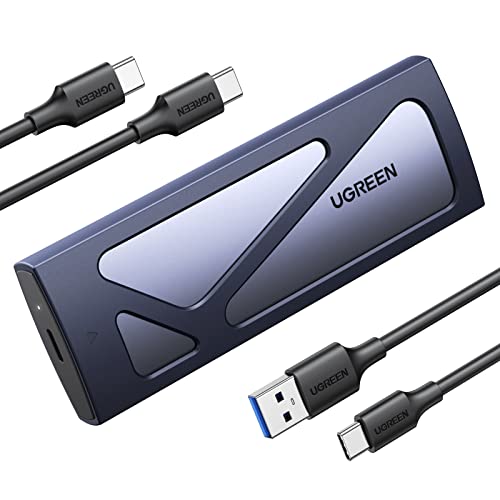
| Best Budget Option | Maximum Speed: 10Gbps (USB 3.2 Gen2) | Interface Type: USB-C 3.2 Gen2 | Supported SSD Sizes: M.2 2230/2242/2260/2280 | VIEW LATEST PRICE | Read Our Analysis |
| OWC Express 1M2 40Gb/s Portable NVMe SSD USB4 |

| Fastest Performance | Maximum Speed: 3151 MB/s (40Gb/s) | Interface Type: USB4/Thunderbolt/USB-C | Supported SSD Sizes: M.2 2230/2242/2280 | VIEW LATEST PRICE | Read Our Analysis |
| UGREEN 40Gbps M.2 NVMe Enclosure with Heat Dissipation |
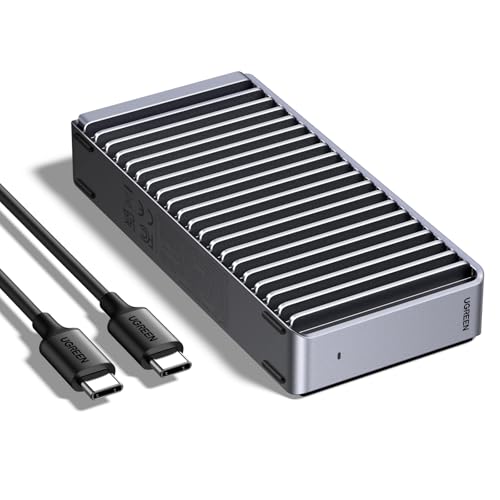
| Best Heat Dissipation | Maximum Speed: 3600 MB/s (40Gbps with TB4) | Interface Type: Thunderbolt 4/3/USB4/3.2/3.1/3.0/2.0 | Supported SSD Sizes: M.2 2230/2242/2260/2280 | VIEW LATEST PRICE | Read Our Analysis |
| Rosewill 40Gbps M.2 NVMe SSD Enclosure with Cooling Fan |
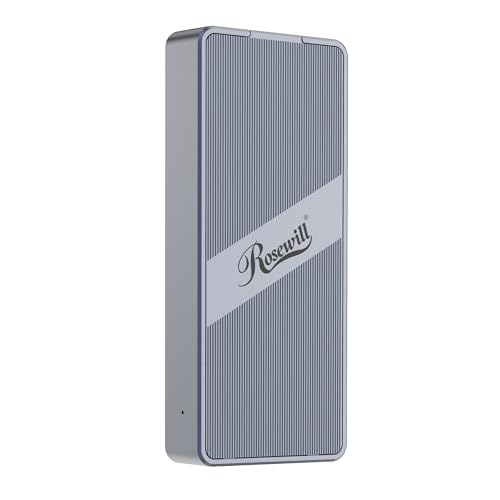
| Best Cooling Fan | Maximum Speed: 3187 MB/s (40Gbps) | Interface Type: Thunderbolt 4/3, USB4, USB 3.2/2.0 | Supported SSD Sizes: M.2 2230–2280 | VIEW LATEST PRICE | Read Our Analysis |
| ACASIS USB-C 3.2 SSD Enclosure for MacBook |

| Mac Native Compatible | Maximum Speed: 10 Gbps (USB 3.2 Gen2) | Interface Type: USB-C 3.2 Gen2 | Supported SSD Sizes: M.2 2280 NVMe adapter (plus Apple original SSDs) | VIEW LATEST PRICE | Read Our Analysis |
| RayCue 40Gbps M.2 NVMe External SSD Enclosure |

| Best Overall Value | Maximum Speed: 3600 MB/s (40Gbps with TB4) | Interface Type: USB4/3.2/3.1/3.0/2.0 and Thunderbolt 3/4 | Supported SSD Sizes: M.2 2230/2242/2260/2280 | VIEW LATEST PRICE | Read Our Analysis |
More Details on Our Top Picks
UGREEN SSD Enclosure USB-C External M.2 NVMe Adapter
If you’re a Mac user who needs fast external storage without complicated installation, the UGREEN SSD Enclosure delivers straightforward performance through its tool-free design and plug-and-play setup. Simply insert your M.2 NVMe SSD into the enclosure—no tools required—and connect it via USB-C to your Mac. The device supports drives up to 8TB and various sizes (2230/2242/2260/2280), making it compatible with most modern SSDs. You’ll get 10Gbps transfer speeds with USB 3.2 Gen2, though speeds drop to USB 3.0 levels without the proper cable. The RTL9210 chip provides protection against short circuits and overcurrent. Installation requires no drivers; your Mac recognizes it immediately for seamless workflow integration.
- Maximum Speed:10Gbps (USB 3.2 Gen2)
- Interface Type:USB-C 3.2 Gen2
- Supported SSD Sizes:M.2 2230/2242/2260/2280
- Storage Capacity Support:Up to 8TB
- Heat Management:Multi-protection (no active cooling)
- Installation Method:Tool-free, plug and play
- Additional Feature:Broad OS support (iOS/Android)
- Additional Feature:Supports SSDs up to 8TB
- Additional Feature:Ultra-slim aluminum with silicone case
OWC Express 1M2 40Gb/s Portable NVMe SSD USB4
You’ll want the OWC Express 1M2 if you’re working with a Mac that supports USB4, Thunderbolt, or USB-C and you need to move large files quickly without slowing down your workflow. This enclosure delivers real-world speeds up to 3151 MB/s, more than doubling typical Thunderbolt portable enclosure performance. The aluminum heat sink design keeps your drive cool during intensive tasks, maintaining consistent speed without fan noise. You can configure it with M.2 NVMe drives in 2280, 2242, or 2230 sizes, giving you flexibility in storage capacity. The included 40Gb/s USB-C cable and screwdriver make setup straightforward, and OWC’s 3-year warranty on the complete solution provides protection.
- Maximum Speed:3151 MB/s (40Gb/s)
- Interface Type:USB4/Thunderbolt/USB-C
- Supported SSD Sizes:M.2 2230/2242/2280
- Storage Capacity Support:Up to 8TB
- Heat Management:Patent-pending heat-dissipating design
- Installation Method:Includes screwdriver
- Additional Feature:Over 3151MB/s real-world performance
- Additional Feature:Bus-powered and palm-sized
- Additional Feature:40Gb/s USB-C cable included
UGREEN 40Gbps M.2 NVMe Enclosure with Heat Dissipation
The UGREEN 40Gbps M.2 NVMe Enclosure delivers 3600MB/s speeds when you connect it to a Mac via Thunderbolt 4, making it ideal for professionals who need fast file transfers without slowing down their workflow. This aluminum enclosure supports NVMe drives up to 8TB and fits sizes 2230 through 2280. It features double-sided fin heat dissipation that cools without fans, ensuring stable performance during extended use. The package includes a USB-C cable, cooling pad, and disassembly kit. Compatible with Windows, macOS, and Linux, you’ll find it compact and portable for travel. Verify your drive’s thickness before installation, as some drives require thinner thermal pads to fit properly inside the case.
- Maximum Speed:3600 MB/s (40Gbps with TB4)
- Interface Type:Thunderbolt 4/3/USB4/3.2/3.1/3.0/2.0
- Supported SSD Sizes:M.2 2230/2242/2260/2280
- Storage Capacity Support:Up to 8TB
- Heat Management:Double-sided fin heat dissipation, fanless
- Installation Method:Tool-free with disassembly kit
- Additional Feature:Double-sided fin heat dissipation
- Additional Feature:Includes cooling pad and disassembly kit
- Additional Feature:No fan noise operation
Rosewill 40Gbps M.2 NVMe SSD Enclosure with Cooling Fan
Looking for an enclosure that handles high-speed file transfers without thermal throttling? The Rosewill 40Gbps M.2 NVMe SSD Enclosure delivers sustained performance up to four hours at full speed using its built-in cooling fan and optimized vent design. It supports M.2 NVMe SSDs ranging from 2230 to 2280 sizes and connects via USB Type-C to your Mac, MacBook Pro, or laptop through Thunderbolt 4/3, USB4, or USB 3.2. You’ll achieve read/write speeds up to 3,187 MB/s depending on your system and SSD. The compact design measures 4.75 by 2 by 0.75 inches and weighs 6.4 ounces, making it portable for mobile workflows. The transparent back plate with metal enclosure provides durability. You get a one-year manufacturer’s warranty and Amazon’s 30-day return guarantee.
- Maximum Speed:3187 MB/s (40Gbps)
- Interface Type:Thunderbolt 4/3, USB4, USB 3.2/2.0
- Supported SSD Sizes:M.2 2230–2280
- Storage Capacity Support:Up to 8TB
- Heat Management:Built-in cooling fan
- Installation Method:Standard (SSD not included)
- Additional Feature:Built-in cooling fan included
- Additional Feature:Transparent back plate design
- Additional Feature:Sustained 4-hour full-speed performance
ACASIS USB-C 3.2 SSD Enclosure for MacBook
If you’re running an older Mac—specifically a 2013–2017 MacBook Air, 2013–2015 MacBook Pro Retina, 2013–2014 iMac, or 2013 Mac Pro—and you need to access your original Apple SSD outside the device, the ACASIS USB-C 3.2 SSD Enclosure is your best option. The aluminum case dissipates heat effectively while supporting Apple’s 12+16-pin SSDs directly. Installation takes minutes: remove the PCB, insert your SSD, reinsert into the enclosure, and tighten screws. You’ll get 10 Gbps speeds via USB 3.2 Gen2, potentially reaching 20 Gbps with Gen2x2 support. The enclosure also accepts M.2 NVMe SSDs through an included adapter, expanding compatibility. Plug-and-play functionality works immediately on Mac; Windows users must recreate file formats in Disk Management to enable access.
- Maximum Speed:10 Gbps (USB 3.2 Gen2)
- Interface Type:USB-C 3.2 Gen2
- Supported SSD Sizes:M.2 2280 NVMe adapter (plus Apple original SSDs)
- Storage Capacity Support:Varies by original Apple SSD/M.2 adapter
- Heat Management:Aluminum alloy case
- Installation Method:Tool-based assembly with screws
- Additional Feature:Apple SSD 12+16 pin support
- Additional Feature:M.2 NVMe adapter included
- Additional Feature:Mac direct read supported
RayCue 40Gbps M.2 NVMe External SSD Enclosure
RayCue’s 40Gbps M.2 NVMe External SSD Enclosure works well if you’re using Mac and need fast external storage without thermal complications. This aluminum enclosure supports M.2 NVMe drives up to 8TB in sizes 2230, 2242, 2260, and 2280. Install your SSD tool-free by inserting it directly into the enclosure. Connect via USB4, Thunderbolt 3, or Thunderbolt 4 for speeds reaching 3600MB/s with Thunderbolt 4 cables. The double-sided fin heat dissipation design eliminates fan noise while cooling efficiently. Compatible with Mac, Windows, Linux, and Android systems, this enclosure handles demanding workflows requiring reliable, portable storage without thermal concerns.
- Maximum Speed:3600 MB/s (40Gbps with TB4)
- Interface Type:USB4/3.2/3.1/3.0/2.0 and Thunderbolt 3/4
- Supported SSD Sizes:M.2 2230/2242/2260/2280
- Storage Capacity Support:Up to 8TB
- Heat Management:Double-sided fin heat dissipation, fanless
- Installation Method:Tool-free, plug and play
- Additional Feature:Tool-free SSD installation
- Additional Feature:Universal system compatibility support
- Additional Feature:Multi-platform support (Windows/Mac/Linux/Android)
Factors to Consider When Choosing NVMe Enclosures for Mac
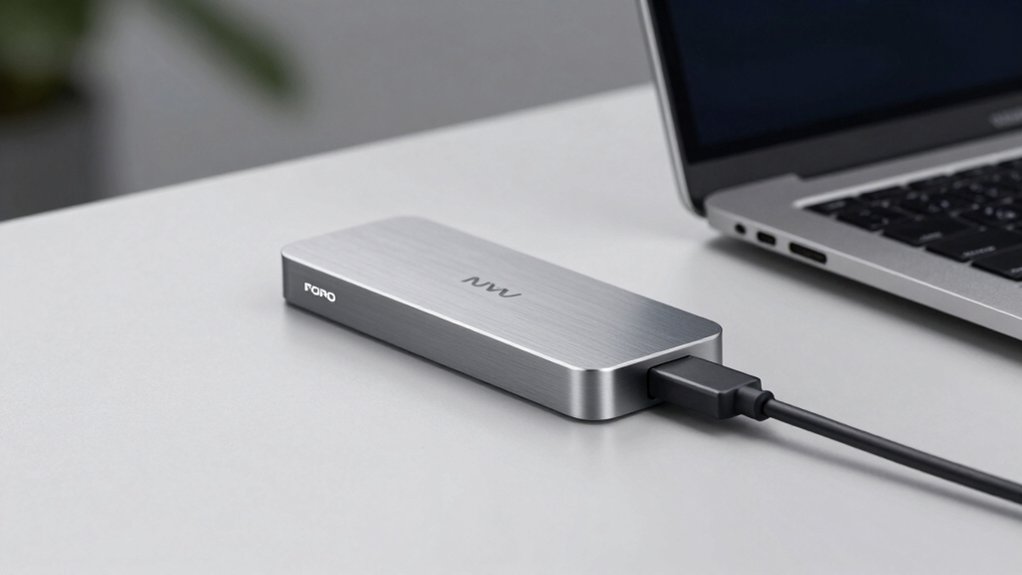
When selecting an NVMe enclosure for your Mac, you’ll need to verify Thunderbolt compatibility to ensure the enclosure connects properly with your device, check the speed and performance specifications to confirm the enclosure supports your Mac’s bandwidth capabilities, and evaluate thermal management solutions to prevent your drive from overheating during intensive tasks. You should also confirm that the enclosure supports your desired storage capacity—ranging from 256GB to 4TB or higher—and assess the physical design for portability if you plan to transport it frequently. These five factors directly affect whether the enclosure will function reliably, deliver the performance you need, and fit your workflow requirements.
Thunderbolt Compatibility Requirements
How do you know whether an NVMe enclosure will actually deliver the speeds you need on your Mac? Check that the enclosure explicitly lists Thunderbolt 3 or Thunderbolt 4 support—USB-C alone won’t achieve higher sustained speeds. Verify your Mac has a compatible TB port and use proper TB4 cables to maintain throughput. Real-world speeds typically plateau around 2–3.5 GB/s depending on the TB version and SSD. Some enclosures advertise 40Gbps capabilities but require TB4 ports to reach those speeds; without TB4, performance reverts to USB-C limits. Confirm the enclosure’s Thunderbolt signaling is fully supported by macOS drivers and firmware to avoid compatibility issues or throttling that’d undermine your workflow gains.
Speed And Performance Specifications
Now that you’ve confirmed your Mac’s Thunderbolt compatibility and cable setup, you’ll want to evaluate the actual speed and performance specs the enclosure can deliver. Check the advertised throughput—Thunderbolt 4 enclosures reach up to 3600 MB/s, while USB 3.2 Gen2 maxes out around 1250 MB/s. However, real-world speeds often run lower due to drive limitations, cable quality, and thermal conditions. Review the enclosure’s cooling design; aluminum chassis and heat sinks prevent thermal throttling that reduces performance. Match the NVMe drive speed to your enclosure—a slower drive won’t benefit from maximum bandwidth. Compare specifications across models, prioritizing sustained performance data over peak claims. This ensures your workflow gains measurable speed improvements matching your actual usage patterns.
Thermal Management Solutions
Why does thermal management matter for your NVMe enclosure? Heat buildup reduces drive speed and causes thermal throttling, slowing your workflow. You’ll want to choose enclosures with aluminum housing and integrated heat sinks that dissipate heat effectively during sustained transfers. Look for models featuring dual-sided fin designs or 3D cooling architecture to maintain consistent performance. For intensive 40Gb/s data transfers, consider enclosures with active cooling fans. Verify compatibility with Thunderbolt 3/4 or USB4, which pair robust thermal design with higher power handling. Check your drive’s thickness specifications and apply thermal pads if needed for optimal heat transfer. These steps ensure your NVMe enclosure maintains stable speeds throughout extended operations without performance degradation.
Storage Capacity Support
When you’re selecting an NVMe enclosure for your Mac, storage capacity support determines which drives you can install and how much data you’ll store. Most enclosures support drives up to 8 TB, though you’ll need to verify your specific model’s maximum capacity. Check which form factors your enclosure accepts—typically 2230, 2242, 2260, and 2280—since these affect what drives fit physically. Before purchasing a high-capacity drive like 4 TB or 8 TB, confirm the enclosure explicitly supports that size. After connecting your enclosure to your Mac, format the drive and verify macOS recognizes the full capacity in Disk Utility. Larger drives benefit from enclosures with robust thermal design to maintain consistent performance during heavy use.
Physical Design And Portability
How much you’ll move your NVMe enclosure between devices determines which design features matter most for your workflow. If you frequently swap your enclosure between MacBooks and desktop setups, prioritize aluminum or metal construction with integrated heat sinks—these materials withstand repeated transport and maintain performance during sustained transfers. Look for tool-free installation designs that let you swap SSDs quickly without carrying additional equipment. Choose slim, compact dimensions around a few inches long and under an inch tall for easy packing in bags. Transparent back plates or lightweight chassis designs balance rugged protection with portability. For stationary setups, passive cooling fins work well. For mobile use, verify the enclosure weighs under one pound and fits standard laptop bags without adding bulk to your daily carry.
SSD Size Format Support
Once you’ve selected an enclosure that fits your mobility needs, you’ll need to verify it accommodates your specific NVMe drive’s physical dimensions. Most M.2 NVMe enclosures support 2280, 2260, 2242, and 2230 sizes, with 2280 being the standard. Check your SSD’s length against the enclosure’s specifications—mismatches prevent installation. Beyond length, examine thickness and module height, as some 2280 drives exceed enclosure tolerances without proper spacing pads. Confirm the enclosure supports NVMe exclusively, not SATA NGFF variants, since these differ physically. Verify capacity compatibility too; while most enclosures handle drives up to 8TB, firmware and PCIe lane design may impose limits. Cross-reference your drive’s exact model number with the enclosure’s compatibility list before purchasing.
Interface Cable Specifications
Your enclosure’s interface cable determines the maximum speed your NVMe drive can achieve, so you’ll want to match it to both your drive’s capabilities and your Mac’s available ports. A USB-C to USB-C 10 Gbps cable enables standard USB 3.2 Gen2 operation, which is sufficient for most NVMe drives. If your Mac has USB4 or Thunderbolt ports and your enclosure supports them, use a corresponding USB4 or Thunderbolt cable to access speeds up to 40 Gbps. Check your enclosure’s specifications to confirm which cable type it includes. Verify that your Mac’s ports support the cable standard you’re purchasing. Using the correct cable ensures you’ll actually reach the speeds your enclosure and drive are capable of delivering.
Warranty And Support Coverage
What protection does your enclosure come with if it fails? You’ll want to verify the warranty period first—most manufacturers offer one to three years of coverage. Check whether the warranty covers just the enclosure or includes internal components, and confirm if you’re dealing directly with the manufacturer or through your retailer.
Review the return policy window, typically 30 days, and identify any conditions affecting eligibility like opened packaging. Confirm what customer support channels exist: email, phone, or live chat. Ensure support addresses both hardware and firmware issues.
Critically, verify that thermal-related failures are explicitly covered, since cooling performance directly impacts reliability. Ask whether replacement involves a full unit swap or individual parts, as this affects your downtime and costs significantly.
Final Thoughts
You’ve reviewed six reliable NVMe enclosures designed for Mac workflows. Select based on your needs: choose UGREEN or Rosewill for 40Gbps speed, pick OWC Express 1M2 for warranty protection, or select ACASIS for older Mac compatibility. Confirm your drive size (2230–2280) and capacity needs. Check your Mac’s port type—USB-C or USB4. Install your NVMe drive, connect the enclosure, and verify recognition in Disk Utility before transferring files.

Meet Ry, “TechGuru,” a 36-year-old technology enthusiast with a deep passion for tech innovations. With extensive experience, he specializes in gaming hardware and software, and has expertise in gadgets, custom PCs, and audio.
Besides writing about tech and reviewing new products, he enjoys traveling, hiking, and photography. Committed to keeping up with the latest industry trends, he aims to guide readers in making informed tech decisions.