
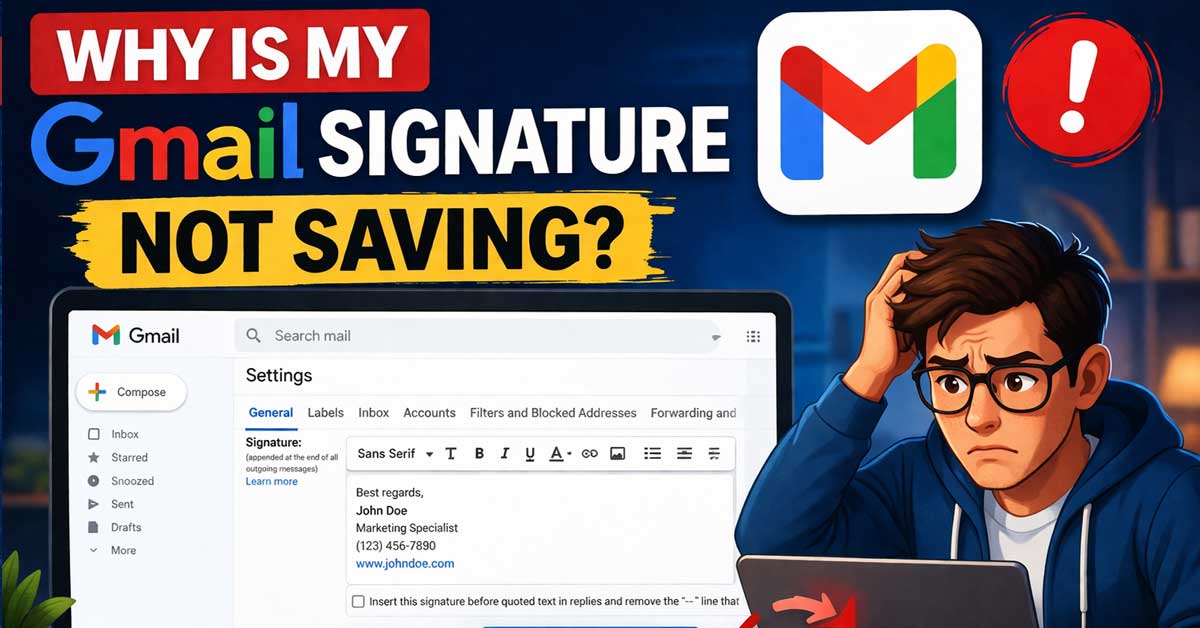

Usually a browser, sync, or settings conflict — here’s what’s causing it and how to fix it
Setting up a Gmail signature only to find it disappears after saving, doesn’t appear on new emails, or reverts to an old version is a frustrating problem that has several specific causes.
The fix depends on whether the signature isn’t saving at all, whether it’s saving but not appearing on emails, or whether it’s being overridden by another setting.
Here’s how to identify which scenario applies and resolve it.
Make Sure You’re Saving Correctly
This sounds basic but it’s the most commonly missed step. Gmail’s signature settings don’t save automatically — you must scroll to the bottom of the Settings page and click Save Changes after making any modifications. If you close the tab, navigate away, or the browser crashes before clicking Save Changes, all signature changes are lost.
Go to Settings → See All Settings → General and scroll down to the Signature section. After making your signature changes, scroll all the way to the bottom of the General settings page — past the signature section — and click Save Changes. The button is at the very bottom of the page, not adjacent to the signature editor.
This single step is responsible for the majority of signature-not-saving reports.
The Signature Isn’t Assigned to Your Account
Gmail requires you to assign a signature to your email address — creating a signature doesn’t automatically activate it. In the signature settings, there’s a separate section called Signature Defaults where you assign which signature is used for new emails and which is used for replies and forwards.
Go to Settings → See All Settings → General → Signature. Below the signature editor, look for Signature Defaults. Under For New Emails Use and On Reply/Forward Use, make sure your signature is selected rather than No Signature. Save Changes after updating.
If both dropdowns show No Signature, your created signature exists but is never automatically inserted into any emails — which looks like it isn’t saving when it’s actually just not being applied.
Browser Cache Is Serving Stale Settings
Gmail’s settings page is cached by your browser, and stale cached data can make settings appear to save but revert when you reload. The signature saves to Google’s servers correctly but the browser keeps showing the old cached version.
Try a hard refresh on Gmail’s settings page: press Ctrl + Shift + R on Windows or Cmd + Shift + R on Mac. This forces the browser to reload the page from Google’s servers rather than from cache.
If the signature appears correctly after a hard refresh, clear your browser cache fully: press Ctrl + Shift + Delete, select Cached Images and Files, set the time range to All Time, and clear. Reload Gmail and check whether your signature is now saving and persisting correctly.
Browser Extensions Are Interfering
Ad blockers and script blockers sometimes interfere with Gmail’s settings page — blocking the JavaScript that handles saving, preventing the save request from reaching Google’s servers, or modifying the page in ways that break the save button.
Test by opening Gmail’s settings in incognito or private mode where most extensions are disabled. Go to Settings → See All Settings → General → Signature, make a test change to your signature, scroll to the bottom, and click Save Changes. Reload the page and check whether the change persisted.
If the signature saves correctly in incognito but not in your regular window, a browser extension is causing the issue. Go to your extensions page and disable them one at a time, testing Gmail signature saving after each, until you identify the culprit. Ad blockers are the most common cause — adding Gmail to their whitelist usually resolves it.
You’re Editing the Wrong Account’s Signature
If you have multiple Google accounts signed in to Gmail simultaneously, you may be editing the signature for one account while expecting to see the change in another. Signatures are account-specific — each Gmail address has its own independent signature settings.
Check which account you’re currently editing settings for. Look at the account selector in the top right corner of Gmail and confirm it shows the correct email address. If you manage multiple accounts, switch to the account where the signature should appear and check its settings independently.
Also confirm you’re in the right Gmail account when composing emails — signatures appear based on the sending address, not the primary logged-in account.
Multiple Sending Addresses or Aliases
If you use Gmail to send email from multiple addresses — through the Send Mail As feature or through aliases — each sending address can have its own signature. A signature configured for your primary address doesn’t automatically apply when sending from an alias.
Go to Settings → See All Settings → General → Signature. If you have multiple sending addresses configured, check the signature settings for each one separately. In the Signature Defaults section, make sure each sending address has the correct signature assigned.
The Signature Is Too Large
Gmail imposes limits on signature size — if your signature is too long or contains too many large images, it may fail to save without displaying a clear error message. Very large signatures — particularly those with multiple high-resolution images or extensive HTML formatting — can exceed Gmail’s signature storage limit.
If your signature contains images, consider linking to them from an external URL rather than embedding them directly as base64 data. A signature that links to a hosted image uses far less storage than one with an embedded image. Reduce the number of images in the signature or replace large decorative images with smaller versions.
Try saving a minimal text-only version of your signature first. If the minimal version saves correctly, the issue is with the size or format of the full signature rather than with Gmail’s save mechanism.
Rich Text Formatting Issues
Gmail’s signature editor uses rich text formatting that can sometimes get into a corrupted state — particularly after copying and pasting content from Word, websites, or other email clients that use different formatting standards.
If your signature contains copied content, clear the signature editor entirely and retype the content directly rather than pasting. Or switch to Plain Text mode in the compose window temporarily, type a clean version, and switch back to rich text.
For signatures with HTML formatting, use Gmail’s signature editor rather than pasting pre-written HTML — the editor wraps content in its own HTML structure and directly pasting HTML can create formatting conflicts that cause saving issues.
The Signature Saves But Doesn’t Appear on Emails
If the signature is saving correctly but not appearing when you compose emails, check these specific settings:
Compose window default: When composing a new email, click the three dots at the bottom of the compose window and look for Insert Signature — if the signature isn’t appearing automatically, it may need to be manually inserted until the default assignment is corrected.
Plain text mode: If you’re composing in plain text mode, rich text signatures don’t appear. Check whether plain text mode is active by looking for a formatting toolbar in the compose window — if there’s no toolbar, you’re in plain text mode. Switch to rich text by clicking the A formatting icon at the bottom of the compose window.
Signature placement setting: In signature settings, check whether the signature is set to appear before or after quoted text in replies. If set after quoted text, it may appear at the very bottom of long email threads rather than above your reply — making it look absent when it’s actually just far down the page.
Google Workspace Admin Has Overridden Signatures
For Google Workspace accounts — work or school Gmail — your organization’s administrator may have configured signature policies that override user-set signatures. Some organizations push standardized signatures to all accounts that replace or append to user signatures.
If you set a signature and it keeps getting replaced by a different signature, or if your signature settings appear to save but a different signature appears on sent emails, an admin-imposed signature is overriding yours.
Contact your Google Workspace administrator to understand the signature policy and whether user-configured signatures are permitted or overridden in your organization.
Try a Different Browser
If signature saving continues to fail in your current browser despite trying the fixes above, testing in a completely different browser isolates whether the issue is browser-specific.
Open Gmail in Firefox if you normally use Chrome, or vice versa. Navigate to signature settings, make a change, save, and reload. If the signature saves correctly in a different browser, your primary browser has a configuration issue — a corrupted profile or a persistent extension conflict — that the fixes above haven’t resolved.
Mobile Gmail App Signatures
The Gmail mobile app has its own separate signature settings that are independent of the web interface. A signature configured on the web doesn’t automatically appear in emails sent from the app, and vice versa.
On iPhone and Android: Open the Gmail app, tap the three lines in the top left, go to Settings → your account → Signature Settings (or Mobile Signature depending on your app version). Enable the mobile signature and enter your signature text.
Note that the mobile signature supports plain text only — the formatted HTML signatures available in the web version aren’t supported in the mobile app. For mobile emails requiring formatted signatures, the web interface accessed through a mobile browser supports rich text signatures.
A Quick Checklist
Work through these in order:
- Scroll to the bottom of Settings and click Save Changes — the most commonly missed step
- Check Signature Defaults — assign the signature to new emails and replies
- Hard refresh the settings page with Ctrl + Shift + R
- Clear browser cache — All Time → Cached Images and Files
- Test in incognito mode to rule out extension interference
- Disable extensions one at a time if incognito test succeeds
- Confirm you’re editing the correct account’s settings
- Check sending aliases — each address has its own signature assignment
- Reduce signature size if it contains large images
- Retype rather than paste if the signature contains copied content
- Check mobile signature settings separately in the Gmail app
- Contact your admin if on Google Workspace
The Bottom Line
Gmail signatures not saving almost always comes down to one of two things: forgetting to click Save Changes at the bottom of the Settings page, or the signature not being assigned in the Signature Defaults section. These two steps together account for the overwhelming majority of reported signature issues.
For signatures that save but don’t appear, the Signature Defaults assignment and checking whether plain text mode is active cover most remaining cases. Extension interference and browser cache issues handle the rest.
Gmail saves what you tell it to save — scroll to the bottom and click Save Changes, then assign the signature to actually use it.

Meet Ry, “TechGuru,” a 36-year-old technology enthusiast with a deep passion for tech innovations. With extensive experience, he specializes in gaming hardware and software, and has expertise in gadgets, custom PCs, and audio.
Besides writing about tech and reviewing new products, he enjoys traveling, hiking, and photography. Committed to keeping up with the latest industry trends, he aims to guide readers in making informed tech decisions.