
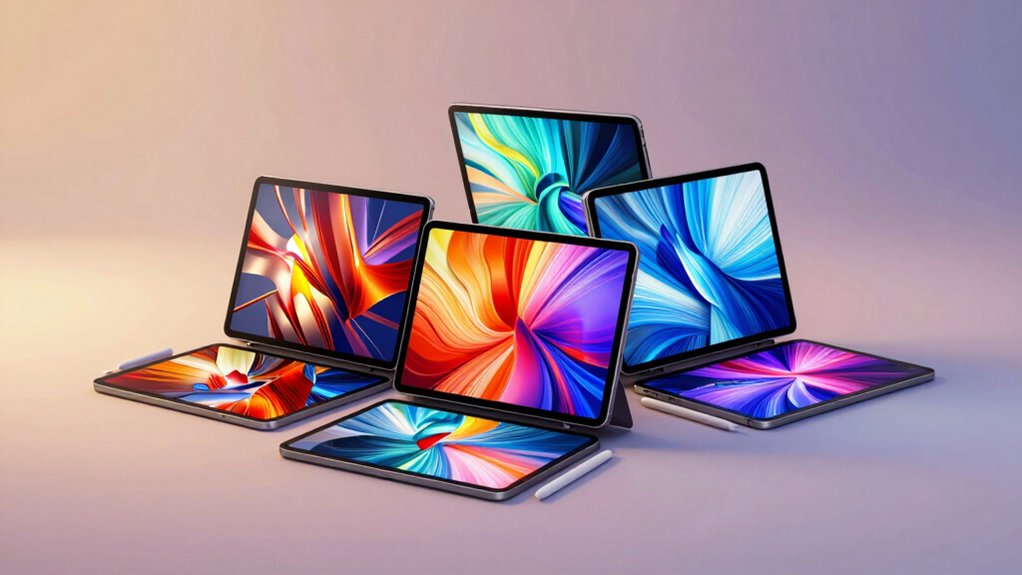

If you’re a digital artist looking for iPad alternatives, you’ll want to evaluate pen display tablets that match your budget and workspace. Options like the XP-Pen Artist 12 (3rd Gen), GAOMON PD1161, and UGEE M708 deliver pressure sensitivity and tilt recognition without Apple’s price tag. Each tablet connects via USB-C or HDMI and includes customizable express keys. Before choosing, you need to understand what specific features matter most for your workflow—and we’ll break down each option.
| UGEE M708 10×6 Drawing Tablet with Passive Stylus |

| Budget-Friendly Starter | Pressure Sensitivity Levels: 16,384 levels | Display Type: Pen tablet (no screen) | Tilt Support: 60 degrees | VIEW LATEST PRICE | Read Our Analysis |
| Digital Drawing Glove 2 Pack (Smudge Guard) |
| Essential Accessory | Pressure Sensitivity Levels: N/A (glove accessory) | Display Type: N/A (glove accessory) | Tilt Support: N/A (glove accessory) | VIEW LATEST PRICE | Read Our Analysis |
| XP-Pen Artist 12 3rd Gen Drawing Tablet with Screen |

| Best Overall | Pressure Sensitivity Levels: 16,384 levels | Display Type: 11.9″ LCD with paper-like texture | Tilt Support: 60 degrees | VIEW LATEST PRICE | Read Our Analysis |
| GAOMON PD1161 Drawing Tablet with Screen & Stylus |

| Best Value | Pressure Sensitivity Levels: 8,192 levels | Display Type: 11.6″ LCD with matte film | Tilt Support: 60 degrees | VIEW LATEST PRICE | Read Our Analysis |
| XPPen Artist 13.3 Pro Drawing Tablet with Screen |

| Professional Grade | Pressure Sensitivity Levels: 8,192 levels | Display Type: 13.3″ LCD full-laminated display | Tilt Support: 60 degrees | VIEW LATEST PRICE | Read Our Analysis |
More Details on Our Top Picks
UGEE M708 10×6 Drawing Tablet with Passive Stylus
If you’re a digital artist who wants a reliable drawing tablet without the iPad price tag, the UGEE M708 offers a practical alternative with professional-grade features. The tablet features a 10×6 inch active surface with 16384 pressure levels, allowing you to create sharp or thick lines based on pen pressure. It includes 8 customizable express keys for shortcuts like eraser and undo functions. The device connects via USB-C and works with Windows, Mac, Android, Chrome OS, and Linux. Compatible software includes Photoshop, Illustrator, and ZBrush. The tablet weighs just 1.08 kilograms, supports 60° tilt, and includes extra stylus tips and a pen holder. A 12-month warranty provides coverage for your investment.
- Pressure Sensitivity Levels:16,384 levels
- Display Type:Pen tablet (no screen)
- Tilt Support:60 degrees
- System Compatibility:Windows, macOS, Android, Chrome OS, Linux
- Customizable Shortcut Keys:8 express keys
- Included Accessories:Pen holder, extra stylus tips
- Additional Feature:16384 pressure sensitivity levels
- Additional Feature:Papery texture surface coating
- Additional Feature:Extra-slim portable profile
Digital Drawing Glove 2 Pack (Smudge Guard)
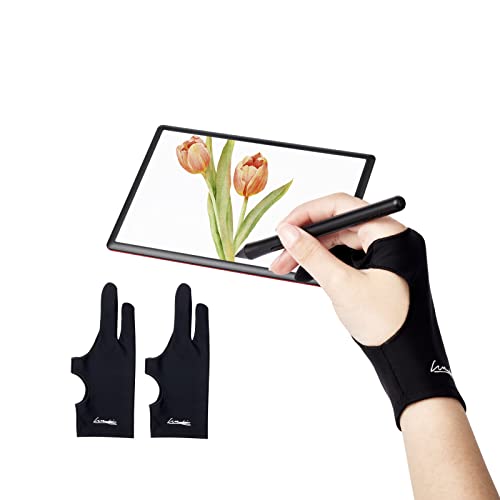
Are you struggling with palm smudges and hand sweat when sketching on your tablet or graphics display? The Digital Drawing Glove 2 Pack solves this problem with its upgraded fixed design that prevents your palm from staining your tablet. Made from elastic Lycra fabric, these gloves offer comfort and breathability while reducing friction between your hand and screen. You’ll find them compatible with graphics tablets, iPads, and light boxes. Available in three sizes—Small, Medium, and Large—with options for both left and right hands, they leave no grease, sweat, or scratches on your display. The black color requires minimal maintenance and won’t show dirt easily.
- Pressure Sensitivity Levels:N/A (glove accessory)
- Display Type:N/A (glove accessory)
- Tilt Support:N/A (glove accessory)
- System Compatibility:Graphics tablets, iPad, light pads, paper sketching
- Customizable Shortcut Keys:N/A (glove accessory)
- Included Accessories:Two-finger design (2-pack)
- Additional Feature:Two-finger flexible design
- Additional Feature:Three adjustable size options
- Additional Feature:Reduces friction/prevents smudging
XP-Pen Artist 12 3rd Gen Drawing Tablet with Screen
The XP-Pen Artist 12 3rd Gen excels for digital artists who need a portable drawing tablet with a built-in display, especially students and professionals working outside a studio. The 11.9-inch screen delivers 1920×1080 resolution with 99% sRGB accuracy, ensuring color precision for design work. Its magnetic X4 Pen offers 16,384 pressure levels and 60-degree tilt support for natural strokes. Dual X-Dial wheels let you adjust brush size and zoom quickly. The tablet connects via USB-C to Windows, macOS, Android, and Linux devices. Weighing 1.58 pounds with a foldable stand, you’ll transport it easily between locations. The paper-like glass texture reduces fatigue during extended sessions.
- Pressure Sensitivity Levels:16,384 levels
- Display Type:11.9″ LCD with paper-like texture
- Tilt Support:60 degrees
- System Compatibility:Windows 7+, macOS 10.13+, Android 10+, Chrome OS 88+, Linux
- Customizable Shortcut Keys:8 customizable keys
- Included Accessories:Replacement nibs, stand, USB cable, glove, cleaning cloth
- Additional Feature:Dual X-Dial wheels included
- Additional Feature:Full lamination/near-zero parallax
- Additional Feature:Paper-like etched glass surface
GAOMON PD1161 Drawing Tablet with Screen & Stylus
For digital artists who want to draw directly on a screen but can’t justify an iPad’s cost, the GAOMON PD1161 offers a practical solution by combining an 11.6-inch display with a battery-free stylus and pressure-sensitive controls. You’ll connect it to your Windows or Mac computer via HDMI and USB, then install the driver to enable the eight programmable shortcut keys. The AP50 stylus doesn’t require charging and delivers 8192 pressure levels for precise shading. You’ll sketch, paint, and edit directly on the matte-textured screen in Photoshop, Krita, or other professional software. The included pen holder, replacement nibs, and drawing glove ensure you’re ready to start immediately.
- Pressure Sensitivity Levels:8,192 levels
- Display Type:11.6″ LCD with matte film
- Tilt Support:60 degrees
- System Compatibility:Windows 7+, macOS 10.12+
- Customizable Shortcut Keys:8 shortcut keys
- Included Accessories:Stylus, pen holder, replacement nibs, glove, USB cable, AC adapter
- Additional Feature:Battery-free AP50 stylus
- Additional Feature:Pre-installed anti-glare matte film
- Additional Feature:8192 pressure sensitivity levels
XPPen Artist 13.3 Pro Drawing Tablet with Screen
If you’re a digital artist who needs a portable display tablet without breaking your budget, XP-Pen’s Artist 13.3 Pro offers a full-laminated screen, battery-free stylus, and professional-grade pressure sensitivity in a lightweight package. The 1920×1080 FHD display delivers accurate color with 88% NTSC coverage, while 8192 pressure levels ensure responsive brushwork. You’ll appreciate the tilt support up to 60 degrees, which eliminates constant software adjustments. The Red Dial wheel lets you quickly zoom, resize brushes, or flip your canvas. Eight customizable shortcut keys streamline your workflow further. Setup requires only the included 3-in-1 USB cable and works with Windows, Mac, Linux, and Chrome OS. At 2 kg, it’s genuinely portable for on-the-go work.
- Pressure Sensitivity Levels:8,192 levels
- Display Type:13.3″ LCD full-laminated display
- Tilt Support:60 degrees
- System Compatibility:Windows 7+, macOS 10.10+, Chrome OS 88+, Linux
- Customizable Shortcut Keys:8 customizable shortcut keys
- Included Accessories:Stylus, stand, USB cable, replacement nibs, glove, cleaning cloth, carrying case
- Additional Feature:Adjustable red dial wheel
- Additional Feature:Full-lamination parallax reduction
- Additional Feature:8192 pressure sensitivity levels
Factors to Consider When Choosing iPad Alternatives for Drawing and Digital Art
When you’re selecting an iPad alternative for digital art, you’ll need to evaluate five key factors: display quality and resolution (which determines how sharp your images appear), pressure sensitivity and pen technology (which affects how naturally your stylus responds to your touch), portability and form factor (which influences where and how you can work), software compatibility and support (which determines what apps you can use and whether you’ll receive updates), and ergonomics and comfort features (which impact how long you can work without strain). Each factor directly influences your ability to create quality artwork and maintain a productive workflow. You should prioritize these elements based on your specific artistic needs, budget, and working environment.
Display Quality And Resolution
What makes display quality so critical when selecting a drawing tablet? Your screen directly affects how accurately you perceive colors and fine details while you work. Start by checking the resolution—aim for at least 1920×1080 Full HD to capture intricate linework without pixelation. Next, examine color gamut coverage. Look for 99% sRGB or higher, and ideally 91% Adobe RGB coverage for professional-grade color accuracy. Then evaluate the screen’s physical construction. Full-lamination and near-zero parallax eliminate the gap between your pen tip and what you see on screen, improving precision. Finally, assess brightness levels and anti-glare coatings. These features enhance visibility during extended work sessions and in varying lighting conditions, reducing eye strain and ensuring consistent performance throughout your creative process.
Pressure Sensitivity And Pen Technology
How responsive is your stylus to the subtle pressure you apply while drawing? You’ll want to examine pressure sensitivity levels, typically ranging from 2048 to 8192 levels, which directly control line thickness and opacity variations. Check whether the pen supports tilt recognition—a 60-degree tilt range lets you adjust shading and brush angles naturally. Next, assess the sampling rate and response speed. Faster response times reduce lag, creating smoother, more precise strokes. Consider whether you need a battery-free stylus, which eliminates charging interruptions and maintains consistent pressure curves. Finally, evaluate nib durability by checking if replacement nibs come included and whether the system uses magnetic retention for stability. These factors collectively determine how accurately your artistic intent translates to the screen.
Portability And Form Factor
Your choice of tablet size and weight directly impacts whether you’ll actually carry your drawing device daily. Consider tablets ranging from 11.6 to 13.3 inches—smaller sizes fit backpacks more easily, while larger screens provide more working space. Check the weight, typically between 1.0 and 2.0 kilograms, since heavier devices fatigue your arms during extended drawing sessions. Look for foldable stands or compact profiles that reduce desk footprint and improve portability. Full-lamination and paper-like display textures minimize the space you need for comfortable use. Opt for battery-free stylus options and unified cables like USB-C to simplify your mobile setup. These specifications directly determine whether your tablet becomes a practical daily tool or stays at home.
Software Compatibility And Support
Once you’ve settled on a device that fits your workspace and travel needs, you’ll need to confirm it actually runs the programs you depend on. Check your tablet’s operating system compatibility with major creative software like Photoshop, Illustrator, Clip Studio Paint, and Krita. Verify that drivers support pen pressure sensitivity and tilt input across your chosen applications. Review whether the manufacturer offers dedicated features such as express keys or customizable shortcuts that integrate with your workflow. Confirm the tablet provides regular firmware updates to maintain compatibility as software versions evolve. Test universal file format support to ensure seamless transfers between programs. Finally, examine whether on-device calibration tools are available to maintain drawing precision over time.
Ergonomics And Comfort Features
What comfort features matter most when you’re spending hours drawing on a tablet? Start by checking tilt support—tablets offering up to 60 degrees reduce hand fatigue during natural shading work. Next, examine pen pressure sensitivity levels (16,384 levels provide smoother control) and stylus design. Battery-free or low-activation-force pens prevent wrist strain from constant pressure. Verify the display uses full-lamination and paper-like texture to minimize parallax and create a pencil-like feel. Review the tablet’s weight and stand design; lightweight models with foldable stands decrease neck and back strain. Finally, evaluate customizable shortcut keys and dual wheels to minimize repetitive reaching. These ergonomic elements directly impact your comfort during extended drawing sessions and influence which iPad alternative suits your needs best.
Budget And Value Proposition
Most digital artists balancing cost and performance need to evaluate three key spending areas: the tablet’s base price, bundled accessories, and total system requirements. First, compare pen tablets with active areas of 10×6 inches and 16,384 pressure levels against built-in screen models priced higher but offering streamlined workflows. Second, check what’s included: stands, gloves, extra nibs, and cables reduce post-purchase expenses significantly. Third, calculate total ownership costs by determining whether you’ll need a new computer or HDMI setup. If you already own compatible hardware, a pen-only tablet saves money. Finally, verify warranty length and customer support quality, as 1-year coverage protects your investment during initial use and justifies mid-range pricing for beginners upgrading from basic devices.
Connectivity And System Requirements
Beyond pricing, you’ll need to confirm that your chosen tablet works with the devices and software you already own. Check compatibility across Windows, macOS, Android, Chrome OS, and Linux to match your existing ecosystem. Verify connection requirements: some tablets need USB-C, while others demand HDMI plus separate USB or AC adapters. Review port availability on your laptop or desktop—limited ports restrict functionality. Examine whether your drawing software requires specific drivers or system permissions that standalone tablets versus monitor-integrated tablets handle differently. Full-laminate displays with USB-C connections simplify setup by reducing cable clutter and latency. Document each requirement systematically before purchasing to avoid connectivity conflicts that could disrupt your workflow across multiple devices.
Final Thoughts
You’ve reviewed five solid iPad alternatives designed for digital artists. Now compare your budget, screen size preference, and connectivity needs. Check each tablet’s pressure sensitivity levels and pen tilt capability. Test the express keys layout if possible. Purchase a drawing glove to prevent smudging. Select the model matching your workflow requirements and connect it to your device using the appropriate cable. Start creating immediately.

Meet Ry, “TechGuru,” a 36-year-old technology enthusiast with a deep passion for tech innovations. With extensive experience, he specializes in gaming hardware and software, and has expertise in gadgets, custom PCs, and audio.
Besides writing about tech and reviewing new products, he enjoys traveling, hiking, and photography. Committed to keeping up with the latest industry trends, he aims to guide readers in making informed tech decisions.