

You can upgrade your PC case with an LCD screen that displays system temperatures, customizes your build’s aesthetics, and provides practical information at a glance. These screens range from compact 4.6″ panels to expansive 8.8″ displays, connecting via USB-C or 9-pin for straightforward installation. They feature adjustable mounting options, durable aluminum housings, and software overlays you control. Before selecting the right screen for your setup, you’ll need to understand the key differences between available models.
| Lian Li 8.8″ Universal PC Screen Temperature Display Panel |

| Best Customization | Display Size: 8.8 inches | Native Resolution: 1920×480 | Display Type: IPS LCD | VIEW LATEST PRICE | Read Our Analysis |
| Thermalright Trofeo Vision LCD White Edition Case |

| Best Magnetic Design | Display Size: 6.86 inches | Native Resolution: 1280×480 | Display Type: IPS LCD | VIEW LATEST PRICE | Read Our Analysis |
| WOWNOVA 8 Inch LCD PC Case Temperature Display Monitor |

| Best Extended Display | Display Size: 8 inches | Native Resolution: 1280×800 | Display Type: IPS LCD | VIEW LATEST PRICE | Read Our Analysis |
| Thermalright Trofeo Vision LCD Black Edition Case |
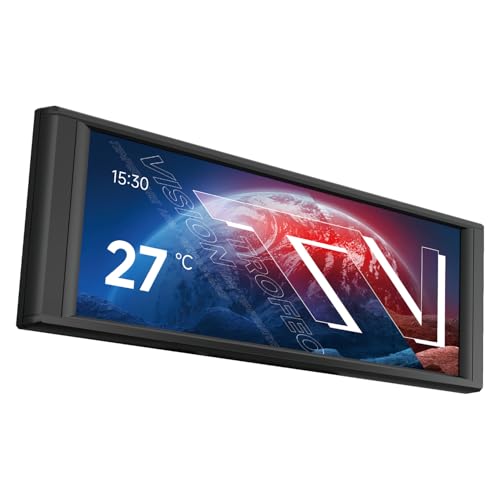
| Premium DIY Option | Display Size: 6.86 inches | Native Resolution: 1280×480 | Display Type: IPS LCD | VIEW LATEST PRICE | Read Our Analysis |
| WOWNOVA 4.6″ LCD PC Temperature Display Monitor Panel |

| Most Compact | Display Size: 4.6 inches | Native Resolution: 960×320 | Display Type: IPS LCD | VIEW LATEST PRICE | Read Our Analysis |
| WOWNOVA 8 Inch LCD PC Case Temperature Monitor |

| Best All-Around | Display Size: 8 inches | Native Resolution: 1280×800 | Display Type: IPS LCD | VIEW LATEST PRICE | Read Our Analysis |
| 8.8 Inch Touchscreen Secondary Display Monitor |

| Most Versatile | Display Size: 8.8 inches | Native Resolution: 480×1960 | Display Type: IPS LCD capacitive touchscreen | VIEW LATEST PRICE | Read Our Analysis |
More Details on Our Top Picks
Lian Li 8.8″ Universal PC Screen Temperature Display Panel
If you’re building a gaming or workstation setup and want to monitor system temperatures without dedicating screen real estate, the Lian Li 8.8″ Universal Screen (model SM088X) delivers what you need. This IPS LCD display features a 1920×480 resolution and mounts directly to your case via adjustable brackets or adhesive pads. You’ll connect it through USB, which powers the screen and enables hardware monitoring independently from your GPU. L-Connect 3 software lets you customize temperature displays in Celsius or Fahrenheit, select preset themes, and upload custom videos or photos. The built-in ARGB lighting syncs with your setup for visual consistency. Install using the correct H screws on the mounting bracket, then update L-Connect 3 to the latest version if the device doesn’t appear immediately.
- Display Size:8.8 inches
- Native Resolution:1920×480
- Display Type:IPS LCD
- Connectivity:USB 9-pin or Type-A
- Customization Software:L-Connect 3
- Mounting/Installation:Adjustable bracket with adhesive pads
- Additional Feature:Built-in diffused ARGB lighting
- Additional Feature:Temperature display with customizable units
- Additional Feature:Preset themes and custom video uploads
Thermalright Trofeo Vision LCD White Edition Case
The Thermalright Trofeo Vision LCD White Edition Case delivers a 6.86-inch IPS LCD display that’ll work best for builders who want customizable system monitoring without taking up internal case space. Connect the screen via USB Type-C to your motherboard’s 9-pin USB interface. Download TRCC software from the official site, unzip the installer, and run it—the program starts automatically with your computer. Use the three functional modules: Theme Background for custom visuals, Screen Mirroring for system data, and Video Player for lossless video playback. Mount the magnetic panel on your case’s side or bottom. Before installing software, verify all wiring connections are complete.
- Display Size:6.86 inches
- Native Resolution:1280×480
- Display Type:IPS LCD
- Connectivity:USB Type-C
- Customization Software:TRCC software
- Mounting/Installation:Magnetic panel design
- Additional Feature:Magnetic panel design installation
- Additional Feature:Screen mirroring functional module
- Additional Feature:Lossless video playback support
WOWNOVA 8 Inch LCD PC Case Temperature Display Monitor
Looking for a way to monitor your system’s performance without cluttering your desk with additional hardware? The WOWNOVA 8-inch LCD screen mounts directly inside your PC case and displays CPU, GPU, and RAM data in real time. You’ll connect it via USB-C or 9-pin connector—no separate power cable needed. The 1280 x 800 IPS panel offers clear viewing angles and adjustable brightness. Setup takes one click with the self-developed software. You can customize dynamic themes, switch between horizontal and vertical orientations, and extend your desktop display. This solution eliminates cable clutter while providing immediate access to system temperatures and performance metrics without occupying workspace.
- Display Size:8 inches
- Native Resolution:1280×800
- Display Type:IPS LCD
- Connectivity:USB-C or 9-pin
- Customization Software:Self-developed software with theme editor
- Mounting/Installation:Internal PC case mounting
- Additional Feature:Extended desktop display mode
- Additional Feature:Drag-and-drop layout customization
- Additional Feature:Eye protection brightness adjustment
Thermalright Trofeo Vision LCD Black Edition Case
Want a customizable display that installs without tools and connects via a single USB-C cable? The Thermalright Trofeo Vision LCD Black Edition delivers a 6.86-inch screen with 1280×480 resolution and a 2000:1 contrast ratio. Its magnetic panel design lets you position it flexibly within your case and remove it instantly. Use the TRCC software to edit themes, switch between static and dynamic images, or play uncompressed videos longer than five minutes. The IPS panel ensures consistent picture quality from different angles. You’ll monitor system parameters and control display settings directly through the background software, making this display both functional and visually customizable for your build.
- Display Size:6.86 inches
- Native Resolution:1280×480
- Display Type:IPS LCD
- Connectivity:USB Type-C
- Customization Software:TRCC software
- Mounting/Installation:Magnetic panel design
- Additional Feature:Magnetic attraction positioning flexibility
- Additional Feature:Three-way function toggle switching
- Additional Feature:Parameter monitoring and control
WOWNOVA 4.6″ LCD PC Temperature Display Monitor Panel
If you’re building a PC and want to monitor your system’s performance without cluttering your desk with extra monitors, the WOWNOVA 4.6″ LCD panel mounts directly inside your case to display real-time data like CPU and GPU temperatures, RAM usage, and FPS. The panel connects via a single 9-pin cable without requiring GPU ports. You’ll install the self-developed software for one-click setup and access customization features including drag-and-drop theme editing and preset visuals. The IPS display supports both horizontal and vertical orientations, fitting various case layouts. Windows 10/11 compatibility ensures broad system support. You can also enable extended desktop mode to use it as a secondary screen. Auto-start and screen auto-off features reduce energy consumption while protecting your eyes during extended sessions.
- Display Size:4.6 inches
- Native Resolution:960×320
- Display Type:IPS LCD
- Connectivity:9-pin
- Customization Software:Self-developed software with theme editor
- Mounting/Installation:Internal PC case mounting with desktop stand
- Additional Feature:Extended screen desktop mode
- Additional Feature:Horizontal/vertical orientation switching
- Additional Feature:Auto-off eye comfort feature
WOWNOVA 8 Inch LCD PC Case Temperature Monitor
The WOWNOVA 8 Inch LCD PC Case Temperature Monitor is built for PC enthusiasts who want real-time hardware data displayed directly inside their case without cluttering your desk setup. You’ll connect it using a single USB-C cable, requiring no separate power or GPU port. The IPS LCD screen displays your CPU, GPU, RAM, FPS, and HDD information with a 1280×800 resolution. You can customize the layout horizontally or vertically and choose from preset dynamic video themes or create your own. The monitor auto-starts with your system and includes brightness controls and eye protection features. Installation takes minutes, and the aluminum housing fits seamlessly into your case interior.
- Display Size:8 inches
- Native Resolution:1280×800
- Display Type:IPS LCD
- Connectivity:USB-C or 9-pin
- Customization Software:Self-developed software with theme editor
- Mounting/Installation:Internal PC case mounting
- Additional Feature:Professional artist theme updates
- Additional Feature:Extended desktop display capability
- Additional Feature:Screen auto-off energy saving
8.8 Inch Touchscreen Secondary Display Monitor
Monitoring your PC’s performance in real-time while you’re gaming or working demands a dedicated display that fits seamlessly into your case without taking up valuable space. This 8.8-inch touchscreen monitor delivers exactly that. It connects via HDMI and USB-C, requiring no drivers for Windows 10/11 or Linux systems. The 480×1960 resolution provides clear visibility of temperatures and system stats. Set it up by plugging in the HDMI cable to your graphics card and the USB cable for power. Download AIDA64 to display CPU and GPU temperatures directly on the screen. The capacitive touchscreen lets you interact with data instantly. At just 3.8 watts, it draws minimal power and fits most case layouts.
- Display Size:8.8 inches
- Native Resolution:480×1960
- Display Type:IPS LCD capacitive touchscreen
- Connectivity:HDMI input with USB Type-C power
- Customization Software:AIDA64 compatible (driver-free)
- Mounting/Installation:Plug-and-play HDMI connection
- Additional Feature:Capacitive touchscreen responsive control
- Additional Feature:Driver-free plug-and-play setup
- Additional Feature:Multi-system OS compatibility support
Factors to Consider When Choosing an LCD Screen for PC Case
When selecting an LCD screen for your PC case, you’ll need to evaluate display resolution and clarity to ensure sharp visuals, determine the appropriate screen size and dimensions that fit your case layout, and verify connectivity and power requirements match your motherboard’s available ports and power supply capacity. Next, examine the software customization options available to you, as they’ll determine what system information you can display and how you can personalize the screen’s appearance. Finally, assess mounting flexibility and design compatibility so the screen integrates seamlessly with your case without requiring extensive modifications.
Display Resolution and Clarity
How do you know if an LCD screen will actually look sharp in your PC case? You’ll want to examine the native resolution first. Higher resolutions like 1920×480 or 1280×800 deliver crisper text and more detailed visuals on compact displays. Next, check the pixel density measured in pixels per inch (PPI). On smaller screens like 8.8″ or 6.86″ models, higher PPI reduces jagged edges and blurriness. You should also consider the panel type—IPS panels offer better viewing angles and consistent clarity compared to alternatives. Finally, evaluate the finish. Glossy screens reflect more light, while matte finishes reduce glare. Choose based on your setup’s lighting conditions. These factors combined determine whether your display maintains sharp, readable visuals during everyday use.
Screen Size and Dimensions
What’s the right screen size for your PC case? You’ll find displays ranging from 4.6 to 8.8 inches, and your choice depends on how much data you want visible at once. Smaller screens fit tight spaces but display less information. Larger screens show more dashboard details but require more case real estate. Next, check the physical dimensions—thickness around 0.39 inches and width/height between 5–9 inches—to ensure mounting compatibility with your fans and panels. Consider the weight, roughly 0.5–0.9 pounds, since heavier units demand stronger brackets or mounting solutions. Match these dimensions to your case’s available space before purchasing. This prevents installation problems and ensures your screen integrates seamlessly into your build.
Connectivity and Power Requirements
Once you’ve confirmed your case has the physical space for your chosen screen, you’ll need to examine its connectivity options and power setup. Most compact PC case displays connect via USB-C or 9-pin USB connectors, which handle both power and data simultaneously. Some models support power delivery over USB-C, while others require a dedicated 9-pin header connected directly to your motherboard. Before purchasing, verify your motherboard has available USB headers or USB-C ports. Consider your cable routing—magnetic or adhesive mounting affects where cables must reach within your case. Check whether the display operates independently as a secondary monitor or requires software for accessing themes and hardware stats. Confirm power draw specifications to ensure your PSU can support the additional load.
Software Customization Options
Why settle for static displays when you can tailor your LCD screen to match your build’s aesthetics and monitor your system in real time? Look for software offering dynamic themes, overlay editing, and background editors to customize your visuals and data displays. You’ll want a dedicated module structure—Function Module, Overlay, and Background Editor—for organizing different screens and widgets efficiently. Verify your software’s OS compatibility; note that some platforms don’t support Linux. Check whether you can import or upload personal content like videos and images for customized displays. Finally, confirm the software runs in the background and launches at system boot, ensuring continuous display control without manual intervention each startup.
Mounting Flexibility and Design
How you mount your LCD screen within your case determines both its functionality and your ability to access it for adjustments. Magnetic panel designs offer tool-free removal, letting you reposition the screen as needed. You can place it on the case’s side or bottom to achieve different viewing angles. Adjustable mounting brackets provide height and tilt options—attach them to fan frames, case panels, or flat surfaces using adhesive pads. For internal installations without GPU ports, use USB-C or 9-pin connections to hide wiring. Some screens support desktop extended mode, functioning as secondary monitors outside the case. Choose your mounting method based on your case layout, component placement, and whether you need frequent access to internal components.
Compatibility With Your System
Beyond selecting the right mounting method, you’ll need to verify that your LCD screen works with your specific hardware and operating system. Check whether your motherboard or case panel supports USB-C or 9-pin USB connections, as most internal displays require USB power without relying on GPU ports. Confirm the monitor supports auto-start and extended desktop mode for seamless operation as a secondary display. Review software requirements carefully—some screens require Windows-only control software like L-Connect 3, while others support Linux. If you use Linux, verify compatibility before purchasing. Additionally, examine resolution and panel type to ensure the display fits your case dimensions and provides adequate viewing angles. Cross-reference these specifications with your system’s capabilities to avoid compatibility issues.
Durability and Build Quality
Since internal LCD screens sit permanently inside your case, you’ll want to prioritize materials and construction methods that resist wear over time. Choose models with aluminum or metal housings instead of plastic, as they offer superior rigidity and heat dissipation. Look for magnetic panel designs that allow tool-free removal without using screws, which reduces wear on mounting points. Select screens featuring glossy IPS LCD panels with protective coatings to ensure consistent viewing angles and durability against reflections. Verify that internal mounting supports and adjustable brackets securely hold the display against vibrations and case movement. Finally, opt for one-cable USB-C or 9-pin connectivity rather than multiple ports, minimizing clutter and port wear during installation and future adjustments.
Final Thoughts
You’ll transform your PC build by selecting an LCD screen that matches your case size and connectivity needs. Choose between compact 4.6″ panels for tight spaces or expansive 8.8″ displays for visibility. Verify USB-C or 9-pin compatibility with your motherboard. Install using magnetic panels or adjustable brackets for flexibility. Customize software overlays and themes to suit your aesthetic. Durable aluminum housings and protective glass ensure longevity in your setup.

Meet Ry, “TechGuru,” a 36-year-old technology enthusiast with a deep passion for tech innovations. With extensive experience, he specializes in gaming hardware and software, and has expertise in gadgets, custom PCs, and audio.
Besides writing about tech and reviewing new products, he enjoys traveling, hiking, and photography. Committed to keeping up with the latest industry trends, he aims to guide readers in making informed tech decisions.