
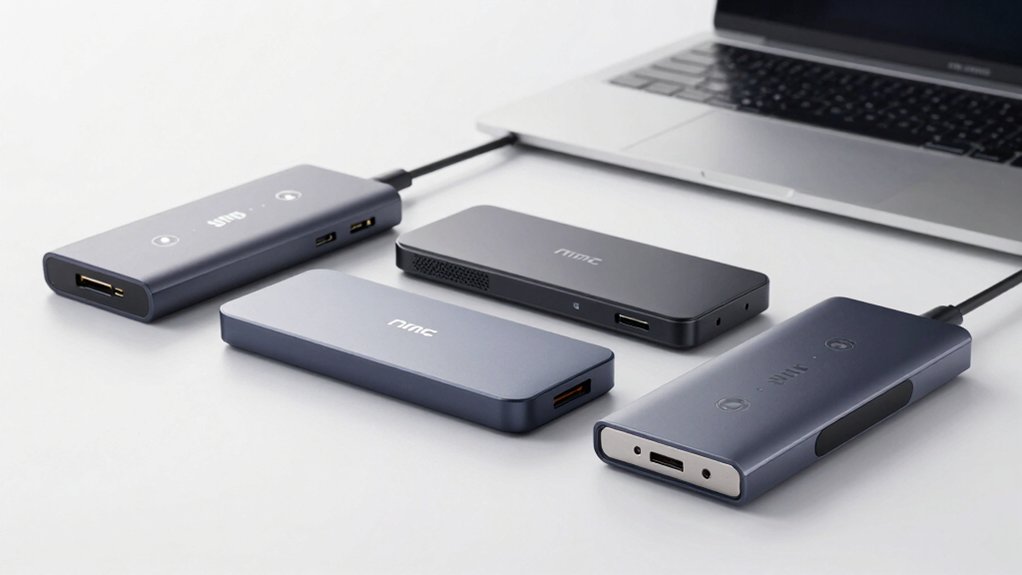

You’re dealing with lag when connecting multiple devices to your laptop. The solution lies in selecting the right USB hub—one that matches your speed requirements, power needs, and device count. You’ll find several proven options that deliver genuine performance without slowdowns. Each hub type offers distinct advantages depending on your setup. To find the hub that actually solves your connectivity issues, you need to understand what separates the performers from the rest.
| Acer USB 3.0 Hub 4 Ports with Type C Power |

| Best Budget Pick | Data Transfer Speed: Up to 5 Gbps | Total Ports: 4 USB 3.0 ports | Operating System Compatibility: macOS, Windows, ChromeOS, Linux | VIEW LATEST PRICE | Read Our Analysis |
| Anker USB 3.0 Hub 4 Ports USB Splitter |

| Most Reliable | Data Transfer Speed: Up to 5 Gbps | Total Ports: 4 USB 3.0 ports | Operating System Compatibility: Windows XP and above, Linux | VIEW LATEST PRICE | Read Our Analysis |
| Anker 5-in-1 USB-C Hub with 4K HDMI |

| Best for Display Output | Data Transfer Speed: Up to 5 Gbps (USB-C and USB-A data ports) | Total Ports: 5 ports (1 HDMI, 1 USB-C data, 2 USB-A data, 1 USB-C PD-IN) | Operating System Compatibility: Windows 10/11, macOS 12+, ChromeOS (not Linux) | VIEW LATEST PRICE | Read Our Analysis |
| Anker 7-in-1 USB-C Hub with HDMI and Card Reader |

| Most Versatile | Data Transfer Speed: Up to 5 Gbps (USB-A and USB-C data ports) | Total Ports: 7 ports (HDMI, 2 USB-A 3.0, USB-C data, USB-C PD, 2 SD/TF card readers) | Operating System Compatibility: Windows and MacBook computers (DP Alt Mode required) | VIEW LATEST PRICE | Read Our Analysis |
| BERLAT 7-in-1 USB-C Hub with USB 3.0 Ports |

| Best Aluminum Design | Data Transfer Speed: USB 3.0 up to 5 Gbps; USB 2.0 up to 480 Mbps | Total Ports: 7 ports (1 USB 3.0, 4 USB 2.0, 2 USB-C 2.0) | Operating System Compatibility: Windows 10, Mac OS X, Android, ChromeOS, Linux | VIEW LATEST PRICE | Read Our Analysis |
| UGREEN USB 3.0 Hub 4 Ports Ultra-Slim Expander |

| Most Compact | Data Transfer Speed: Up to 5 Gbps | Total Ports: 4 USB 3.0 ports | Operating System Compatibility: Windows, macOS, Linux, Chrome OS | VIEW LATEST PRICE | Read Our Analysis |
| USB Hub 3.0 7-Port with Individual On/Off Switches |

| Best With Controls | Data Transfer Speed: 5 Gbps (USB 3.0) | Total Ports: 7 USB ports | Operating System Compatibility: Windows 10/8/8.1/7/Vista/XP, Mac OS X, Linux, Chrome OS | VIEW LATEST PRICE | Read Our Analysis |
More Details on Our Top Picks
Acer USB 3.0 Hub 4 Ports with Type C Power
Why settle for a hub that can’t handle multiple devices at once? The Acer USB 3.0 Hub operates all four ports simultaneously without performance drops. Connect your flash drive, mouse, keyboard, and printer at the same time—they’ll all work together reliably. The built-in GL3510 chip delivers up to 5 Gbps data transfer speeds. For external hard drives, connect the Type-C power port using the included 5V adapter to ensure stable transmission. The 2ft cable keeps connections flexible, and the lightweight design fits easily in your laptop bag. Setup takes seconds—just plug it in, and you’re ready to go. Windows, macOS, ChromeOS, and Linux all recognize it instantly. No drivers needed.
- Data Transfer Speed:Up to 5 Gbps
- Total Ports:4 USB 3.0 ports
- Operating System Compatibility:macOS, Windows, ChromeOS, Linux
- Design Material:ABS plastic
- Warranty Period:1 year
- Plug-and-Play Installation:No driver required; plug and play
- Additional Feature:USB Type-C power port included
- Additional Feature:Built-in GL3510 chip
- Additional Feature:2ft cable included
Anker USB 3.0 Hub 4 Ports USB Splitter
The Anker USB 3.0 Hub expands a single USB port into four, making it an ideal choice if you’re working with multiple peripherals on a laptop with limited ports. This hub delivers SuperSpeed data transfer rates up to 5 Gbps, allowing you to connect keyboards, mice, USB flash drives, and other devices simultaneously. The compact design measures 27.68 inches in length with a durable plastic enclosure that resists heat damage. It’s compatible with Windows XP through Windows 10 and Linux systems. The hub includes an 18-month warranty and Anker’s customer support. Note that this hub doesn’t charge devices—it’s strictly for data transfer and peripheral connectivity.
- Data Transfer Speed:Up to 5 Gbps
- Total Ports:4 USB 3.0 ports
- Operating System Compatibility:Windows XP and above, Linux
- Design Material:Plastic
- Warranty Period:18 months
- Plug-and-Play Installation:Plug and play (implied by design)
- Additional Feature:Ultra slim profile design
- Additional Feature:80 million+ powered devices
- Additional Feature:Worry-free customer support
Anker 5-in-1 USB-C Hub with 4K HDMI
Looking to connect your laptop to an external monitor while charging and transferring data simultaneously? The Anker 5-in-1 USB-C Hub delivers this capability with its 4K HDMI output, USB-C data port, two USB-A ports, and dedicated charging port. Connect the hub to your laptop’s USB-C port, then attach your monitor to the HDMI port and plug your charger into the USB-C PD-IN port for up to 85W pass-through charging. Use the remaining USB-A and USB-C data ports for external drives or peripherals. Note that you can’t output video from both HDMI and the USB-C data port simultaneously, and the charging port doesn’t transfer data.
- Data Transfer Speed:Up to 5 Gbps (USB-C and USB-A data ports)
- Total Ports:5 ports (1 HDMI, 1 USB-C data, 2 USB-A data, 1 USB-C PD-IN)
- Operating System Compatibility:Windows 10/11, macOS 12+, ChromeOS (not Linux)
- Design Material:Aluminum
- Warranty Period:18 months
- Plug-and-Play Installation:Plug and play (DP Alt Mode + Power Delivery required for certain connections)
- Additional Feature:4K HDMI video output
- Additional Feature:100W Power Delivery charging
- Additional Feature:Pass-through charging capability
Anker 7-in-1 USB-C Hub with HDMI and Card Reader
If you’re working with video presentations, photo editing, or file transfers on your laptop, you’ll want a hub that doesn’t force you to choose between connectivity and performance. The Anker 7-in-1 offers seven ports: HDMI for 4K@60Hz output, two USB-A 3.0 ports, a USB-C data port, USB-C Power Delivery charging up to 85W, and dual SD/TF card readers. Connect your external display via HDMI while simultaneously transferring files through the USB ports at 5 Gbps. Use the card readers to import photos directly from your camera. This hub works with any USB-C laptop supporting DisplayPort Alt Mode and Power Delivery.
- Data Transfer Speed:Up to 5 Gbps (USB-A and USB-C data ports)
- Total Ports:7 ports (HDMI, 2 USB-A 3.0, USB-C data, USB-C PD, 2 SD/TF card readers)
- Operating System Compatibility:Windows and MacBook computers (DP Alt Mode required)
- Design Material:Metal (gray enclosure)
- Warranty Period:18 months
- Plug-and-Play Installation:Plug and play (compatible with DP Alt Mode devices)
- Additional Feature:Dual SD/TF card readers
- Additional Feature:4K@60Hz video output
- Additional Feature:85W max PD charging
BERLAT 7-in-1 USB-C Hub with USB 3.0 Ports
Need to connect multiple devices to your laptop without sacrificing speed or portability? The BERLAT 7-in-1 USB-C Hub delivers seven ports in a compact aluminum design. You’ll get one USB 3.0 port for fast 5Gbps transfers, four USB 2.0 ports at 480 Mbps, and two USB-C ports. This hub works with MacBook Pro/Air, Windows laptops, and Android devices. Simply plug the hub into your USB-C port, then connect your peripherals—keyboard, mouse, external drive, or camera. The lightweight 40-gram design fits easily in your bag. Its one-year warranty and 30-day return guarantee provide purchase protection.
- Data Transfer Speed:USB 3.0 up to 5 Gbps; USB 2.0 up to 480 Mbps
- Total Ports:7 ports (1 USB 3.0, 4 USB 2.0, 2 USB-C 2.0)
- Operating System Compatibility:Windows 10, Mac OS X, Android, ChromeOS, Linux
- Design Material:Aluminum alloy
- Warranty Period:1 year
- Plug-and-Play Installation:Driver requirements not specified
- Additional Feature:Aluminum alloy construction
- Additional Feature:4 USB 2.0 ports included
- Additional Feature:Supports multiple device types
UGREEN USB 3.0 Hub 4 Ports Ultra-Slim Expander
The UGREEN USB 3.0 Hub’s ultra-slim design makes it your best choice if you’re frequently moving between locations and can’t afford extra bulk in your laptop bag. This four-port hub converts one USB-A port into four, letting you connect mice, keyboards, flash drives, and printers simultaneously. It delivers 5 Gbps transfer speeds, meaning you’ll move a 10 GB file in roughly 16 seconds. Setup requires zero drivers—just plug it in and start working across Windows, macOS, Linux, and Chrome OS. The hub weighs 33 grams and measures 0.3 inches thick, fitting easily into any travel bag. UGREEN backs it with a 24-month warranty, and Amazon offers a 30-day return guarantee for added peace of mind.
- Data Transfer Speed:Up to 5 Gbps
- Total Ports:4 USB 3.0 ports
- Operating System Compatibility:Windows, macOS, Linux, Chrome OS
- Design Material:Plastic
- Warranty Period:24 months
- Plug-and-Play Installation:No drivers needed; plug and play
- Additional Feature:Ultra-slim 0.4 inch thickness
- Additional Feature:24-month warranty included
- Additional Feature:Compatible with Xbox/PS5
USB Hub 3.0 7-Port with Individual On/Off Switches
Want to control which USB devices draw power without unplugging them? This 7-port hub lets you toggle each port independently with dedicated switches and indicator lights. You’ll manage power consumption efficiently, which matters when connecting power-hungry devices like external hard drives or printers alongside low-draw peripherals like mice and keyboards. The hub transfers data at 5 Gbps, moving HD files in seconds. Its compact design fits laptop bags, and the 1-meter cable provides flexible positioning. Connect it to Windows, Mac, or Linux systems. When you attach multiple high-power devices, connect the included power supply to avoid performance drops and ensure all ports function reliably.
- Data Transfer Speed:5 Gbps (USB 3.0)
- Total Ports:7 USB ports
- Operating System Compatibility:Windows 10/8/8.1/7/Vista/XP, Mac OS X, Linux, Chrome OS
- Design Material:Plastic
- Warranty Period:Covered by Amazon return policy (warranty details via link)
- Plug-and-Play Installation:Plug compatible; built-in high-performance chip for safety
- Additional Feature:Individual port on/off switches
- Additional Feature:1 meter long cable included
- Additional Feature:Supports hot swapping devices
Factors to Consider When Choosing USB Hubs for Laptops
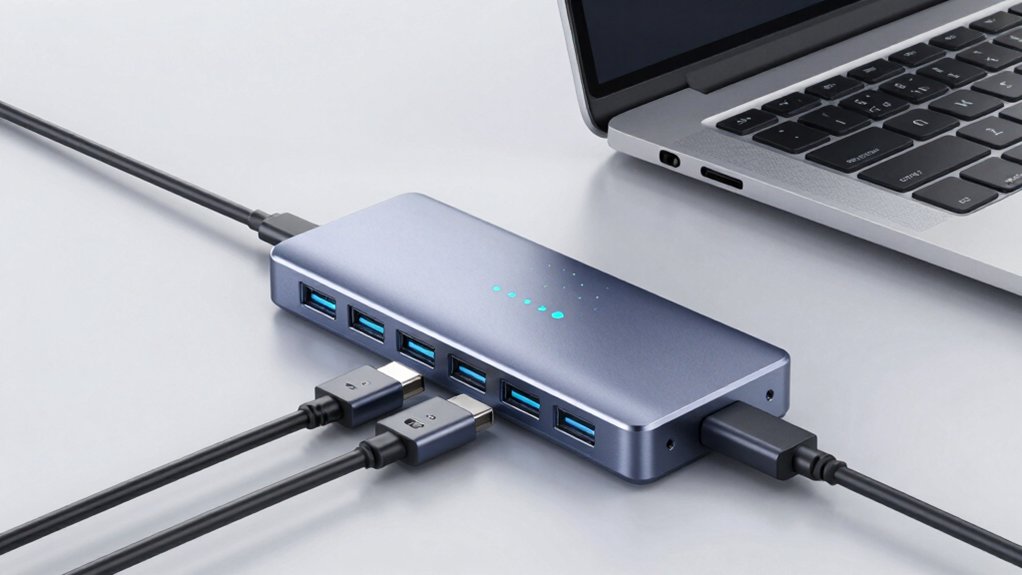
You’ll need to evaluate five key factors before selecting a USB hub: first, determine how many ports you need and whether you require USB-A, USB-C, or a combination of both types. Second, check the data transfer speed (USB 2.0, 3.0, or 3.1) against your devices’ requirements, since faster speeds prevent bottlenecks when transferring large files or using external drives. Third, confirm the hub provides adequate power delivery if you’re charging laptops or powering high-demand devices, check OS compatibility with your computer’s operating system, and assess whether you need a portable design for travel or a stationary setup for your desk.
Port Count And Type
Before selecting a USB hub, you’ll want to examine both the number of ports it offers and the specific types included, since these factors directly determine how many devices you can connect and whether they’ll work with your laptop.
Most hubs provide between 4 and 7 ports. Check your laptop’s native ports—USB-A or USB-C—and match the hub’s port types accordingly. If your laptop has USB-C, prioritize USB-C hubs for optimal compatibility. Consider your device lineup: do you need data ports, charging ports, or both simultaneously? Some hubs combine USB-A and USB-C ports, offering flexibility. Verify whether the hub supports power delivery if you’ll charge your laptop while using peripherals. This port configuration ensures your devices connect reliably without compatibility issues.
Data Transfer Speed Requirements
How fast does your hub need to be? USB 3.0 hubs deliver up to 5 Gbps, considerably faster than USB 2.0 options. However, you must understand that bandwidth gets shared when you connect multiple devices. If you’re transferring large files or using 4K video output, verify your hub has multiple ports rated for 5 Gbps. This prevents bottlenecks that slow your workflow. Check the specifications carefully—not all ports on a hub perform equally. If you’re using USB-C ports, confirm they support 5 Gbps data transfer to match USB-A 3.0 speeds. For high-speed external storage or video work, prioritize hubs with several 5 Gbps ports. Consider your host controller’s capabilities too, as it affects how many devices can maintain peak speeds simultaneously.
Power Delivery Capabilities
Most modern USB hubs include Power Delivery (PD) input, which lets you connect a charger to the hub itself so it can supply 85W–100W of power to both the hub and your connected devices simultaneously. Check the hub’s PD rating and match it to your laptop’s power requirements—for example, if your laptop needs 85W, select a hub rated for 85W or higher. Keep in mind that PD-In ports handle charging only and don’t transfer data. Your data ports maintain a maximum speed of 5 Gbps on USB 3.0 and USB-C lines. Verify whether the hub includes a compatible charger or if you must purchase one separately to achieve the advertised wattage for reliable operation.
Device Compatibility And OS Support
What operating system does your laptop run? You’ll need to match your hub to Windows, macOS, Linux, or ChromeOS and verify version compatibility. Check whether your laptop uses USB-C with DP Alt Mode or Thunderbolt, as modern devices often require these standards for data and video. Confirm that any USB-A ports on your hub support USB 3.0 or higher to maintain fast transfer speeds for your peripherals. Determine if the hub needs drivers or works plug-and-play—some models function immediately without installation. If you plan to connect game consoles like PS4 or Xbox, verify that your specific hub model supports those devices, since compatibility varies by operating system. Cross-reference these specifications against your laptop’s documentation before purchasing.
Portability And Design Form Factor
Once you’ve confirmed your hub works with your laptop’s operating system and ports, you’ll need to evaluate how well it fits your mobile lifestyle. Start by checking the hub’s total weight and dimensions against your laptop bag’s available space. Look for slim, lightweight designs that maximize portability without sacrificing durability. Examine the hub housing material—aluminum offers better heat dissipation than ABS plastic, though both work in compact forms. Next, verify the cable length, typically around two feet, to ensure comfortable reach on your desk or lap without creating clutter. Finally, assess the hub’s footprint to confirm it won’t obstruct your laptop screen or take up excessive desk real estate. These practical specifications directly determine whether you’ll actually carry and use your hub consistently.
Final Thoughts
You’ll want to select a USB hub based on your specific needs. Choose the Anker 4-Port for basic expansion, or pick a 7-in-1 model if you need HDMI and card reading. Verify your laptop’s USB-C or USB-A ports first. Check the power delivery wattage matches your devices. Confirm compatibility with your operating system. Once you’ve identified these requirements, you can confidently purchase a hub that eliminates lag and supports your workflow efficiently.

Meet Ry, “TechGuru,” a 36-year-old technology enthusiast with a deep passion for tech innovations. With extensive experience, he specializes in gaming hardware and software, and has expertise in gadgets, custom PCs, and audio.
Besides writing about tech and reviewing new products, he enjoys traveling, hiking, and photography. Committed to keeping up with the latest industry trends, he aims to guide readers in making informed tech decisions.