

If you’re managing two computers with separate keyboard and mouse setups, you’re wasting desk space and creating unnecessary clutter. A keyboard and mouse switch solves this problem by letting you control both machines from a single input device. You’ll find several reliable options available, each with distinct advantages depending on your setup—but which one’s right for your specific needs?
| BENFEI USB 3.0 Switch for 2 Computers |

| Best Budget Pick | USB Data Transfer Speed: USB 3.0 (5 Gbps) | Number of USB Ports: 4 USB ports | Computer Support: 2 computers | VIEW LATEST PRICE | Read Our Analysis |
| Hearvo USB 3.0 HDMI KVM Switch for 2 Computers |
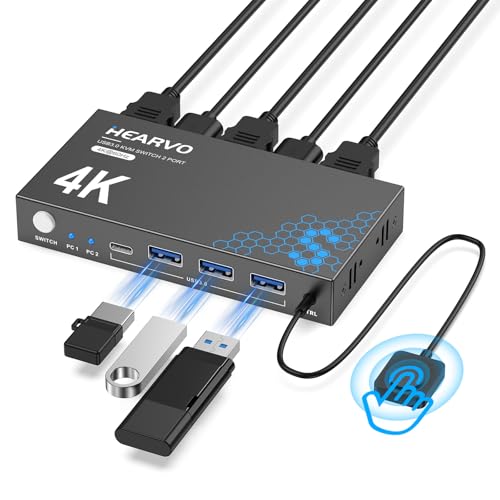
| Best Overall | USB Data Transfer Speed: USB 3.0 (5 Gbps) | Number of USB Ports: 4 USB ports (3×USB-A + 1×USB-C) | Computer Support: 2 computers | VIEW LATEST PRICE | Read Our Analysis |
| UGREEN USB Switch Selector for 2 Computers & 4 Devices |

| Best Value | USB Data Transfer Speed: USB 2.0 | Number of USB Ports: 4 USB ports | Computer Support: 2 computers | VIEW LATEST PRICE | Read Our Analysis |
| BENFEI USB 3.0 Switch for Multiple Computers |
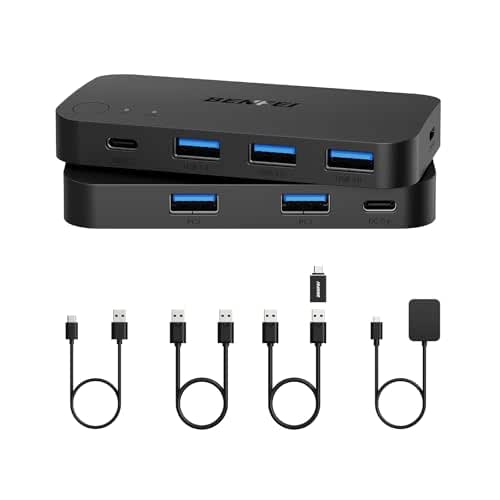
| Premium Alternative | USB Data Transfer Speed: USB 3.0 (5 Gbps) | Number of USB Ports: 3 USB 3.0 ports + 1 USB-C port | Computer Support: 2 computers | VIEW LATEST PRICE | Read Our Analysis |
More Details on Our Top Picks
BENFEI USB 3.0 Switch for 2 Computers
If you’re working with two computers and need to share peripherals without constantly unplugging and reconnecting cables, the BENFEI USB 3.0 Switch is designed for you. This device lets two computers share four USB ports for keyboards, mice, printers, and scanners. You’ll get fast 5 Gbps data transfer speeds with USB 3.0 compatibility, plus backward support for USB 2.0 devices. The switch includes an LED indicator and push-button control for selecting between computers. For high-power devices like external hard drives, connect the included USB-C power supply. The unit works with Windows, Mac, and Linux systems and comes with an 18-month warranty.
- USB Data Transfer Speed:USB 3.0 (5 Gbps)
- Number of USB Ports:4 USB ports
- Computer Support:2 computers
- Switching Control Method:Push-button switcher
- Operating System Compatibility:Windows, Mac, Linux, Chrome OS
- Warranty Duration:18 months
- Additional Feature:Extra USB-C power supply slot
- Additional Feature:Backward compatible with USB 2.0
- Additional Feature:Metal construction with plastic contacts
Hearvo USB 3.0 HDMI KVM Switch for 2 Computers
The Hearvo S7232H KVM switch works best for you if you’re managing two computers with a single monitor and need to share peripherals like keyboards, mice, and printers without constantly unplugging cables. This unit connects to both computers via HDMI and USB, then routes everything through one monitor and keyboard-mouse set. You’ll switch between computers using either the physical button on the device or the included wired remote control. The switch supports 4K@60Hz video, USB 3.0 speeds up to 5 Gbps, and requires no external power or drivers. Setup takes minutes—plug in cables, attach anti-slip pads, and you’re ready to work. The lifetime protection plan covers long-term reliability concerns.
- USB Data Transfer Speed:USB 3.0 (5 Gbps)
- Number of USB Ports:4 USB ports (3×USB-A + 1×USB-C)
- Computer Support:2 computers
- Switching Control Method:Push-button and wired remote switch
- Operating System Compatibility:Windows, Mac, Linux
- Warranty Duration:Lifetime Protection Plan
- Additional Feature:4K@60Hz HDMI video support
- Additional Feature:Wired remote switch included
- Additional Feature:Lifetime Protection Plan included
UGREEN USB Switch Selector for 2 Computers & 4 Devices
Need to share multiple USB devices like printers, scanners, and keyboards between two computers without constantly unplugging cables? The UGREEN USB Switch Selector handles this task efficiently. This 2-in-4-out switch box lets you connect four USB devices to two computers and toggle between them using a single button. Simply plug your devices into the switch’s four ports, connect your two computers via the included USB A-to-A cables, and press the button to swap which computer controls the devices. The LED indicator shows you which computer’s active. For multiple simultaneous devices, connect the optional micro-USB power source to prevent disconnections. Installation requires no drivers—it works immediately on Windows, Mac, Linux, and Chrome OS.
- USB Data Transfer Speed:USB 2.0
- Number of USB Ports:4 USB ports
- Computer Support:2 computers
- Switching Control Method:One-button push control
- Operating System Compatibility:Windows, Mac, Linux, Chrome OS
- Warranty Duration:24 months
- Additional Feature:Micro-USB power input port
- Additional Feature:Driver-free plug-and-play setup
- Additional Feature:Up to 50 watts wattage
BENFEI USB 3.0 Switch for Multiple Computers
You’ll want to contemplate the BENFEI USB 3.0 Switch if you’re working with two computers that need to share multiple USB peripherals without constant unplugging and replugging. This device connects 2 computers to 3 USB 3.0 ports and 1 USB-C port simultaneously. Switch between computers using the button on the device or the included remote control. It supports keyboards, mice, printers, and cameras with data transfer speeds up to 5 Gbps. Installation requires only a BENFEI USB A to USB A cable—no drivers needed. For power-hungry devices like external hard drives, connect the optional power supply through the USB-C port. The 18-month warranty covers any defects or issues.
- USB Data Transfer Speed:USB 3.0 (5 Gbps)
- Number of USB Ports:3 USB 3.0 ports + 1 USB-C port
- Computer Support:2 computers
- Switching Control Method:Push-button and remote control
- Operating System Compatibility:Windows, Mac, Linux, Chrome OS
- Warranty Duration:18 months
- Additional Feature:USB-C power input design
- Additional Feature:Remote control switching method
- Additional Feature:One-click device switching feature
Factors to Consider When Choosing a Keyboard and Mouse Switch for 2 Computers
When you’re choosing a keyboard and mouse switch for two computers, you’ll need to check device compatibility, USB speed standards, and the number of ports available to ensure the switch meets your setup’s needs. Next, you should verify the power supply requirements—whether the switch needs external power or runs on bus power—and confirm that your power source can support it. Finally, you’ll want to evaluate the switching methods, such as hotkey commands, button presses, or automatic detection, so you can select the control option that fits your workflow best.
Compatibility With Your Devices
What operating systems do your two computers run? Check whether you’re using Windows, Mac, Linux, or Chrome OS, since not all switches support every system equally. Verify that your chosen switch offers driver-free plug-and-play functionality for seamless operation across your devices.
Next, confirm USB standard compatibility. If you’re connecting high-speed peripherals like external hard drives or cameras, you’ll need USB 3.0 or 3.1 with 5 Gbps speeds. For basic keyboards and mice, USB 2.0 backward compatibility suffices.
Finally, determine whether you need video signal transmission. Standard USB switches handle only peripherals, while KVM switches also transmit HDMI or display signals simultaneously. Match the switch type to your actual sharing needs before purchasing.
USB Speed And Data Transfer
How fast does your switch actually transfer data between computers? Your switch’s speed depends on its port type. USB 3.0 ports deliver up to 5 Gbps, while USB 2.0 ports are considerably slower. If you’re transferring files from external drives or cameras, you’ll want USB 3.0 support to maintain high data rates across both computers. USB 3.0 switches work backward compatible with USB 2.0 devices, but those devices’ll operate at USB 2.0 speeds only. For high-power peripherals, choose a switch with dedicated USB-C power input to avoid bottlenecking data transfer. LED indicators and push-button controls don’t affect speed—they simply confirm which computer’s active. Prioritize USB 3.0 capability for optimal performance.
Number Of Ports Available
Most keyboard and mouse switches for two computers come with either three or four USB ports, and you’ll want to match the port count to your actual peripheral needs. Count your devices—keyboards, mice, printers, and scanners—before purchasing. A four-port switch accommodates more peripherals simultaneously without requiring additional hubs. Three-port models work if you’re connecting only essential devices. Some switches include USB-C ports alongside USB-A ports, expanding compatibility for modern peripherals. Others feature dedicated power-input ports (micro-USB or USB-C) that support high-power devices like external hard drives or USB cameras, preventing disconnections during operation. Verify whether the switch offers a mix of connection types. This prevents needing extra adapters or hubs, saving desk space and reducing cable clutter while keeping your setup streamlined.
Power Supply Requirements
Did you know that many keyboard and mouse switches don’t include built-in power supplies, leaving you to decide whether you need one? Check your switch’s current rating—typically 1–2 Amps at 5 volts—to determine if it’ll safely power your devices. If you’re connecting high-power peripherals like external hard drives or USB cameras, purchase an optional external power supply separately. Verify whether your model accepts USB-C or micro-USB input, since this affects which cables you’ll use. Without adequate external power, your devices may disconnect unexpectedly or perform poorly. Calculate your total power needs by adding each connected device’s requirements, then compare that total to your switch’s capacity to ensure reliable operation.
Switching Methods And Control
When you’re selecting a keyboard and mouse switch for two computers, you’ll encounter three primary switching methods: a push-button on the device itself, a remote switch you operate from a distance, or a wired remote that connects directly to the unit. Each method offers distinct advantages depending on your setup and accessibility needs.
Push-buttons provide direct control and require no additional equipment. Remote switches let you toggle between computers from your desk without reaching the device. Wired remotes offer flexibility in placement while maintaining reliable connections.
Some models support dual switching methods, combining button and remote functionality for maximum convenience. LED indicators display which computer’s currently active, eliminating guesswork. Choose your switching method based on your workspace layout and how frequently you alternate between systems.
Build Quality And Durability
How can you guarantee your keyboard and mouse switch will last through years of daily use? Start by selecting a switch with sturdy construction materials, such as an aluminum chassis or reinforced plastics, to withstand frequent plugging and switching. Next, verify the power design includes optional external power input for high-power devices, preventing overheating and instability. Check for clearly labeled LED indicators and tactile, durable switch buttons that maintain reliability and status recognition over time. Examine the warranty length—aim for 18-month or 24-month coverage as a measure of manufacturer confidence. Finally, confirm the product includes essential cables or adapters, like USB A-to-A cables, to avoid connector stress from additional purchases during daily use.
Warranty And Support Options
Beyond selecting a durable switch with quality materials, you’ll want to examine the warranty and support protections that come with your purchase. BENFEI products offer an 18-month unconditional warranty, while UGREEN provides a 24-month warranty. Compare these timeframes against your expected usage period. Check what each warranty covers—typically hardware defects but not accidental damage. Review the support channels available, such as customer service responsiveness and accessibility. Some manufacturers include lifetime protection plans that extend beyond standard warranty periods. Verify the claim process by confirming whether you need receipts, proof of purchase, or product registration. Contact customer service before buying to assess their problem-solving responsiveness. This direct communication reveals how quickly they address issues and whether support remains available when you need it most.
Final Thoughts
You’ll want to choose a switch based on your setup needs. If you need video switching, pick the Hearvo KVM. For keyboard and mouse only, the Benfei or UGREEN models work well. Check your computer ports—USB-A, USB-C, or HDMI—before buying. Install any drivers if required, then connect your devices. Test the switch by pressing the physical button to confirm it toggles between computers correctly.

Meet Ry, “TechGuru,” a 36-year-old technology enthusiast with a deep passion for tech innovations. With extensive experience, he specializes in gaming hardware and software, and has expertise in gadgets, custom PCs, and audio.
Besides writing about tech and reviewing new products, he enjoys traveling, hiking, and photography. Committed to keeping up with the latest industry trends, he aims to guide readers in making informed tech decisions.