
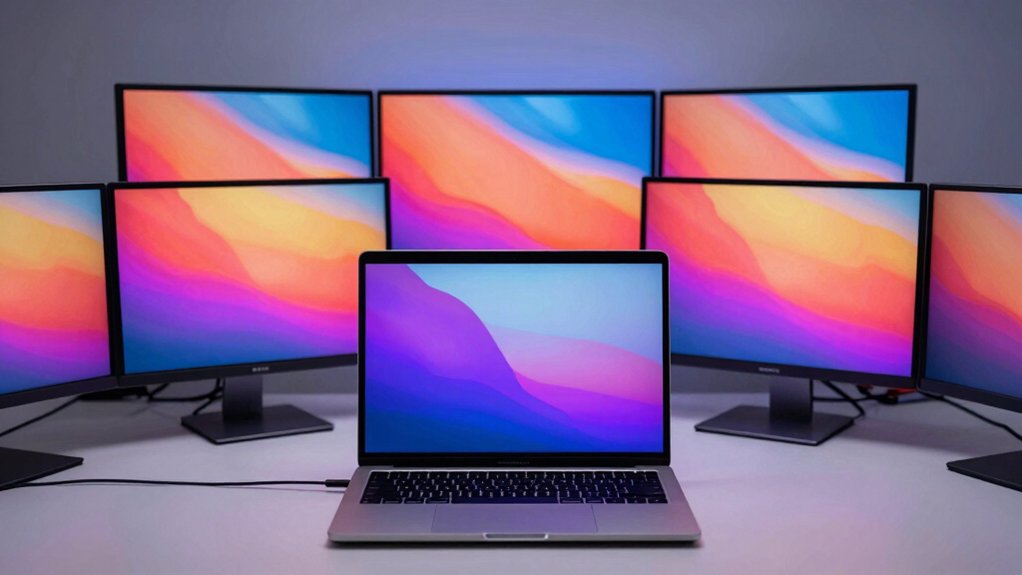

When you connect an external monitor to your MacBook Pro, you’ll greatly expand your workspace and productivity. You can choose from several display types—4K monitors offer sharp detail for design work, curved ultrawide models provide extended viewing space, and portable screens add flexibility for mobile setups. Each option brings specific advantages depending on your tasks. To find the right fit, you’ll need to evaluate resolution, connectivity options, and color accuracy requirements—but which monitor actually delivers the best performance?
| Samsung 27″ Essential S3 Curved Gaming Monitor (LS27D366GANXZA) |

| Budget Gaming Monitor | Resolution: FHD 1920×1080 | Screen Size: 27 inches | Refresh Rate: 100 Hz | VIEW LATEST PRICE | Read Our Analysis |
| Dell 27 Plus 4K Monitor (S2725QS) |

| Best 4K Performance | Resolution: 4K 3840×2160 | Screen Size: 27 inches | Refresh Rate: 120 Hz | VIEW LATEST PRICE | Read Our Analysis |
| Philips 24 Inch Full HD 100Hz Monitor (241V8LB) |

| Best Value Pick | Resolution: FHD 1920×1080 | Screen Size: 24 inches | Refresh Rate: 100 Hz | VIEW LATEST PRICE | Read Our Analysis |
| LG 27UP850K-W 27-inch 4K UHD Monitor |

| Professional Color Accuracy | Resolution: 4K 3840×2160 | Screen Size: 27 inches | Refresh Rate: 60 Hz | VIEW LATEST PRICE | Read Our Analysis |
| Dell 34 Plus USB-C Curved Monitor (S3425DW) |

| Best Ultrawide Setup | Resolution: Ultrawide 3440×1440 | Screen Size: 34 inches | Refresh Rate: 120 Hz | VIEW LATEST PRICE | Read Our Analysis |
| Dell S2725HS 27 Inch FHD Monitor with Speakers |

| Best All-Around Value | Resolution: FHD 1920×1080 | Screen Size: 27 inches | Refresh Rate: 100 Hz | VIEW LATEST PRICE | Read Our Analysis |
| Acer KB242Y 23.8 Inch IPS Full HD Monitor 120Hz |

| Best Compact Option | Resolution: FHD 1920×1080 | Screen Size: 23.8 inches | Refresh Rate: 120 Hz | VIEW LATEST PRICE | Read Our Analysis |
| 14″ Portable Laptop Screen Extender Monitor |

| Most Portable Solution | Resolution: FHD 1920×1080 | Screen Size: 14 inches | Refresh Rate: 60 Hz | VIEW LATEST PRICE | Read Our Analysis |
| LG 27US500-W 4K Ultrafine Monitor 27-Inch |

| Best 4K Budget | Resolution: 4K 3840×2160 | Screen Size: 27 inches | Refresh Rate: 60 Hz | VIEW LATEST PRICE | Read Our Analysis |
| Dell S2425HS 23.8″ FHD Monitor with Speakers |

| Best Compact All-Rounder | Resolution: FHD 1920×1080 | Screen Size: 23.8 inches | Refresh Rate: 100 Hz | VIEW LATEST PRICE | Read Our Analysis |
More Details on Our Top Picks
Samsung 27″ Essential S3 Curved Gaming Monitor (LS27D366GANXZA)
Are you looking for a monitor that handles both creative work and gaming without breaking your budget? The Samsung 27″ Essential S3 delivers a 1920×1080 FHD display with a curved 1800R screen design that reduces eye strain during extended sessions. You’ll get a 100 Hz refresh rate, which minimizes lag and motion blur when switching between tasks. The monitor includes a TÜV-certified eye comfort system with flicker-free technology and blue light filtering, protecting your eyes during long workdays. You connect it via HDMI or D-sub inputs, making it compatible with your MacBook Pro through an adapter. Its 4 ms response time and Game Mode deliver sharp visuals for both professional and gaming applications, making it a practical choice for multitasking users.
- Resolution:FHD 1920×1080
- Screen Size:27 inches
- Refresh Rate:100 Hz
- Panel Type:LED curved
- Eye Comfort Technology:TÜV Advanced Eye Comfort, Blue Light Filter, Flicker-Free
- Connectivity:HDMI, D-sub VGA
- Additional Feature:Curved 1800R screen design
- Additional Feature:Game Mode with optimizable settings
- Additional Feature:TÜV-certified Advanced Eye Comfort
Dell 27 Plus 4K Monitor (S2725QS)
If you’re looking for a monitor that delivers sharp visuals without straining your eyes during extended work sessions, the Dell 27 Plus 4K Monitor (S2725QS) stands out for professionals who demand both performance and comfort. The 27-inch 4K display offers 3840 x 2160 resolution with a 120 Hz refresh rate and 0.03 ms response time, ensuring crisp images for detail-oriented work. ComfortView Plus technology reduces blue light by up to 35%, protecting your eyes during long sessions. The IPS panel provides a 178-degree viewing angle with 99% sRGB color accuracy, making it ideal for creative projects. You’ll also benefit from an adjustable stand allowing height, tilt, swivel, and pivot adjustments. Connectivity includes HDMI and DisplayPort options, plus integrated speakers for audio output.
- Resolution:4K 3840×2160
- Screen Size:27 inches
- Refresh Rate:120 Hz
- Panel Type:IPS
- Eye Comfort Technology:ComfortView Plus, Anti-glare
- Connectivity:2x HDMI, DisplayPort
- Additional Feature:99% sRGB color accuracy
- Additional Feature:Built-in integrated speakers
- Additional Feature:Adjustable stand with pivot
Philips 24 Inch Full HD 100Hz Monitor (241V8LB)
The Philips 241V8LB delivers full HD clarity on a 24-inch screen, making it an excellent choice when you’re working with detailed documents, spreadsheets, or design files on your MacBook Pro. You’ll benefit from the 100Hz refresh rate and VA panel, which produce crisp visuals with deep blacks and wide 178° viewing angles. The frameless three-side design lets you arrange multiple monitors seamlessly for expanded workspace. You connect via HDMI or VGA, and the included eye care features—flicker-free technology and blue light filtering—reduce fatigue during extended work sessions. The monitor’s adaptive-sync support ensures smooth performance, while its 36W power consumption keeps energy costs low. You receive a robust 4-year advance replacement warranty, protecting your investment.
- Resolution:FHD 1920×1080
- Screen Size:24 inches
- Refresh Rate:100 Hz
- Panel Type:VA LCD
- Eye Comfort Technology:LowBlue, Flicker-Free, EasyRead Mode
- Connectivity:HDMI, VGA
- Additional Feature:Frameless three-side design
- Additional Feature:EasyRead mode for documents
- Additional Feature:4-year advance replacement warranty
LG 27UP850K-W 27-inch 4K UHD Monitor
Looking for a monitor that handles professional color work and 4K content on your MacBook Pro? The LG 27UP850K-W delivers a 27-inch 4K display with 95% DCI-P3 color accuracy, making it ideal for designers and video editors. Connect via USB Type-C to transfer data and charge your MacBook simultaneously with 90W power delivery. The IPS panel provides 178-degree viewing angles and 400 cd/m² brightness for HDR content. Use the adjustable stand to position the screen at your preferred height and angle. Built-in webOS streaming and the Switch app let you organize multiple windows efficiently, boosting your productivity across professional applications.
- Resolution:4K 3840×2160
- Screen Size:27 inches
- Refresh Rate:60 Hz
- Panel Type:IPS
- Eye Comfort Technology:Black Stabilizer
- Connectivity:USB-C (90W PD), DisplayPort, 2x HDMI
- Additional Feature:USB Type-C with 90W PD
- Additional Feature:Built-in webOS streaming platform
- Additional Feature:Black Stabilizer for dark scenes
Dell 34 Plus USB-C Curved Monitor (S3425DW)
Want a single monitor that handles both display and power delivery for your MacBook Pro? This 34-inch curved monitor connects via one USB-C cable, delivering up to 65W of power while displaying content at 3440 x 1440 resolution. The VA panel offers 3000:1 contrast and 99% sRGB color accuracy, making it suitable for design and media work. You’ll get 120 Hz refresh rates and 0.03 ms response time for smooth performance. ComfortView Plus reduces blue light to 35% or less, supporting extended work sessions. The enhanced audio system provides better sound quality than previous models, eliminating the need for separate speakers in many setups.
- Resolution:Ultrawide 3440×1440
- Screen Size:34 inches
- Refresh Rate:120 Hz
- Panel Type:VA curved
- Eye Comfort Technology:ComfortView Plus
- Connectivity:USB-C (65W PD), DisplayPort, HDMI
- Additional Feature:Single USB-C cable design
- Additional Feature:21:9 ultrawide aspect ratio
- Additional Feature:Re-engineered enhanced audio quality
Dell S2725HS 27 Inch FHD Monitor with Speakers
If you spend long hours working on design projects, video editing, or content creation alongside your MacBook Pro, you’ll appreciate the Dell S2725HS’s combination of eye-comfort technology and practical connectivity. The 27-inch FHD display delivers 1920×1080 resolution with 99% sRGB color accuracy, ensuring consistent visuals for detailed work. ComfortView Plus reduces blue light exposure, supporting extended viewing sessions. Connect via two HDMI ports for seamless device switching. The 100 Hz refresh rate smooths motion during scrolling and playback. Built-in 5W speakers eliminate external audio needs. An adjustable stand with height, tilt, swivel, and pivot options lets you position the monitor for ergonomic comfort throughout your workday.
- Resolution:FHD 1920×1080
- Screen Size:27 inches
- Refresh Rate:100 Hz
- Panel Type:LED
- Eye Comfort Technology:ComfortView Plus, TÜV Eye Comfort 4-star
- Connectivity:2x HDMI
- Additional Feature:Japanese sand-raking inspired design
- Additional Feature:Dual 5W built-in speakers
- Additional Feature:Advanced Exchange/Premium Panel Exchange
Acer KB242Y 23.8 Inch IPS Full HD Monitor 120Hz
The Acer KB242Y delivers a 120Hz refresh rate and 1ms response time—features that make it especially valuable if you’re working with video editing, fast-moving graphics, or gaming alongside your MacBook Pro tasks. Its 23.8-inch IPS display produces vivid colors and sharp detail at 1920×1080 resolution, suitable for extended work sessions. The zero-frame design maximizes your viewing area without distracting bezels. You’ll benefit from FreeSync compatibility, which syncs the monitor’s refresh rate with your graphics output to eliminate screen tearing. Connect via HDMI or VGA ports. The 250-nit brightness handles typical office and creative environments effectively.
- Resolution:FHD 1920×1080
- Screen Size:23.8 inches
- Refresh Rate:120 Hz
- Panel Type:IPS
- Eye Comfort Technology:Not specified
- Connectivity:HDMI, VGA
- Additional Feature:Zero-frame edge-to-edge design
- Additional Feature:1ms response time (VRB)
- Additional Feature:FreeSync adaptive sync support
14″ Portable Laptop Screen Extender Monitor
For professionals who need extra screen real estate without sacrificing portability, this 14″ portable laptop screen extender monitor delivers a lightweight solution at just 4.1 pounds. The plug-and-play USB-C connectivity requires no driver installation. You can connect one screen via USB-C and the other through HDMI and USB-A if your laptop has only one USB-C port. The IPS display offers 1920×1080P resolution with 100% sRGB color accuracy and 300 nits brightness. However, note that this monitor isn’t compatible with M1/M2/M3 MacBook Pro models. The one-button auto-stretch back panel adjusts to fit laptops 13–17″, while the 180° foldable design provides privacy and viewing flexibility.
- Resolution:FHD 1920×1080
- Screen Size:14 inches
- Refresh Rate:60 Hz
- Panel Type:IPS
- Eye Comfort Technology:Anti-glare, Low Blue Light
- Connectivity:2x USB-C, HDMI, USB-A
- Additional Feature:One-button auto-stretch back panel
- Additional Feature:Triple-screen workstation capability
- Additional Feature:180° foldable privacy design
LG 27US500-W 4K Ultrafine Monitor 27-Inch
Looking to pair a professional-grade display with your MacBook Pro without sacrificing screen real estate? The LG 27US500-W delivers 4K UHD resolution (3840 x 2160) with 90% DCI-P3 color accuracy, making it ideal for creative work. Its 27-inch IPS panel offers 170-degree viewing angles and HDR10 support. Connect via DisplayPort or HDMI using the included cable. The ergonomic stand provides tilt adjustment for comfortable positioning. At 300 cd/m² brightness with a matte screen, you’ll minimize glare during extended sessions. This monitor includes Reader Mode and Flicker Safe technology to reduce eye strain while working.
- Resolution:4K 3840×2160
- Screen Size:27 inches
- Refresh Rate:60 Hz
- Panel Type:IPS
- Eye Comfort Technology:Flicker Safe, Reader Mode
- Connectivity:2x HDMI, DisplayPort
- Additional Feature:Onscreen Control workspace customization
- Additional Feature:Borderless design aesthetic
- Additional Feature:Reader Mode included feature
Dell S2425HS 23.8″ FHD Monitor with Speakers
Dell’s S2425HS works well if you want a compact monitor that doesn’t compromise on adjustability or color accuracy. The 23.8-inch FHD display delivers 99% sRGB coverage, ensuring consistent colors for design work. You’ll adjust the height, tilt, swivel, and pivot to find your optimal viewing angle, reducing neck strain during extended sessions. The 100Hz refresh rate handles smooth motion for casual gaming and video streaming. Integrated dual 5W speakers provide audio without requiring separate equipment. ComfortView Plus reduces blue light by up to 35%, and TÜV Rheinland certification confirms eye comfort. Dual HDMI ports let you switch between devices easily, while the back joystick simplifies on-screen menu navigation.
- Resolution:FHD 1920×1080
- Screen Size:23.8 inches
- Refresh Rate:100 Hz
- Panel Type:IPS
- Eye Comfort Technology:TÜV Eye Comfort 4-star, ComfortView Plus
- Connectivity:2x HDMI
- Additional Feature:5 preset audio profiles customizable
- Additional Feature:Integrated cable management system
- Additional Feature:Back joystick OSD navigation
Factors to Consider When Choosing Computer Monitors for MacBook Pro
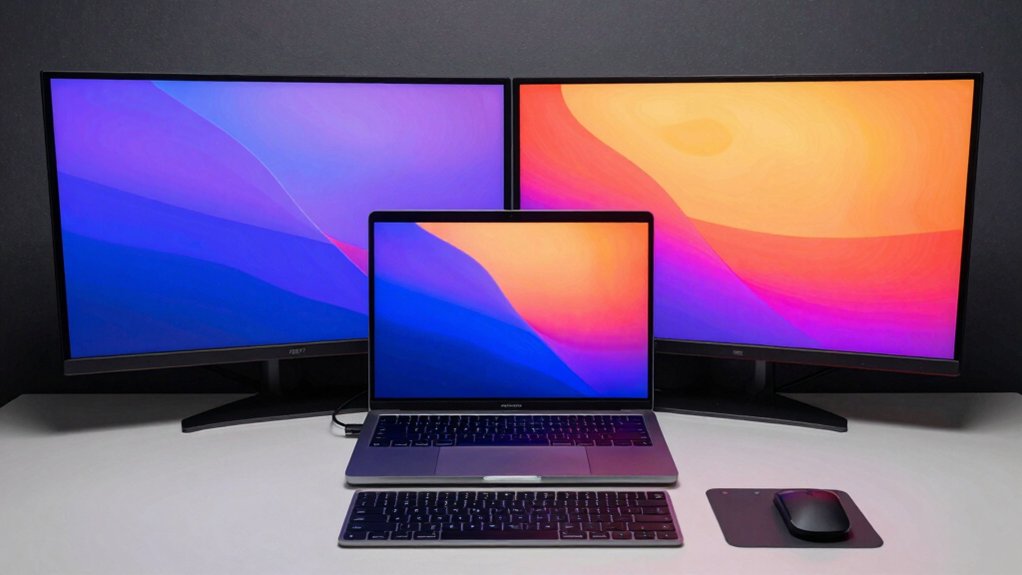
Before selecting a monitor for your MacBook Pro, you’ll need to evaluate several technical specifications that directly impact your productivity and viewing experience. Start by assessing resolution and display quality to ensure sharp visuals, then check color accuracy standards if you’re doing design or photo work, verify connectivity options like Thunderbolt or USB-C ports that match your MacBook’s outputs, consider refresh rate for smooth scrolling and video playback, and finally review eye comfort features such as blue light filters and flicker reduction. Each of these factors works together to determine whether a monitor will genuinely enhance your workflow or create frustrating compatibility and usability problems.
Resolution and Display Quality
What resolution should you prioritize when pairing a monitor with your MacBook Pro? Choose 4K (3840×2160) for the sharpest text and maximum workspace. This resolution delivers significantly denser pixel detail for macOS UI elements compared to 1080p alternatives. If budget is limited, 1080p still appears sharp at typical desk distances, though it offers less screen real estate.
Next, evaluate color accuracy. Select monitors with wide color gamuts—99% sRGB or higher—to ensure precise photo and video editing. Pair this with an IPS panel, which maintains consistent colors across viewing angles, essential for color-critical work.
Finally, consider brightness and HDR support. Aim for 350–400 cd/m² brightness with HDR capability. These features improve dynamic range in your content, though verify your macOS version supports HDR for full benefits.
Color Accuracy Standards
To guarantee your monitor displays colors faithfully for editing work on your MacBook Pro, you’ll need to evaluate color gamut coverage and color space performance. Look for displays offering 99% sRGB or 95–99% DCI-P3 coverage, which ensures images appear true-to-life during design and photo editing tasks. Check whether your monitor includes factory calibration data or supports easy ICC profile creation for macOS alignment. Select IPS panel types, which maintain color consistency when viewed from different angles—critical for collaborative work or adjusting content from various positions. Consider monitors with HDR10 support to enhance color depth. Disable or compensate for blue-light reduction features during color-critical tasks, as these settings alter perceived warmth and can skew your editing results.
Connectivity and Port Options
Once you’ve confirmed your monitor delivers accurate colors for editing work, you’ll need to verify it actually connects to your MacBook Pro through the right ports. Check whether your monitor offers USB-C with power delivery, which lets you charge your MacBook Pro and transmit video through a single cable. If your monitor lacks USB-C, confirm it has HDMI or DisplayPort inputs, or that you can use adapters. Some monitors include built-in USB-C hubs or multiple input options to support several devices simultaneously. If you’re connecting multiple external displays, verify the monitor supports Thunderbolt or USB-C daisy-chaining. Finally, check whether the monitor supports Adaptive Sync or FreeSync compatibility and how these features work with macOS refresh-rate settings.
Refresh Rate Considerations
How much smoothness do you actually need from your display? Start by matching refresh rate to your workflow. For everyday productivity and media consumption, 60 Hz performs adequately. However, if you’re doing fast-paced work like video editing, 3D modeling, or gaming, consider 100 Hz or 120 Hz monitors instead. These higher rates deliver noticeably smoother motion and scrolling when paired with capable MacBook Pro GPUs. Next, verify your MacBook Pro model supports the required bandwidth and ports—4K at 120 Hz demands substantial GPU power and data rates. Finally, check whether your specific monitor offers macOS-compatible adaptive sync features to reduce tearing. Weigh the smoothness benefit against potential trade-offs in brightness or color performance at elevated refresh rates.
Eye Comfort Technology
When you’re spending eight or more hours daily staring at your MacBook Pro’s external monitor, eye strain becomes a genuine concern that directly impacts your productivity and well-being. Look for monitors with TÜV-certified eye comfort systems like Advanced Eye Comfort or ComfortView Plus, which reduce blue light exposure effectively. Flicker-Free technology eliminates screen flicker across all brightness levels, minimizing visual fatigue. Blue light filtration lowers potential fatigue and sleep disruption without compromising color accuracy significantly. Many monitors include “Reading mode” presets that optimize content for long-form reading. Prioritize these features when selecting your external display to protect your vision during extended work sessions at your desk.
Ergonomic Design Features
Proper monitor positioning is critical to preventing neck and shoulder strain during long work sessions. You’ll want an adjustable stand that offers height, tilt, swivel, and pivot adjustments to align your screen at eye level. This setup reduces the need to bend your neck downward, which causes fatigue over time.
Consider monitors with VESA mounting compatibility if you prefer wall or arm mounting solutions. These options free up desk space while allowing you to position the display exactly where you need it.
Built-in rotation features let you switch between landscape and portrait orientations depending on your task. You can also daisy-chain multiple monitors using USB-C power delivery, which reduces cable clutter around your workspace while maintaining ergonomic flexibility for collaborative work.
Final Thoughts
You’ve reviewed ten monitor options that’ll enhance your MacBook Pro setup. Prioritize 4K resolution, USB-C connectivity, and accurate color reproduction for your specific workflow. Curved ultrawide models suit multitasking, while portable extenders offer flexibility. Evaluate your desk space and budget, then select based on these criteria: resolution needs, connectivity options, and ergonomic features. Test your chosen monitor’s compatibility before purchasing to ensure optimal performance with your MacBook Pro.

Meet Ry, “TechGuru,” a 36-year-old technology enthusiast with a deep passion for tech innovations. With extensive experience, he specializes in gaming hardware and software, and has expertise in gadgets, custom PCs, and audio.
Besides writing about tech and reviewing new products, he enjoys traveling, hiking, and photography. Committed to keeping up with the latest industry trends, he aims to guide readers in making informed tech decisions.