
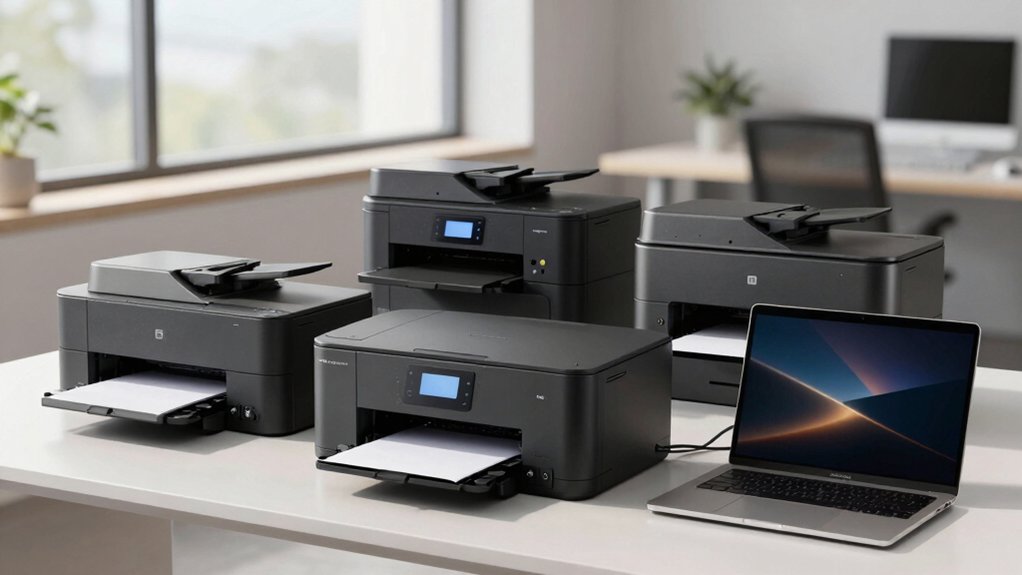

When you’re shopping for an office printer that works with your Mac, you’ll want to focus on specific features that make setup and daily use straightforward. Look for native AirPrint support, dual-band Wi-Fi connectivity, and strong macOS driver compatibility. All-in-one models save space and money by combining printing, scanning, and copying functions. You should also consider ink costs and long-term value. But how do you know which specific printer fits your needs?
| HP Envy 6155e Wireless All-in-One Inkjet Printer |
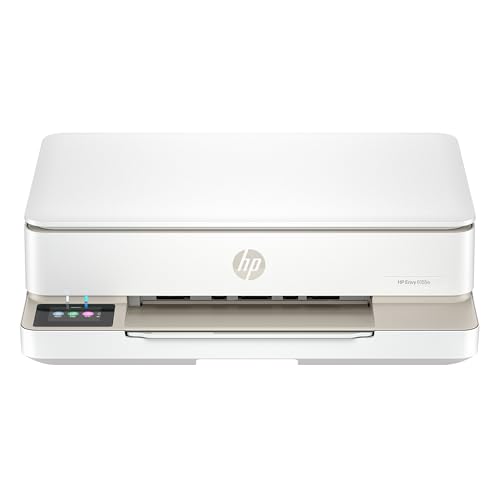
| Best For Home | Printer Type: Thermal Inkjet (Color) | Wireless Connectivity: Dual-band Wi-Fi (802.11a/b/g/n/ac) | All-in-One Functions: Print, Scan, Copy | VIEW LATEST PRICE | Read Our Analysis |
| Canon PIXMA TS6520 Wireless Color Inkjet Printer |

| Most Compact | Printer Type: Color Inkjet | Wireless Connectivity: Dual-band Wi-Fi (2.4GHz/5GHz) | All-in-One Functions: Print, Scan, Copy | VIEW LATEST PRICE | Read Our Analysis |
| HP OfficeJet Pro 8125e Wireless All-in-One Inkjet Printer |

| Best Home Office | Printer Type: Thermal Inkjet (Color) | Wireless Connectivity: Dual-band Wi-Fi | All-in-One Functions: Print, Scan, Copy, Fax | VIEW LATEST PRICE | Read Our Analysis |
| Brother HL-L2405W Wireless Monochrome Laser Printer |

| Budget-Friendly Pick | Printer Type: Monochrome Laser | Wireless Connectivity: Dual-band Wireless (2.4GHz/5GHz) | All-in-One Functions: Print only | VIEW LATEST PRICE | Read Our Analysis |
| Canon PIXMA TR4720 All-in-One Wireless Printer |

| Best All-in-One | Printer Type: Inkjet (Color) | Wireless Connectivity: Wireless + USB | All-in-One Functions: Print, Scan, Copy, Fax | VIEW LATEST PRICE | Read Our Analysis |
| HP LaserJet M110w Wireless Black & White Printer |
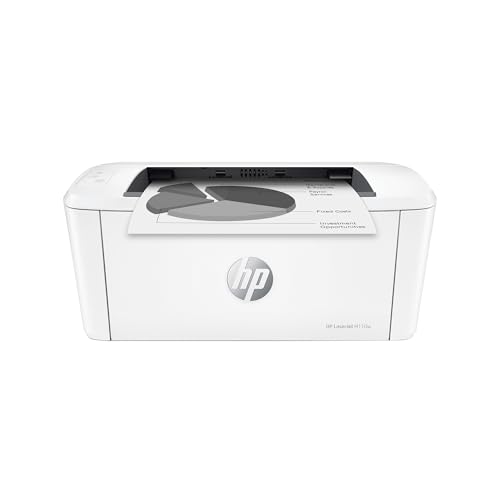
| Best For Teams | Printer Type: Monochrome Laser | Wireless Connectivity: Wireless connectivity with self-reset | All-in-One Functions: Print only | VIEW LATEST PRICE | Read Our Analysis |
| HP Smart Tank 5101 Wireless All-in-One Printer |

| Lowest Cost Per Page | Printer Type: Thermal Inkjet (Color) | Wireless Connectivity: Wireless + USB 2.0 | All-in-One Functions: Print, Scan, Copy | VIEW LATEST PRICE | Read Our Analysis |
| HP LaserJet Pro MFP 3101fdw All-in-One Printer |

| Professional Grade | Printer Type: LaserJet Pro MFP (Monochrome) | Wireless Connectivity: Wireless (intelligent Wi-Fi) + Ethernet + Bluetooth | All-in-One Functions: Print, Scan, Copy, Fax | VIEW LATEST PRICE | Read Our Analysis |
| Epson EcoTank ET-2800 Wireless All-in-One Printer |
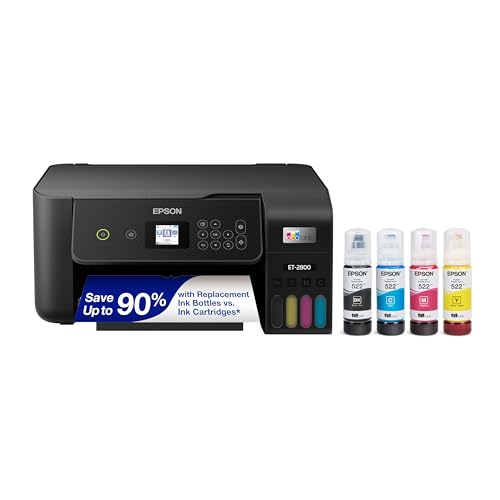
| Most Eco-Friendly | Printer Type: Color EcoTank (Cartridge-Free) | Wireless Connectivity: Wireless connectivity | All-in-One Functions: Print, Scan, Copy | VIEW LATEST PRICE | Read Our Analysis |
| Brother Work Smart 1360 Wireless Color Inkjet Printer |

| Best Value | Printer Type: Color Inkjet | Wireless Connectivity: Wireless network + USB | All-in-One Functions: Print, Scan, Copy | VIEW LATEST PRICE | Read Our Analysis |
More Details on Our Top Picks
HP Envy 6155e Wireless All-in-One Inkjet Printer
Are you looking for a printer that handles everyday home and small office tasks without requiring technical expertise? The HP Envy 6155e delivers wireless printing, scanning, and copying through dual-band Wi-Fi connectivity. You’ll benefit from AI-enabled features that remove blank pages automatically and format content precisely. The 2.4-inch touchscreen provides straightforward navigation for print jobs. You can print borderless photos up to 4×6 inches and use duplex printing to save paper. Download the HP app on your Mac to print, scan, and copy remotely from any device. The included three-month Instant Ink trial provides ongoing cartridge delivery, after which you’ll manage subscription settings directly.
- Printer Type:Thermal Inkjet (Color)
- Wireless Connectivity:Dual-band Wi-Fi (802.11a/b/g/n/ac)
- All-in-One Functions:Print, Scan, Copy
- Automatic Duplex Printing:Yes (duplex printing)
- Mobile/Mac Compatibility:AirPrint, HP App, iOS compatible
- Paper Input Capacity:100-sheet input tray
- Additional Feature:HP True-to-Screen photo technology
- Additional Feature:Auto content removal feature
- Additional Feature:3-month Instant Ink trial
Canon PIXMA TS6520 Wireless Color Inkjet Printer
The Canon PIXMA TS6520 works well if you’re a student or family member who prints occasionally and needs a compact, multifunctional device that fits in tight spaces. Set up wireless connectivity by connecting to your 2.4GHz or 5GHz Wi-Fi network. Download the Canon PRINT App on your Mac, smartphone, or tablet to print and scan remotely. Use Apple AirPrint for direct printing without additional software. The printer handles duplex printing automatically, reducing paper use. Its 1.42″ OLED display shows status clearly. Print color documents at 1200 x 1200 dpi resolution. The integrated flatbed scanner enables copying and scanning functions. This all-in-one device delivers sharp text and vivid colors through its hybrid ink system.
- Printer Type:Color Inkjet
- Wireless Connectivity:Dual-band Wi-Fi (2.4GHz/5GHz)
- All-in-One Functions:Print, Scan, Copy
- Automatic Duplex Printing:Yes (auto 2-sided)
- Mobile/Mac Compatibility:Apple AirPrint, Canon PRINT App, Mopria
- Paper Input Capacity:Not specified
- Additional Feature:2-cartridge hybrid ink system
- Additional Feature:1.42″ OLED display
- Additional Feature:1200 x 1200 dpi resolution
HP OfficeJet Pro 8125e Wireless All-in-One Inkjet Printer
If you’re setting up a home office and need a single device that handles printing, scanning, and copying, HP’s OfficeJet Pro 8125e delivers these functions without requiring separate equipment. This all-in-one printer prints at 20 pages per minute in black and white, or 10 pages per minute in color. It connects via Wi-Fi, USB, or Ethernet, and works seamlessly with Apple AirPrint for direct printing from your Mac. The 225-sheet paper capacity reduces frequent refilling, while automatic two-sided printing conserves paper. Use the HP app on your Mac to manage printing, scanning, and copying remotely. The one-year warranty covers hardware defects, with optional two-year extension through HP+.
- Printer Type:Thermal Inkjet (Color)
- Wireless Connectivity:Dual-band Wi-Fi
- All-in-One Functions:Print, Scan, Copy, Fax
- Automatic Duplex Printing:Yes (automatic two-sided)
- Mobile/Mac Compatibility:AirPrint, HP App
- Paper Input Capacity:225-sheet input (1 tray)
- Additional Feature:20 ppm black print speed
- Additional Feature:Auto document feeder included
- Additional Feature:225-sheet paper capacity
Brother HL-L2405W Wireless Monochrome Laser Printer
For home offices and small workspaces where desktop real estate matters, the Brother HL-L2405W delivers compact, reliable printing at 30 pages per minute without demanding much floor space. Connect via built-in dual-band Wi-Fi or USB 2.0 to print from your Mac, iPhone, or iPad using the Brother Mobile Connect App. The 250-sheet paper tray handles standard documents, while the manual feed slot accommodates envelopes and specialty paper. Replace toner using TN830 or high-yield TN830XL cartridges, or enroll in the optional Refresh EZ Print subscription for automatic replenishment. One-year limited warranty and lifetime support ensure dependable operation for your printing needs.
- Printer Type:Monochrome Laser
- Wireless Connectivity:Dual-band Wireless (2.4GHz/5GHz)
- All-in-One Functions:Print only
- Automatic Duplex Printing:No (one-sided only)
- Mobile/Mac Compatibility:Brother Mobile Connect App, AirPrint
- Paper Input Capacity:250-sheet tray + manual feed slot
- Additional Feature:30 ppm print speed
- Additional Feature:Lifetime free support
- Additional Feature:Optional Refresh EZ subscription
Canon PIXMA TR4720 All-in-One Wireless Printer
Canon’s PIXMA TR4720 works well if you need a compact 4-in-1 device that handles printing, copying, scanning, and faxing without taking up much desk space. Print speeds reach 8.8 ipm for black and 4.4 ipm for color documents. The auto document feeder accommodates 100 sheets, simplifying batch jobs. Connect via USB or wireless to your Mac for mobile printing control through the companion app. The hybrid ink system produces sharp text and vibrant colors at 4800 x 1200 dpi resolution. Duplex printing saves paper on letter-size documents. The flatbed scanner supports borderless 8.5 x 11 prints. ENERGY STAR certification keeps power consumption minimal at 7 watts active mode.
- Printer Type:Inkjet (Color)
- Wireless Connectivity:Wireless + USB
- All-in-One Functions:Print, Scan, Copy, Fax
- Automatic Duplex Printing:Yes (automatic two-sided)
- Mobile/Mac Compatibility:Mobile printing app, Alexa-enabled
- Paper Input Capacity:100-sheet capacity
- Additional Feature:Built-in fax functionality
- Additional Feature:4800 x 1200 dpi resolution
- Additional Feature:Alexa smart reorder capability
HP LaserJet M110w Wireless Black & White Printer
The HP LaserJet M110w works best when you’re running a small team of 1-3 people who need professional black & white documents without taking up much desk space. This compact laser printer delivers 21 pages per minute and connects wirelessly to your Mac, iPhone, iPad, and other devices through AirPrint. Setup takes minutes—just plug it in, download the HP Smart app, and select your network. You’ll print from anywhere in your office. The printer handles plain paper, envelopes, labels, and cards up to 8.5 x 14 inches. Energy Star certification keeps power costs low while maintaining reliable performance for daily document needs.
- Printer Type:Monochrome Laser
- Wireless Connectivity:Wireless connectivity with self-reset
- All-in-One Functions:Print only
- Automatic Duplex Printing:No (single-sided only)
- Mobile/Mac Compatibility:AirPrint, HP Smart App, Alexa-compatible
- Paper Input Capacity:Not specified (print-only device)
- Additional Feature:Smallest laser printer class
- Additional Feature:Alexa-compatible control support
- Additional Feature:600 x 600 dpi resolution
HP Smart Tank 5101 Wireless All-in-One Printer
If you’re printing hundreds of pages monthly and want to cut ink costs dramatically, HP’s Smart Tank 5101 delivers what many office printers don’t: a refillable tank system that includes two years of ink straight out of the box. You’ll refill tanks directly from bottles without squeezing or spilling, then scan and copy using the flatbed scanner. The wireless connectivity works across Mac, iOS, and Android devices, while AI-assisted formatting removes unwanted content and improves layouts automatically. Print speeds reach 10 pages per minute, and you’ll support borderless photo printing on glossy paper. With a 2-year warranty and 30-day Amazon returns, this all-in-one handles high-volume printing affordably while maintaining professional output quality across your office workflow.
- Printer Type:Thermal Inkjet (Color)
- Wireless Connectivity:Wireless + USB 2.0
- All-in-One Functions:Print, Scan, Copy
- Automatic Duplex Printing:Yes (auto duplex capable)
- Mobile/Mac Compatibility:Alexa, Android, iOS, HP App
- Paper Input Capacity:Not specified
- Additional Feature:2 years ink included
- Additional Feature:Mess-free tank refill system
- Additional Feature:AI-assisted formatting optimization
HP LaserJet Pro MFP 3101fdw All-in-One Printer
Looking for a multifunction printer that handles small office workgroups efficiently? The HP LaserJet Pro MFP 3101fdw delivers print, scan, copy, and fax functions for teams up to seven users. You’ll get 35 pages per minute printing speed with automatic duplex capability, reducing paper costs. Connect via Wi-Fi, Ethernet, or Bluetooth to your Mac seamlessly using AirPrint. The device includes an automatic document feeder for quick scanning and copying. Manage your printer remotely through HP Smart or the Web JetAdmin dashboard. Security features include PIN authentication and HP Wolf Pro Security to protect your documents. Subscribe to Instant Ink for automatic toner delivery, simplifying supply management.
- Printer Type:LaserJet Pro MFP (Monochrome)
- Wireless Connectivity:Wireless (intelligent Wi-Fi) + Ethernet + Bluetooth
- All-in-One Functions:Print, Scan, Copy, Fax
- Automatic Duplex Printing:Yes (auto duplex)
- Mobile/Mac Compatibility:AirPrint, HP Smart, Mac/Windows compatible
- Paper Input Capacity:Not specified
- Additional Feature:35 ppm print speed
- Additional Feature:Built-in fax capability
- Additional Feature:HP Wolf Pro Security included
Epson EcoTank ET-2800 Wireless All-in-One Printer
Want to eliminate constant ink cartridge replacements? The Epson EcoTank ET-2800 offers cartridge-free printing with supertank technology. Each ink bottle set replaces approximately eighty individual cartridges, reducing replacement costs by up to ninety percent. You’ll print up to four thousand five hundred black pages or seven thousand five hundred color pages per ink set. The printer delivers vivid prints at ten pages per minute using Micro Piezo heat-free technology. It includes scan and copy functions, making it suitable for basic home office work. Each replacement ink set provides approximately two years of printing, minimizing frequent purchases and reducing cartridge waste in landfills.
- Printer Type:Color EcoTank (Cartridge-Free)
- Wireless Connectivity:Wireless connectivity
- All-in-One Functions:Print, Scan, Copy
- Automatic Duplex Printing:Not specified
- Mobile/Mac Compatibility:Not specified
- Paper Input Capacity:Not specified
- Additional Feature:Cartridge-free supertank system
- Additional Feature:Up to 4500 black pages
- Additional Feature:90% cheaper replacement ink
Brother Work Smart 1360 Wireless Color Inkjet Printer
The Brother Work Smart 1360 (MFC-J1360DW) serves home and home office users who need a single compact device for printing, copying, and scanning. Connect via wireless network or USB to your Mac. Use the Brother Mobile Connect app to print, copy, scan, and manage settings from your device. The printer supports cloud integration with Google Drive, Dropbox, Box, and OneDrive, allowing you to access files directly. Print speeds reach 16 ppm for black and 9 ppm for color documents. The automatic duplex feature reduces paper usage by printing on both sides. Monitor ink levels through the Page Gauge feature to prevent unexpected outages. Load the 150-sheet paper tray and use the 20-sheet ADF for batch scanning or copying.
- Printer Type:Color Inkjet
- Wireless Connectivity:Wireless network + USB
- All-in-One Functions:Print, Scan, Copy
- Automatic Duplex Printing:Yes (automatic duplex)
- Mobile/Mac Compatibility:Brother Mobile Connect App, cloud app support
- Paper Input Capacity:150-sheet paper tray + 20-sheet ADF
- Additional Feature:20-sheet auto document feeder
- Additional Feature:Cloud app integration support
- Additional Feature:Page Gauge ink monitoring
Factors to Consider When Choosing an Office Printer for Mac
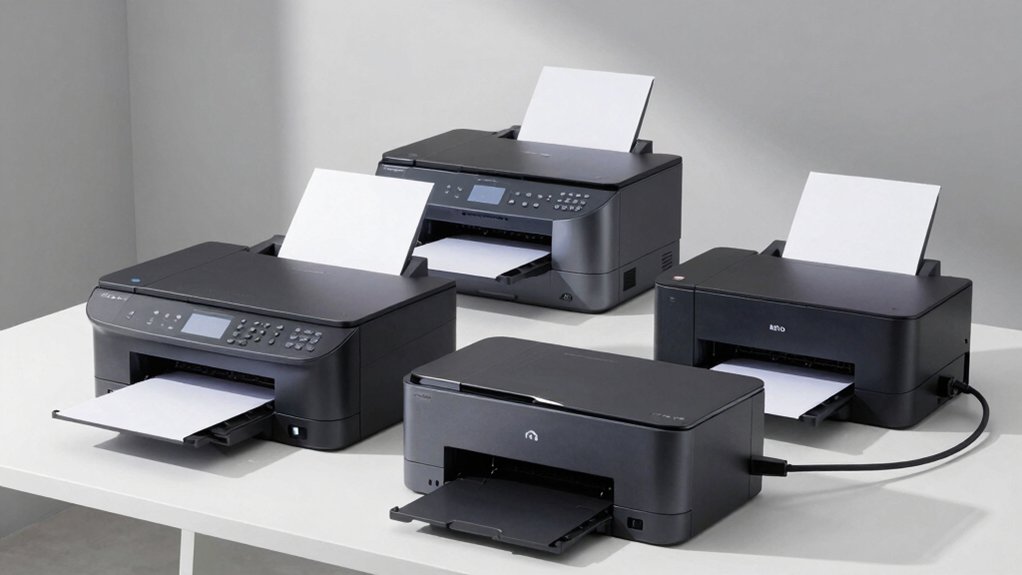
You’ll want to evaluate five core factors before selecting a Mac printer: wireless connectivity, which lets you print from any room without cables; print speed, measured in pages per minute, that matches your daily volume; all-in-one capabilities like scanning and copying that consolidate your equipment; operating system compatibility that guarantees seamless Mac integration; and long-term ink costs, which you can calculate by dividing cartridge price by page yield. Start by listing your must-haves—for example, if you work remotely, prioritize wireless connectivity and all-in-one functions—then cross-reference printer specs against those requirements. Finally, compare the per-page ink cost across your top choices by visiting manufacturer websites for cartridge prices and page-yield information.
Wireless Connectivity Requirements
How should you evaluate a printer’s wireless capabilities when selecting one for your Mac office? First, confirm the printer supports dual-band Wi‑Fi operating on both 2.4 GHz and 5 GHz frequencies for stable connections and easier network integration. Second, verify compatibility with Apple AirPrint or Mopria, which allow direct printing from Mac devices without installing additional drivers. Third, check for wireless direct printing capabilities, enabling you to print from your Mac even without network access. Fourth, confirm USB and Ethernet ports exist alongside Wi‑Fi for flexible setup options and troubleshooting when needed. Finally, review available macOS apps that manage printing, scanning, and firmware updates wirelessly. These requirements ensure reliable, hassle-free printing across your Mac office environment.
Print Speed Performance Needs
When evaluating print speed for your Mac office, start by checking the printer’s pages-per-minute (ppm) rating for both black-and-white and color output, since these speeds often differ and directly affect your workflow efficiency. Next, verify that the manufacturer’s stated speeds match real-world performance under your typical Mac workflows, including standard printing and duplex jobs. Compare first-page-out times across models you’re considering, as faster initial delivery reduces perceived wait times when starting tasks. Consider whether duplex printing capabilities will benefit your document needs, since two-sided printing effectively doubles throughput for multi-page projects. Finally, prioritize printers that report native speeds matching your actual usage patterns rather than laboratory conditions, ensuring reliable performance throughout your workday.
All-in-One Functionality Benefits
Consolidating printing, scanning, and copying into a single device eliminates the need for multiple machines on your desk and streamlines your document workflow. All-in-One printers handle routine tasks efficiently without occupying additional space. You’ll benefit from duplex scanning and auto document feeder capabilities that digitize multi-page documents directly from your Mac. This functionality reduces time spent on manual scanning and revisions. Wireless connectivity via AirPrint or vendor apps enables printing from anywhere on your network. Built-in AI features optimize layout and content placement, minimizing wasted pages during printing. Security features and automatic firmware updates protect your data while maintaining printer functionality. Cloud printing and remote scanning options extend accessibility, allowing you to work from different locations while managing documents through your Mac devices.
Operating System Compatibility
What’s the first thing you should verify before buying a printer for your Mac? Check whether the printer supports macOS compatibility through official drivers or built-in AirPrint support. Next, confirm the connection type—USB-C, USB-A, or wireless—matches your Mac’s ports and capabilities. Then, verify driver availability for your specific macOS version, whether Ventura or Monterey. Look for native macOS features like Bonjour integration or vendor apps such as HP Smart or Canon PRINT. Finally, review security certificate requirements and check if the manufacturer provides regular driver updates for your operating system. This verification process ensures your printer’ll work immediately without compatibility issues or installation complications.
Long-Term Ink Cost Analysis
Because printer costs extend far beyond the initial purchase price, you’ll want to calculate the total cost of ownership by comparing page yield against ink or tank replacement costs over your printer’s lifetime. Cartridge-based printers often demand higher ongoing expenses if you print color pages frequently. Instead, consider supertank or refillable ink systems, which dramatically reduce per-page costs and typically offer the lowest long-term expenses among inkjet options. You can further reduce costs by enrolling in subscription programs like Instant Ink, which provides predictable refill pricing and locks in lower rates. Compare the per-page cost across models by dividing total ink replacement expenses by expected page output. This calculation reveals which printer actually saves you money over time, not just upfront.
Space and Physical Footprint
Once you’ve determined your printer’s long-term cost, you’ll need to confirm it actually fits in your office. Measure your available desk or shelf space in depth, width, and height, then compare these measurements to the printer’s listed dimensions. Account for clearance on all sides—front for paper handling, sides for access, and rear for cables. Check the printer’s weight to determine if your furniture can support it safely. Examine whether the model has a single or multiple paper trays; higher-capacity trays demand more horizontal space but reduce reloading frequency. Finally, evaluate compact designs or wall-mount options if your workspace is limited. These steps ensure your chosen printer integrates smoothly into your existing setup without creating workflow obstacles.
Security and Network Features
How secure is your printer connection, and does it match your Mac network’s protection standards? Check that your printer supports WPA3 encryption and offers PIN or pull printing to limit unauthorized access. Verify the device includes regular firmware updates to patch vulnerabilities affecting your macOS environment. Look for models with authentication controls that restrict printing from specific Mac clients. Prioritize printers featuring HP Wolf Pro Security or equivalent secure print workflows. Confirm dual-band Wi-Fi and Ethernet connectivity options for flexible network placement. Review management dashboards that provide audit trails and centralized IT control over printing activity. Test cloud and mobile printing integration to ensure compatibility with your macOS devices. Evaluate VPN print capabilities if your organization requires encrypted remote printing access.
Final Thoughts
You’ve reviewed eight solid Mac-compatible printers spanning inkjet, laser, and tank-based options. To pick yours, match your needs: choose all-in-ones for scanning and copying, select AirPrint models for hassle-free setup, and compare per-page costs between cartridge and subscription systems. Check macOS compatibility before purchasing. Verify Wi-Fi connectivity and driver support through vendor websites. Test printing from your Mac before committing to ensure seamless performance.

Meet Ry, “TechGuru,” a 36-year-old technology enthusiast with a deep passion for tech innovations. With extensive experience, he specializes in gaming hardware and software, and has expertise in gadgets, custom PCs, and audio.
Besides writing about tech and reviewing new products, he enjoys traveling, hiking, and photography. Committed to keeping up with the latest industry trends, he aims to guide readers in making informed tech decisions.