
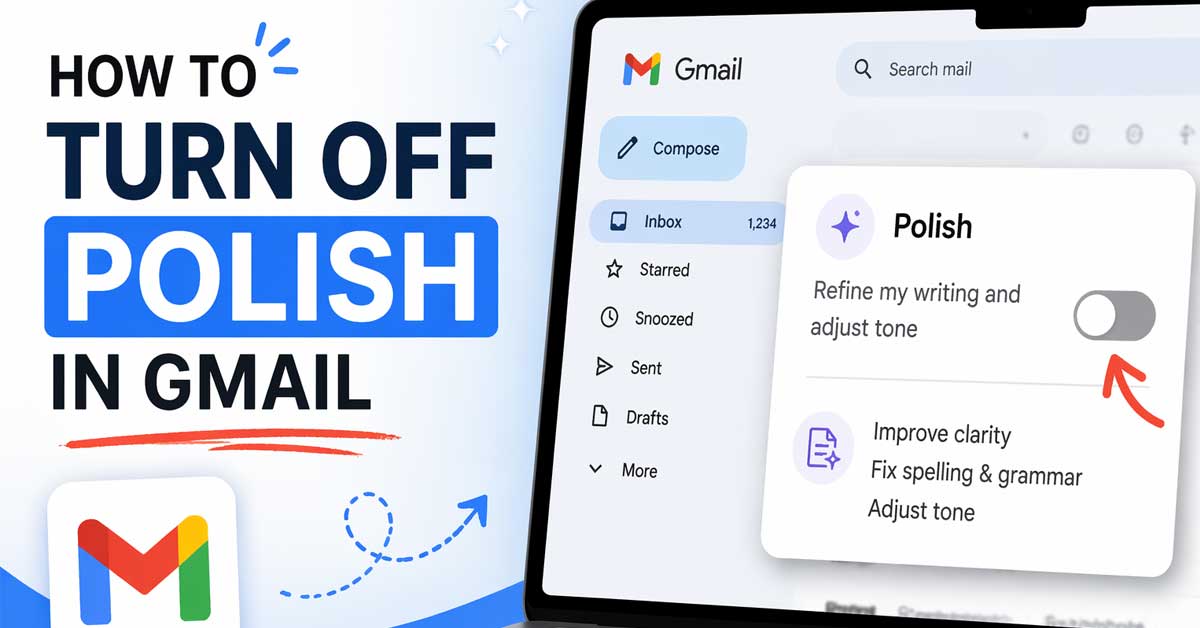

The Gemini AI refinement tool — here’s what it is and how to disable it
Gmail’s Polish feature — the option that appears when you’re writing an email suggesting it can refine, clean up, or improve your draft — is part of Google’s Gemini AI integration in Gmail.
It shows up as a button or suggestion in the compose toolbar offering to polish your writing before you send.
If you find it intrusive, unnecessary, or simply don’t want AI refining your emails, here’s exactly what it is and every way to turn it off or reduce its presence.
What the Polish Feature Actually Is
Polish is a Gemini AI writing refinement tool built into Gmail’s compose window. When you’ve written some or all of an email, the Polish option offers to review your draft and improve it — smoothing out phrasing, correcting tone, fixing grammar, and making the overall writing more polished before sending.
It appears in a few different ways depending on your Gmail version:
A Polish button or option in the compose toolbar alongside other Gemini writing tools.
A suggestion that appears after you’ve been typing for a while indicating Gemini can refine your draft.
Part of the broader Help me write Gemini panel that includes Polish as one of several refinement options alongside Formalize, Elaborate, and Shorten.
Polish is distinct from Smart Compose (which completes sentences as you type) and Smart Reply (which suggests short replies). It’s an on-demand refinement tool rather than an automatic suggestion — but its presence in the toolbar can feel intrusive even if you never click it.
Turn Off Help Me Write Entirely
Polish is part of Gmail’s Help me write feature — turning off Help me write removes the Polish button and all related Gemini writing tools from the compose window simultaneously.
On desktop:
Go to Settings → See All Settings → General. Scroll down to the Help Me Write section. Select Don’t show the Help me write button in the toolbar or the equivalent option to disable it entirely.
Click Save Changes at the bottom of the page. The Gemini toolbar including the Polish option disappears from your compose window.
On mobile:
Open the Gmail app and tap the three lines in the top left. Go to Settings → your account. Look for Help me write or Gemini features in the account settings. Disable or turn off Help me write from there.
Hide the Toolbar Button Without Disabling Entirely
If you occasionally want access to Polish but don’t want it visible all the time, Gmail sometimes allows you to minimize or collapse the Gemini writing toolbar rather than disabling it completely.
In the compose window, look for a way to collapse the AI writing suggestions bar — a small arrow, a close button, or a minimize option on the toolbar itself. Collapsing it hides the Polish button without removing the feature entirely. It remains accessible when you need it but doesn’t occupy space in your compose window during normal writing.

Unique design: reduced page size designed to help reduce feeling overwhelmed by writing demands Llama image on left side of page to help with orientation of letters and...
Turn Off Through Google Workspace Settings
For Google Workspace accounts — work or school Gmail — Gemini features including Polish may be enabled at the organizational level by an administrator. If the Help me write setting is grayed out in your Gmail settings, the feature is controlled by your organization rather than by individual user preference.
Contact your Google Workspace administrator and request that Gemini writing features be disabled for your account or for the organization. Admins can disable Help me write and Polish through the Google Workspace Admin Console under Apps → Google Workspace → Gmail → User Settings → Gemini in Gmail.
Turn Off Gemini Features Through Google Account Settings
Google’s Gemini integration across its products can be managed through your Google Account settings — adjusting these affects Gemini’s presence in Gmail and other Google services simultaneously.
Go to myaccount.google.com and look for Data and Privacy or search for Gemini Apps Activity. Reviewing and adjusting Gemini-related settings here affects how Gemini features like Polish behave across Gmail and other Google apps.
Note that turning off Gemini Apps Activity affects personalization across multiple Google services — not just the Polish button in Gmail. If you only want to remove the Polish feature specifically, the Help me write setting in Gmail settings is the more targeted approach.
Why Polish Appears in the First Place
Polish and the broader Help me write feature are enabled by default for eligible Gmail accounts — personal Gmail accounts on Google One AI Premium plans and Google Workspace accounts where administrators have enabled Gemini features.
If Polish appeared in your Gmail recently, it may have been enabled by:
A Google One AI Premium subscription being activated on your account. Your organization’s Google Workspace administrator enabling Gemini features. A Gmail update that rolled out Gemini writing tools to your account tier. Upgrading to a plan that includes Gemini features.
If you have a free Gmail account and Polish is appearing, Google has been progressively rolling out basic Gemini features to free accounts in certain regions — the availability varies by account and rollout status.
The Difference Between Polish and Other Gmail AI Features
Worth knowing which feature is which so you’re turning off the right one:
Polish / Help me write — on-demand refinement of your draft. Appears as a toolbar button. Covered in this article.
Smart Compose — completes sentences as you type with grey ghost text. Disabled in Settings → General → Smart Compose → Writing Suggestions Off.
Smart Reply — suggests short reply options below received emails. Disabled in Settings → General → Smart Reply → Smart Reply Off.
Gemini sidebar — the full Gemini chat panel accessible from the side of Gmail. Separate from compose window features.
If sentence completions while typing are the issue rather than the Polish toolbar button, Smart Compose is what needs to be disabled — not Help me write.
A Quick Reference
| Feature | What It Does | Where to Disable |
|---|---|---|
| Polish / Help me write | Refines your draft on demand | Settings → General → Help Me Write → Off |
| Smart Compose | Completes sentences as you type | Settings → General → Smart Compose → Off |
| Smart Reply | Suggests short reply responses | Settings → General → Smart Reply → Off |
| Gemini sidebar | Full AI chat panel in Gmail | Sidebar toggle in Gmail interface |
The Bottom Line
The Polish feature in Gmail is part of Help me write — Gmail’s Gemini AI writing toolkit — and is disabled through the Help me write setting in Gmail’s General settings. Go to Settings → See All Settings → General, find Help Me Write, and turn it off. The Polish button and related Gemini writing tools disappear from your compose window immediately after saving.
For Workspace accounts where the setting is grayed out, your organization’s administrator controls the feature and needs to be contacted to disable it.
Polish lives in Help me write — turn off Help me write in Gmail’s General settings and the Polish button is gone.


Meet Ry, “TechGuru,” a 36-year-old technology enthusiast with a deep passion for tech innovations. With extensive experience, he specializes in gaming hardware and software, and has expertise in gadgets, custom PCs, and audio.
Besides writing about tech and reviewing new products, he enjoys traveling, hiking, and photography. Committed to keeping up with the latest industry trends, he aims to guide readers in making informed tech decisions.