
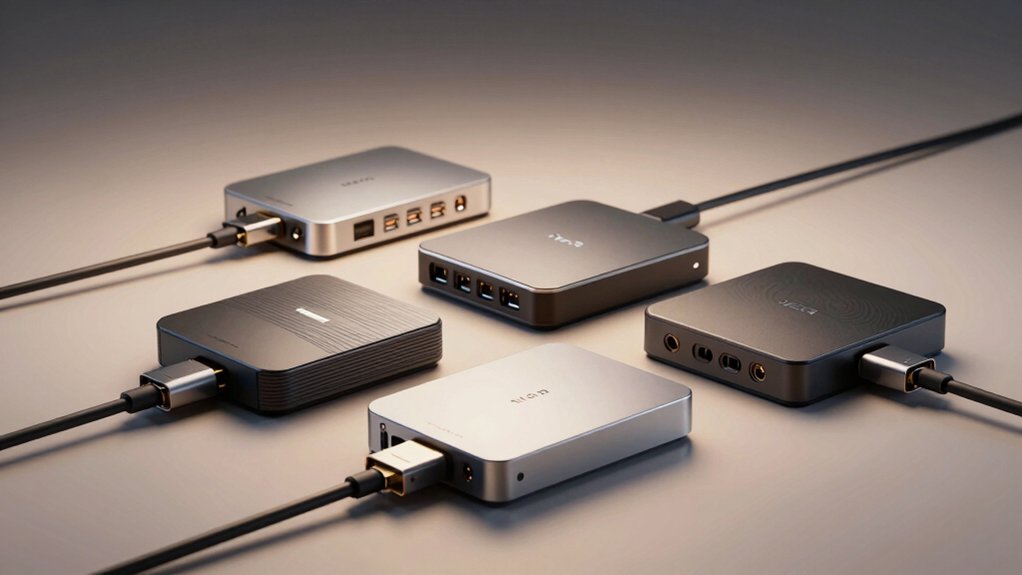

When you want to play your Xbox 360 games on a modern TV, you’ll need an upscaler to convert the console’s older video signals into HD quality. Your options range from advanced devices like the Marseille mClassic OG to simple component-to-HDMI converters. Each choice affects your image quality, lag performance, and setup complexity. Understanding what you’re working with—and what matters most for your setup—takes just a few key decisions.
| Marseille mClassic OG Video Game Upscaler (Lag-Free) |

| Premium Image Enhancement | Primary Function: Video upscaler with anti-aliasing enhancement | Maximum Output Resolution: 1440p/60Hz | Power Requirements: Micro-USB cable (USB port or AC adapter) | VIEW LATEST PRICE | Read Our Analysis |
| Portta Component to HDMI Converter for PS2 PS3 Xbox |

| Legacy Console Adapter | Primary Function: Component to HDMI converter | Maximum Output Resolution: 1080p/60Hz | Power Requirements: 15V, 1.5A (Type A 2-pin plug) | VIEW LATEST PRICE | Read Our Analysis |
| ZUZONG Xbox 360 to HDMI Converter Adapter Cable |
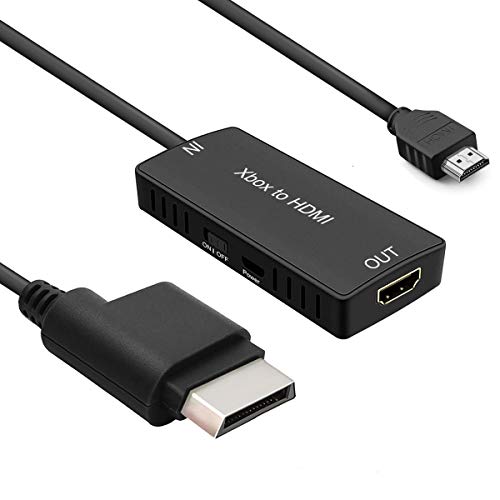
| Xbox 360 Specialist | Primary Function: Xbox 360 component to HDMI converter | Maximum Output Resolution: 1080p | Power Requirements: 1A (Type A two-pin plug) | VIEW LATEST PRICE | Read Our Analysis |
| YPbPr to HDMI Converter for DVD Gaming Consoles |
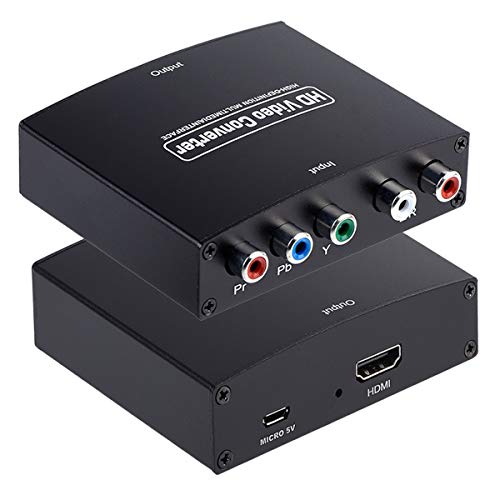
| Budget Component Converter | Primary Function: Component to HDMI converter | Maximum Output Resolution: 1080p/60Hz | Power Requirements: Not specified in details | VIEW LATEST PRICE | Read Our Analysis |
| YPbPr to HDMI Converter for DVD and Gaming Consoles |
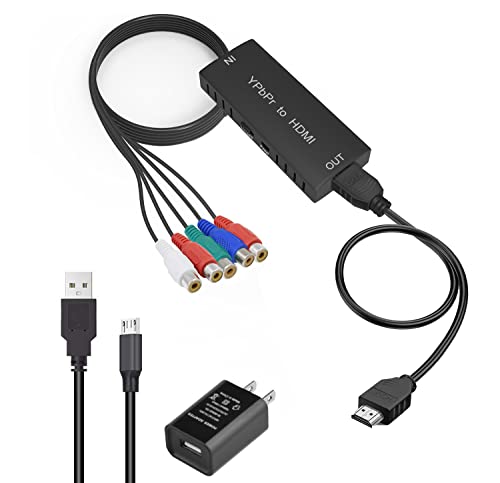
| All-in-One Solution | Primary Function: Component to HDMI converter | Maximum Output Resolution: 1080p | Power Requirements: 5V, 1A power adapter | VIEW LATEST PRICE | Read Our Analysis |
| eSynic YPbPr to HDMI Converter Cable for Gaming |

| Plug-and-Play Cable | Primary Function: Component to HDMI converter cable | Maximum Output Resolution: 1080p/60Hz | Power Requirements: 5V DC USB-powered (Type A two-pin plug) | VIEW LATEST PRICE | Read Our Analysis |
More Details on Our Top Picks
Marseille mClassic OG Video Game Upscaler (Lag-Free)
Looking to play classic games without sacrificing image quality? The Marseille mClassic OG connects between your Xbox 360 and TV, upscaling games to 1440p/60Hz while maintaining lag-free performance. Plug the device into your HDMI input, then power it via the included micro-USB cable. You’ll access three modes: Enhancement Off for standard pass-through, Enhanced Widescreen for sharper images with reduced artifacts, and Retro for upscaling older titles while preserving aspect ratio. The proprietary anti-aliasing algorithm processes every pixel in real-time without adding latency. This plug-and-play accessory restores image quality while keeping Game Mode’s low-lag advantage intact.
- Primary Function:Video upscaler with anti-aliasing enhancement
- Maximum Output Resolution:1440p/60Hz
- Power Requirements:Micro-USB cable (USB port or AC adapter)
- Video Input Type:HDMI (multiple console types)
- Setup Type:Plug-and-play (placed between console and TV/monitor)
- Warranty Period:Manufacturer’s warranty (duration not specified)
- Additional Feature:Three selectable enhancement modes
- Additional Feature:Zero-lag anti-aliasing algorithm
- Additional Feature:Preserves retro 4:3 aspect ratio
Portta Component to HDMI Converter for PS2 PS3 Xbox
The Portta legacy console adapter converts analog component video into HDMI output, making it ideal if you’re connecting older gaming systems to modern displays. You’ll plug your component cables (red, green, blue for video; red and white for audio) into the adapter’s inputs, then connect the included HDMI cable to your TV or monitor. The device supports resolutions up to 1080p at 60Hz, compatible with PS2, PS3, and Xbox systems. It requires a 15V power adapter and complies with HDMI 1.3 standards. The converter includes a five-year warranty, offering reliable performance for reviving classic gaming on contemporary screens without scaling or signal delay.
- Primary Function:Component to HDMI converter
- Maximum Output Resolution:1080p/60Hz
- Power Requirements:15V, 1.5A (Type A 2-pin plug)
- Video Input Type:Component YPbPr
- Setup Type:Plug-and-play
- Warranty Period:5-year warranty
- Additional Feature:Supports deep color 36-bit
- Additional Feature:5-year manufacturer warranty included
- Additional Feature:No signal distortion or delay
ZUZONG Xbox 360 to HDMI Converter Adapter Cable
Want to connect your Xbox 360 to a modern HDMI display? The ZUZONG model ZZ-045 converts your console’s component signals into digital HDMI output. First, plug the adapter’s power cable into a wall outlet using the included Type A two-pin plug. Next, connect the component cables from your Xbox 360 to the adapter’s input ports. Finally, attach an HDMI cable from the adapter to your TV or monitor. This converter supports native 720p and 1080p resolutions, preserving your games’ original quality. The plug-and-play design requires no software installation. Audio passes through unaffected, ensuring complete compatibility with your existing setup.
- Primary Function:Xbox 360 component to HDMI converter
- Maximum Output Resolution:1080p
- Power Requirements:1A (Type A two-pin plug)
- Video Input Type:Xbox 360 component signals
- Setup Type:Plug-and-play
- Warranty Period:1-year warranty
- Additional Feature:Native 720p/1080p resolution support
- Additional Feature:Preserves original audio signal
- Additional Feature:#7 ranked Xbox 360 adapter
YPbPr to HDMI Converter for DVD Gaming Consoles
If you’ve got older gaming consoles or DVD players gathering dust, this budget component converter solves a real problem: connecting analog devices to modern HDMI displays. You’ll plug your YPbPr cables (the red, green, and blue component lines) into the converter, then connect your audio cables separately. The unit accepts input resolutions up to 1080i and outputs them to your TV or monitor via HDMI. It supports HDCP 1.4 for protected content and handles both 50Hz and 60Hz refresh rates. Setup takes seconds—no drivers needed. Just verify your source device has YPbPr outputs before purchasing, since this converter only works one direction: component to HDMI, not the reverse.
- Primary Function:Component to HDMI converter
- Maximum Output Resolution:1080p/60Hz
- Power Requirements:Not specified in details
- Video Input Type:Component YPbPr
- Setup Type:Plug-and-play
- Warranty Period:Not specified in details
- Additional Feature:Supports HDCP 1.4 protection
- Additional Feature:Plug-and-play installation seconds
- Additional Feature:Anber-Tech vendor support available
YPbPr to HDMI Converter for DVD and Gaming Consoles
Looking to connect your Xbox 360, PS2, or DVD player to a modern HDMI display? A YPbPr to HDMI converter transforms your legacy gaming consoles into compatible devices. Connect your component cables to the converter’s input ports, then plug the HDMI output directly into your TV. Supply power using the included adapter, select the correct HDMI input on your display, and set your console’s resolution to 1080p for optimal quality. This plug-and-play solution requires no drivers or software installation. The converter supports resolutions up to 1080p and encodes digital audio onto the HDMI signal, delivering both video and sound through one cable for seamless integration into modern entertainment systems.
- Primary Function:Component to HDMI converter
- Maximum Output Resolution:1080p
- Power Requirements:5V, 1A power adapter
- Video Input Type:Component YPbPr
- Setup Type:Plug-and-play
- Warranty Period:30-day Amazon return guarantee
- Additional Feature:Includes 2x HDMI cables
- Additional Feature:Multiple power supply options
- Additional Feature:4.95Gbps total bandwidth capacity
eSynic YPbPr to HDMI Converter Cable for Gaming
The eSynic YPbPr to HDMI converter cable solves a common problem: your classic Xbox 360, PS2, or Wii won’t connect to your modern HDTV without an adapter. This all-in-one cable plugs directly into your TV’s HDMI port, eliminating the need for extra cables. You’ll connect your console’s component cables to the 60cm YPbPr female end, then power the converter via your TV’s USB port, a wall charger, or your console. The converter passes through video signals up to 1080P@60Hz without upscaling or lag. Important: this device works exclusively with YPbPr component signals only—it won’t convert RGB, composite, or bidirectional signals. Before purchasing, verify your console outputs YPbPr signals to ensure compatibility.
- Primary Function:Component to HDMI converter cable
- Maximum Output Resolution:1080p/60Hz
- Power Requirements:5V DC USB-powered (Type A two-pin plug)
- Video Input Type:Component YPbPr signals only
- Setup Type:Plug-and-play with built-in connection
- Warranty Period:12-month warranty
- Additional Feature:All-in-one cable design
- Additional Feature:USB-powered via multiple sources
- Additional Feature:True pass-through signal integrity
Factors to Consider When Choosing an Xbox 360 Upscaler
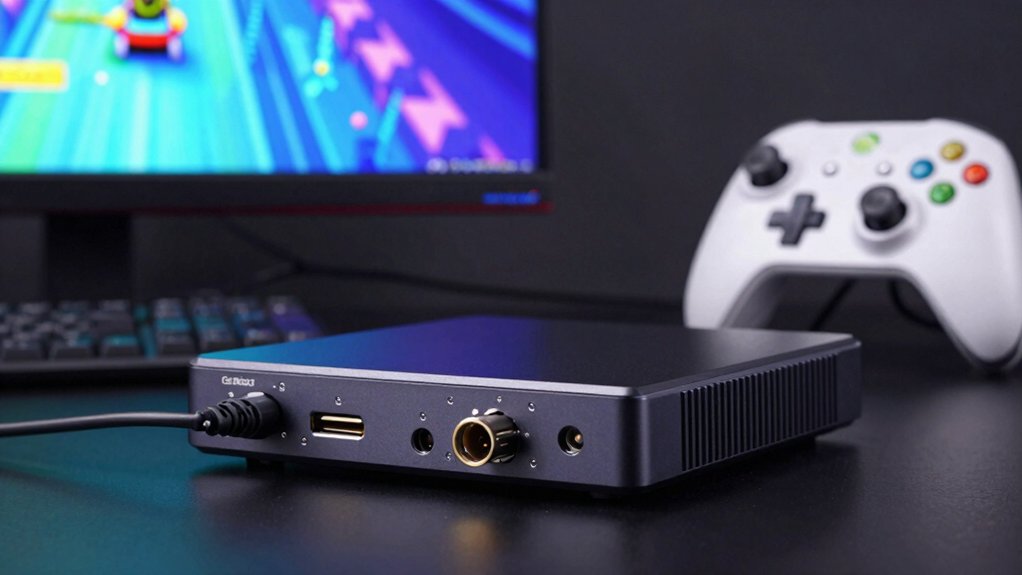
When you’re selecting an Xbox 360 upscaler, you’ll need to evaluate five critical factors: resolution and refresh rate capabilities (which determine how sharp your image appears), lag and processing delay (which affects gameplay responsiveness), compatibility with your older devices and cables, power requirements and ease of setup, and the quality of the video signal processing itself. Start by checking your TV’s maximum supported resolution and refresh rate, then confirm that your chosen upscaler meets or exceeds those specifications while maintaining minimal input lag. Finally, verify that the upscaler accepts your current Xbox 360 connections and doesn’t require excessive power or complicated installation steps.
Resolution And Refresh Rate
Two critical specifications you’ll need to evaluate when selecting an Xbox 360 upscaler are its maximum output resolution and refresh rate capabilities. Most upscalers target either 720p or 1080p output, though native game resolution often remains 720p regardless of the advertised spec. Check whether your upscaler maintains 60Hz refresh rate, which prevents motion judder during fast gameplay. Verify compatibility with your display’s supported resolutions before purchasing. Some devices offer fixed output targets like 720p/60Hz or 1080p/60Hz, so confirm your TV accepts these standards. Remember that higher advertised resolution doesn’t guarantee superior image quality—processing quality matters equally. Test your specific setup if possible, as results vary based on the original game’s native resolution and the upscaler’s processing algorithm.
Lag And Processing Delay
How much input lag can you tolerate before your gaming experience suffers? When selecting an Xbox 360 upscaler, you’ll want to prioritize devices that minimize processing delay. Most upscalers introduce latency through image processing and scaling algorithms, but you can reduce this by choosing models with pass-through modes or game-friendly settings. These options bypass unnecessary post-processing to lower input-to-display lag. Check the upscaler’s specifications for actual delay measurements, typically listed in milliseconds. Even a few milliseconds matter in competitive play. Test the device on your specific TV and console combination, since latency varies by hardware and signal path. Compare models directly when possible to identify which delivers the responsiveness your gaming demands.
Compatibility With Legacy Devices
Beyond minimizing lag, you’ll need to confirm that your chosen upscaler actually works with your Xbox 360 and its setup. First, check whether your console uses the standard or Slim model, as compatibility varies between hardware versions. Next, verify that the upscaler accepts your Xbox 360’s native output—either component cables or HDMI—without requiring reverse conversion. Confirm the device supports your console’s standard resolutions of 720p or 1080p. Additionally, determine if the upscaler needs external power through USB or wall adapter and ensure you can provide it. Finally, check that audio integrity remains intact, particularly LPCM audio formats. These compatibility steps prevent purchasing an upscaler that won’t function with your specific Xbox 360 configuration.
Power Requirements And Setup
What’s your power source situation? Most Xbox 360 upscalers require external power through micro-USB or 5V adapters for stable performance. Position your upscaler between your console’s output and TV, connecting either HDMI or component cables depending on your device. Check your upscaler’s power connector type—micro-USB, Type A 2-pin, or dedicated AC adapter—and verify it matches your available outlets. Some models draw power directly from the console or HDMI source, but this limits portability and may cause performance issues if insufficient power reaches the device. Without proper USB power, you’ll likely experience signal lag or complete signal loss. Confirm your power setup before purchasing to ensure reliable operation and prevent compatibility problems with your existing equipment.
Video Signal Processing Quality
Since you’re upgrading your Xbox 360 to modern displays, the upscaler’s video processing quality directly determines whether you’ll get crisp, artifact-free images or blurry, distorted ones. Look for upscalers that use advanced anti-aliasing and color processing to preserve edge clarity on retro sprites while reducing shimmering. Verify the device avoids common artifacts like ringing, posterization, and motion blur that degrade 4:3 or 16:9 content. Check if passthrough modes exist, allowing you to bypass processing when desired to maintain original image fidelity. Confirm the upscaler maintains audio integrity during video processing to prevent sync issues. These specifications ensure your classic games display cleanly on HD screens without quality loss or technical problems.
Audio Passthrough Capabilities
How well does your upscaler handle audio alongside video upscaling? You need to verify that the device supports uncompressed LPCM 2-channel audio passthrough without degradation or delay. Check whether audio embeds directly in the HDMI output or requires a separate audio path. Confirm the upscaler preserves your original audio format—stereo or multi-channel—without unwanted downmixing. Review the HDMI input/output configuration to ensure audio stays synchronized with upscaled video, preventing lip-sync issues. Examine specifications for any audio processing that could alter channel count or quality. Finally, verify the device provides stable power and proper wiring to maintain consistent audio signal integrity throughout upscaling operation. These steps prevent audio problems that degrade your gaming experience.
Warranty And Long-Term Support
Once you’ve confirmed that your upscaler handles audio correctly, you’ll want to protect your investment by examining the warranty and support options available. Look for coverage that includes both parts and workmanship, preferably spanning multiple years through a manufacturer’s warranty. Check whether the seller provides dedicated after-sales support via email or chat for troubleshooting beyond the standard return window. Verify the return policy duration—typically 30 days—and any conditions affecting eligibility. Confirm how to access warranty service, including whether you must register the product or submit proof of purchase. Finally, ensure the warranty explicitly covers power adapters, cables, and included accessories, not just the main upscaler unit itself.
Final Thoughts
You’ll find the right Xbox 360 upscaler by matching your setup’s needs. Start by checking your console’s output type—component, HDMI, or composite. Next, decide between dedicated upscalers like the mClassic OG for lag-free performance or affordable converters for basic HD output. Finally, verify warranty coverage and return policies before purchasing. This approach ensures you’ll get sharp visuals without compromising your gaming experience.

Meet Ry, “TechGuru,” a 36-year-old technology enthusiast with a deep passion for tech innovations. With extensive experience, he specializes in gaming hardware and software, and has expertise in gadgets, custom PCs, and audio.
Besides writing about tech and reviewing new products, he enjoys traveling, hiking, and photography. Committed to keeping up with the latest industry trends, he aims to guide readers in making informed tech decisions.