

When you need to transfer data between drives quickly, you face a choice: connect them manually through your PC, or use a docking station. A docking station gives you instant access to multiple drives without powering up a computer. You’ll find single-bay models for simple file access and dual-bay units for cloning drives directly. The right dock depends on your specific needs—speed, compatibility, and how you plan to use it. Here’s what you should know before choosing one.
| SABRENT USB 3.0 Dual Bay Hard Drive Docking Station (EC-HD2B) |

| Best For Cloning | Drive Compatibility: 2.5″ and 3.5″ SATA HDD/SSD | Data Transfer Rate: Up to 5 Gbps (USB 3.0) | Bay Configuration: Dual bay (2 drives simultaneously) | VIEW LATEST PRICE | Read Our Analysis |
| SABRENT USB 3.0 SATA Hard Drive Docking Station (EC-DFLT) |

| Best Single-Bay Option | Drive Compatibility: 2.5″ and 3.5″ SATA HDD/SSD | Data Transfer Rate: Up to 5 Gbps (USB 3.0) | Bay Configuration: Single bay (1 drive) | VIEW LATEST PRICE | Read Our Analysis |
| ORICO External Hard Drive Docking Station (DD18) |

| Most Compatible | Drive Compatibility: 2.5″ and 3.5″ SATA HDD/SSD | Data Transfer Rate: Up to 5 Gbps (USB 3.0) | Bay Configuration: Single bay (1 drive) | VIEW LATEST PRICE | Read Our Analysis |
| SABRENT USB 3.0 SATA Hard Drive Docking Station (EC-UBLB) |
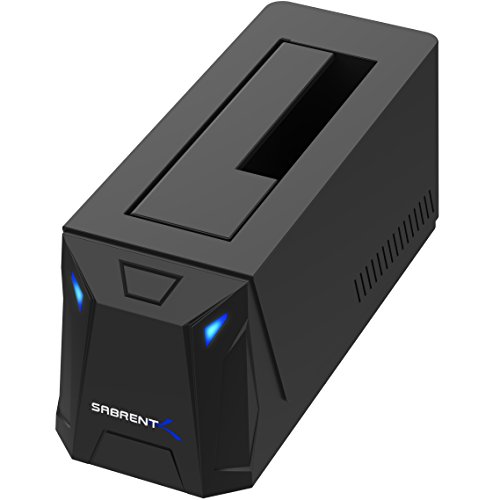
| Best Overall | Drive Compatibility: 2.5″ and 3.5″ SATA HDD/SSD | Data Transfer Rate: 5000 MB/s (USB 3.2 Gen 1) | Bay Configuration: Single bay (1 drive) | VIEW LATEST PRICE | Read Our Analysis |
| FIDECO External Hard Drive Docking Station Dual Bay |

| Best Value | Drive Compatibility: 2.5″ and 3.5″ SATA HDD/SSD | Data Transfer Rate: Up to 5 Gbps (USB 3.0) | Bay Configuration: Dual bay (2 drives simultaneously) | VIEW LATEST PRICE | Read Our Analysis |
| UGREEN Dual-Bay Hard Drive Docking Station with USB-C |
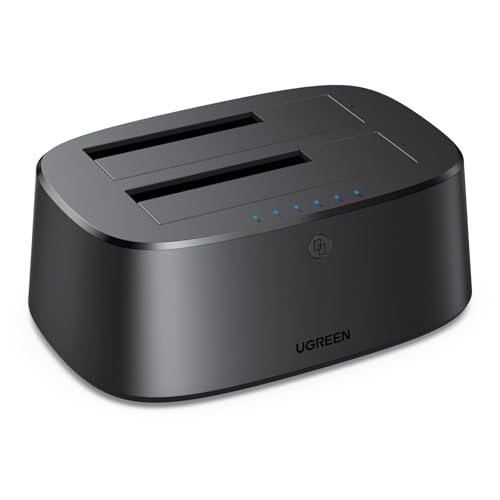
| Best USB-C Option | Drive Compatibility: 2.5″ and 3.5″ SATA HDD/SSD | Data Transfer Rate: Up to 5 Gbps (USB 3.0) | Bay Configuration: Dual bay (2 drives simultaneously) | VIEW LATEST PRICE | Read Our Analysis |
| SSK USB 3.0 SATA External Hard Drive Docking Station |
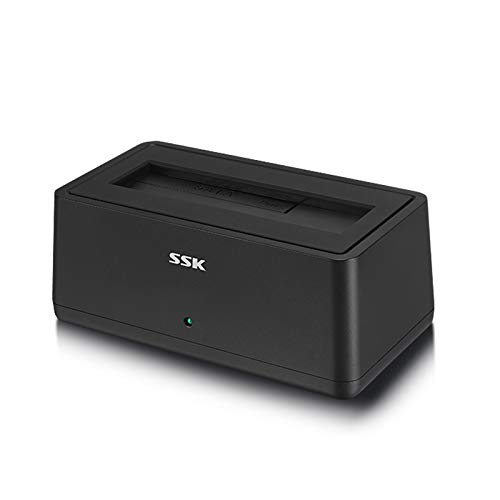
| Budget-Friendly Pick | Drive Compatibility: 2.5″ and 3.5″ SATA HDD/SSD | Data Transfer Rate: Up to 5 Gbps (USB 3.0) | Bay Configuration: Single bay (1 drive) | VIEW LATEST PRICE | Read Our Analysis |
More Details on Our Top Picks
SABRENT USB 3.0 Dual Bay Hard Drive Docking Station (EC-HD2B)
Need to duplicate drives without connecting to your computer? The SABRENT EC-HD2B lets you do exactly that. This dual-bay docking station accepts both 2.5″ and 3.5″ drives, supporting up to 20+ TB total capacity. Connect two drives, select your source and destination, then activate the offline cloning function. The cloning speed reaches up to 60 Mbps, so transfers complete independently without requiring a host PC. USB 3.0 connectivity delivers up to 5 Gbps transfer rates when you do connect to a computer. The plug-and-play design needs no driver installation. It supports SATA HDD and SSD drives with a one-year warranty extendable to two years.
- Drive Compatibility:2.5″ and 3.5″ SATA HDD/SSD
- Data Transfer Rate:Up to 5 Gbps (USB 3.0)
- Bay Configuration:Dual bay (2 drives simultaneously)
- Maximum Capacity Support:20+ TB total (10 TB per drive)
- Offline Cloning:Yes (up to 60 Mbps)
- Warranty:1 year (extendable to 2 years)
- Additional Feature:Offline cloning up to 60 Mbps
- Additional Feature:Supports 20+ TB total capacity
- Additional Feature:No drivers needed/plug-and-play
SABRENT USB 3.0 SATA Hard Drive Docking Station (EC-DFLT)
Looking to transfer files from a single drive without cluttering your workspace? The SABRENT EC-DFLT docking station connects 2.5″ or 3.5″ SATA drives via USB 3.0. Install your drive into the lay-flat bay, then plug the station into your computer’s USB port. For 3.5″ drives, connect the included power adapter to the station. The USB 3.0 connection delivers up to 5 Gigabits per second transfer speeds. If your computer supports UASP (USB Attached SCSI Protocol), enable it in your system settings for faster performance. The compact design measures 7.09″ by 4.8″, fitting easily on any desk. This single-bay option works well when you’re handling one drive at a time and need straightforward, reliable file access.
- Drive Compatibility:2.5″ and 3.5″ SATA HDD/SSD
- Data Transfer Rate:Up to 5 Gbps (USB 3.0)
- Bay Configuration:Single bay (1 drive)
- Maximum Capacity Support:Not specified
- Offline Cloning:No
- Warranty:1 year limited
- Additional Feature:UASP protocol support included
- Additional Feature:Lay-flat design for desktops
- Additional Feature:External power adapter included
ORICO External Hard Drive Docking Station (DD18)
The ORICO DD18 docking station works with nearly every device you’ll encounter—but who benefits most? Users needing compatibility across Windows, MacOS, Linux, and even iPadOS will find this dock essential. You connect your 2.5″ or 3.5″ SATA drive, plug in the 12V power adapter, and attach the USB-A cable to your device. The dock supports drives up to 22TB and transfers data at 5 Gbps via USB 3.0. LED indicators show you when data’s transferring or reading. The tool-less design lets you swap drives instantly without opening cases. You’ll appreciate the two-year warranty and 30-day return guarantee protecting your investment.
- Drive Compatibility:2.5″ and 3.5″ SATA HDD/SSD
- Data Transfer Rate:Up to 5 Gbps (USB 3.0)
- Bay Configuration:Single bay (1 drive)
- Maximum Capacity Support:22 TB
- Offline Cloning:No
- Warranty:2 years
- Additional Feature:Tool-less hot-swapping capability
- Additional Feature:Works with PS5/smart TVs
- Additional Feature:LED read/transfer indicators
SABRENT USB 3.0 SATA Hard Drive Docking Station (EC-UBLB)
If you’re transferring files between multiple drives without replacing your system’s internal storage, the SABRENT EC-UBLB delivers top-tier performance through its USB 3.0 interface and universal compatibility. This docking station accommodates both 2.5″ and 3.5″ SATA drives, supporting up to 22 TB capacity. The 5000 MB/s data transfer rate ensures fast file movement. Simply insert your drive, connect the included USB 3.0 cable to your computer, and start transferring—no drivers required. The hot-swappable design lets you swap drives without restarting. An LED indicator shows active status. Built-in power adapter supports larger 3.5″ drives needing extra energy.
- Drive Compatibility:2.5″ and 3.5″ SATA HDD/SSD
- Data Transfer Rate:5000 MB/s (USB 3.2 Gen 1)
- Bay Configuration:Single bay (1 drive)
- Maximum Capacity Support:22 TB
- Offline Cloning:No
- Warranty:1 year limited
- Additional Feature:Hot-swappable plug and play
- Additional Feature:LED indicator light included
- Additional Feature:Includes power adapter/USB cable
FIDECO External Hard Drive Docking Station Dual Bay
Need to transfer files between multiple hard drives without connecting each one individually? The FIDECO External Hard Drive Docking Station Dual Bay lets you dock two drives simultaneously using its USB 3.0 connection, which supports UASP for faster data transfer speeds up to 5 Gbps. You’ll work with both 2.5″ and 3.5″ SATA drives, and the plug-and-play setup requires no drivers. The standout feature is offline cloning: insert two drives, press Clone for five seconds, and the station completes the transfer without your computer. After cloning finishes, initialize the new drive through your system. The station supports Windows, Mac, and Linux platforms. Its compact design and included power adapter make it practical for frequent file transfers across multiple storage devices.
- Drive Compatibility:2.5″ and 3.5″ SATA HDD/SSD
- Data Transfer Rate:Up to 5 Gbps (USB 3.0)
- Bay Configuration:Dual bay (2 drives simultaneously)
- Maximum Capacity Support:24 TB
- Offline Cloning:Yes (dual drive cloning)
- Warranty:1 year manufacturer
- Additional Feature:Press-button offline cloning feature
- Additional Feature:Clone status LED indicator
- Additional Feature:Firmware updates available/tech support
UGREEN Dual-Bay Hard Drive Docking Station with USB-C
Want to clone or transfer files between two drives without powering on your computer? The UGREEN docking station lets you connect two 2.5″ or 3.5″ SATA drives simultaneously using its USB-C 3.0 interface, delivering speeds up to 5 Gbps. You can clone both drives wirelessly in offline mode—just ensure the source drive’s capacity doesn’t exceed the destination drive’s. The station supports drives up to 24TB each and works backward-compatible with older SATA versions. Its 360° cooling system, dust cover, and anti-slip pads protect your drives during operation. Windows, Mac, and Linux systems all recognize it immediately. You’ll get a one-meter USB-B to USB-C cable included, plus a one-year manufacturer warranty and Amazon’s 30-day return guarantee.
- Drive Compatibility:2.5″ and 3.5″ SATA HDD/SSD
- Data Transfer Rate:Up to 5 Gbps (USB 3.0)
- Bay Configuration:Dual bay (2 drives simultaneously)
- Maximum Capacity Support:48 TB total (24 TB per drive)
- Offline Cloning:Yes (wireless cloning mode)
- Warranty:1 year manufacturer
- Additional Feature:USB-C 3.0 connectivity
- Additional Feature:360° cooling system included
- Additional Feature:Dust cover/anti-slip pads
SSK USB 3.0 SATA External Hard Drive Docking Station
The SSK USB 3.0 docking station is your budget-friendly pick for transferring files between 2.5″ and 3.5″ hard drives without opening your computer. Insert your SATA drive directly into the dock, connect the USB 3.0 cable to your PC, and you’ll achieve 5 Gbps transfer speeds. The plug-and-play design requires no driver installation. You can swap drives instantly without powering down. An LED indicator shows operation status, while the shockproof case protects your drives. The station supports up to 20 TB capacity and includes a power adapter. It’s compatible with Windows, Mac, and Linux systems, making it practical for most users seeking straightforward drive access.
- Drive Compatibility:2.5″ and 3.5″ SATA HDD/SSD
- Data Transfer Rate:Up to 5 Gbps (USB 3.0)
- Bay Configuration:Single bay (1 drive)
- Maximum Capacity Support:20 TB
- Offline Cloning:No
- Warranty:30-day return guarantee (warranty details available)
- Additional Feature:Smart auto-sleep after 10 minutes
- Additional Feature:Shockproof and vibration-resistant case
- Additional Feature:Efficient heatsink design included
Factors to Consider When Choosing a Hard Drive Docking Station
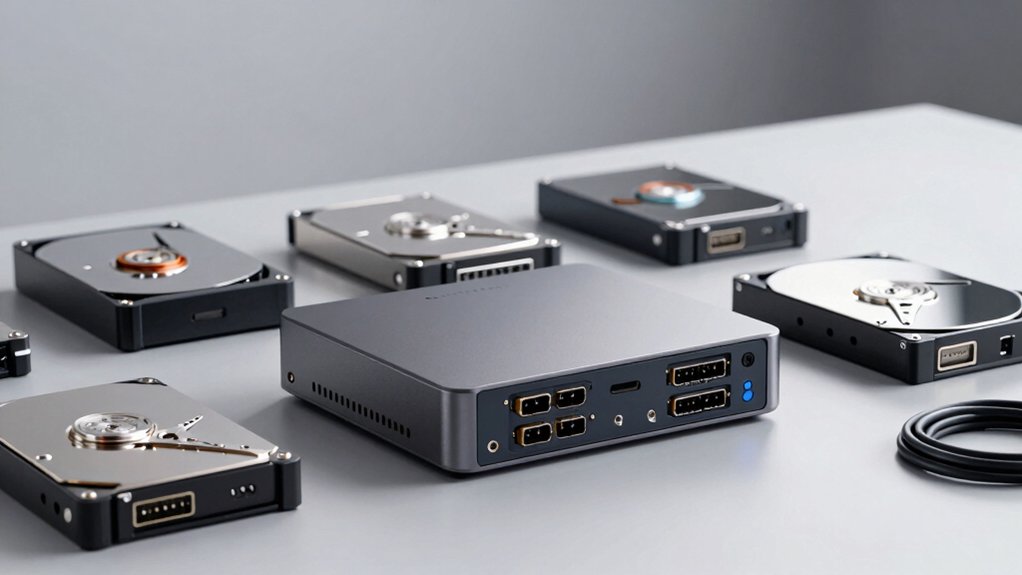
When selecting a hard drive docking station, you’ll need to evaluate five critical factors: drive compatibility and capacity so your drives fit properly, data transfer speed performance to determine how quickly you’ll move files, and whether you need a single or dual bay setup based on your workflow demands. You should also consider if offline cloning capability matters for your backup needs, which lets you copy drives without connecting to a computer. Finally, examine the power requirements and efficiency ratings to ensure the dock operates reliably and doesn’t waste energy during extended use.
Drive Compatibility & Capacity
How’d you like to maximize your docking station’s usefulness? Check whether your station supports both 2.5″ and 3.5″ drives, since this determines which HDDs and SSDs you can connect. Verify the per-drive capacity limit—most models officially support up to 22–24 TB per bay. If you’re using a dual-bay station, calculate total capacity by adding both drives’ limits rather than assuming each bay handles maximum capacity equally. Review whether your station supports high-capacity or enterprise drives, as some models have firmware considerations that affect compatibility. For cloning features, note that offline duplicators impose their own capacity constraints independent of your PC. Document these specifications before purchasing to ensure the station meets your current and future storage needs.
Data Transfer Speed Performance
Consider your docking station’s speed capabilities before purchasing, since they’ll directly affect how quickly you can back up or clone your drives. USB 3.0 docks support up to 5 Gbps theoretical speeds, while USB 2.0 maxes out at 480 Mbps. However, real-world performance runs lower due to host controller limitations, drive speed, and USB overhead. Check whether the dock supports UASP (USB Attached SCSI Protocol), which significantly boosts sustained transfer rates by reducing CPU overhead. If you need offline cloning without a PC, expect separate speeds around 60 Mbps. Match the dock’s speed to your typical file sizes and backup frequency. Faster transfers save time during regular maintenance and emergency recovery scenarios.
Single Versus Dual Bay
Do you need to work with one drive or two at a time? Single-bay docks handle one drive at a time, making them smaller, lighter, and requiring less power. Choose this option if you transfer data sequentially or work with individual drives. Dual-bay models support two drives simultaneously, letting you access or clone drives without a host computer. Select dual-bay if you need concurrent operations or drive-to-drive cloning. With dual-bay units, you can pair different drive sizes—like 2.5″ and 3.5″ drives—though check capacity limits per drive, typically 22–24 TB maximum. Before purchasing a dual-bay dock, verify whether the device requires both drives present for cloning or permits non-mirroring drive operations. Match your choice to your workflow demands.
Offline Cloning Capability
What’s the advantage of cloning one drive directly to another without powering on your computer? You’ll duplicate your entire drive using the docking station’s built-in cloner function, bypassing your PC entirely. Insert both drives into separate bays on the docking station and activate the cloning feature. The process transfers data at speeds around 60 Mbps, depending on your equipment. You won’t need USB data transfer or worry about your computer’s operating system interfering. Once cloning completes, your new drive functions as standard storage with no special drivers required. This method saves time compared to manual file transfers and works independently of your system setup. Simply connect both drives, start the cloning process, and let the docking station handle the duplication automatically.
Power Requirements & Efficiency
How much power your docking station needs depends on the drive size and connection type you’re using. For 3.5″ drives, you’ll need an external power adapter—typically 12V/2A—to ensure stable operation during transfers. Smaller 2.5″ drives often run directly from USB power. If your docking station includes offline cloning, expect higher power consumption during the copying process. Check the adapter’s wattage before purchasing to confirm it handles your specific drive setup. Look for models with robust cooling systems, anti-slip pads, and adequate power supplies to prevent throttling during long transfers. These features maintain efficiency and protect against overheating, which slows performance significantly. USB-C and USB 3.2 models still require dedicated power for full-speed performance with larger drives due to increased current demands.
Operating System Support
Once you’ve confirmed your docking station has adequate power and cooling for your drives, you’ll need to verify it actually works with your operating system. Check the manufacturer’s specifications for compatibility with Windows, macOS, or Linux, including specific versions or kernels supported. Confirm whether plug-and-play functionality works without driver installation on your OS, or if you’ll need to install drivers for full features. Verify that your operating system recognizes hot-swapped drives and supports safe removal. Look for documented OS-specific limitations, such as restrictions on drive capacity recognition or offline cloning capabilities. Review whether the device supports universal features like UASP and TRIM on your system, as these enhance performance when available.
Warranty & Return Policy
Before you finalize your purchase, you’ll want to understand what protection comes with your docking station. Most manufacturers provide a standard one-year warranty covering hardware defects under normal use. Check if extended coverage up to two years is available through product registration. Review the return policy carefully—most sellers offer a 30-day window for defective, damaged, or unopened items, though restocking fees may apply. Understand what your warranty excludes: user-caused damage and mishandling typically aren’t covered. Keep your proof of purchase, whether an order number or receipt, since warranty claims require it. Visit the manufacturer’s or seller’s website to locate support channels and file claims. Comparing these terms across brands helps you select a docking station with coverage matching your needs.
Final Thoughts
You’ll want to pick a docking station based on your needs: choose dual-bay models if you’re cloning drives or backing up offline, or go single-bay if you just need quick file access. Check that it supports your drive sizes, includes UASP support for faster speeds, and comes with a reliable power adapter. Verify USB 3.0 compatibility with your devices before purchasing.

Meet Ry, “TechGuru,” a 36-year-old technology enthusiast with a deep passion for tech innovations. With extensive experience, he specializes in gaming hardware and software, and has expertise in gadgets, custom PCs, and audio.
Besides writing about tech and reviewing new products, he enjoys traveling, hiking, and photography. Committed to keeping up with the latest industry trends, he aims to guide readers in making informed tech decisions.