


You’ll find that most external CD/DVD drives don’t work seamlessly with Chromebooks without proper compatibility checks. The key is selecting models with verified ChromeOS support, USB-C or powered USB-A connections, and native driver-free operation. You need to confirm each drive handles CD-R/RW and DVD-R/RW formats while avoiding unsupported types like DVD-RAM. Let’s examine which drives actually deliver reliable performance on your Chromebook.
| Amicool External DVD Drive USB 3.0 Portable Optical |
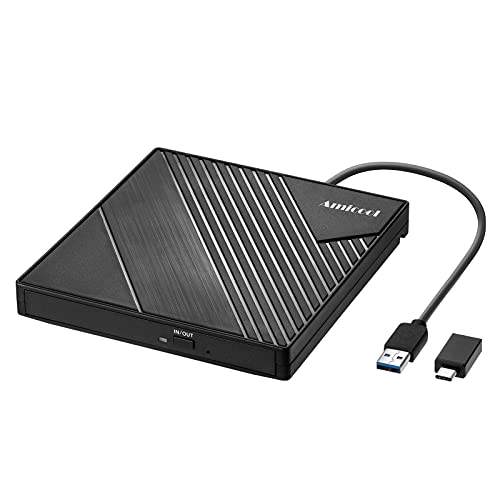
| “Not compatible with: iPad, iPhone, Apple TV, ChromeOS…” | USB Interface: USB 3.0 and Type-C (up to 5 Gbps) | Supported Disc Formats: DVD+R, DVD-R, CD-R, CD-RW (no DVD-RAM or Blu-ray) | Read/Write Speed: Up to 8x DVD; up to 24x CD | VIEW LATEST PRICE | Read Our Analysis |
| Rioddas External CD/DVD Drive USB 3.0 Portable Burner |
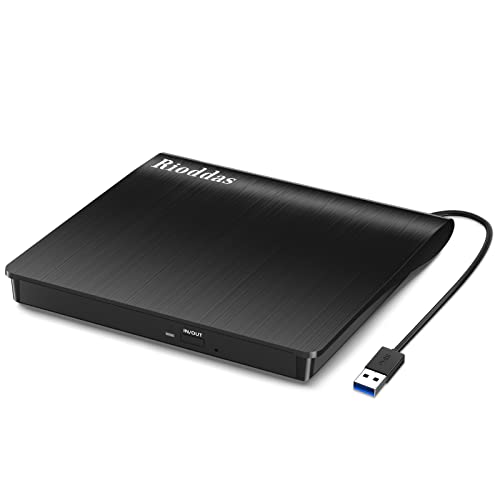
| “Not compatible with ChromeOS, smartphones, tablets…” | USB Interface: USB 3.0 (up to 5 Gbps, backward compatible with USB 2.0) | Supported Disc Formats: CD-ROM/R/RW, DVD-ROM/R±RW/R±DL, VCD | Read/Write Speed: Data transfer up to 5 Gbps (speeds not specified) | VIEW LATEST PRICE | Read Our Analysis |
| ORIGBELIE External CD DVD Drive USB 3.0 Type-C |
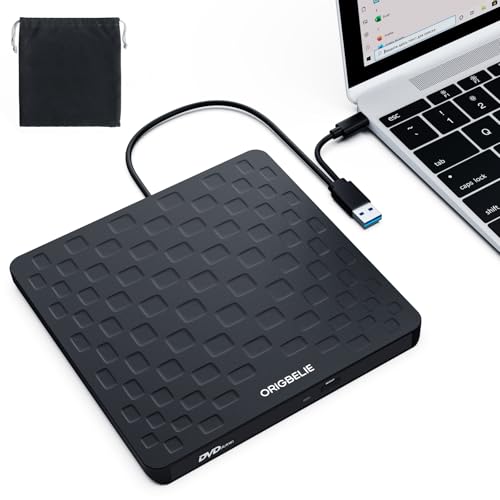
| “Not supported on certain devices or systems: Cars, TV, Tablets, Phones…Chromebook…” | USB Interface: USB 3.0 with Type-C (up to 5 Gbps, backward compatible with USB 2.0/1.1) | Supported Disc Formats: CD±R/RW, CD-ROM, DVD±R/RW, DVD-ROM, DVD-RAM, DVD+R DL, DVD-R DL, VCD, SVCD | Read/Write Speed: Up to 8x DVD read/write; up to 24x CD read/write | VIEW LATEST PRICE | Read Our Analysis |
| External CD DVD Drive USB 3.0 Type-C |
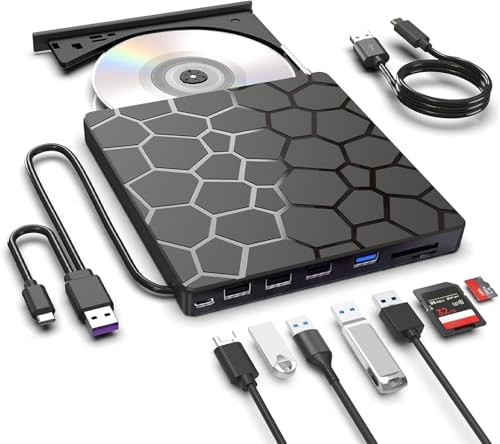
| “Not compatible with TVs, tablets, or in-car entertainment systems” | USB Interface: USB 3.0 and Type-C (up to 5 Gbps) | Supported Disc Formats: DVD+R, DVD-R, CD-R, CD-RW (no DVD-RAM or Blu-ray) | Read/Write Speed: Up to 8x DVD read; up to 24x CD read/write | VIEW LATEST PRICE | Read Our Analysis |
| External CD/DVD Drive USB 3.0 Portable Player |

| “works with PC, Mac, and other platforms (except Chromebook, car platforms…” | USB Interface: USB 3.0 Type-C dual interface (up to 5 Gbps) | Supported Disc Formats: Multiple disc formats (except Chromebook/car/tablet/TV compatible) | Read/Write Speed: Up to 8x DVD read/write; up to 24x CD read/write | VIEW LATEST PRICE | Read Our Analysis |
More Details on Our Top Picks
Amicool External DVD Drive USB 3.0 Portable Optical
The Amicool External DVD Drive USB 3.0 isn’t compatible with ChromeOS, iPads, iPhones, or Apple TVs—it’s designed specifically for computers running Windows, Linux, or macOS. This USB 3.0 and USB-C drive reads and writes DVDs and CDs at speeds up to 8x and 24x respectively. You’ll connect it directly to your computer’s USB port without hubs or extension cables for reliable performance. The drive supports DVD+R, DVD-R, CD-R, and CD-RW formats but won’t work with DVD-RAM or Blu-ray discs. If your drive doesn’t get recognized, restart your computer and try a different standard disc. Mac users should insert the disc first, then connect directly to the USB port, and use VLC Player for playback.
- USB Interface:USB 3.0 and Type-C (up to 5 Gbps)
- Supported Disc Formats:DVD+R, DVD-R, CD-R, CD-RW (no DVD-RAM or Blu-ray)
- Read/Write Speed:Up to 8x DVD; up to 24x CD
- Portability:Slim, portable design with integrated cable
- Power Requirements:USB-powered; powered USB-C hub required for some Mac setups (M1/M2/M3)
- Setup and Installation:Plug & play; no external drivers needed
- Additional Feature:Intelligent error correction technology
- Additional Feature:Anti-shock protection built-in
- Additional Feature:Apple Silicon Mac compatible
Rioddas External CD/DVD Drive USB 3.0 Portable Burner
Looking for a CD/DVD drive that works with Windows, macOS, or Linux? The Rioddas drive connects via USB 3.0 and requires no external power or drivers. Plug it into your computer’s rear USB port for optimal performance. The drive reads and writes CD-ROM/R/RW, DVD-ROM/R±RW/R±DL, and VCD formats. Its copper mesh technology stabilizes data transmission, reducing freezing and errors during operations. The physical eject button manually releases discs if recognition fails. However, this drive won’t work with ChromeOS, smartphones, tablets, or 4K discs. Verify your device compatibility before purchasing to ensure you’re selecting the right solution for your needs.
- USB Interface:USB 3.0 (up to 5 Gbps, backward compatible with USB 2.0)
- Supported Disc Formats:CD-ROM/R/RW, DVD-ROM/R±RW/R±DL, VCD
- Read/Write Speed:Data transfer up to 5 Gbps (speeds not specified)
- Portability:Compact, portable all-in-one solution with embedded cable design
- Power Requirements:USB-powered; no external power adapter needed
- Setup and Installation:Plug & play; no external driver or power adapter needed
- Additional Feature:Physical eject button included
- Additional Feature:Copper mesh technology
- Additional Feature:Brushed texture shell design
ORIGBELIE External CD DVD Drive USB 3.0 Type-C
“Not supported on certain devices or systems: Cars, TV, Tablets, Phones…Chromebook…”
View Latest PriceBefore you buy an external CD/DVD drive for your Chromebook, you should know that ORIGBELIE’s USB 3.0 model isn’t compatible with Chromebooks, tablets, phones, or gaming consoles—it only works with Windows, Mac, and Linux computers. If you own a compatible device, this 13mm-thick drive offers reliable performance with 8x DVD and 24x CD read/write speeds. Setup requires no drivers; simply plug it into a USB port. The drive supports standard disc formats including CD±R/RW, DVD±R/RW, and dual-layer DVDs. For optimal power delivery on desktops, connect to a rear motherboard USB port. If your device lacks sufficient USB power, use the included charging cable with a 5V charger or power bank to enable disc reading.
- USB Interface:USB 3.0 with Type-C (up to 5 Gbps, backward compatible with USB 2.0/1.1)
- Supported Disc Formats:CD±R/RW, CD-ROM, DVD±R/RW, DVD-ROM, DVD-RAM, DVD+R DL, DVD-R DL, VCD, SVCD
- Read/Write Speed:Up to 8x DVD read/write; up to 24x CD read/write
- Portability:Ultra slim (13 mm thick, 0.2 kg) with integrated data cable
- Power Requirements:USB-powered; optional extra power via included 5V charging cable
- Setup and Installation:Plug & play; no drivers needed
- Additional Feature:Ultra slim 13mm thickness
- Additional Feature:Optional external power cable
- Additional Feature:90-day warranty included
External CD DVD Drive USB 3.0 Type-C
Need a disc drive that works with your laptop or desktop computer? This external CD DVD drive connects via USB 3.0 or Type-C, supporting Windows, Linux, and macOS systems. Simply plug it directly into your computer’s original USB port—avoid hubs for stable operation. The drive reads and writes DVDs and CDs at speeds up to 8X for DVDs and 24X for CDs. It doesn’t support Blu-ray or DVD-RAM discs. An included power cable addresses power needs. The slim, portable design makes it suitable for travel or office use. Anti-shock protection reduces reading errors and improves reliability across standard disc formats.
- USB Interface:USB 3.0 and Type-C (up to 5 Gbps)
- Supported Disc Formats:DVD+R, DVD-R, CD-R, CD-RW (no DVD-RAM or Blu-ray)
- Read/Write Speed:Up to 8x DVD read; up to 24x CD read/write
- Portability:Slim, ultra-portable with integrated built-in cable
- Power Requirements:USB-powered; extra USB power cable included for stable operation
- Setup and Installation:Plug & play; no drivers or complex steps needed
- Additional Feature:Premium matte finish design
- Additional Feature:Extra USB power cable
- Additional Feature:Ultra-portable body style
External CD/DVD Drive USB 3.0 Portable Player
This drive works with PC and Mac systems, though it won’t function with Chromebooks, car platforms, or tablets. You’ll get 8x DVD read/write speed and 24x CD read/write speed through its USB 3.0 Type-C dual interface. The plug-and-play design requires no driver installation. At 0.79 inches thick and 0.55 pounds, you’ll carry it easily between locations. The built-in cable eliminates separate storage needs. You can reliably play music, watch movies, install software, and burn discs without errors. Contact customer support through your user manual if you encounter issues or want to suggest improvements.
- USB Interface:USB 3.0 Type-C dual interface (up to 5 Gbps)
- Supported Disc Formats:Multiple disc formats (except Chromebook/car/tablet/TV compatible)
- Read/Write Speed:Up to 8x DVD read/write; up to 24x CD read/write
- Portability:Portable, lightweight (0.79 inches thick, 0.55 pounds) with built-in cable
- Power Requirements:USB-powered; no driver required
- Setup and Installation:Plug and play; no driver required
- Additional Feature:High-quality material construction
- Additional Feature:Minimalist sleek design
- Additional Feature:Built-in integrated cable storage
Factors to Consider When Choosing External USB CD/DVD Drives for Chromebook

Before purchasing an external USB CD/DVD drive for your Chromebook, you’ll need to verify that your device supports the drive’s connection standards, check whether the drive requires additional power beyond USB and whether your Chromebook can supply it, and confirm that the drive reads the disc formats you actually use. You should also review your Chromebook model’s compatibility limitations, since Chrome OS doesn’t natively support all optical media players, and check the operating system requirements to ensure the drive will function with your specific version of ChromeOS. Comparing these five factors—compatibility, OS requirements, USB standards, power supply, and disc format support—will help you select a drive that works reliably with your Chromebook rather than discovering compatibility problems after purchase.
Chromebook Compatibility Limitations
Why do so many external USB CD/DVD drives fail to work with Chromebooks? The answer lies in compatibility limitations. Many manufacturers design drives exclusively for Windows, macOS, or Linux systems, explicitly excluding ChromeOS devices. Even drives that don’t list ChromeOS restrictions may lack necessary driver support or functionality. Before purchasing, you must verify ChromeOS compatibility in the product manual and specifications. Check whether the drive requires USB-C or USB-A connections with USB 3.0 support, as older USB 2.0 drives won’t function properly. Some drives also demand direct port power, which certain Chromebooks can’t provide. Without confirming these technical requirements upfront, you’ll waste money on incompatible hardware. Always cross-reference the manufacturer’s compatibility documentation against your specific Chromebook model before committing to a purchase.
Operating System Requirements Check
When you’re selecting an external USB CD/DVD drive for your Chromebook, verifying ChromeOS compatibility stands as your first critical step because many manufacturers don’t explicitly list it in their specifications. Check the product documentation for explicit ChromeOS support or confirmation that the drive works with Linux, since ChromeOS shares Linux foundations. Avoid drives labeled only for Windows or macOS, as they may require proprietary drivers ChromeOS cannot install. Contact manufacturers directly if compatibility information remains unclear. Verify whether the drive needs additional software or functions as true plug-and-play on ChromeOS. Document any power requirements, such as USB-C connections or dedicated power cables. This verification prevents purchasing incompatible hardware that won’t function with your Chromebook regardless of physical port compatibility.
USB Port Connection Standards
After you’ve confirmed ChromeOS compatibility, you’ll need to examine the specific USB connection type your Chromebook offers and match it with your drive’s interface. Most modern Chromebooks feature USB-C ports, while older models may have USB-A ports. Check your device’s specifications to identify which ports you have available. External DVD drives typically connect via USB 3.0 or USB-C, offering faster data transfer speeds up to 5 Gbps. If your Chromebook has only USB 2.0 ports, you can still use USB 3.0 drives, though performance will be limited. Always connect your drive directly to your Chromebook’s port rather than through hubs or extension cables, which can cause power or recognition problems. Verify that your chosen drive supports your specific port type before purchasing.
Power Supply Considerations
Because external USB CD/DVD drives draw power directly from your Chromebook’s USB port, you’ll need to ensure your device can supply adequate power to operate the drive reliably. Many drives consume more power than standard USB ports provide, causing them to malfunction or fail to appear on your system. To address this, connect your drive directly to a USB port on your Chromebook rather than through hubs or extension cables, which reduce power delivery. If your drive still doesn’t work, check whether it includes an external power cable. Connecting this cable supplies the necessary 5V from an outlet, eliminating power shortages. For Chromebooks with USB-C ports, consider using a powered USB-C hub designed for high-power accessories. These steps ensure your drive receives sufficient power for consistent operation.
Disc Format Support Verification
What disc formats does your external drive truly support? Check the product specifications for CD-R/RW and DVD-R/RW compatibility, as these are essential formats. Many drives also support DVD+R/RW and dual-layer (DL) formats, which expand your options. However, verify that the drive doesn’t list DVD-RAM or Blu-ray support as requirements for your needs, since external drives rarely support these formats.
Review the manufacturer’s documentation carefully. Look for explicit format listings rather than vague claims. Cross-reference the drive model against user reviews mentioning actual ChromeOS compatibility, since some drives function differently on Chromebooks than on Windows or Mac systems.
Don’t assume compatibility. Contact the manufacturer directly if specifications remain unclear before purchasing, ensuring the drive meets your specific disc-reading requirements.
Final Thoughts
You’ll get reliable CD/DVD reading and writing on your Chromebook by selecting drives with proven ChromeOS compatibility, USB-C or USB-A connections, and built-in power support. Verify the model works without requiring drivers before purchasing. Use a powered USB hub if needed, confirm 8x DVD and 24x CD minimum speeds, and test with CD-R/RW and DVD-R/RW media first. These steps ensure your external drive functions properly.

Meet Ry, “TechGuru,” a 36-year-old technology enthusiast with a deep passion for tech innovations. With extensive experience, he specializes in gaming hardware and software, and has expertise in gadgets, custom PCs, and audio.
Besides writing about tech and reviewing new products, he enjoys traveling, hiking, and photography. Committed to keeping up with the latest industry trends, he aims to guide readers in making informed tech decisions.