


When you manage servers and network equipment remotely, you need reliable access regardless of location. KVM over IP solutions give you direct control at the BIOS level, letting you troubleshoot problems that regular remote tools can’t handle. You’ll find options ranging from compact devices to enterprise-grade systems, each with different features and price points. Understanding what your team actually needs—video quality, security standards, or scalability—will determine which solution works best for your infrastructure.
| Lantronix Integrated KVM-over-IP Solution for Remote Equipment |

| Enterprise Standard | Maximum Video Resolution: Not specified | Remote Access Method: IP network (BIOS-level) | BIOS-Level Control: Yes | VIEW LATEST PRICE | Read Our Analysis |
| TinyPilot Voyager 3 KVM Over IP Console Server |

| Best Overall | Maximum Video Resolution: Not specified | Remote Access Method: Web/app access + Tailscale ready | BIOS-Level Control: Yes | VIEW LATEST PRICE | Read Our Analysis |
| GL.iNet Comet Remote KVM Over Internet 4K |

| 4K Budget Pick | Maximum Video Resolution: 4K@30Hz (3840×2160) | Remote Access Method: Internet + Tailscale support | BIOS-Level Control: Yes | VIEW LATEST PRICE | Read Our Analysis |
| ONEKVM Wi-Fi Remote KVM Over IP Control |
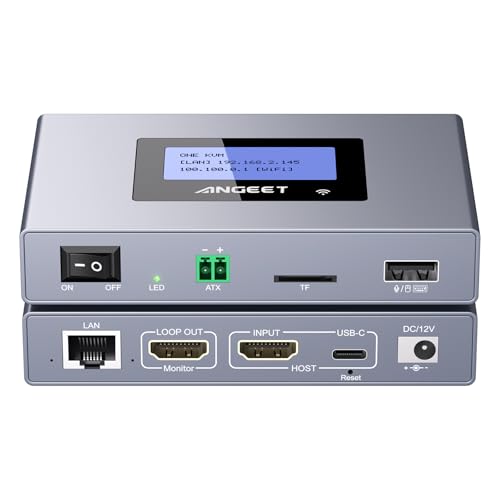
| Feature-Rich Leader | Maximum Video Resolution: 4K@60Hz (3840×2160) | Remote Access Method: Web/app + ZeroTier (Wi-Fi/Ethernet) | BIOS-Level Control: Yes | VIEW LATEST PRICE | Read Our Analysis |
| IP KVM Remote Control Over Internet 4K | Best Value | Maximum Video Resolution: 4K@60Hz (3840×2160) | Remote Access Method: Web/app + cloud server | BIOS-Level Control: Yes | VIEW LATEST PRICE | Read Our Analysis | |
| BliKVM v4 IPKVM Device with PoE and 4K HDMI |

| Open Source Choice | Maximum Video Resolution: 4K HDMI loop-out | Remote Access Method: Web-based browser control | BIOS-Level Control: Yes (BIOS/UEFI) | VIEW LATEST PRICE | Read Our Analysis |
| Tripp Lite IP Remote Access Unit for KVM Switches (B051-000) |

| Legacy System Solution | Maximum Video Resolution: 1080p@60Hz | Remote Access Method: Java web browser + USB/RS-232 | BIOS-Level Control: Yes | VIEW LATEST PRICE | Read Our Analysis |
| TRIPP LITE 32-Port Cat5 KVM Over IP Switch (B072-032-IP2-K) |

| Professional Grade | Maximum Video Resolution: 1920×1080@60Hz | Remote Access Method: Java web browser (secure IP) | BIOS-Level Control: Yes | VIEW LATEST PRICE | Read Our Analysis |
| MT-VIKI 8 Port Rack Mount KVM Over IP Console |

| Compact Console Option | Maximum Video Resolution: 1280×1024 | Remote Access Method: OSD/button/hotkey/IP access | BIOS-Level Control: Yes (full boot interaction) | VIEW LATEST PRICE | Read Our Analysis |
| Sipeed NanoKVM IP Remote Control 1080P HDMI |
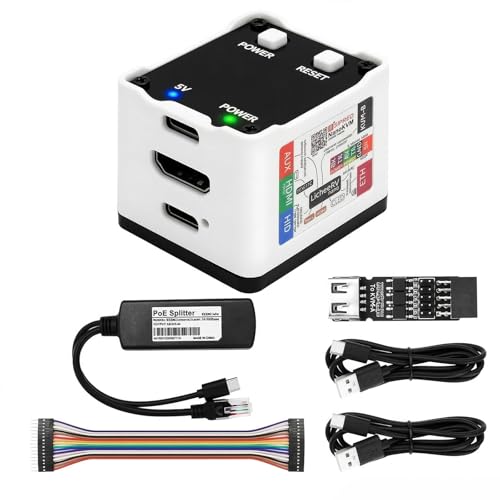
| Minimal Setup Pick | Maximum Video Resolution: 1080P HDMI | Remote Access Method: Internet via Ethernet | BIOS-Level Control: Yes | VIEW LATEST PRICE | Read Our Analysis |
More Details on Our Top Picks
Lantronix Integrated KVM-over-IP Solution for Remote Equipment
Want enterprise-standard remote access that doesn’t require physical presence? Lantronix’s integrated KVM-over-IP solution gives you BIOS-level control over your IP network from anywhere. You’ll manage servers remotely without needing someone on-site, which maximizes uptime and enables continuous equipment management. The zero U rackmount kit fits seamlessly into your existing infrastructure without consuming rack space. Installation’s straightforward—you connect the device and gain secure, non-blocked access immediately. Scalability works in your favor: you add remote users as needed without proportional cost increases. This approach delivers low cost-per-user pricing while maintaining enterprise-grade security and reliability for your IT operations.
- Maximum Video Resolution:Not specified
- Remote Access Method:IP network (BIOS-level)
- BIOS-Level Control:Yes
- Virtual Media/OS Installation Support:Not specified
- Concurrent Remote Users:Not specified
- Physical Form Factor:Zero U rackmount kit
- Additional Feature:Zero U rackmount kit
- Additional Feature:Low cost-per-remote-user
- Additional Feature:Easy add-as-you-grow scalability
TinyPilot Voyager 3 KVM Over IP Console Server
The TinyPilot Voyager 3 stands out as the all-encompassing solution for remote IT teams that need both server management and console access from a single device. You’ll access full BIOS-level control before your operating system loads, enabling critical pre-boot operations. The built-in console server lets you manage switches, firewalls, and PDUs remotely through a single interface. Virtual media support allows you to mount ISO images for updates and recovery without physical access. You can enable up to eight simultaneous remote users with tiered account controls, assigning either Admin or Operator roles. The Tailscale integration provides zero-trust security in minutes without complicated software installations.
- Maximum Video Resolution:Not specified
- Remote Access Method:Web/app access + Tailscale ready
- BIOS-Level Control:Yes
- Virtual Media/OS Installation Support:Yes (ISO images/file collections)
- Concurrent Remote Users:Up to 8 simultaneous
- Physical Form Factor:Compact console (14 x 7 x 2 inches)
- Additional Feature:Bright LCD screen display
- Additional Feature:HDMI passthrough non-blocking
- Additional Feature:Up to 8 simultaneous users
GL.iNet Comet Remote KVM Over Internet 4K
GL.iNet’s Comet delivers 4K remote access without premium pricing. You’ll get 3840×2160 resolution at 30Hz with low-latency control over multiple computers, servers, and routers. Setup requires only HDMI and Ethernet connections—no software installation on your controlled device. The unit weighs 85 grams and fits easily in your workspace. You can transfer files instantly, manage BIOS settings remotely, and reboot systems without physical access. H.264 hardware encoding ensures stable performance for IT maintenance and data center operations. A single button controls connections, and Tailscale integration expands your remote reach beyond local networks.
- Maximum Video Resolution:4K@30Hz (3840×2160)
- Remote Access Method:Internet + Tailscale support
- BIOS-Level Control:Yes
- Virtual Media/OS Installation Support:Yes (BIOS-based OS installation)
- Concurrent Remote Users:Not specified
- Physical Form Factor:Compact unit (3.15 x 2.36 x 0.68 inches)
- Additional Feature:4K@30Hz hardware-encoded video
- Additional Feature:Instant file transfer capability
- Additional Feature:Compact 85-gram unit
ONEKVM Wi-Fi Remote KVM Over IP Control
ONEKVM’s feature-rich leader in remote access delivers 4K control over IP networks without requiring additional software or drivers on your managed devices. You’ll connect the device’s HDMI and USB cables to your target computer, then link the Ethernet port to your network. The built-in ZeroTier enables secure remote access without port forwarding configuration. Access control through the web interface or ONE KVM app after login. The 4K resolution at 3840×2160@60Hz with sub-60ms latency handles Windows, macOS, and Linux systems. You’ll also gain remote power management, file transfer, USB camera support, and local monitor loop-out capabilities for comprehensive device oversight.
- Maximum Video Resolution:4K@60Hz (3840×2160)
- Remote Access Method:Web/app + ZeroTier (Wi-Fi/Ethernet)
- BIOS-Level Control:Yes
- Virtual Media/OS Installation Support:Yes (TF card storage)
- Concurrent Remote Users:Multiple (cloud/web access)
- Physical Form Factor:Compact (4.06 x 2.6 x 0.75 inches)
- Additional Feature:Built-in ZeroTier P2P
- Additional Feature:4K@60Hz <60ms latency
- Additional Feature:LCD screen IP display
IP KVM Remote Control Over Internet 4K
Best Value
View Latest PriceANGEET’s IP KVM delivers 4K remote access at exceptional value—why settle for lower resolution when you’re managing critical systems? Connect your device via HDMI and USB cables to the unit, then attach Ethernet to your network. Access control through the desktop app or web login from any location. You’ll manage servers, install operating systems through BIOS, and transfer files remotely. The device handles Windows, Mac, and Android platforms. Hardware encoding ensures sub-80ms delay at 3840×2160 resolution. A local monitor port lets you troubleshoot simultaneously. With remote wake-up capability and one-year warranty plus lifetime support, you get reliable infrastructure management without expensive enterprise solutions.
- Maximum Video Resolution:4K@60Hz (3840×2160)
- Remote Access Method:Web/app + cloud server
- BIOS-Level Control:Yes
- Virtual Media/OS Installation Support:Yes (virtual optical drive)
- Concurrent Remote Users:Multiple (web/app access)
- Physical Form Factor:Compact (3.82 x 3.82 x 1.1 inches)
- Additional Feature:4K@60Hz <80ms delay
- Additional Feature:Remote wake-up functionality
- Additional Feature:LOOP out local access
BliKVM v4 IPKVM Device with PoE and 4K HDMI
Looking for a KVM-over-IP solution that doesn’t lock you into proprietary software? BliKVM v4 offers open-source, hardware-level remote access to your servers and workstations. You’ll control keyboards, mice, and monitors through your web browser without relying on specific ports or services. The device supports PoE for simplified cabling and includes 4K HDMI loop-out for direct display connectivity. You can perform power management, restart systems, configure BIOS/UEFI settings, and reinstall operating systems remotely. Its emulated mass storage device enables OS deployment without physical media. This Linux-based device delivers plug-and-play functionality for IT teams managing multiple machines.
- Maximum Video Resolution:4K HDMI loop-out
- Remote Access Method:Web-based browser control
- BIOS-Level Control:Yes (BIOS/UEFI)
- Virtual Media/OS Installation Support:Yes (emulated mass storage)
- Concurrent Remote Users:Not specified
- Physical Form Factor:Not specified (web-based device)
- Additional Feature:PoE power support
- Additional Feature:Fully open source Linux
- Additional Feature:4K HDMI loop-out
Tripp Lite IP Remote Access Unit for KVM Switches (B051-000)
When you’re managing legacy systems that lack built-in IP functionality, the Tripp Lite B051-000 addresses a specific gap in your infrastructure. This unit transforms KVM switches into IP-accessible devices, supporting up to 64 user accounts with 32 concurrent logins. You’ll benefit from 1080p @ 60 Hz video quality and USB 2.0 virtual media capabilities. The device mounts on DIN rails or in 0U rack spaces, making installation straightforward. Control options include USB, RS-232, and external KVM over IP connections. The package includes all necessary cables, brackets, and an external power supply, enabling rapid deployment for remote IT teams managing older equipment.
- Maximum Video Resolution:1080p@60Hz
- Remote Access Method:Java web browser + USB/RS-232
- BIOS-Level Control:Yes
- Virtual Media/OS Installation Support:Yes (virtual media via USB 2.0)
- Concurrent Remote Users:Up to 32 concurrent logins
- Physical Form Factor:DIN rail/0U rack mount
- Additional Feature:Up to 64 user accounts
- Additional Feature:32 concurrent user logins
- Additional Feature:1080p@60Hz video support
TRIPP LITE 32-Port Cat5 KVM Over IP Switch (B072-032-IP2-K)
The TRIPP LITE B072-032-IP2-K delivers professional-grade remote access for IT teams managing large server environments. This 32-port switch supports one local user and two remote IP users simultaneously through secure Java-based web browsers. You’ll connect up to 32 computers or servers using RJ45 ports, then manage them from anywhere. The unit displays video at 1920 x 1080 resolution and includes 16 USB dongles for peripheral control. Dual Ethernet ports provide network redundancy, while dual serial ports integrate with PDUs and network devices. Install the included SSL certificates for authentication, then configure user accounts via the on-screen display. You can assign PDU ports to KVM ports, enabling remote power cycling when needed.
- Maximum Video Resolution:1920×1080@60Hz
- Remote Access Method:Java web browser (secure IP)
- BIOS-Level Control:Yes
- Virtual Media/OS Installation Support:Not specified
- Concurrent Remote Users:Up to 2 remote IP users
- Physical Form Factor:1U rack-mount (23.1 x 14.6 x 5.9 inches)
- Additional Feature:Dual redundant power supplies
- Additional Feature:Dual Ethernet ports redundancy
- Additional Feature:PDU integration power control
MT-VIKI 8 Port Rack Mount KVM Over IP Console
MT-VIKI’s compact console option fits IT teams managing multiple servers in standard 19-inch rack cabinets. You’ll control up to 8 servers locally or remotely over your network using the 17-inch LCD monitor. The unit supports BIOS-level access, allowing you to interact during boot sequences via TCP/IP. You can switch between servers through the OSD menu, push buttons, hotkeys, or IP access. The included client software enables remote administration, and you can daisy chain up to 64 computers for larger deployments. Five USB ports accommodate your keyboard, mouse, storage devices, and peripherals. With 8 cables included and aluminum/steel construction, you’re ready to install immediately in your existing rack infrastructure.
- Maximum Video Resolution:1280×1024
- Remote Access Method:OSD/button/hotkey/IP access
- BIOS-Level Control:Yes (full boot interaction)
- Virtual Media/OS Installation Support:Not specified
- Concurrent Remote Users:1 local & 1 remote
- Physical Form Factor:1U rack-mount drawer with 17″ LCD monitor
- Additional Feature:17″ integrated LCD monitor
- Additional Feature:Daisy chain up to 64
- Additional Feature:5 USB ports included
Sipeed NanoKVM IP Remote Control 1080P HDMI
Looking for a minimal setup pick that doesn’t require host software installation? The Sipeed NanoKVM functions as external hardware that connects directly to your server’s HDMI and USB ports. You’ll capture screen content through the HDMI input while the USB 2.0 port emulates a keyboard and mouse device. The device transmits video and control signals over 100Mbps Ethernet, enabling remote access from any internet connection. You can mount installation images or access BIOS using the TF card storage, which emulates as a USB flash drive. The full version includes an ATX power control interface and OLED display showing IP address and status. This approach works with any PC, SBC, or server without requiring specialized software on the host system.
- Maximum Video Resolution:1080P HDMI
- Remote Access Method:Internet via Ethernet
- BIOS-Level Control:Yes
- Virtual Media/OS Installation Support:Yes (emulates USB flash drive)
- Concurrent Remote Users:Single remote access
- Physical Form Factor:Mini form factor (external hardware)
- Additional Feature:RISC-V Linux SBC based
- Additional Feature:OLED display IP status
- Additional Feature:Spare TF card storage
Factors to Consider When Choosing KVM Over IP Solutions for Remote Servers

Here is the ORIGINAL TEXT rewritten with contextually relevant synonyms replacing ONLY the word “ensure”:
When you’re selecting a KVM over IP solution for your remote servers, you’ll need to evaluate five critical factors: resolution and video quality to guarantee you can read text and see details clearly, remote access security features to protect your systems from unauthorized control, installation and setup complexity to determine how quickly your team can deploy it, scalability for multiple users so your solution grows with your organization’s needs, and hardware compatibility requirements to confirm it works with your existing server infrastructure. Start by listing your current server models and network setup, then cross-reference each potential solution against these factors to identify which options meet your minimum requirements. Finally, prioritize solutions that balance ease of use with robust security, since a complicated system that your team avoids using won’t protect your infrastructure effectively.
Resolution And Video Quality
How critical is video clarity to your remote server management workflow? You’ll want to match resolution to your needs. Standard options range from 1080p to 4K, with 4K@60Hz delivering the sharpest BIOS-level visuals and smoothest cursor movement. If bandwidth is limited, 4K@30Hz reduces data consumption while maintaining clarity. Most systems use H.264 hardware encoding to balance quality and network efficiency. Check your device’s exact output specifications—3840×2160@60Hz versus 3840×2160@30Hz makes a practical difference in responsiveness. Latency figures under 60ms or 80ms indicate real-time control capability. Consider HDMI pass-through or loop-out options, which preserve local display quality while enabling remote access simultaneously. Select resolution based on your available bandwidth and required detail level for your operational tasks.
Remote Access Security Features
You’ll need to evaluate security features that protect both your remote sessions and your server infrastructure from unauthorized access and lateral movement threats. First, confirm the solution supports built-in authentication methods like RADIUS or LDAP to verify user identities. Second, verify SSL/TLS encryption encrypts all data streams during KVM sessions. Third, check for Zero Trust readiness and secure overlay support, which enable remote access without exposing direct network paths. Fourth, assess whether the architecture includes isolated local access paths and secure peer-to-peer options like ZeroTier to prevent lateral movement if a remote session gets compromised. Finally, confirm BIOS-level and pre-OS management capabilities exist, allowing secure maintenance without OS-level authentication, which reduces your attack surface during critical updates.
Installation And Setup Complexity
Once you’ve secured your remote access with strong authentication and encryption, you’ll want to confirm that deploying your KVM solution doesn’t require extensive configuration or specialized IT skills. Look for zero-hassle options that need no software installation and work within minutes. Check whether your solution includes local LCD screens displaying IP addresses and status information, which streamlines initial setup. Verify if web-based or app-based management platforms are available, reducing complex network configuration demands. Confirm BIOS-level access capabilities for pre-OS operations without waiting for full system boots. Review compatibility requirements carefully—some units demand direct HDMI and USB connections to controlled devices and may exclude NRV systems or specific PDUs. Cloud or ZeroTier connectivity options eliminate traditional network setup headaches entirely.
Scalability For Multiple Users
What separates a KVM over IP solution that works for a small team from one that scales across your entire organization? You’ll want to evaluate how many simultaneous remote users the system supports without performance degradation. Check whether it allows 8 or more concurrent logins per device, then verify concurrent session limits per connection, since some platforms support dozens of total users but restrict active sessions. Examine role-based access controls—administrator versus operator tiers—to manage permissions across growing teams. Confirm the platform synchronizes video, mouse, and keyboard input consistently when multiple users access the same system simultaneously. Finally, review expansion options like daisy-chaining capabilities and additional port availability to accommodate future infrastructure growth without replacing your entire setup.
Hardware Compatibility Requirements
While scalability ensures your KVM over IP solution handles multiple users effectively, the underlying hardware must work seamlessly with your existing infrastructure. You’ll want to verify that your chosen device supports the equipment you currently use—laptops, desktops, servers, and routers. Some KVM solutions advertise universal compatibility, while others are device-specific, so confirm this before purchasing. Check the physical form factor too, whether you need 1U rack-mount, compact, or drawer-style units that fit your data-center layout. Additionally, confirm the device offers independent hardware-based control that doesn’t depend on remote ports or protocols, ensuring stable access across diverse configurations. Finally, verify BIOS-level access capabilities so you can perform pre-OS operations and handle server installations without limitations.
Budget And Cost Efficiency
You’ll need to evaluate several financial factors when selecting a KVM over IP solution to avoid overspending on features or capacity you don’t actually use. Start by calculating cost-per-remote-user, comparing scalable pricing models across vendors to find the most affordable option for your team size. Next, examine hardware form factors and included licensing to identify hidden per-seat or per-feature charges that inflate total expenses. Check concurrent user limits—if you need only four simultaneous connections, don’t pay for eight-user capacity. Review warranty length and support terms, since longer coverage reduces downtime costs and replacement risks. Finally, assess built-in features like BIOS-level control or virtual media that eliminate additional hardware or software purchases, lowering your overall investment.
BIOS-Level Control Capabilities
Beyond calculating per-user costs and identifying built-in features, you’ll want to examine whether your KVM over IP solution provides BIOS-level control—a capability that separates basic remote console access from true hardware management. BIOS-level control lets you initialize, configure, and install operating systems before the OS loads. You can change BIOS/UEFI settings and perform pre-OS installations remotely. This matters because you maintain control even when the host operating system is down. Look for solutions offering virtual media for remote OS deployment and low-latency video transmission for pre-boot operations. Verify the product explicitly advertises BIOS-level access and remote power cycling capabilities. These features ensure you can manage servers during initial setup or recovery situations without onsite technician visits.
Final Thoughts
You should evaluate each KVM solution based on your specific needs: video quality requirements, number of ports, security features, and budget. Compare Lantronix for integrated systems, TinyPilot for simplicity, or GL.iNet for 4K capability. Check compatibility with your existing infrastructure and confirm remote access features meet your team’s requirements. Test solutions before full deployment to ensure they work with your servers and switches.

TechGuru
Meet Ry, "TechGuru," a 36-year-old technology enthusiast with a deep passion for tech innovations. With extensive experience, he specializes in gaming hardware and software, and has expertise in gadgets, custom PCs, and audio.
Besides writing about tech and reviewing new products, he enjoys traveling, hiking, and photography. Committed to keeping up with the latest industry trends, he aims to guide readers in making informed tech decisions.
Read author profile →

