


When you’re setting up your Epson printer, you’ll need a reliable USB cable that connects without frustration. You’ve got several solid options available, each with specific features that matter for your setup. Before you decide which cable works best for your situation, you should understand what distinguishes one from another—and why that distinction affects your printer’s performance.
| UGREEN USB A to USB B Printer Cable 5ft |
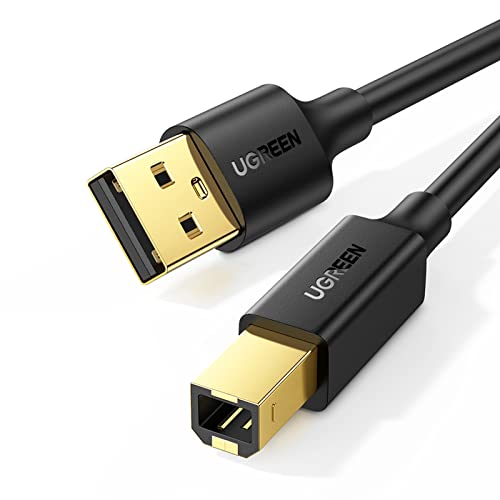
| Best Overall | Cable Length: 5 feet (1.5 meters) | Connector Type: USB 2.0 Type A to Type B Male | Data Transfer Speed: 480 Mbps (USB 2.0) | VIEW LATEST PRICE | Read Our Analysis |
| 6ft USB Printer Cable Type A to B Nylon Braided |

| Most Durable Design | Cable Length: 6 feet | Connector Type: USB 2.0 Type A to Type B Male | Data Transfer Speed: 480 Mbps (USB 2.0) | VIEW LATEST PRICE | Read Our Analysis |
| Printer to Computer USB Scanner Cable (10FT) |

| Best Length Option | Cable Length: 10 feet | Connector Type: USB 2.0 Type A to Type B Male | Data Transfer Speed: 480 Mbps (USB 2.0) | VIEW LATEST PRICE | Read Our Analysis |
| JSAUX USB Printer Cable 6.6FT Type A to B |

| Best Warranty Coverage | Cable Length: 6.6 feet | Connector Type: USB 2.0 Type A to Type B Male | Data Transfer Speed: 480 Mbps (USB 2.0) | VIEW LATEST PRICE | Read Our Analysis |
| Amazon Basics USB-A to USB-B 2.0 Cable |

| Budget-Friendly Pick | Cable Length: 10 feet (3 meters) | Connector Type: USB 2.0 Type A to Type B Male | Data Transfer Speed: 480 Mbps (USB 2.0) | VIEW LATEST PRICE | Read Our Analysis |
More Details on Our Top Picks
UGREEN USB A to USB B Printer Cable 5ft
If you’re looking for a reliable printer cable that’ll work with your Epson and dozens of other brands, the UGREEN USB A to USB B Printer Cable 5ft stands out as the top choice. This cable supports USB 2.0 with speeds up to 480 Mbps, making it suitable for quick data transfers between your printer and computer. The 5-foot length gives you flexibility in positioning your device. Gold-plated connectors resist corrosion, ensuring long-term durability. Foil and braid shielding reduce signal noise for stable connections. The cable requires no driver installation—simply plug it into your Epson printer and computer to start printing. It’s backward compatible with USB 1.1 and 1.0 devices.
- Cable Length:5 feet (1.5 meters)
- Connector Type:USB 2.0 Type A to Type B Male
- Data Transfer Speed:480 Mbps (USB 2.0)
- Connector Quality:Gold-plated with foil/braid shielding
- Cable Durability:Flat+round cable design, corrosion-resistant
- Setup Requirements:Plug and Play, no driver required
- Additional Feature:Flat+round cable design
- Additional Feature:Backward compatible USB 1.1/1.0
- Additional Feature:Gold-plated corrosion resistance
6ft USB Printer Cable Type A to B Nylon Braided
Looking for a cable that’ll handle daily printing without failing? The 6ft USB Printer Cable Type A to B Nylon Braided delivers durability you can depend on. This cable supports USB 2.0 speeds up to 480 Mbps and works with Epson XP printers and other compatible devices. The nylon braided jacket resists wear and tangling, while gold-plated connectors prevent corrosion. Check your Epson’s port before purchasing—this cable won’t fit USB-C or USB 3.0 Type-B ports. You’ll get plug-and-play installation without drivers, making setup straightforward and immediate.
- Cable Length:6 feet
- Connector Type:USB 2.0 Type A to Type B Male
- Data Transfer Speed:480 Mbps (USB 2.0)
- Connector Quality:Gold-plated with multiple shielding layers
- Cable Durability:Nylon braided, tangle-free, wear-resistant, pet-proof
- Setup Requirements:Plug and Play, driver-free
- Additional Feature:Nylon braided jacket construction
- Additional Feature:Pet-proof wear-resistant design
- Additional Feature:Blue color option available
Printer to Computer USB Scanner Cable (10FT)
The 10-foot length sets this Printer to Computer USB Scanner Cable apart for users whose devices sit across larger desks or rooms. This USB 2.0 A-to-B cable delivers 480 Megabits per second data transfer rates, making it suitable for HP, Canon, Epson, Dell, and other compatible printers. The male-to-male connectors ensure secure connections to your scanner or printer’s USB B port and your computer’s USB A port. Simply plug one end into your printer and the other into your laptop or desktop to enable printing and scanning functions. The black nylon design withstands both indoor and outdoor use, while the 10-ounce weight provides durability without bulk.
- Cable Length:10 feet
- Connector Type:USB 2.0 Type A to Type B Male
- Data Transfer Speed:480 Mbps (USB 2.0)
- Connector Quality:Gold-plated connectors
- Cable Durability:Round cable, high speed
- Setup Requirements:Plug and Play, driver-free
- Additional Feature:10-foot extended length cable
- Additional Feature:Indoor/outdoor usage capability
- Additional Feature:Round cable item shape
JSAUX USB Printer Cable 6.6FT Type A to B
JSAUX’s 6.6-foot printer cable delivers reliable connectivity with outstanding 18-month warranty protection that covers your investment. This USB Type A to B cable connects your Epson printer directly to your computer’s USB port. The gold-plated connectors resist corrosion and maintain signal clarity during data transfers. Its nylon braided design prevents tangling and increases durability for frequent use. The cable supports USB 2.0 speeds up to 480 Mbps, making it compatible with older USB standards. Install it by inserting the Type A end into your laptop or desktop computer and the Type B end into your Epson printer’s USB port. JSAUX includes 24/7 customer support to address any connection issues you encounter.
- Cable Length:6.6 feet
- Connector Type:USB 2.0 Type A to Type B Male
- Data Transfer Speed:480 Mbps (USB 2.0)
- Connector Quality:Gold-plated with nylon braided design
- Cable Durability:Nylon braided tangle-free design
- Setup Requirements:Plug and Play
- Additional Feature:18-month worry-free warranty
- Additional Feature:24/7 customer service support
- Additional Feature:Tangle-free nylon braided design
Amazon Basics USB-A to USB-B 2.0 Cable
Need a reliable printer cable that won’t drain your wallet? The Amazon Basics USB-A to USB-B 2.0 Cable delivers dependable performance for your Epson printer at an affordable price. This 10-foot black cable features gold-plated connectors that resist corrosion and multi-shielded construction that minimizes signal interference. It supports full USB 2.0 capability with data transfer speeds up to 480 Mbps, meeting CE, FCC, and UL certifications. The extended length provides flexibility in positioning your printer. You’ll receive one cable per package with standard Amazon packaging. The cable’s compatibility with external hard drives and other USB 2.0 devices adds versatility beyond printing needs.
- Cable Length:10 feet (3 meters)
- Connector Type:USB 2.0 Type A to Type B Male
- Data Transfer Speed:480 Mbps (USB 2.0)
- Connector Quality:Gold-plated with multi-shielding
- Cable Durability:Corrosion-resistant, heat resistant
- Setup Requirements:Standard installation, no special requirements
- Additional Feature:Multi-shielded signal interference protection
- Additional Feature:Heat resistant construction material
- Additional Feature:CE/FCC/UL certified compliance
Factors to Consider When Choosing a USB Cable for Epson Printer

When selecting a USB cable for your Epson printer, you’ll need to verify that the cable meets USB 2.0 compatibility standards, matches your printer’s connector type (typically USB-B), and provides adequate length for your setup without requiring extension cords. Consider cables with gold-plated connectors, which resist corrosion and maintain reliable connections over time, and check that the cable includes proper shielding to prevent signal interference and ensure stable data transfer. These factors directly affect whether your printer recognizes the connection immediately and operates without communication errors or dropped connections.
Cable Length Requirements
How do you know which cable length works best for your setup? Start by measuring the distance between your computer and printer. If they’re close together, a 5-foot cable reduces clutter and works well. For workspaces where your printer sits farther away, choose a 6–10 foot cable to maintain flexibility without excess slack. Some setups require 15-foot cables to reach across larger rooms.
Longer cables can introduce slight signal delays, but USB 2.0 handles lengths up to 10 feet or more reliably at 480 Mbps. To preserve signal integrity, ensure your cable has quality shielding and connectors rated for its full advertised distance. Match your cable length to your workspace layout, then verify the cable meets these quality standards before purchasing.
USB 2.0 Compatibility Standards
Since most Epson printers use USB 2.0 connections, you’ll want to verify your cable meets the standard’s specifications before making a purchase. Check that your cable supports data transfer speeds up to 480 Mbps, which is the standard rate for USB 2.0-compatible devices. Confirm you’re using a USB Type A to USB Type B cable—Type B connects to your printer, while Type A connects to your computer. Avoid confusing USB 2.0 Type-B cables with USB 3.0 Type-B cables, which use different connectors and aren’t compatible with standard Epson printers. Look for cables with gold-plated connectors and shielding, such as foil or braid wrapping, to reduce corrosion and electromagnetic interference, ensuring reliable data transfer.
Connector Type Verification
Before you buy a USB cable, you’ll need to identify the exact connector types on both your computer and printer. Most Epson printers use USB Type B connectors, the square-shaped port on the printer’s back. Your computer typically has a USB Type A port, the rectangular connector. Verify you’re not purchasing USB 3.0 Type B cables, which look similar but won’t fit properly in traditional Epson ports. Check your printer’s manual or examine the port directly to confirm the shape and size. Type B connectors have two flat sides and rounded corners, making them distinct from other variants. Once you’ve confirmed both connector types match your setup—USB A on one end and USB B on the other—you’re ready to evaluate other cable specifications like shielding and length.
Gold-Plated Connector Benefits
Why do gold-plated connectors matter for your Epson printer cable? Gold plating resists corrosion, which keeps your connection reliable over time. When you repeatedly plug in and unplug your cable, the gold plating maintains stable conductivity through multiple insertion cycles, preventing wear that degrades performance.
Gold-plated connectors also reduce signal loss and impedance changes during data transfer. This means your printer receives clearer, more consistent signals from your computer, resulting in steadier communication and fewer transmission errors.
When combined with shielding layers like foil or braid, gold plating further minimizes electrical noise around your cable. This dual protection ensures cleaner data signals reaching your Epson printer.
Choose USB A to B cables with gold-plated connectors to support dependable long-term performance and avoid connection problems.
Shielding And Signal Quality
What role does shielding play in your Epson printer’s USB cable performance? Shielding reduces electromagnetic and radio frequency interference that disrupts data transmission. You’ll find two primary shielding options: foil wrapping and braided mesh. Foil shielding provides basic interference protection, while braided nylon or aluminum shells offer enhanced durability and superior noise reduction. For cables longer than five feet, prioritize multi-layer shielding to minimize signal loss. The shielding must connect to a grounded, well-terminated USB-B connector to function effectively. In environments with multiple USB devices, strong shielding design lowers cross-talk susceptibility, ensuring consistent print data transmission. When selecting a cable, verify that the shielding covers the entire length and connects properly at both connectors for optimal signal quality and reliable Epson printer communication.
Durability And Build Materials
How long your Epson printer’s USB cable lasts depends on the materials and construction you choose. Select cables with gold-plated connectors that resist corrosion and maintain reliable electrical contacts over extended use. Choose a nylon braided or reinforced jacket to protect against abrasion and tangling, which extend cable lifespan markedly. Look for robust connector housings made from aluminum alloy or similarly durable materials—these withstand drops and daily handling without breaking. Verify that strain relief is sturdy near both connectors to prevent damage from frequent bending and movement. Multiple shielding layers (foil and braid) protect against wear while minimizing electromagnetic interference. These construction elements combine to create cables that perform consistently throughout years of regular use with your Epson printer.
Plug-And-Play Functionality
When you’re ready to connect your Epson printer, you’ll want a USB cable that works immediately without requiring driver installation or complex setup steps. Most Epson printers use standard USB printing class drivers that your computer recognizes automatically. This means you can plug in a compatible USB 2.0 Type-A to Type-B cable and start printing right away. Verify your printer has a USB-B port, not USB-C or USB 3.0 Type-B, to ensure compatibility. A shielded, gold-plated cable reduces signal interference and supports reliable hot-plugging, allowing your computer to recognize the printer instantly. Cable length affects signal integrity; choose 6–10 feet maximum to maintain stable connections. No additional driver downloads or installations are necessary for plug-and-play operation with your Epson printer.
Backward Compatibility Considerations
Why does your Epson printer’s USB cable need backward compatibility? Your printer may connect to older USB hosts supporting USB 1.1 or USB 1.0 standards. A USB 2.0 Type A-to-Type B cable handles this situation because it’s backward compatible with these older generations, though speeds’ll default to the lower standard.
When you select a cable, verify both connectors are standard USB Type A and Type B—not USB 3.0 Type B or USB-C variants. These alternatives won’t fit your printer’s port properly.
Gold-plated connectors and shielding reduce noise and data errors on older USB generations. Choose cables with foil or braid shielding to maintain signal integrity. This ensures your Epson printer works reliably regardless of your host device’s USB generation.
Final Thoughts
You’ll want to select a USB A-to-B cable that matches your setup’s needs. If you need a compact option, choose the UGREEN 5ft model. For longer distances, pick either the JSAUX 6.6ft or Amazon Basics 10ft cable. All three deliver reliable shielding and durable construction. Check your printer’s port type before purchasing, then connect directly to your computer’s USB port. You’re ready to use your printer immediately without installing drivers.

Meet Ry, “TechGuru,” a 36-year-old technology enthusiast with a deep passion for tech innovations. With extensive experience, he specializes in gaming hardware and software, and has expertise in gadgets, custom PCs, and audio.
Besides writing about tech and reviewing new products, he enjoys traveling, hiking, and photography. Committed to keeping up with the latest industry trends, he aims to guide readers in making informed tech decisions.