
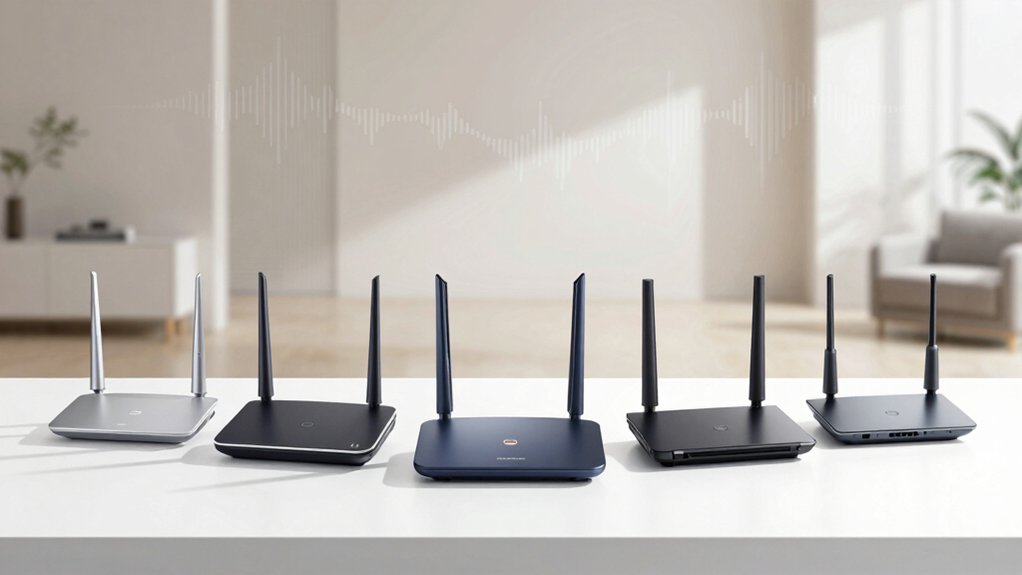

When you’re dealing with dead zones and weak signals throughout your home, you need a router that actually delivers coverage to every room. You’ll want to evaluate models with multiple external antennas, WiFi 6 or 7 support, and beamforming technology. But before you pick one, you should understand what specific features matter most for your space—and that’s where our breakdown of these five top performers comes in.
| TP-Link Archer AX21 WiFi 6 Router Dual Band |

| Best Budget WiFi 6 | WiFi Standard: WiFi 6 (802.11ax) | Maximum Wireless Speed: 1.8 Gbps (AX1800) | Coverage Area: Long-range coverage (specific sq. ft. not stated) | VIEW LATEST PRICE | Read Our Analysis |
| TP-Link AC1200 Gigabit WiFi Router (Archer A6) |

| Best Value | WiFi Standard: WiFi 5 (802.11ac) | Maximum Wireless Speed: 1.167 Gbps (AC1200) | Coverage Area: Long-range coverage (specific sq. ft. not stated) | VIEW LATEST PRICE | Read Our Analysis |
| NETGEAR Nighthawk WiFi 7 Router (BE9300) |

| Best Premium Performance | WiFi Standard: WiFi 7 | Maximum Wireless Speed: 9.3 Gbps (BE9300) | Coverage Area: Up to 2,500 sq. ft. | VIEW LATEST PRICE | Read Our Analysis |
| NETGEAR Nighthawk WiFi 7 Router BE3600 (RS90) |

| Best Compact WiFi 7 | WiFi Standard: WiFi 7 | Maximum Wireless Speed: 3.6 Gbps (BE3600) | Coverage Area: Up to 2,000 sq. ft. | VIEW LATEST PRICE | Read Our Analysis |
| TP-Link Archer BE600 WiFi 7 Router with 10G Port |

| Best High-End Coverage | WiFi Standard: WiFi 7 | Maximum Wireless Speed: 9.7 Gbps (BE9700) | Coverage Area: Up to 2,600 sq. ft. | VIEW LATEST PRICE | Read Our Analysis |
More Details on Our Top Picks
TP-Link Archer AX21 WiFi 6 Router Dual Band
Looking to blanket your entire home with reliable WiFi without dead zones? The TP-Link Archer AX21 delivers AX1800 speeds up to 1.8 Gbps across dual bands—1200 Mbps on 5 GHz and 574 Mbps on 2.4 GHz. Its four high-gain antennas and beamforming technology focus signals throughout your space, reducing dead zones effectively. WiFi 6 technology handles multiple devices simultaneously using OFDMA, preventing congestion. Setup takes minutes with the included Ethernet cable and quick guide. The router supports mesh configurations for extended coverage in larger homes. Compatible with all major ISPs and Alexa-enabled devices, it includes WPA3 security, VPN server support, and parental controls. TP-Link provides 24/7 technical support and a two-year warranty for reliability.
- WiFi Standard:WiFi 6 (802.11ax)
- Maximum Wireless Speed:1.8 Gbps (AX1800)
- Coverage Area:Long-range coverage (specific sq. ft. not stated)
- Device Support Capacity:Not specified
- Security Protocol:WPA/WPA2/WPA3
- Antenna Configuration:4 high-gain antennas
- Additional Feature:VPN server support included
- Additional Feature:Alexa smart home compatibility
- Additional Feature:Easy mesh network setup
TP-Link AC1200 Gigabit WiFi Router (Archer A6)
The TP-Link Archer A6 works best for you if you need dependable WiFi coverage across a medium-sized home without spending extra on premium equipment. This dual-band router delivers up to 1167 Mbps combined speeds using 802.11ac technology across 2.4GHz and 5GHz frequencies. Four external antennas with beamforming technology concentrate signals toward your devices for stronger reception. You’ll get four Gigabit LAN ports for wired connections and access to OneMesh compatibility, which lets you add compatible extenders for expanded coverage. Setup’s straightforward through the TP-Link Tether app on your smartphone, and you’ll benefit from WPA3 security, parental controls, and guest mode features for household management and protection.
- WiFi Standard:WiFi 5 (802.11ac)
- Maximum Wireless Speed:1.167 Gbps (AC1200)
- Coverage Area:Long-range coverage (specific sq. ft. not stated)
- Device Support Capacity:Not specified
- Security Protocol:WPA3
- Antenna Configuration:4 external antennas
- Additional Feature:OneMesh single-SSID coverage
- Additional Feature:Access Point mode available
- Additional Feature:Guest mode security feature
NETGEAR Nighthawk WiFi 7 Router (BE9300)
If you need WiFi coverage that reaches every corner of a 2,500 square-foot home without dead zones, the NETGEAR Nighthawk BE9300 delivers the speed and range you’re looking for. This WiFi 7 router reaches 9.3Gbps—2.4 times faster than WiFi 6—making it ideal for gaming, streaming, and video conferencing. The tri-band design and high-performance antennas work together to eliminate weak signal areas throughout your space. You’ll need a separate cable modem since this unit is a router only, but it works with any internet service provider. The 2.5 Gigabit internet port supports multi-gig speeds, and the device manages up to 100 connected devices simultaneously without slowdown.
- WiFi Standard:WiFi 7
- Maximum Wireless Speed:9.3 Gbps (BE9300)
- Coverage Area:Up to 2,500 sq. ft.
- Device Support Capacity:Up to 100 devices
- Security Protocol:Built-in security with NETGEAR Armor
- Antenna Configuration:High-performance antennas (count not specified)
- Additional Feature:Supports up to 100 devices
- Additional Feature:2.5 Gigabit internet port
- Additional Feature:NETGEAR Armor security suite
NETGEAR Nighthawk WiFi 7 Router BE3600 (RS90)
Want WiFi 7 speeds without paying premium prices for top-tier models? The Nighthawk BE3600 delivers. This dual-band router covers up to 2,000 square feet and handles 50 devices simultaneously using four antennas across 2.4 GHz and 5 GHz bands. You’ll get speeds reaching 3.6 Gbps—1.2x faster than WiFi 6. The 2.5 Gig internet port connects directly to your existing modem. Setup happens through the Nighthawk app, where you’ll manage security features including WPA2/WPA3 encryption and NETGEAR Armor protection. The router includes a one-year warranty, power adapter, and ethernet cable. Consider this option if you need solid long-range coverage without upgrading to higher-end models.
- WiFi Standard:WiFi 7
- Maximum Wireless Speed:3.6 Gbps (BE3600)
- Coverage Area:Up to 2,000 sq. ft.
- Device Support Capacity:Up to 50 devices
- Security Protocol:WPA2/WPA3 with NETGEAR Armor
- Antenna Configuration:4 antennas
- Additional Feature:2.5 Gig internet port
- Additional Feature:Nighthawk app management
- Additional Feature:NETGEAR Armor trial included
TP-Link Archer BE600 WiFi 7 Router with 10G Port
Looking for a router that handles demanding households with numerous devices and high-bandwidth activities? The TP-Link Archer BE600 delivers 9.7 Gbps total bandwidth across three bands, covering up to 2,600 square feet while supporting 120 simultaneous devices. You’ll benefit from a 10 Gbps WAN/LAN port and three 2.5 Gbps ports for wired multi-gigabit connectivity. The 6 GHz band’s 320 MHz channel capability ensures faster speeds and reduced congestion. Setup takes minutes through the Tether app or web interface. You gain WPA3 encryption, HomeShield security features, and VPN support. Multi-Link Operation keeps connections seamless when moving between rooms, making this router ideal for streaming 4K/8K content and gaming without interruption.
- WiFi Standard:WiFi 7
- Maximum Wireless Speed:9.7 Gbps (BE9700)
- Coverage Area:Up to 2,600 sq. ft.
- Device Support Capacity:Up to 120 devices
- Security Protocol:WPA3 with TP-Link HomeShield
- Antenna Configuration:6 antennas with beamforming
- Additional Feature:10 Gbps WAN/LAN port
- Additional Feature:Multi-Link Operation technology
- Additional Feature:TP-Link HomeShield protection included
Factors to Consider When Choosing Long Range Wifi Routers
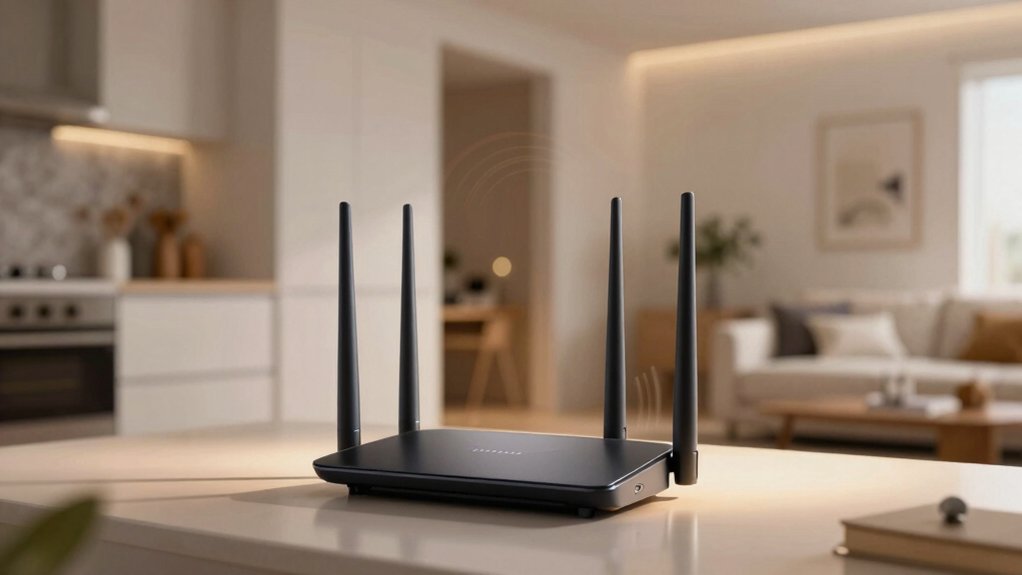
When selecting a long range WiFi router, you’ll need to evaluate your coverage area’s square footage, count how many devices you’ll connect simultaneously, and identify which WiFi technology standard (like WiFi 6 or WiFi 7) matches your needs. Next, examine the router’s antenna configuration and design, as more antennas and strategic placement typically improve signal strength and range throughout your home. Finally, review the security features and protection options available, including encryption standards and built-in firewalls, to ensure your network stays protected from unauthorized access.
Coverage Area And Square Footage
How do you know if a router’s advertised range will actually work in your home? Start by measuring your square footage, then compare it against the router’s stated coverage area. Most long-range models cover 2,500 to 2,600 square feet under ideal conditions. Next, account for real-world factors that reduce range: building materials like concrete and metal, interference from other devices, and network congestion all diminish signal strength. Consider the router’s antenna count and design—multi-antenna arrays with beamforming extend coverage more effectively. Finally, check the device capacity rating, such as 50 or 100 devices. This indicates how well the router maintains performance when multiple devices connect simultaneously across that coverage area.
Number Of Connected Devices
Once you’ve confirmed the router covers your square footage, you’ll need to assess whether it can handle all the devices you plan to connect simultaneously. Check the router’s device capacity, which higher-end models often advertise as 50–100+ devices. However, capacity alone doesn’t guarantee performance. Look for MU-MIMO and OFDMA technologies, which distribute bandwidth efficiently across multiple devices, preventing slowdowns. Examine the router’s processor and memory specifications—these components determine how many devices you can support before speeds degrade under load. If you’re connecting numerous devices throughout your home, consider mesh systems that offload traffic across multiple nodes. Finally, verify that beamforming and interference-reduction features are included, as these stabilize connections when device count increases significantly.
WiFi Technology Standards
What’s the difference between WiFi 5, WiFi 6, and WiFi 7, and does it matter for your long-range coverage? Yes, it does. WiFi 5 offers basic speeds but handles one device at a time efficiently. WiFi 6 introduces OFDMA and MU-MIMO, allowing multiple devices to connect simultaneously without speed drops. WiFi 7 pushes further with wider 320 MHz channels on 6 GHz, delivering faster multi-user performance across your home. For long-range coverage, you’ll want WiFi 6E or WiFi 7 routers that access the less-congested 6 GHz band, reducing interference from neighbors’ networks. Wider channels mean stronger signals reaching farther. Match your router’s standard to your devices—they’ll all perform at the slowest device’s capability, so upgrading everything ensures you’ll actually benefit from newer technology’s advantages.
Antenna Configuration And Design
While WiFi standards determine your router’s maximum speed potential, antenna configuration is what actually gets that signal into every corner of your home. You’ll find routers with 4, 6, or 8 external antennas—more antennas mean stronger directional coverage through beamforming, which concentrates signals toward your devices. Placement matters too: position antennas both vertically and horizontally to reach multiple floors and rooms effectively. Multi-band designs (dual-band or tri-band) distribute traffic across 2.4 GHz and 5 GHz frequencies, reducing congestion and extending range. Higher antenna gain ratings indicate better long-distance performance. When selecting a router, prioritize models combining multiple external antennas with beamforming technology and multi-band support for reliable coverage throughout your entire home.
Security Features And Protection
How can you protect your home network from cyber threats? Start by selecting a router with WPA3 encryption, which provides stronger password protection than older WPA2 standards. Enable built-in security suites like NETGEAR Armor or TP-Link HomeShield to block malware and defend against hacker attacks targeting your IoT devices. Activate your router’s firewall features, specifically SPI (Stateful Packet Inspection), to monitor incoming traffic and block unauthorized access. Set up a guest network to isolate visitors’ devices from your personal network, reducing risk if their devices carry malware. Enable automatic firmware updates so security patches install without requiring manual action. Finally, configure VPN support if you need secure remote access to your network from public locations.
Network Speed And Bandwidth
Beyond securing your network, you’ll want to evaluate the actual speed and bandwidth a router can deliver, since coverage means little if data moves slowly across your home. Check the router’s total bandwidth rating—typically shown as combined figures like 1.8 Gbps or 3.6 Gbps for dual- or tri-band systems. Each frequency band contributes differently, with higher bands offering faster real-world speeds. Look for wired multi-gig ports (2.5 Gbps or 10 Gbps) that boost performance for connected devices and reduce wireless congestion. Verify antenna count, beamforming capabilities, and front-end architecture, which concentrate signals toward clients and improve long-range throughput. Modern routers using MU-MIMO and OFDMA technology maximize aggregate speed across multiple simultaneous devices.
Compatibility With Internet Providers
When you’re shopping for a long-range WiFi router, you’ll need to confirm it works with your specific internet service before making a purchase. Check your ISP’s compatibility list to verify the router supports your service type—cable, fiber, or DSL. Most routers require a separate modem or gateway device from your ISP, so don’t assume a router alone will connect you. Review the router’s specifications to determine if it’s router-only or includes a built-in modem. If you’re upgrading to a multi-gig fiber plan, look for WiFi 6 or 7 routers advertised for high-speed compatibility. Additionally, consult your router’s setup guide for bridge mode configuration instructions, which prevents double NAT issues with certain ISPs.
Final Thoughts
You’ll find the best long-range router by matching your home’s square footage to coverage specs. Compare WiFi 6 and 7 models, checking antenna count and beamforming capabilities. Verify your internet speed supports the router’s bandwidth. Install your chosen model centrally, elevated from obstacles. Use wired backhaul connections where possible. Enable WPA3 security and configure bridge mode to avoid double NAT issues for optimal whole-home coverage.

Meet Ry, “TechGuru,” a 36-year-old technology enthusiast with a deep passion for tech innovations. With extensive experience, he specializes in gaming hardware and software, and has expertise in gadgets, custom PCs, and audio.
Besides writing about tech and reviewing new products, he enjoys traveling, hiking, and photography. Committed to keeping up with the latest industry trends, he aims to guide readers in making informed tech decisions.