
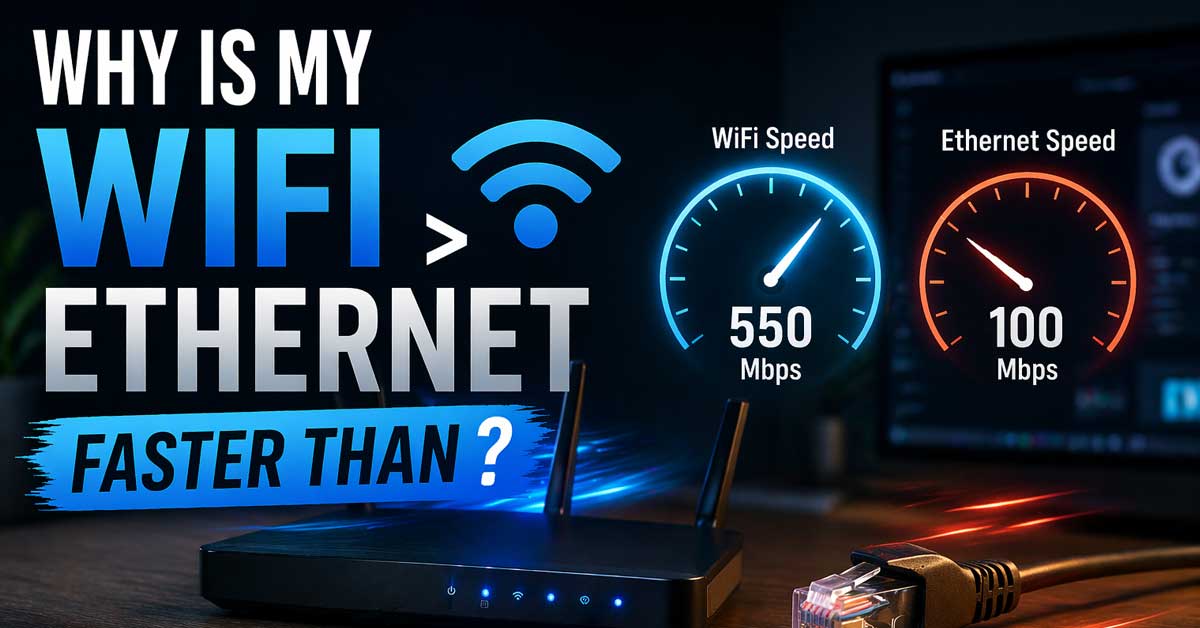

Usually a cable, port, or adapter issue — here’s what’s limiting your wired connection
Getting faster speeds on Wi-Fi than on a wired ethernet connection is counterintuitive — ethernet is supposed to be faster and more reliable than wireless.
When Wi-Fi beats ethernet in a speed test, something is wrong with the wired connection rather than Wi-Fi being unusually fast.
Here’s what’s limiting your ethernet speed and how to fix it.
Run the Speed Test Correctly First
Before troubleshooting, confirm the speed difference is real and consistent rather than a one-time anomaly.
Run a speed test at fast.com or speedtest.net on both connections back to back — first on ethernet, then on Wi-Fi, within a few minutes of each other on the same device. Make sure nothing else is consuming bandwidth during either test.
If ethernet beats Wi-Fi on the second test, the first result was a fluke. If Wi-Fi consistently outperforms ethernet across multiple tests, something is genuinely limiting the wired connection.
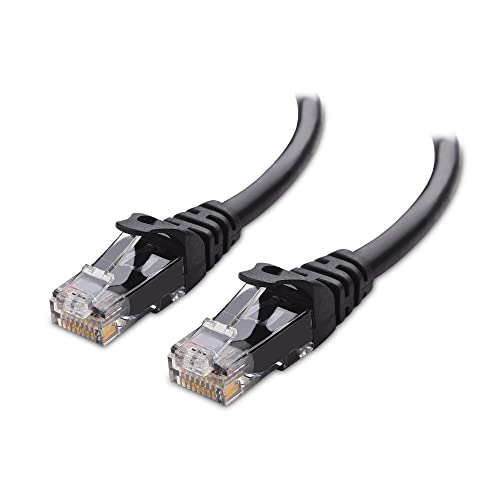
High-Performance Connectivity: This Cat 6 ethernet cable is designed for superior performance, with a 24 AWG copper wire core. It provides universal connectivity as an ethernet cord for LAN network components such as PCs, servers, printers, routers, and more, ensuring reliable and fast network connections

Cat 6 performance at a Cat5e price but with higher bandwidth. Bundled with the 20 cable clipes,no need to buy them elsewhere.

【High Speed Ethernet Cable】This Cat6 ethernet cable 1.5 foot has a transmission rate of up to 550 MHz 10Gbps and is backward compatible with any existing Cat 5 cable network and is suitable for 10BASE-T, 100BASE-TX (Fast Ethernet), 1000BASE-T/1000BASE-T (Gigabit Ethernet), and 10GBASE-T (Ten Gigabit Ethernet)
The Ethernet Cable Is the Problem
A bad or wrong-spec cable is the most common cause of unexpectedly slow ethernet. Not all ethernet cables are equal — different categories support different maximum speeds, and a cable that’s physically damaged or poorly terminated can severely limit throughput even if it looks fine.
Cable categories and their speed limits:
- Cat 5 (old, uncommon): 100 Mbps maximum — a significant bottleneck on modern connections
- Cat 5e: 1 Gbps (Gigabit) — adequate for most home connections
- Cat 6: 1 Gbps reliably, 10 Gbps at short distances
- Cat 6a and Cat 7: 10 Gbps — for high-speed connections and longer runs
If you’re on a 500 Mbps or 1 Gbps internet plan and using a Cat 5 cable, the cable itself caps your speed at 100 Mbps — easily slower than modern Wi-Fi.
Check the cable spec by looking at the text printed along the cable’s jacket — it will say Cat 5, Cat 5e, Cat 6, or similar. If it’s Cat 5 or unlabeled, replace it with a Cat 5e or Cat 6 cable.
Also try a completely different cable even if it’s the same category — a cable with a damaged internal conductor or a poorly crimped connector produces significantly degraded speeds even though it appears to work.

𝗠𝗲𝘁𝗮𝗹 𝗖𝗮𝘀𝗶𝗻𝗴: Metal-cased switches provide superior durability, heat dissipation, and EMI protection, making them the clear choice for reliable performance over cheaper plastic switches.
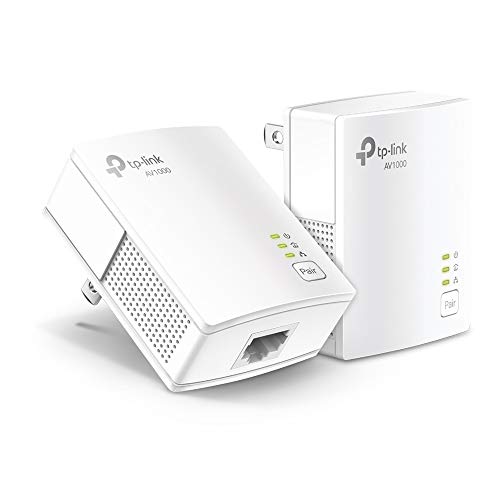
𝐄𝐱𝐭𝐞𝐧𝐝 𝐘𝐨𝐮𝐫 𝐄𝐭𝐡𝐞𝐫𝐧𝐞𝐭 𝐂𝐨𝐧𝐧𝐞𝐜𝐭𝐢𝐨𝐧 𝐓𝐡𝐫𝐨𝐮𝐠𝐡 𝐘𝐨𝐮𝐫 𝐄𝐥𝐞𝐜𝐭𝐫𝐢𝐜𝐚𝐥 𝐒𝐲𝐬𝐭𝐞𝐦 - This device is meant for individuals that are not able to extend their Ethernet connections where routers or range extenders do not work. Speeds cannot exceed your internet plan’s limit.

Fast speed: Wired connection with high speed data transfer rate, ideal for HD video or 3D video streaming and online gaming, up to 600Mbps.Power Consumption: Maximum: 2.5W, Typical: 2.3W, Standby: 0.36W
The Ethernet Port Is Negotiating at the Wrong Speed
Ethernet connections negotiate their speed automatically — the device and the router agree on a connection speed when they link up. This negotiation sometimes lands on 100 Mbps (Fast Ethernet) instead of 1000 Mbps (Gigabit) due to a cable quality issue, a driver setting, or a port configuration problem.
Check the negotiated speed on Windows:
Press Windows + X and select Network Connections or go to Settings → Network and Internet → Advanced Network Settings. Find your ethernet adapter and check its connection speed — it should show 1.0 Gbps. If it shows 100 Mbps, the connection is negotiating at Fast Ethernet speed rather than Gigabit.
Force Gigabit negotiation:
Open Device Manager, expand Network Adapters, right-click your ethernet adapter, and select Properties → Advanced tab. Find Speed and Duplex in the property list and change it from Auto Negotiation to 1.0 Gbps Full Duplex. Click OK and test again.
If it won’t negotiate at 1 Gbps, the cable is usually the cause — replace it and return the setting to Auto Negotiation.
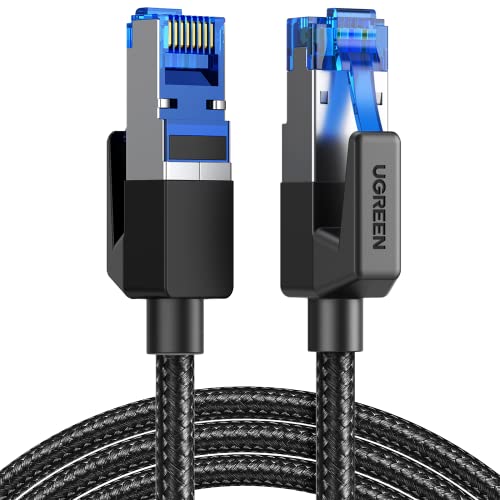
40 Gbps 2000 Mhz High Speed: The Cat 8 ethernet cable support max. 40 Gbps data transfer and 2000 MHz Brandwith, ideal for gaming and streaming, greatly improving upload and download speed, sound, image and resolution quality
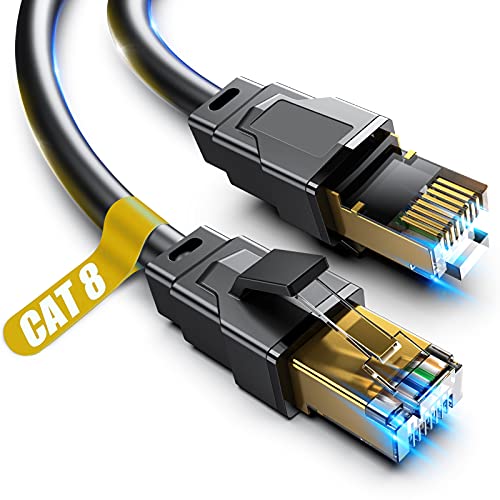
【Ultra Internet speed】Cat 8 ethernet cable support bandwidth up to 2000MHz and boosts the speed of data transmission up to 40Gbps,26AWG Cables suitable Indoor/Outdoor at hyper speed without worrying about cable mess, Cat8 can reduce any signal interference to the full extent. Allow you to stream HD videos, music, surf the net, play games at Hyper Speed
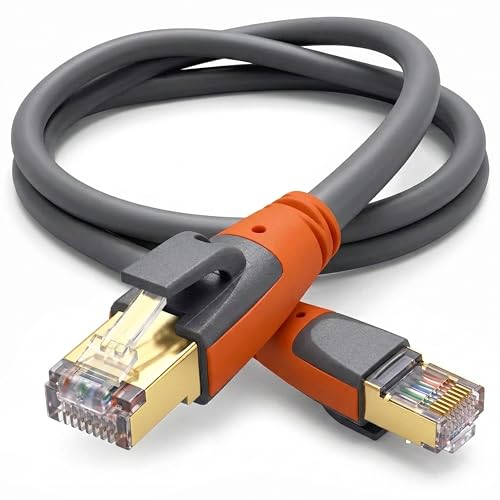
Heavy Duty & Direct Burial: Double shielded Cat8 Ethernet cable reduces EMI/RFI interference; provides high fidelity for long distance data transmission; waterproof, anti-corrosion, durable, and flexible with upgraded PVC; suitable for outdoor and indoor use; can be buried directly
The Ethernet Adapter Is Limited to 100 Mbps
Older computers and some budget laptops have Fast Ethernet adapters — 100 Mbps maximum — rather than Gigabit Ethernet adapters. If the physical adapter in your computer only supports 100 Mbps, no cable upgrade or setting change overcomes that limit.
Check your adapter’s specification in Device Manager. Look up the adapter model to confirm whether it’s Fast Ethernet (10/100) or Gigabit Ethernet (10/100/1000). If it’s Fast Ethernet and you’re on a fast internet plan, the adapter is the bottleneck.
For laptops and desktops with only Fast Ethernet: A USB to Gigabit Ethernet adapter ($15 to $25) bypasses the built-in adapter and provides full Gigabit speeds through a USB 3.0 port. Make sure to use USB 3.0 rather than USB 2.0 — USB 2.0’s bandwidth cap of around 480 Mbps limits throughput on faster connections.
The Router or Switch Port Is Faulty or Slow
The ethernet port on your router or switch that the cable plugs into may be the bottleneck. Routers typically have multiple LAN ports and occasionally one port fails or negotiates at a lower speed than the others.
Try plugging the ethernet cable into a different LAN port on your router. If the speed improves on a different port, the original port has a problem — a hardware fault, a damaged connector, or a configuration issue specific to that port.
Also check whether your router’s LAN ports are all Gigabit. Some older or budget routers have Gigabit WAN ports but only Fast Ethernet LAN ports — check your router’s specifications.
Update the Ethernet Driver
An outdated or corrupted ethernet adapter driver can cause the adapter to operate below its rated speed. This is particularly relevant after Windows updates that may have replaced a manufacturer driver with a generic one.
Open Device Manager, expand Network Adapters, right-click your ethernet adapter, and select Update Driver → Search Automatically. For more reliable results, go to your computer manufacturer’s support website and download the ethernet driver for your specific model.
After updating, restart and retest ethernet speeds.
Your Wi-Fi Is Running on a Fast Band
Modern Wi-Fi — particularly Wi-Fi 6 (802.11ax) — is genuinely fast. On a Wi-Fi 6 router at close range on the 5 GHz or 6 GHz band, real-world speeds of 400 to 800 Mbps are achievable. If your internet plan delivers 300 to 500 Mbps and your ethernet is limited to 100 Mbps by a Fast Ethernet adapter or Cat 5 cable, Wi-Fi easily outperforms wired in this scenario.
This means Wi-Fi isn’t unusually fast — it’s just less artificially limited than your wired connection currently is. Upgrading the cable and confirming Gigabit negotiation levels the playing field and ethernet should pull ahead.
Check for Network Adapter Power Saving
Windows power management can throttle ethernet adapter performance to save energy — reducing the adapter’s speed or putting it into a low-power state that limits throughput.
Open Device Manager, find your ethernet adapter, right-click and select Properties → Power Management. Uncheck Allow the Computer to Turn Off This Device to Save Power.
Also go to Control Panel → Power Options and make sure your power plan isn’t set to Power Saver — the Power Saver plan reduces adapter performance. Switch to Balanced or High Performance and retest.
Check the Network Card Is in the Right Slot
On desktop computers with a PCIe network card, the card needs to be in a PCIe slot that provides adequate bandwidth. A Gigabit or 2.5 Gigabit network card in a PCIe x1 slot performs fine, but in rare cases a card in a mismatched or partially connected slot can produce throttled speeds.
This is uncommon but worth checking on desktops where the network card was recently installed or the system was recently reassembled.
VPN or Security Software Affecting Ethernet Differently
VPN clients and network security software sometimes apply different processing rules to wired and wireless traffic. If a VPN is active during the ethernet speed test but wasn’t active during the Wi-Fi test — or vice versa — the results aren’t directly comparable.
Disable any VPN and run both tests again under identical conditions. If the results change significantly, the VPN is affecting one connection type more than the other.
A Quick Checklist
Work through these in order:
- Check cable category — replace Cat 5 or unlabeled cables with Cat 5e or Cat 6
- Try a different ethernet cable even if the current one appears fine
- Check negotiated connection speed in Network Settings — should show 1.0 Gbps
- Force Gigabit in Device Manager → ethernet adapter → Advanced → Speed and Duplex
- Try a different router LAN port
- Check adapter spec — confirm it’s Gigabit not Fast Ethernet
- Update ethernet driver from manufacturer website
- Disable adapter power management in Device Manager
- Switch Windows power plan from Power Saver to Balanced or High Performance
- Use USB 3.0 Gigabit adapter if built-in adapter is Fast Ethernet only
- Disable VPN and test both connections under identical conditions
The Bottom Line
Wi-Fi outperforming ethernet almost always comes down to the ethernet connection being artificially limited — by a Cat 5 cable capping at 100 Mbps, by the connection negotiating at Fast Ethernet speeds, or by a Fast Ethernet adapter in an older device. Wi-Fi isn’t actually faster than ethernet — something is slowing the wired connection down to below what wireless achieves.
Checking the cable category and the negotiated connection speed in Network Settings together identify the cause in the majority of cases. A $10 Cat 6 cable swap or a $20 USB Gigabit adapter typically restores ethernet to its proper performance advantage over wireless.
Ethernet should beat Wi-Fi — when it doesn’t, something is slowing the wire down. Find the bottleneck and ethernet takes the lead again.

EFFICIENT CABLE TESTING: Cable tester with single button testing of RJ11, RJ12, and RJ45 terminated voice and data cables

VERSATILE CABLE TESTING: Cable tester for data (RJ45) terminated cables and patch cords, ensuring comprehensive testing capabilities

The LAN cable tester can test both of the RJ11 telephone cable and RJ45 network cables such as RJ45 Cat5 Cat6 Cat7. Built-in high performance chip, which provide faster test results when checking wires and data points.

Meet Ry, “TechGuru,” a 36-year-old technology enthusiast with a deep passion for tech innovations. With extensive experience, he specializes in gaming hardware and software, and has expertise in gadgets, custom PCs, and audio.
Besides writing about tech and reviewing new products, he enjoys traveling, hiking, and photography. Committed to keeping up with the latest industry trends, he aims to guide readers in making informed tech decisions.