

When you need a bootable Linux USB drive that actually performs, you’ll want to evaluate several key options. You can choose from high-capacity drives with multiple OS options, pre-configured solutions for specific distributions, or compact drives optimized for portability. Each option offers different storage sizes, compatibility features, and pre-loaded operating systems. Understanding what you’re looking for—whether speed, variety, or simplicity—will help you select the right drive, but there’s more to consider before making your decision.
| 64GB Bootable USB Drive 3.2 Linux & Windows 11 |

| Most Versatile | Storage Capacity: 64GB | Operating Systems Included: 16 (Windows 11, multiple Linux distros) | USB Interface Speed: USB 3.2 Gen 1 (~150 MB/s read, ~200 MB/s write) | VIEW LATEST PRICE | Read Our Analysis |
| 16GB Bootable USB 3.0 Drive for Linux & Windows |
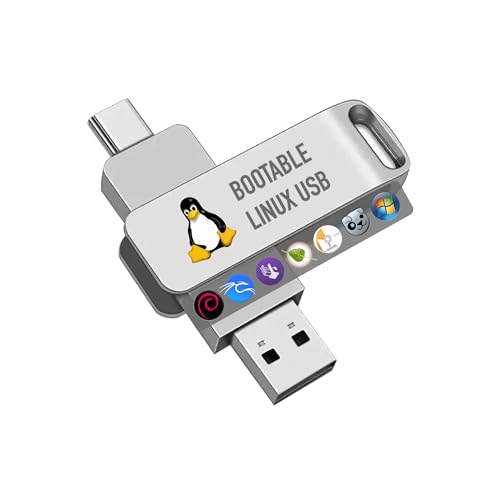
| Best Value | Storage Capacity: 16GB | Operating Systems Included: 7 (Windows XP, 6 Linux distros) | USB Interface Speed: USB 3.0 (150 MB/s read, ~200 MB/s write) | VIEW LATEST PRICE | Read Our Analysis |
| USB Bootable Linux Mint Flash Drive 3-in-1 |

| Linux Mint Specialist | Storage Capacity: Not specified | Operating Systems Included: 3 (Linux Mint versions only) | USB Interface Speed: USB (20 MB/s write) | VIEW LATEST PRICE | Read Our Analysis |
| Beamo Ubuntu Desktop 24.04.3 LTS Bootable USB Flash Drive |

| Best for Ubuntu | Storage Capacity: 16GB | Operating Systems Included: 1 (Ubuntu Desktop 24.04.3 LTS) | USB Interface Speed: USB 2.0 (16 MB/s read/write) | VIEW LATEST PRICE | Read Our Analysis |
| Beamo Linux Mint Cinnamon 22.2 Bootable USB Flash Drive |
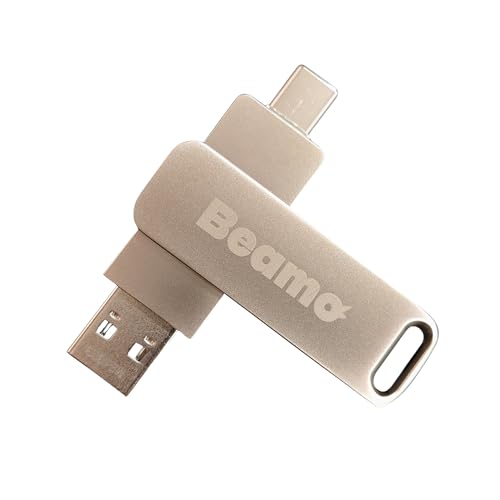
| Best Linux Distro Alternative | Storage Capacity: 16GB | Operating Systems Included: 1 (Linux Mint Cinnamon 22.2) | USB Interface Speed: USB 2.0 (20 MB/s read, 16 MB/s write) | VIEW LATEST PRICE | Read Our Analysis |
More Details on Our Top Picks
64GB Bootable USB Drive 3.2 Linux & Windows 11
Why choose the most versatile bootable USB drive on the market? You’re getting a 64GB USB 3.2 drive with 16 pre-loaded operating systems, including Windows 11, Linux Mint, Kali, Ubuntu, Debian, and Fedora. The drive reads at ~150 MB/s and writes at ~200 MB/s, making transfers quick. You’ll boot any OS without installation on any PC or laptop. All ISOs are tested and compatible with both UEFI and Legacy systems. If you encounter boot issues, disable Secure Boot in your system settings. The drive arrives in compact black housing measuring 1.63″ D x 0.69″ W x 0.4″ H. You’ll receive boot instruction videos and a hotkey list for accessing your system’s boot menu.
- Storage Capacity:64GB
- Operating Systems Included:16 (Windows 11, multiple Linux distros)
- USB Interface Speed:USB 3.2 Gen 1 (~150 MB/s read, ~200 MB/s write)
- UEFI & Legacy Support:Yes, both supported
- Warranty Period:Amazon returns policy (30 days)
- Color:Black
- Additional Feature:16 operating systems included
- Additional Feature:Boot instruction video included
- Additional Feature:~150-200 MB/s speeds
16GB Bootable USB 3.0 Drive for Linux & Windows
For users who want multiple operating systems on a single drive, the DEBOTIX 16GB 7-in-1 bootable USB 3.0 offers exceptional value without compromising capability. You get Windows XP Professional alongside six Linux distributions: Bodhi, Debian, Kali, Tails, TrixiePup, and Clonezilla. The drive’s USB 3.0 interface delivers 150 MB/s read speed and 200 MB/s write speed. All ISOs come pre-tested and ready to use. If you encounter boot issues, disable Secure Boot in your BIOS settings. The drive supports both UEFI and Legacy modes, ensuring compatibility with any PC or laptop. You’ll also access a video boot tutorial and hot key reference for straightforward setup.
- Storage Capacity:16GB
- Operating Systems Included:7 (Windows XP, 6 Linux distros)
- USB Interface Speed:USB 3.0 (150 MB/s read, ~200 MB/s write)
- UEFI & Legacy Support:Yes, both supported
- Warranty Period:2-year warranty
- Color:Black
- Additional Feature:7-in-1 operating systems
- Additional Feature:2-year warranty period
- Additional Feature:Windows XP Professional included
USB Bootable Linux Mint Flash Drive 3-in-1
The EZITSOL Linux Mint specialist drive offers three versions on a single USB: Cinnamon 22 and 21.3 in 64-bit, plus version 19 in 32-bit. You’ll find this flexibility valuable for older and newer PCs alike. Before installing, you can trial Linux Mint directly from the USB without affecting your system. The drive works with most major brands including HP, Dell, and Lenovo. You’ll need to disable Secure Boot in BIOS if you’re using UEFI. The drive supports legacy BIOS as well. With 20 MB/s write speed and straightforward setup, you’re ready to explore Linux Mint’s included applications for graphics, office work, and multimedia.
- Storage Capacity:Not specified
- Operating Systems Included:3 (Linux Mint versions only)
- USB Interface Speed:USB (20 MB/s write)
- UEFI & Legacy Support:Yes, both supported
- Warranty Period:Amazon returns policy (30 days)
- Color:Silver
- Additional Feature:Multiple Mint versions (32/64-bit)
- Additional Feature:Works with major PC brands
- Additional Feature:Pre-loaded with productivity apps
Beamo Ubuntu Desktop 24.04.3 LTS Bootable USB Flash Drive
Beamo’s 16 GB Ubuntu bootable drive suits you if you’re installing or repairing Ubuntu on multiple machines. Simply plug the USB into your computer’s USB 2.0 port and boot from it to begin installation. The drive works with most modern x86 computers—Windows, Linux, and Intel/AMD Macs—though ARM processors need additional software like Parallels. With 16 MB/s read and write speeds, you’ll experience reliable, efficient installations. The silver and black design keeps the drive portable and lightweight at nine grams. You’ll receive a one-year warranty covering damage causing non-functionality, plus Amazon’s standard 30-day return policy for defective units.
- Storage Capacity:16GB
- Operating Systems Included:1 (Ubuntu Desktop 24.04.3 LTS)
- USB Interface Speed:USB 2.0 (16 MB/s read/write)
- UEFI & Legacy Support:Not explicitly stated
- Warranty Period:1-year warranty
- Color:Silver and Black
- Additional Feature:Live USB for system repair
- Additional Feature:Plug-and-play installation
- Additional Feature:LED indicator light
Beamo Linux Mint Cinnamon 22.2 Bootable USB Flash Drive
Need a Linux distro that installs quickly without technical hassles? The Beamo Linux Mint Cinnamon 22.2 offers a pre-loaded 16GB USB drive ready to boot immediately. Insert the drive into your x86-based PC or Intel Mac, restart your computer, and select USB boot from your BIOS settings. The Cinnamon desktop environment loads directly, letting you install Linux Mint onto your hard drive or run it temporarily. Read and write speeds reach 20 MB/s and 16 MB/s respectively, ensuring efficient performance. M-series MacBooks require third-party software like Parallels Desktop. The drive includes a one-year warranty against hardware failure and qualifies for Amazon’s return policy within 30 days.
- Storage Capacity:16GB
- Operating Systems Included:1 (Linux Mint Cinnamon 22.2)
- USB Interface Speed:USB 2.0 (20 MB/s read, 16 MB/s write)
- UEFI & Legacy Support:Not explicitly stated
- Warranty Period:1-year warranty
- Color:Silver
- Additional Feature:Pre-loaded Cinnamon desktop
- Additional Feature:Compatible with Intel Macs
- Additional Feature:Plug-and-play installation
Factors to Consider When Choosing a Bootable Linux USB Drive
When you’re selecting a bootable Linux USB drive, you’ll want to evaluate five key factors: storage capacity (ensuring you have enough space for your chosen distribution and any additional tools), operating system compatibility (confirming the drive works with your computer’s architecture and BIOS settings), USB speed performance (checking whether the drive’s read/write speeds match your needs), the number of included systems (deciding if you want multiple Linux versions on one drive), and hardware interface standards (verifying the drive uses USB 3.0 or higher for faster installation). Each of these factors directly affects how well the drive functions, how quickly you can boot and install your system, and whether it’ll work with your specific hardware setup. By assessing these five elements systematically, you’ll choose a drive that meets your requirements rather than settling for one that falls short during installation.
Storage Capacity Requirements
How much storage you’ll actually need depends on which Linux distributions and operating systems you want to carry on your drive. A 16 GB drive holds a single OS or small selection, while 32 GB comfortably stores several full ISO images plus boot utilities. If you’re using space-consuming distros like Windows 11 or large Linux variants, aim for 64 GB or more to avoid performance slowdowns from a nearly full drive. Consider your future needs too—a larger drive gives you room for updates and additional OS images without reformatting later. Speed matters less than capacity for bootable usage, but drives with 150–200 MB/s write speeds reduce the time needed when loading multiple ISOs.
Operating System Compatibility
Once you’ve settled on your drive’s storage capacity, you’ll need to verify that it supports the specific operating systems you plan to use. Check whether your drive’s OS images match your hardware architecture—32-bit or 64-bit. Confirm that each operating system version you want (Ubuntu, Linux Mint, Kali, or Windows 11) is included and tested for bootability across different PC configurations. Review whether the drive supports both UEFI and Legacy BIOS modes, as older computers may require Legacy mode. If you encounter boot failures, you’ll likely need to disable Secure Boot in your BIOS settings. When purchasing multi-distribution drives, verify they include separate boot menus or instructions for selecting your desired OS at startup.
USB Speed Performance
Why does USB speed matter when you’re selecting a bootable Linux drive? Faster read and write speeds directly reduce file transfer times and system boot speeds. USB 3.2 Gen 1 drives typically deliver around 150 MB/s read and 200 MB/s write speeds, substantially outperforming USB 2.0 alternatives. You should check your system’s USB port version first—older systems may not support these faster speeds regardless of drive capability. The drive’s controller and flash memory quality affect real-world performance. You’ll notice sustained speeds matter more than peak speeds for consistent operation. Evaluate whether you need rapid data transfers or if basic bootable functionality suffices. Match the drive’s specifications to both your hardware capabilities and actual usage requirements for optimal performance.
Number Of Included Systems
When you’re selecting a bootable Linux USB drive, you’ll want to contemplate how many pre-loaded operating systems come with it. Different models include anywhere from 7 to 16 systems, with options ranging from various Linux distributions to Windows versions. More included systems give you greater flexibility for testing different operating environments without downloading additional ISOs. However, you should know that higher system counts create more complex boot menus and longer startup times. Additionally, more pre-installed systems reduce available storage space for your own files and custom images. Evaluate what you actually need: a streamlined drive with fewer systems for simplicity, or a comprehensive package with maximum variety. Match the system count to your specific use case and storage requirements.
Hardware Interface Standards
How important is your USB drive’s speed to your workflow? The hardware interface standard you choose directly affects your boot and file transfer times. USB 3.0 and 3.2 drives deliver read speeds up to 150 MB/s and write speeds around 200 MB/s, while USB 2.0 operates markedly slower. For faster OS installations and data transfers, select USB 3.0 or 3.2 compatible drives. Check your computer’s ports to guarantee compatibility with your chosen interface. Beyond speed, verify that your drive supports both UEFI and Legacy BIOS boot modes. This dual compatibility ensures your bootable drive works across older and newer hardware configurations. Higher-capacity drives like 64 GB don’t necessarily improve speed, but they do allow you to store multiple Linux distributions and recovery tools simultaneously.
Warranty And Return Policy
Beyond selecting the right hardware interface for your needs, you’ll want to protect your investment by understanding what happens if your bootable USB drive fails or arrives defective. Most sellers offer a 30-day return window for qualifying items, though restocking or test fees may apply depending on their policy. Check the product page for exact warranty duration and coverage scope—typically one year for new drives. Damage or non-functionality usually triggers warranty claims. Return eligibility depends on the marketplace vendor, item condition (new, used, or refurbished), and listing specifics. Always verify whether you need proof of purchase before filing a claim. Read the complete terms before buying to know your options if problems arise.
Physical Dimensions And Portability
The physical size and weight of your bootable Linux USB drive directly affect how conveniently you’ll carry and use it. Most compact models measure approximately 1.63 inches long by 0.69 inches wide with heights around 0.4 inches, fitting easily into pockets or on keychains. Weight typically ranges from 9 to 15 grams, making portability straightforward for daily transport. Consider your intended use: if you’ll frequently move the drive between computers, prioritize lightweight, slim designs. Standard form factors in black or silver offer reliable handling without complications. Check the specific dimensions before purchasing to ensure compatibility with your bag, pocket, or keychain setup. Smaller drives don’t compromise functionality while maximizing convenience for on-the-go Linux installation and troubleshooting tasks.
Final Thoughts
You’ve got five solid options for bootable Linux USB drives. Pick the 64GB drive if you need multiple OS choices. Choose DEBOTIX or EZITSOL for specific Linux flavors. Select Beamo drives for lightweight Ubuntu or Mint systems. Consider storage capacity, your preferred Linux distribution, and USB speed before deciding. All these drives offer reliable performance and compatibility with both UEFI and Legacy boot modes.

Meet Ry, “TechGuru,” a 36-year-old technology enthusiast with a deep passion for tech innovations. With extensive experience, he specializes in gaming hardware and software, and has expertise in gadgets, custom PCs, and audio.
Besides writing about tech and reviewing new products, he enjoys traveling, hiking, and photography. Committed to keeping up with the latest industry trends, he aims to guide readers in making informed tech decisions.