
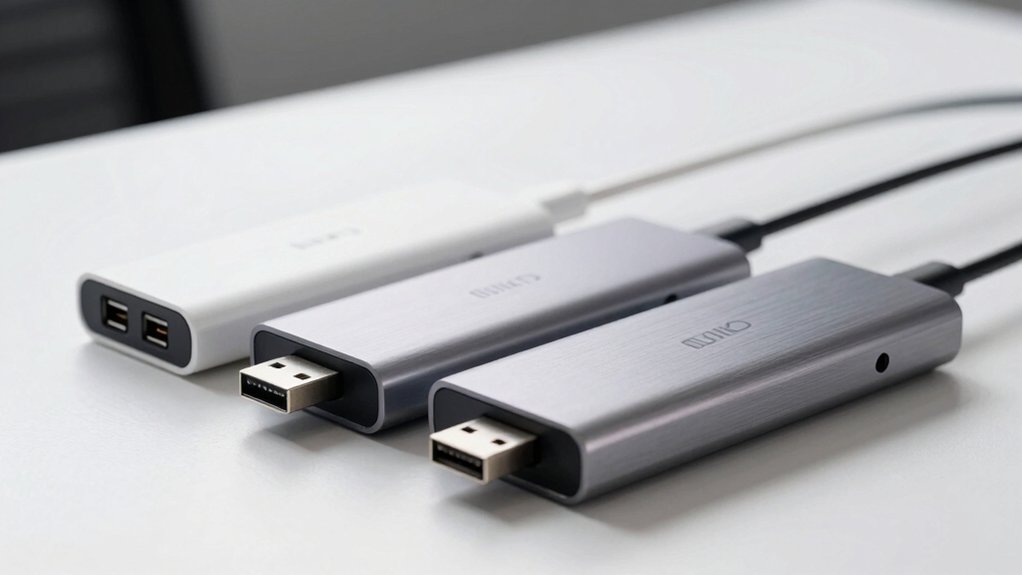

If you’re using a Mac and struggling with charging, video output, and data transfer simultaneously, you need a reliable USB hub. The right hub eliminates cable clutter and expands your connectivity options without compatibility headaches. You’ll want to understand what specs matter most—aluminum construction, pass-through charging, and driver-free operation top the list. But which specific models actually deliver on these promises?
| Anker 5-in-1 USB-C Hub with 4K HDMI |

| Best Overall | Video Output: 4K HDMI up to 4K@30Hz | USB Data Ports: 1 USB-C (5 Gbps) + 2 USB-A (5 Gbps) | Power Delivery Charging: 85W pass-through | VIEW LATEST PRICE | Read Our Analysis |
| UGREEN USB-C Hub 5 in 1 Multiport Adapter |

| Most Versatile | Video Output: 4K HDMI up to 4K@30Hz | USB Data Ports: 1 USB-A (5 Gbps) + 2 USB-A (480 Mbps) | Power Delivery Charging: 95W pass-through | VIEW LATEST PRICE | Read Our Analysis |
| Anker 7-in-1 USB-C Hub with HDMI & Card Reader |

| Best for Content Creators | Video Output: 4K HDMI up to 4K@60Hz | USB Data Ports: 1 USB-C (5 Gbps) + 2 USB-A 3.0 (5 Gbps) | Power Delivery Charging: 85W max | VIEW LATEST PRICE | Read Our Analysis |
| intpw 9-Port USB 3.2 Hub with PD Charging |

| Most Powerful | Video Output: No video output | USB Data Ports: 1 USB-C 3.2 (10 Gbps) + 2 USB-A 3.2 (10 Gbps) + 4 USB-A 3.0 (5 Gbps) | Power Delivery Charging: 45W dedicated charging ports | VIEW LATEST PRICE | Read Our Analysis |
| Hiearcool 7-in-1 USB-C Hub for MacBook |

| Best for Travelers | Video Output: 4K HDMI up to 4K@30Hz | USB Data Ports: 2 USB 3.0 (5 Gbps) | Power Delivery Charging: 100W pass-through | VIEW LATEST PRICE | Read Our Analysis |
More Details on Our Top Picks
Anker 5-in-1 USB-C Hub with 4K HDMI
When you’re working with multiple displays and devices simultaneously, how do you consolidate your connectivity? The Anker 5-in-1 USB-C Hub delivers four key ports: a 4K HDMI output, one USB-C data port, two USB-A data ports, and a USB-C charging port. You’ll transfer files at 5 Gbps speeds through the data ports while streaming video to an external monitor at 4K@30Hz via HDMI. The hub supports pass-through charging up to 85W with a separate charger, though you’ll need a 45W adapter for optimal iPad power. It’s compatible with macOS 12 and later, Windows 10/11, and ChromeOS on devices featuring DisplayPort Alt Mode.
- Video Output:4K HDMI up to 4K@30Hz
- USB Data Ports:1 USB-C (5 Gbps) + 2 USB-A (5 Gbps)
- Power Delivery Charging:85W pass-through
- Card Reader:None
- Total Ports:5 ports
- Warranty:18 months
- Additional Feature:Pass-through charging up to 85W
- Additional Feature:Compatible with USB4/Thunderbolt
- Additional Feature:macOS 12+ support included
UGREEN USB-C Hub 5 in 1 Multiport Adapter
The UGREEN USB-C Hub 5 in 1 is the most versatile option for Mac users who need multiple simultaneous connections. You get a 4K HDMI port for displays, 100W USB-C power delivery for charging, and three USB-A ports for peripherals. The aluminum design feels durable, and it works with MacBook Pro, MacBook Air, iMac, and iPad Pro. Setup requires no drivers—just plug it into your Mac’s USB-C port. Note that your Mac’s USB-C port must support video output for HDMI functionality. Avoid disconnecting your power adapter during file transfers to prevent data loss. The hub supports up to 5 Gbps data speeds on one port and costs significantly less than competitors.
- Video Output:4K HDMI up to 4K@30Hz
- USB Data Ports:1 USB-A (5 Gbps) + 2 USB-A (480 Mbps)
- Power Delivery Charging:95W pass-through
- Card Reader:None
- Total Ports:5 ports
- Warranty:24 months
- Additional Feature:95W USB-C pass-through charging
- Additional Feature:24-month warranty coverage
- Additional Feature:Linux compatibility included
Anker 7-in-1 USB-C Hub with HDMI & Card Reader
Need seamless 4K video output and dual card readers? The Anker 7-in-1 hub delivers both. You get one HDMI port supporting 4K@60Hz video, two USB-A 3.0 ports, one USB-C data port, and dual SD/TF card slots—all reaching 5Gbps transfer speeds. The hub accepts up to 85W Power Delivery charging through its USB-C input, so you’ll power your Mac while transferring files simultaneously. Its metal enclosure provides durability. Simply connect the hub to your Mac’s USB-C port if it supports DP Alt Mode, Power Delivery, or Thunderbolt 3/4/5. The setup requires no drivers. You’ll get an 18-month warranty with purchase, covering hardware defects and malfunctions.
- Video Output:4K HDMI up to 4K@60Hz
- USB Data Ports:1 USB-C (5 Gbps) + 2 USB-A 3.0 (5 Gbps)
- Power Delivery Charging:85W max
- Card Reader:SD/TF card readers
- Total Ports:7 ports
- Warranty:18 months
- Additional Feature:4K@60Hz HDMI video output
- Additional Feature:Dual SD/TF card slots
- Additional Feature:85W maximum power delivery
intpw 9-Port USB 3.2 Hub with PD Charging
Looking for a hub that won’t bog down your workflow? The intpw 9-port hub delivers fast data transfer through USB 3.2 ports at 10Gbps and USB 3.0 ports at 5Gbps. You’ll get one USB-C port, two USB-A 3.2 ports, and four USB-A 3.0 ports for connecting peripherals. Two dedicated 45W PD charging ports let you simultaneously charge your iPhone, iPad, or other USB-C devices without using data ports. The 65W power adapter ensures stable operation. Note that this hub doesn’t support video output and shouldn’t charge computers. Avoid running multiple SSDs at once, as power distribution becomes limited. The aluminum enclosure includes an angled design for stability on your desk.
- Video Output:No video output
- USB Data Ports:1 USB-C 3.2 (10 Gbps) + 2 USB-A 3.2 (10 Gbps) + 4 USB-A 3.0 (5 Gbps)
- Power Delivery Charging:45W dedicated charging ports
- Card Reader:None
- Total Ports:9 ports
- Warranty:18 months
- Additional Feature:Dual 45W PD charging ports
- Additional Feature:10Gbps USB 3.2 speeds
- Additional Feature:Powered hub with 65W adapter
Hiearcool 7-in-1 USB-C Hub for MacBook
Compact and weighing just 1.8 ounces, Hiearcool’s 7-in-1 USB-C hub serves travelers who need to expand their MacBook’s connectivity without sacrificing portability. You get HDMI for 4K displays, two USB 3.0 ports for data transfer up to 5 Gbps, SD/TF card readers for photos and files, and USB Type-C power delivery supporting up to 100W charging. Simply plug the hub into your MacBook’s USB-C port and connect your peripherals. The aluminum enclosure fits easily in laptop bags, making it ideal for office work, presentations, and remote meetings where you need multiple device connections simultaneously.
- Video Output:4K HDMI up to 4K@30Hz
- USB Data Ports:2 USB 3.0 (5 Gbps)
- Power Delivery Charging:100W pass-through
- Card Reader:SD/TF card readers
- Total Ports:7 ports
- Warranty:24 months
- Additional Feature:100W USB-C PD pass-through
- Additional Feature:Compact travel-ready design
- Additional Feature:2-year warranty protection
Factors to Consider When Choosing a USB Hub for Mac
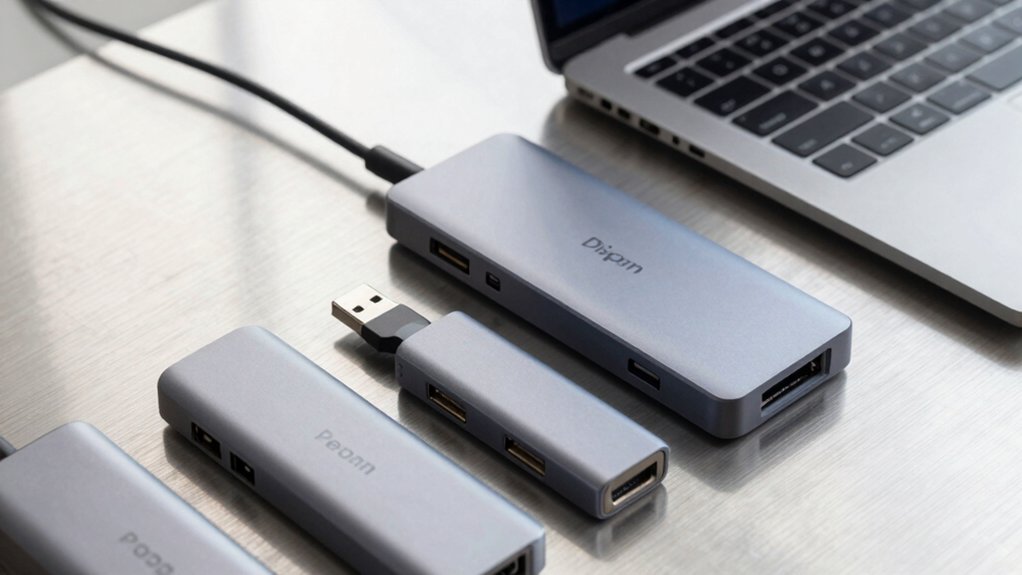
You’ll need to check your Mac model’s compatibility first, then assess your port requirements by listing the devices you plan to connect simultaneously. Next, determine your data transfer speed needs (USB 3.0, 3.1, or Thunderbolt), verify the power delivery wattage required for your devices, and confirm whether you need display output capabilities like HDMI or DisplayPort connections.
Compatibility With Mac Models
What Mac model do you currently use—Apple Silicon (M1–M5) or Intel-based? This distinction matters because hub compatibility varies significantly between them. Before purchasing, verify that your chosen hub explicitly supports your specific Mac generation. Check the manufacturer’s compatibility list on their website or product documentation. Apple Silicon Macs require different drivers than Intel models, so confirm support for your exact chip version. Additionally, verify macOS compatibility requirements, as some hubs only work with macOS 12 or newer. Contact the hub manufacturer directly if compatibility information isn’t clearly stated. Cross-reference your Mac’s specifications with the hub’s system requirements to avoid purchasing an incompatible device that won’t function properly with your machine.
Port Selection And Quantity
Most USB hubs for Mac offer between 5 and 9 total ports, but the specific combination of ports matters more than the raw count. First, identify what devices you’ll connect regularly—this determines your port mix. Next, prioritize USB-A 3.0 ports for faster data transfer if you use external drives or cameras. Then, check whether you need HDMI for display output; confirm your Mac’s USB-C port supports video. Consider dedicated SD or TF card readers if you work with memory cards frequently, as these offer 5 Gbps transfer speeds. Finally, verify USB-C Power Delivery pass-through capacity to ensure simultaneous charging while using data ports. Balance your specific needs against available ports rather than choosing based on total count alone.
Data Transfer Speed Requirements
Once you’ve identified your port mix, verify that the hub’s data speeds match your actual workload. For real-time file transfers and large media files, you’ll need 5 Gbps or higher per-port speeds on USB-A or USB-C data ports. Check the hub’s specifications carefully: some manufacturers list 5 Gbps on USB-A ports while reserving USB-C ports solely for power delivery or video output. If your hub includes a USB-C port, confirm it explicitly supports data transfer, not just charging. Avoid hubs with mixed speeds—slower 480 Mbps ports create bottlenecks during simultaneous transfers. Cross-reference the manual to identify which ports deliver high-speed data. This prevents bandwidth contention when you’re transferring files and using video output simultaneously.
Power Delivery Specifications
Because you’ll likely charge your Mac while using the hub, you need to understand how Power Delivery (PD) specifications work and what they mean for your setup. PD specs determine whether the hub charges your Mac and how much power reaches your device through the passthrough port—typically 45W, 85W, or 100W. Match your charger wattage to your Mac’s requirements; for example, a 16-inch MacBook Pro needs 96W minimum. Some hubs reserve power for internal operation, reducing effective passthrough. For instance, a hub might reserve 5W, leaving less available for your Mac. Check the hub’s specifications before purchasing to confirm it supports your Mac’s power needs while maintaining stable performance during simultaneous charging and data transfer.
Display Output Capabilities
How many monitors do you plan to connect to your Mac through the hub? This determines which hub you need. First, check if your Mac’s USB-C port supports video output, which enables HDMI functionality. Next, verify the hub’s HDMI specifications—some support 4K at 60Hz while others max out at 4K@30Hz. Avoid relying on USB-C data ports for video since they often don’t carry video signals. Review whether the hub separates charging from video output, as simultaneous power delivery can block display functionality. Match your desired resolution and refresh rate to both the hub’s HDMI version and your Mac’s capabilities. Finally, confirm which specific ports on the hub carry video signals, since not all USB-C ports support this feature.
Build Quality And Durability
A hub’s physical construction directly impacts how long it’ll last and how well it performs under daily use. Choose hubs with aluminum or metal enclosures—they dissipate heat better and resist damage more effectively than plastic alternatives. Look for single-piece rigid housings that prevent flex and port looseness, which commonly occur with multi-piece plastic designs. Examine the cable quality carefully; braided USB-C cables and reinforced connectors withstand repeated plugging and unplugging. Check the hub’s weight and footprint—heavier, sturdier models reduce wobble during operation. Finally, assess port spacing and arrangement to ensure cables don’t crowd each other, which reduces connector stress and extends durability. These construction details determine whether your hub maintains reliable performance or fails prematurely.
Final Thoughts
You’ll find the right USB hub by matching your specific needs to the features listed. Check your MacBook model’s port compatibility first. Compare the hub’s video output, charging capacity, and port count against your devices. Verify macOS driver requirements before purchasing. Test the hub immediately upon arrival to confirm all ports function properly. Return it promptly if you encounter compatibility issues. This approach guarantees you’re investing in equipment that genuinely works with your setup.

Meet Ry, “TechGuru,” a 36-year-old technology enthusiast with a deep passion for tech innovations. With extensive experience, he specializes in gaming hardware and software, and has expertise in gadgets, custom PCs, and audio.
Besides writing about tech and reviewing new products, he enjoys traveling, hiking, and photography. Committed to keeping up with the latest industry trends, he aims to guide readers in making informed tech decisions.