
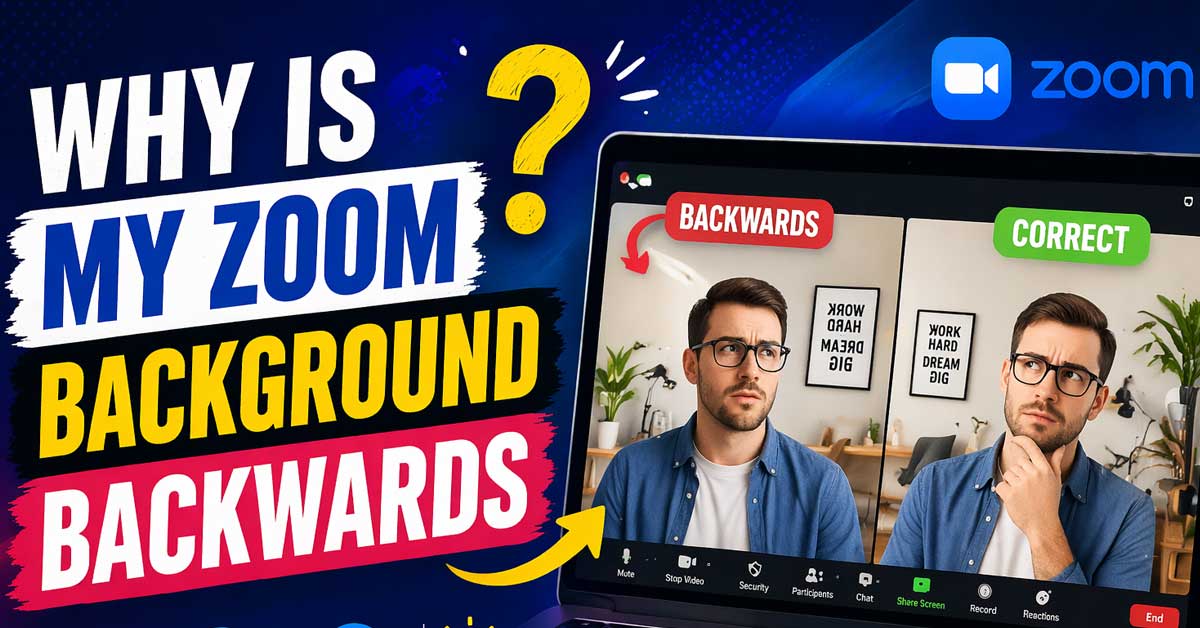

A mirror effect setting — here’s what’s causing it and how to control it
Joining a Zoom meeting and noticing your virtual background appears reversed — text is backwards, a logo is mirrored, or the room behind you looks flipped — is a specific and common issue.
Like most video conferencing software, Zoom mirrors your camera preview by default, which makes backgrounds with directional content appear backwards to you even though participants may see it correctly.
Here’s exactly what’s happening and how to control it.
How Zoom Handles Your Video Preview
Understanding this first prevents unnecessary troubleshooting. Zoom mirrors your camera preview — what you see of yourself in the preview window is a horizontally flipped version of what your camera actually captures. This is intentional design. Humans are accustomed to seeing themselves in mirrors and find a mirrored preview more natural than a non-mirrored one.
What participants see is different from what you see. Participants see the raw camera output — not mirrored. So if you’re holding a sign with text, you see the text backwards in your own preview but participants see it correctly.
Where this causes problems with virtual backgrounds: A background with text, a logo, or any directional element looks reversed in your own preview. The background isn’t actually reversed for participants — your mirrored preview is making it appear that way to you.
Before changing any settings, confirm whether the background is actually reversed for participants or only in your own preview. Ask a participant, take a screenshot during the call, or join a test meeting on a second device. If participants see it correctly, no fix is needed.

CAPTURE YOUR PERFORMANCE IN 4K – Record in 4K/30p with a 150° wide-angle lens and multiple field-of-view options, perfect for capturing your full performance

Demo Hheld 4K UHD Video/Audio Rec
AI AUTO TRACKING WITH MULTIPLE MODES Equipped with intelligent AI tracking supporting single-person tracking and multi-person auto framing. Automatically adjusts pan, tilt, and zoom to keep subjects centered. Provides smooth tracking transitions and stable framing without manual control, improving automation and ensuring consistent video positioning during use.
Turn Off Mirror My Video in Zoom
Zoom has an explicit mirror toggle that controls whether your preview is mirrored. Turning it off shows you an unmirrored preview — which may feel strange for your own face but correctly represents how directional backgrounds appear.
During a meeting:
Click the arrow next to the video camera icon in the meeting controls at the bottom of the screen. Select Video Settings. In the Video settings panel, look for Mirror My Video checkbox under the My Video section. Uncheck it.
Your preview immediately updates to show the unmirrored version — background text and logos now appear correctly in your own view, matching what participants see.
Before a meeting:
Open the Zoom desktop app. Click your profile picture in the top right and select Settings. Go to Video. Find and uncheck Mirror My Video.

【64MP & AF】 This digital camera offers high-resolution images, perfect for beginners looking to capture clear and sharp photos. With autofocus technology, it simplifies the process of getting the perfect shot,Whether you're capturing dynamic scenes or everyday moments, this camera makes photography easy, allowing you to focus on creativity without worrying about focus issues

【4K Digital Camera & 72MP Cameras for Photography】Capture stunning 4K videos & 72MP photos. Advanced autofocus (half-press shutter) ensures sharp images. Built-in flash excels in low light. Ideal digital camera for travel and creative projects.

The Background Appears Reversed for Participants Too
If participants are also seeing the background reversed — not just you in your own preview — the issue is different from standard mirror behavior and needs a different fix.
This happens when:
A virtual camera app is applying a flip. OBS Virtual Camera, Snap Camera, or similar tools process your video before sending it to Zoom and may have a horizontal flip applied. Open your virtual camera software and check for any flip or mirror transformation in its settings.
Your physical webcam is mounted backwards or upside down. An external webcam that’s physically flipped or mounted in an unusual orientation captures a mirrored image at the hardware level. Check your camera’s physical orientation and remount it correctly.
GPU or camera driver settings are flipping the output. Some camera companion apps — Logitech Camera Settings, for example — have flip or mirror options that apply at the driver level. Check your webcam’s software for any active flip settings.

Vintage Design: The backdrop boasts a design that captures the charm of vintage bookcases filled with antique books, creating an inviting and intellectual atmosphere.

Multiple size options: We offer a variety of size options, including 5x3 feet, 7x5 feet, 10x6 feet, etc., to suit different occasions and shooting needs.

【Size】: 7x5FT(WxH) / 2.1m x 1.5m / 82 inch x 59 inch, Horizontal Style. Clips and stand are not included . Without grommets or pole pockets.
Pre-Flip Your Background Image
A practical workaround that avoids changing Zoom settings entirely is creating a horizontally flipped version of your background image before uploading it to Zoom.
If Zoom’s mirror preview is on and making your background look backwards to you, a pre-flipped background appears correct in your mirrored preview — and since participants see the unmirrored version, they see the flipped image which may or may not be correct depending on your background content.
This approach works best when:
You want the background to look correct in your own preview while mirror mode is on. The background has specific text or logos that need to appear correctly to you during the call. You don’t want to change Zoom’s mirror setting and have your face appear unmirrored.
To flip an image: on Windows use Paint (Image → Flip Horizontal), on Mac use Preview (Tools → Flip Horizontal), or use any photo editing tool. Upload the flipped version as your Zoom background.
Note: If you pre-flip the background and also turn off Mirror My Video, the background appears backwards to both you and participants. Only pre-flip if you’re keeping mirror mode on.
Check Zoom Virtual Background Settings
Zoom’s virtual background settings themselves can sometimes affect how backgrounds display.
Open Zoom Settings → Backgrounds and Effects → Virtual Backgrounds. Remove the current background and re-add it. Sometimes a background that was added while in a different mirror state displays incorrectly until it’s re-added with the current settings active.
Also check whether I have a green screen is checked when you don’t actually have a green screen — this setting changes how Zoom processes the background and can produce unexpected display results.
Zoom on Mobile Behaves Differently
On iPhone and Android, Zoom’s mirror behavior and background handling differ from the desktop app.
On mobile, the front-facing camera typically mirrors the preview by default. Background orientation follows the same logic — the preview is mirrored, participants see the correct orientation.
To toggle mirror mode on mobile: During a meeting, tap the three dots for More options. Look for Video Settings or go to Settings → Video → Mirror My Video in the Zoom app settings.
A Quick Summary of Scenarios
| Situation | Cause | Fix |
|---|---|---|
| Background reversed only in your preview | Normal mirror preview behavior | No fix needed — participants see it correctly |
| Background reversed only in your preview and it bothers you | Mirror mode on | Turn off Mirror My Video in Video Settings |
| Background reversed for participants too | Virtual camera software flipping output | Remove flip in OBS or virtual camera settings |
| Background reversed for participants too | Physical camera mounted wrong | Remount camera correctly |
| Want background correct in your own mirrored preview | Mirror mode on | Pre-flip the background image before uploading |
The Bottom Line
A reversed Zoom background in your own preview is almost always the normal mirror effect — your preview is flipped to feel like looking in a mirror, which makes backgrounds with directional content appear backwards to you. Participants see it correctly. Unchecking Mirror My Video in Zoom’s Video Settings shows you the unmirrored view where backgrounds appear the same way participants see them.
If participants are also seeing the background reversed, a virtual camera app applying a flip or a physically misoriented webcam is the cause — find the flip setting in your virtual camera software or physically correct the camera orientation.
Your preview is a mirror — what looks backwards to you is almost always forwards to everyone else. Turn off Mirror My Video in settings and both views match.

【4K 64MP Autofocus Digital Camera】Capture stunning 64MP photos and 4K videos with this digital camera featuring a 3-inch flip screen, 18X digital zoom, and built-in fill light. Designed for photography enthusiasts of all ages, this vlogging camera offers autofocus, manual focus, and fixed focus modes. Ideal for vlogging, it supports time-lapse, slow motion, loop recording, and continuous shooting—making it perfect for beginners. Ideal gift for kids, adults, seniors, and students.

【Autofocus 64MP & UHD 4K Digital Camera】The digital camera can make YouTube 4K videos and take 64 MP UHD pictures. High quality images and high pixel video sensor can capture every memorable moment clearly.4k vlogging camera has three focus modes: auto focus, manual focus and fixed focus, you can set the focus mode according to your needs. It is a perfect photography cameras for beginners

【48MP & 4K HD Digital Camera】The latest 2025 4k digital camera can captures 48MP photos and records high-definition 1080P videos. the HD photo camera built-in a high-brightness flashlight to help you take high-quality photos even in low-light or dark environments

Meet Ry, “TechGuru,” a 36-year-old technology enthusiast with a deep passion for tech innovations. With extensive experience, he specializes in gaming hardware and software, and has expertise in gadgets, custom PCs, and audio.
Besides writing about tech and reviewing new products, he enjoys traveling, hiking, and photography. Committed to keeping up with the latest industry trends, he aims to guide readers in making informed tech decisions.