

Almost always an XMP/EXPO profile or BIOS setting — here’s what’s limiting it and how to fix it
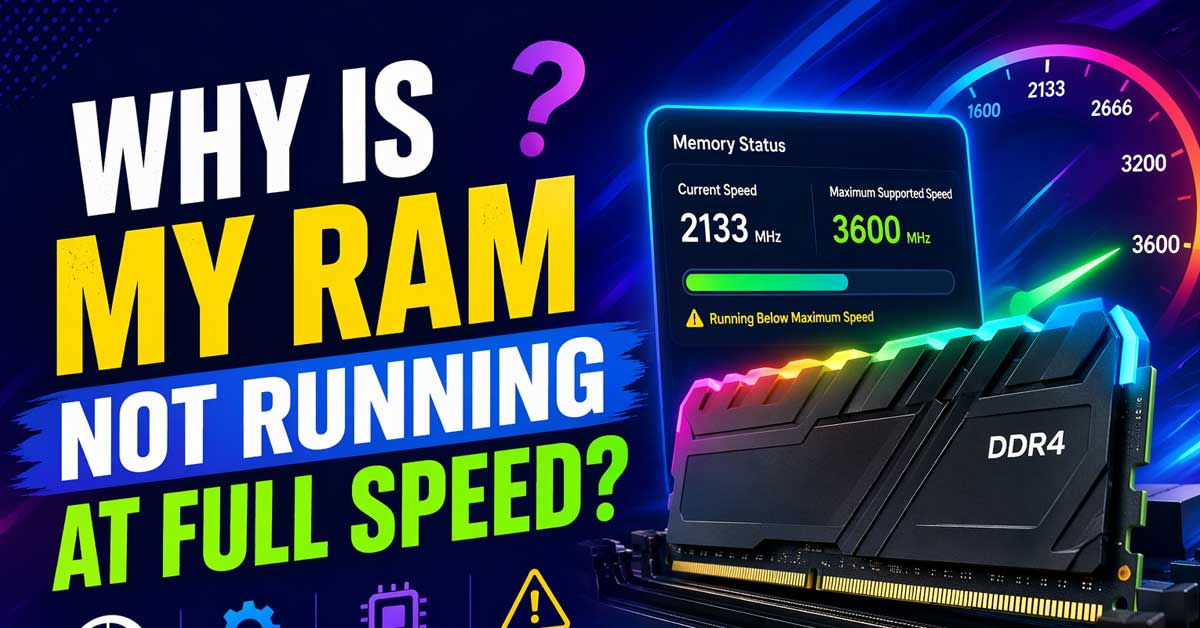
Installing RAM rated for 3200MHz, 4800MHz, or 6000MHz and finding it running at 2133MHz or 2400MHz in Task Manager or CPU-Z is one of the most common PC building and upgrading frustrations.
RAM almost never runs at its advertised speed by default — the rated speed requires a specific BIOS setting to be enabled.
Here’s why this happens and exactly how to fix it.
Why RAM Runs Slower Than Its Rated Speed by Default
This is the fundamental thing to understand first. Every RAM kit ships from the factory running at a conservative default speed — typically 2133MHz or 2400MHz for DDR4, or 4800MHz for DDR5 — regardless of what speed is printed on the label or advertised on the box.
The faster advertised speed — 3200MHz, 3600MHz, 4800MHz, 6000MHz — is an overclock that’s stored in a profile on the RAM module itself. This profile is called XMP (Extreme Memory Profile) on Intel platforms or EXPO (Extended Profiles for Overclocking) on AMD platforms. Until you explicitly enable this profile in your BIOS, the system ignores it and runs at the conservative default.
This isn’t a defect or a manufacturing error — it’s how RAM is designed to work. The default speed ensures compatibility across every system regardless of motherboard or CPU. The XMP/EXPO profile delivers the advertised performance once you tell the system to use it.

Moulded in recyclable ABS plastic

Low-profile heat spreader design

G.SKILL RipjawsV Series DDR4 U-DIMM Memory Kit, Model: F4-3200C16D-32GVK
Enable XMP or EXPO in the BIOS
This single step fixes the vast majority of RAM running below rated speed. Everything else in this article is for cases where XMP/EXPO is already enabled but RAM is still running slow.
How to enable XMP/EXPO:
Restart your computer and enter the BIOS by pressing Delete, F2, F10, or another key during startup — the key appears briefly on screen during boot, or check your motherboard manual.
The location of the XMP/EXPO setting varies by motherboard manufacturer:
ASUS BIOS: Go to Ai Tweaker or the Advanced tab. Look for Ai Overclock Tuner and change it from Auto to XMP (Intel) or DOCP/EXPO (AMD). ASUS calls XMP “DOCP” on AMD platforms.
MSI BIOS: Go to OC settings or look for XMP directly on the main screen. Toggle XMP from Disabled to your profile.
Gigabyte BIOS: Go to Tweaker settings and find Extreme Memory Profile (XMP) — set it to Profile 1.
ASRock BIOS: Go to OC Tweaker and find DRAM Profile or XMP — enable it.
After enabling XMP or EXPO, press F10 to save and exit. The system restarts and your RAM runs at its rated speed.
Verify it worked: After booting, open Task Manager → Performance → Memory and check the speed shown. Alternatively download CPU-Z (free), go to the Memory tab, and check the DRAM Frequency — note that CPU-Z shows the half-rate frequency for DDR RAM, so 1600MHz in CPU-Z equals DDR4-3200.

G.SKILL Trident Z5 Neo RGB Series DDR5 U-DIMM Memory Kit, Model: F5-6000J3038F16GX2-TZ5NR

G.SKILL Flare X5 Series DDR5 U-DIMM Memory Kit, Model: F5-6000J3038F16GX2-FX5

Do it All, and Do it Faster: As modern CPUs feature more and more cores, the unprecedented speed of DDR5 ensures your high-end CPU gets data quickly, enabling faster processing, rendering, and buffering than ever before.
XMP Is Enabled But RAM Is Still Running Slow
If XMP or EXPO is already enabled and RAM is still below its rated speed, one of several specific issues is limiting it.

Hand-sorted memory chips ensure high performance with generous overclocking headroom

High performance DDR4 memory illuminates your system with vivid, animated lighting from ten ultra-bright, individually addressable RGB LEDs per module

Hand-sorted memory chips ensure high performance with generous overclocking headroom
Incompatible RAM and Motherboard Combination
Not every RAM kit runs at full speed on every motherboard. Motherboards have a Qualified Vendor List (QVL) — a list of RAM kits that have been tested and verified to work at rated speeds with that specific board. RAM not on the QVL may still work but might not reach its full rated speed, or may require manual timing adjustments.
Go to your motherboard manufacturer’s website, find your specific motherboard model, and look for the Memory Support List or QVL under specifications or downloads. Check whether your RAM kit — the exact model number — appears on the list at its rated speed.
If your RAM isn’t on the QVL, it may still work at the rated speed but is less guaranteed to do so. If it’s showing consistent instability or running below spec, incompatibility is a possible cause.
RAM Installed in the Wrong Slots
Dual-channel RAM configuration requires installing modules in specific slots for the motherboard to recognize them correctly and run at full speed. Installing RAM in the wrong slots forces the system into single-channel mode or causes the RAM to run at a conservative fallback speed.
Most motherboards with four RAM slots use alternating slots for dual-channel — typically slots 2 and 4 (A2 and B2) rather than slots 1 and 2 or 1 and 3. The correct slots are almost always indicated in the motherboard manual and often printed on the motherboard itself near the slots.
Check your motherboard manual for the correct dual-channel configuration — it’s usually a diagram showing which slots to populate for one, two, or four sticks. Move your RAM to the correct slots and test again with XMP enabled.
CPU Memory Controller Limitation
The CPU’s integrated memory controller has its own maximum supported speed that may be lower than your RAM’s rated speed. If you install RAM faster than the CPU officially supports, the system may run it at the CPU’s maximum supported speed rather than the RAM’s rated speed — even with XMP enabled.
Check your CPU’s official memory support specification:
Intel CPUs typically officially support DDR4-3200 on recent generations — very fast RAM above this speed may run at the CPU’s supported maximum rather than the RAM’s rated speed without additional tuning.
AMD Ryzen CPUs have a sweet spot where the memory speed corresponds to the Infinity Fabric clock — typically DDR4-3600 to DDR4-3800 on Ryzen 3000/5000 series and DDR5-6000 on Ryzen 7000 series. Running RAM significantly above these speeds sometimes produces instability that causes the system to fall back to a lower speed.
This doesn’t mean your fast RAM is wasted — overclocking the memory controller beyond its official spec often works fine with XMP enabled. But if the system is reverting to a lower speed, the CPU’s memory controller limits may be why.
Only One RAM Stick Is Installed
A single RAM stick runs in single-channel mode rather than dual-channel. While single-channel vs. dual-channel doesn’t directly affect the clock speed, some systems report or handle memory speed differently with a single stick, and some motherboards have quirks with single-stick configurations that affect XMP behavior.
If you’re running a single stick and planning to add more RAM, check whether adding a second stick and enabling dual-channel resolves any speed issues.
The RAM Sticks Are Mismatched
Mixing RAM kits — different brands, different speeds, different timings, or different generations — forces the system to run all RAM at the speed of the slowest stick. A 3200MHz stick mixed with a 3600MHz stick results in both running at 3200MHz at best, and potentially lower if the timings conflict.
For maximum compatibility and speed, use a matched kit — two or four sticks from the same manufacturer, same model, same speed, purchased together. If you’re adding RAM to an existing system, ideally match the existing kit exactly.
If you have mismatched RAM and want to run it at the fastest common speed, manual timing configuration in BIOS may allow it — but a matched kit is significantly more reliable.
RAM Slots Are Damaged or Have Debris
Debris, bent pins, or physical damage in a RAM slot can prevent the memory from being read correctly — causing the system to fall back to a conservative default speed rather than risk instability at full speed.
Power off the system completely and unplug it. Reseat the RAM — remove the sticks completely, inspect the slots for debris or damage, and firmly reinsert the sticks. Make sure the retention clips click into place at both ends of each stick.
Try each stick individually in different slots to identify whether a specific slot is causing the issue.
BIOS Needs to Be Updated
An outdated BIOS version may lack support for your specific RAM kit — particularly for newer high-speed DDR5 kits or recently released RAM. Motherboard manufacturers regularly release BIOS updates that improve RAM compatibility and XMP stability.
Go to your motherboard manufacturer’s website, find your specific motherboard model, and download the latest BIOS version. Follow the manufacturer’s instructions for updating — most modern motherboards support BIOS updates through a USB drive via the BIOS interface or through Windows-based utilities.
After updating, re-enable XMP/EXPO and verify the RAM speed.
Set RAM Speed Manually
If XMP keeps failing or producing instability, setting the RAM speed and timings manually in BIOS is an alternative to relying on the XMP profile.
In BIOS, look for manual memory timing settings — usually in the same section as XMP/EXPO. You can manually enter:
Frequency: Set to your RAM’s rated speed (e.g., 3200, 3600, 4800). Primary timings: CL, tRCD, tRP, tRAS — these are printed on the RAM label or in the manufacturer’s specifications. For example, a kit rated CL16-18-18-38 at 3200MHz has those specific timing values. Voltage: Most DDR4 RAM runs at 1.35V at XMP speeds. DDR5 varies — check your kit’s specifications.
Manual configuration gives more control than XMP and sometimes achieves stable operation at rated speed when the XMP profile itself causes issues.
DDR5 Specific Considerations
DDR5 RAM has different default and rated speed dynamics compared to DDR4. DDR5 JEDEC default is 4800MHz — higher than DDR4’s 2133MHz default. XMP 3.0 and EXPO profiles on DDR5 push speeds to 5600MHz, 6000MHz, 6400MHz, and beyond.
On DDR5 platforms (Intel 12th/13th/14th gen and AMD Ryzen 7000):
The memory controller in the CPU handles DDR5 differently than DDR4. Very high DDR5 speeds — above 6400MHz — may require voltage adjustments to the CPU’s memory controller (SA voltage on Intel, VSOC on AMD) for stability.
Intel’s 12th and 13th generation CPUs have a gear ratio setting — Gear 1 for lower latency at moderate speeds, Gear 2 for higher speeds with slightly higher latency. The system may automatically select Gear 2 at higher DDR5 speeds.
Check the RAM Speed After Changes
After making any BIOS change, verify the RAM is actually running at the target speed rather than assuming the change worked.
Method 1 — Task Manager: Open Task Manager → Performance → Memory. The speed shown here is the effective DDR speed.
Method 2 — CPU-Z: Download CPU-Z (free from cpuid.com). Open it and go to the Memory tab. DRAM Frequency shows the actual operating frequency — remember to double this number for DDR RAM. 1600MHz in CPU-Z = DDR4-3200 effective speed.
Method 3 — HWiNFO: Download HWiNFO (free). It shows memory speed in its system summary alongside other hardware details.
A Quick Checklist
Work through these in order:
- Enable XMP or EXPO in BIOS — this resolves the issue for the vast majority of cases
- Verify the change worked using CPU-Z or Task Manager after enabling
- Check RAM is in the correct dual-channel slots per motherboard manual
- Check your CPU’s official memory speed support against your RAM’s rated speed
- Check the motherboard QVL for your specific RAM kit
- Reseat RAM sticks and check for debris in slots
- Update BIOS to the latest version for improved RAM compatibility
- Try each stick individually in different slots to identify slot issues
- Set speed and timings manually if XMP profile causes instability
- Check voltage settings — DDR4 XMP typically needs 1.35V, DDR5 varies
The Bottom Line
RAM not running at its rated speed is almost always solved by enabling XMP (Intel) or EXPO (AMD) in the BIOS. This single setting change takes about two minutes — enter BIOS, find the XMP/EXPO option, enable it, save and exit. Every other cause in this article applies only when XMP is already enabled and the RAM is still running below spec.
For RAM that won’t stabilize at rated speed even with XMP enabled, the CPU memory controller limit, incorrect slot placement, and a mismatched kit are the three most common remaining causes — each is straightforward to check and address.
RAM runs slow by default because the fast speed is an overclock that needs to be unlocked. Enable XMP or EXPO in BIOS and it runs at the speed you paid for.
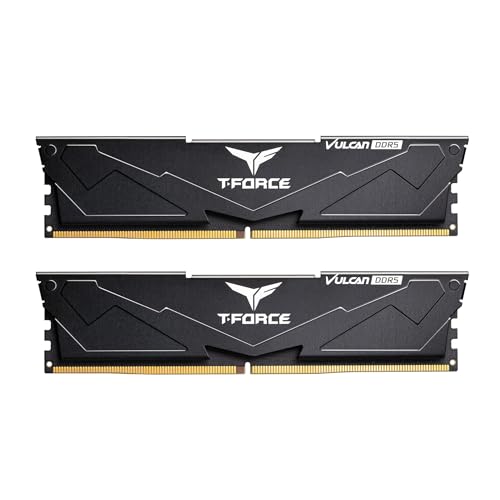
DDR5 - Leading the way into a new OC generation, compatible with Intel 600 & 700 Series Chipset. Supports Intel XMP3.0 for One-Click overclocking.

Dynamic Ten-Zone RGB Lighting: Illuminate your system with ten individually addressable, ultra-bright RGB LEDs per module, encased in a panoramic light bar for vivid RGB lighting from any viewing angle.


Meet Ry, “TechGuru,” a 36-year-old technology enthusiast with a deep passion for tech innovations. With extensive experience, he specializes in gaming hardware and software, and has expertise in gadgets, custom PCs, and audio.
Besides writing about tech and reviewing new products, he enjoys traveling, hiking, and photography. Committed to keeping up with the latest industry trends, he aims to guide readers in making informed tech decisions.