
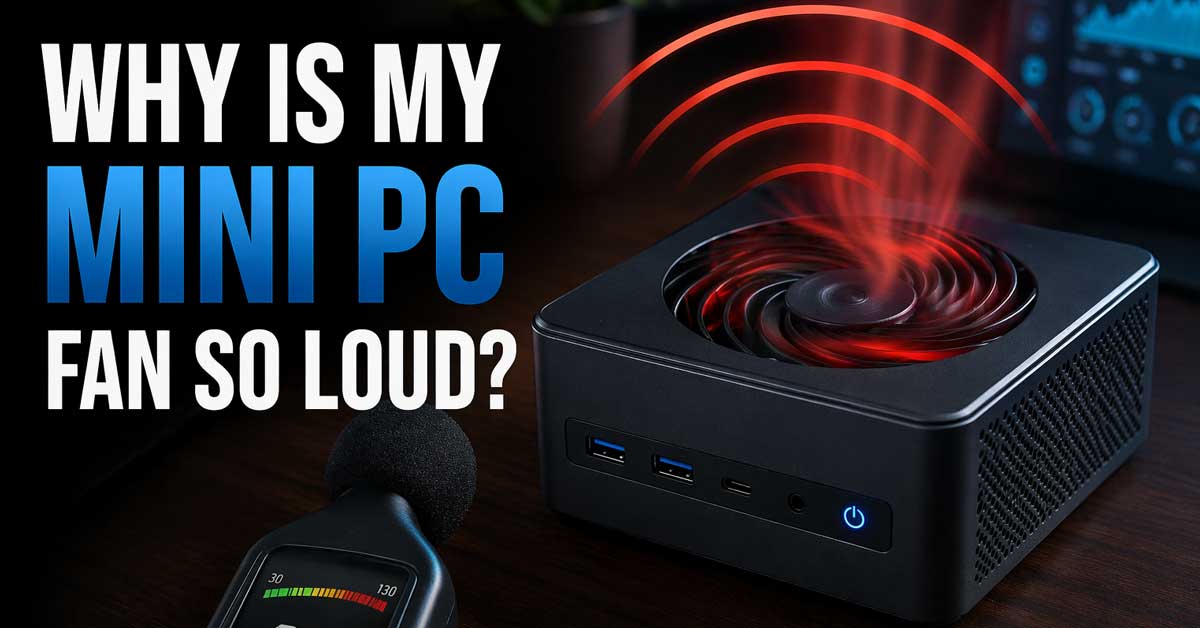

Almost always heat, dust, or workload — here’s what’s driving it and how to quiet it down
A mini PC fan that’s suddenly louder than usual, running continuously at high speed, or spinning up aggressively for tasks that used to be silent is telling you something specific.
Mini PCs are more thermally constrained than traditional desktops — their compact enclosures have less space for cooling hardware, which means fans work harder and louder to manage the same heat load.
Understanding why the fan is running loud points directly to the fix.
Mini PCs Have Less Thermal Headroom by Design
Before troubleshooting, it helps to understand why mini PC fans are fundamentally more sensitive than desktop fans.
A traditional desktop has a large case with multiple fans, substantial heatsinks, and plenty of airspace for heat to dissipate. A mini PC packages the same processor into a volume sometimes smaller than a hardback book — the heatsink is tiny, the fan is small, and the airflow path is short and narrow.
Small fans have to spin faster than large fans to move the same amount of air, which makes them louder at equivalent cooling loads.
This means some fan noise on a mini PC is expected and normal — particularly under load. The question is whether the noise is appropriate for the current workload or whether something is making it run harder than it should.

Powerful Turbo Fan:WOLFBOX MegaFlow 50 electric air duster reaches speeds of up to 110,000 RPM, effectively removing dust and debris. It features three adjustable speed settings to suit different cleaning tasks.

Powerful Turbo Fan:CAGIWIRU Electric Air Duster have reached speed up to 130000RPM,Can efficient remove dust and debris.With LED light and Three Adjustable Speed to meet with different cleaning tasks.

100% brand new and high quality Suitable for.
Check What’s Causing High CPU or GPU Usage
The most common reason a mini PC fan runs loud is that something is demanding significant CPU or GPU resources. High utilization generates heat which triggers the fan.
Open Task Manager (Ctrl + Shift + Esc) on Windows or Activity Monitor on Linux/Mac-based mini PCs. Look at the CPU and GPU usage columns and sort by CPU to see which processes are consuming the most.
Common unexpected CPU consumers on mini PCs include:
Windows Update running in the background — particularly on first boot after setup or after a period without use. Updates often run silently and generate sustained CPU load until they complete.
Antivirus scans — a scheduled full scan drives CPU usage high for extended periods, particularly on first run after installation.
Browser tabs — modern websites run significant JavaScript and media. A mini PC used as a media center or home server with a browser open to active pages can sustain high CPU from browser activity alone.
Background sync and indexing — OneDrive, Google Drive, and Windows Search indexing all generate disk and CPU activity that spins up the fan on mini PCs more noticeably than on larger systems.
If you identify a process consuming high CPU, closing it or waiting for it to complete reduces the load and should quiet the fan within a minute or two.

CONSISTENT QUALITY: Our thermal paste packaging design has evolved over time, but the formula has remained the same, ensuring reliable performance.

WELL PROVEN QUALITY: The design of our thermal paste packagings has changed several times, the formula of the composition has remained unchanged, so our MX pastes have stood for high quality

SAFETY APPLICATION: BSFF is metal-free and non-conductive, which eliminates any risk of short circuit and adds more protection to the CPU and VGA card.
Dust Is Blocking the Airflow
Dust accumulation is the most consistent hardware cause of fan noise on mini PCs — arguably more so than on laptops or desktops because the airflow paths in mini PCs are so narrow. A small amount of dust blocking a mini PC’s single intake or exhaust vent has a proportionally larger impact on cooling than the same amount of dust on a larger system.
Signs that dust is the problem:
The fan has gotten progressively louder over months rather than suddenly loud. The mini PC runs noticeably hotter to the touch than it used to. The fan runs loud even during light tasks like web browsing or video playback.
To clean the mini PC:
Use compressed air to blow through the vents. Most mini PCs have intake vents on the bottom or sides and an exhaust vent at the back or top. Blow short bursts into the exhaust vent to push dust back out the intake, or into the intake to clear blockages. Hold the fan still with a toothpick while blowing to prevent it from over-spinning.
For a more thorough clean, many mini PCs can be opened with a few screws — the fan and heatsink are accessible and can be cleaned directly. Check your specific model for disassembly guides on iFixit or YouTube. On popular models like the Intel NUC, Beelink, Minisforum, or similar mini PCs, disassembly guides are widely available.

APPLICATION: Ideal for a range of tech, 120mm USB fan cools modem, T-Mobile/Nokia 5G Home Internet Gateway, Google cellular WiFi, laptop, cable box, Google Pod, cabinet, TV box, stereo amplifier, external hard drive

【Speed Controllable】Easy Cloud 120 mm case fan allows you to freely adjust the fan speed according to your needs. This flexibility allows you to adjust fan operation to a level that best suits your environment, whether you require powerful cooling or a quiet work environment

【Speed Controllable】Easy Cloud axial fan 120v allows you to freely adjust the computer cooling fan speed according to your needs. This flexibility allows you to adjust fan operation to a level that best suits your environment, whether you require powerful cooling or a quiet work environment
The Placement Is Blocking Airflow
Where a mini PC sits has a significant impact on fan noise — particularly because mini PCs often end up in enclosed spaces, entertainment centers, or flat on a desk in ways that block their small vents.
Common placement mistakes:
Flat on a desk with bottom intake vents blocked. Many mini PCs draw air in through the bottom. Placing them directly on a solid desk or on carpet reduces airflow and forces the fan to spin faster to compensate.
Inside a closed cabinet or entertainment center. Recirculating hot exhaust air back into the intake is one of the most effective ways to make a mini PC fan run constantly at high speed.
Stacked on top of other electronics that generate their own heat — a router, a streaming box, or another computer underneath or directly above increases ambient temperature.
The fix: Mount the mini PC vertically using a VESA mount or stand, or elevate it with rubber feet to maintain bottom clearance. Keep it in an open area with at least a few inches of space around the exhaust vent.
Thermal Paste Has Degraded
On mini PCs more than two to three years old, thermal paste between the CPU and heatsink degrades faster than on desktop systems — partly because mini PCs run hotter, which accelerates paste degradation, and partly because cheaper thermal paste is sometimes used in budget mini PC manufacturing.
When thermal paste dries out or cracks, heat transfer from the CPU to the heatsink becomes inefficient. The CPU runs hotter, the fan spins faster to compensate, and temperatures may climb even with the fan at full speed.
Signs that thermal paste degradation is the cause:
The mini PC is two or more years old and progressively running louder. Temperatures measured with monitoring software are significantly higher than when the unit was new. The fan is loud even after thorough dust cleaning.
Replacing thermal paste on a mini PC is more involved than on a laptop because the heatsink is smaller and sometimes more tightly integrated. It requires opening the case, removing the heatsink, cleaning off the old paste with isopropyl alcohol, and applying a thin fresh layer. Model-specific guides on YouTube or iFixit walk through the process. The performance improvement after repasting is often dramatic — temperature drops of 10 to 20°C are common on older mini PCs.
Power Profile Is Set to High Performance
Mini PCs running on a High Performance power plan run the CPU at maximum speed continuously rather than scaling down during idle periods. More speed means more heat means louder fan — even when you’re not doing anything demanding.
On Windows:
Go to Settings → System → Power and Sleep → Additional Power Settings. If the power plan is set to High Performance, change it to Balanced. Balanced allows the CPU to reduce speed during light tasks, generating less heat and requiring less fan activity.
For mini PCs used as home servers or always-on systems, checking that the power plan hasn’t been set to High Performance during initial setup is particularly worth doing.
BIOS Fan Curve Settings
Many mini PCs allow fan curve configuration in the BIOS — the relationship between temperature and fan speed. If the fan curve is set aggressively, the fan spins up at lower temperatures and more noticeably than necessary.
Restart the mini PC and enter BIOS by pressing Delete, F2, or F7 during startup — the key varies by manufacturer. Look for Hardware Monitor, Fan Control, or Thermal Management settings. Check whether a fan curve or fan speed profile is configurable.
Some mini PCs offer Quiet, Balanced, and Performance fan profiles. If it’s set to Performance, switch to Balanced or Quiet for less aggressive fan behavior.
Note: Reducing fan aggressiveness means higher temperatures under load. Only make this change if your mini PC runs within safe temperature ranges on the current setting.
Manufacturer Software for Fan Control
Many mini PC brands provide their own software for fan control and thermal management that operates independently of BIOS settings.
Intel NUC: Intel provides the NUC Software Studio with fan control options.
Beelink, Minisforum, and similar brands: Check the manufacturer’s website for any companion software. Some provide Windows-based fan control utilities.
Generic mini PCs with AMD processors: AMD’s Ryzen Master utility provides some control over performance and fan behavior.
Check your mini PC manufacturer’s support page for any fan control or thermal management software specific to your model.
Monitor Temperatures to Assess the Problem
Knowing actual temperatures tells you whether the fan noise is appropriate for the heat being generated or whether there’s a thermal problem driving excessive fan activity.
Download HWiNFO (Windows, free) or HWMonitor — both show real-time temperatures for the CPU, GPU, and other components.
Temperature guidelines for mini PCs:
CPU at idle: 35 to 55°C — normal, fan should be quiet or inaudible. CPU under moderate load: 60 to 75°C — normal, fan will be audible. CPU under heavy load: 75 to 90°C — expected for mini PCs, fan will be loud. CPU consistently above 90°C: Thermal throttling territory — indicates a cooling problem requiring attention.
If your mini PC shows temperatures above 85°C during light tasks, dust buildup, degraded thermal paste, or blocked airflow is almost certainly the cause.
The Mini PC Needs a Fan or Bearing Replacement
A fan with worn bearings makes a grinding, rattling, or buzzing noise that’s distinct from normal high-speed fan noise. Normal fast fan noise is a smooth rushing air sound. A failing fan produces irregular mechanical noise — clicking, grinding, or rattling — that may be present even at low speeds or while the fan is slowly spinning up.
If the noise your mini PC makes sounds mechanical and irregular rather than a smooth airflow sound, the fan itself is failing.
Replacement fans for popular mini PC models are available from the manufacturer’s support page, AliExpress, or Amazon. The fan in a mini PC is typically a small 60mm, 80mm, or 92mm blower — match the model number printed on the fan itself when ordering a replacement. Replacement is generally straightforward with a few screws and a fan connector to disconnect.
Fanless Upgrade Option
Some mini PC models have fanless versions or fanless heatsink upgrades available — replacing the active cooling fan with a larger passive heatsink that dissipates heat silently without moving parts.
This is a viable option for mini PCs used for light workloads — web browsing, media playback, document editing — where the thermal load is low enough that passive cooling handles it. For heavier workloads, removing the fan entirely risks thermal throttling.
Check whether your specific mini PC model has a fanless heatsink available — popular models from Intel NUC and similar brands sometimes have community-made or third-party passive cooling solutions.
A Quick Checklist
Work through these in order of impact:
- Check Task Manager for high CPU usage processes and close or wait for them
- Clean dust from vents using compressed air — particularly on mini PCs over a year old
- Check placement — ensure vents aren’t blocked and the unit has airflow around it
- Change power plan from High Performance to Balanced in Windows
- Monitor temperatures with HWiNFO to assess whether temps are genuinely high
- Check BIOS fan curve settings and switch to Balanced or Quiet profile
- Check manufacturer fan control software for your specific mini PC model
- Replace thermal paste if the unit is two or more years old and temperatures are high
- Listen for irregular mechanical noise — grinding or clicking suggests fan bearing failure
- Replace the fan if mechanical failure is indicated
The Bottom Line
A loud mini PC fan is almost always responding to heat from high CPU usage, blocked airflow from dust or poor placement, or degraded thermal paste on an older unit. Checking Task Manager for unexpected CPU load and cleaning the vents with compressed air are the two fastest checks — together they resolve the majority of cases.
For mini PCs more than two years old that are progressively getting louder and hotter, thermal paste replacement is the maintenance task that most dramatically restores cooling performance. The compact design of mini PCs makes thermal paste degradation more impactful than on larger systems — and the improvement after repasting more noticeable.
Mini PC fans are loud for the same reason laptop fans are loud — the cooling system is small and has to work harder. Give it clean airflow and a clear thermal path and it quiets down.

【5 Torque Settings】The STREBITO electric precision screwdriver features 5 gear torques ranging from 0.15-0.5N.m, allowing you to adjust the torque precisely to meet various needs. The manual torque of 7N.m gives you increased control for manual screwdriving. With easy torque adjustment and stable torque output, this precision electric screwdriver can satisfy all your demands, includes PC, Computer, Laptop, Cell Phone, Macbook, RC Car, Drone, Keyboard, PS4, PS5, and other electronic devices
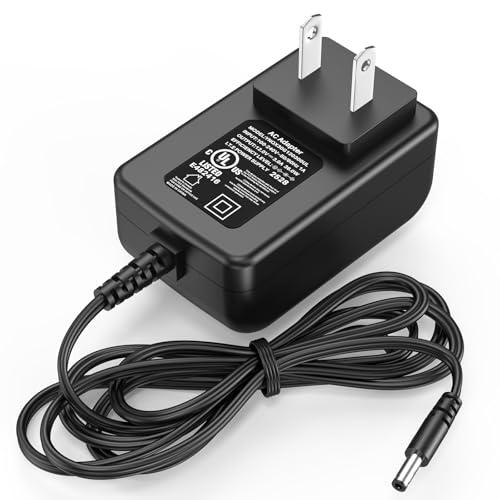
Specifications: The AC DC power adapter for mini PC accessories is designed in global input voltage range: 100-240 Volt 50/ 60HZ; output: 12V 3A, 12 volts 3 Amp max(12V 2.5A 30W compatible); cable length: 6 FT/ 1.8M; connector size: round jack

【12th Gen Alder Lake-N100 Processor】The MOREFINE M9 mini pc is equipped with the 12th Gen Intel Alder Lake-N100 processor (4C/4T, 6MB cache, up to 3.4 GHz) and Intel UHD Graphics, built using the advanced 10nm process. With a 30% performance boost compared to N5105, N5095, and J4125 CPUs, it's perfect for office work, daily tasks, or use as a NAS or soft router.

Meet Ry, “TechGuru,” a 36-year-old technology enthusiast with a deep passion for tech innovations. With extensive experience, he specializes in gaming hardware and software, and has expertise in gadgets, custom PCs, and audio.
Besides writing about tech and reviewing new products, he enjoys traveling, hiking, and photography. Committed to keeping up with the latest industry trends, he aims to guide readers in making informed tech decisions.