
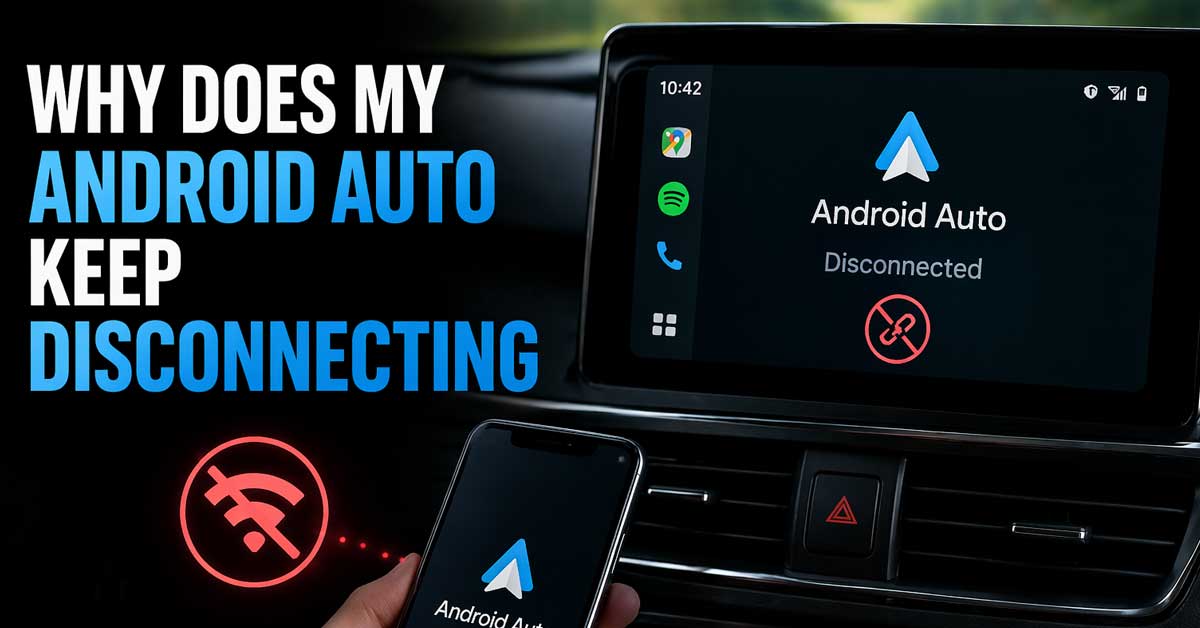

Usually a cable, USB port, or phone settings issue — here’s how to fix it
Android Auto disconnecting while driving — dropping the connection mid-trip, failing to reconnect after a brief interruption, or constantly cycling through connecting and disconnecting — is a safety issue as much as a convenience problem.
The cause is almost always a cable or USB port issue for wired connections, or a Bluetooth and Wi-Fi stability problem for wireless.
Here’s how to identify what’s causing the drops and stop them.
Wired vs. Wireless Android Auto
The fix differs significantly depending on which connection type you’re using.
Wired Android Auto connects through a USB cable from your Android phone to the car’s USB port. Disconnections almost always involve the cable, the USB port, or power management settings on the phone.
Wireless Android Auto connects over Bluetooth and Wi-Fi. Disconnections involve signal stability, phone battery optimization, or interference between the car’s wireless system and the phone.
Identify which you’re using before working through the steps below.
![CONMDEX Android Auto USB Cable [Upgrade, 3ft, 2-Pack] 10Gbps USB 3.1 Gen 2 Data Transfer, 3A Fast Charging USB A to Type C Cord, Reliable CarPlay Cable for iPhone 17/16 Pro Max, Galaxy S25/S24 Ultra](https://m.media-amazon.com/images/I/41vy0X7qsdL._SL500_.jpg)
[Reliable Car Connectivity & Android Auto] Engineered specifically to solve "falling short" connection issues in vehicles. This cable provides a stable, high-speed link for Android Auto and Apple CarPlay, ensuring consistent navigation and music streaming in models like the Ford Raptor and other modern consoles

10Gbps Data Transfer: SUNGUY USB 3.1 Gen 2 cable supports super speed data transmission up to 10Gbps, transfer HD movies, songs, file or photos in seconds. Backwards compatible to USB 3.0 and 2.0; DOES NOT support video output.
![USB-C Data Cable 10Gbps [6ft, Red], Android Auto USB 3.2 Gen 2 USB A to USB C Data Transfer Cord Type C 3.1A Fast Charging for Samsung Galaxy S24/S23/S22/S21, iPhone 16/15 Pro Max CarPlay, Pixel 9](https://m.media-amazon.com/images/I/41qgGi+KahL._SL500_.jpg)
[Finder’s Red]: Quickly identify your Data-Sync cable in a tangle of different functions wires. No more guessing: Red = Fast Charge = Data Sync". Lab study: Red data cables reduce‘wrong unplugging’ by 62%. Spotted 3X faster than black in bags/offices. Ideal for travel, meetings, and late-night charging.
The Cable Is the Most Common Cause (Wired)
A cheap, damaged, or non-data cable is the primary cause of wired Android Auto disconnections. Android Auto requires a cable that supports both power and data transfer — many budget cables only handle charging and drop the data connection intermittently.
Use a high-quality USB cable. The cable should specifically support data transfer — not just charging. USB cables labeled charge only or power only won’t work for Android Auto. Look for cables rated for USB 2.0 data or higher.
Short cables are more reliable than long ones. A shorter cable has less resistance and fewer opportunities for signal degradation. If you’re using a long cable routed through the car interior, try a shorter direct connection first.
Inspect the cable for damage. Check for fraying near connectors, sharp bends, or any visible damage. Internal wire breaks — particularly near the connector ends — cause exactly the intermittent disconnections Android Auto experiences. Try a completely different cable even if the current one looks fine.
Check the USB-C or Micro-USB port on your phone. Lint, debris, or moisture inside the port causes intermittent contact loss. Use a flashlight to inspect and gently clean with a dry toothpick or compressed air.

Note: Car models with USB 2.0 ports may experience protocol mismatch with USB 3.2 Android Auto cable, potentially causing device recognition failure, slow charging speeds, or even complete charging failure.

POWER DELIVERY 3.0 CHARGE: Delivers incredibly fast charge of up to 4 times faster than a standard 5W USB charger to your USB-C device. Compatible iPhone devices charge up to 50% in as little as 30 minutes.

[2-in-1 Wireless CarPlay & Android Auto Adapter] Upgrade Wired to Wireless in seconds - Instantly convert factory CarPlay/Android Auto systems without cables. Enjoy navigation, Spotify/Apple Music streaming, hands-free calls, and voice commands for safer driving and a clutter-free dashboard.
Try a Different USB Port in the Car (Wired)
Cars with multiple USB ports often have both data ports and charge-only ports. A charge-only port powers the phone but never establishes a data connection — Android Auto shows as connecting and immediately drops.
Check your car’s manual to identify which USB port supports Android Auto — it’s typically labeled with a phone icon or specified as the data port. Test every available USB port in the car systematically.
Also try plugging directly into the head unit’s USB port rather than any USB hub or extension that may be in the vehicle.
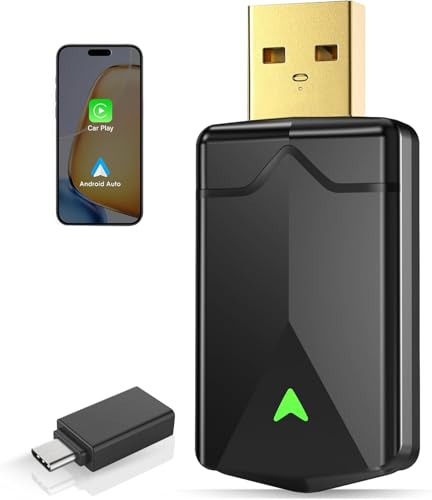
DUAL-SYSTEM WIRELESS ADAPTER FOR APPLE & ANDROID:Easily convert your factory-wired CarPlay and Android Auto into a completely wireless experience. Say goodbye to tangled cables and enjoy seamless control of navigation, calls, music, messages, and Siri right from your dashboard.

Compatible with wired-only Android Auto systems

Ultra-Mini Size & Latest A9 Chip – Our wireless carplay adapter measures only 7.8×7.8×9.8inch, thumb sized, over 60% smaller than most on-market models. Powered by the newest A9 chip (higher version than competitors), it supports 5.8GHz Wi-Fi, Bluetooth 5.4, 3-5s fast connection, OTA updates, CarPlay & Android Auto. As a top 2025 wireless carplay adapter, it delivers exceptional performance for seamless in-car use.
Disable Battery Optimization for Android Auto
Android’s battery optimization is the most common software cause of Android Auto disconnections — the system kills Android Auto’s background processes to save power, which drops the connection.
Go to Settings → Apps → Android Auto → Battery. Set it to Unrestricted or Not Optimized. The exact label varies by Android manufacturer — Samsung calls it Unrestricted, Pixel phones call it Unrestricted, Xiaomi may show No Restrictions.
Also check Settings → Battery → Battery Saver — if Battery Saver mode is active, it aggressively kills background processes including Android Auto. Disable Battery Saver or configure it to exclude Android Auto.
This fix alone resolves Android Auto disconnections for a large number of users — particularly those who notice disconnections happening more frequently as the phone battery gets lower.
Check USB-C Cable Quality and USB 3.0 Interference (Wireless)
For wireless Android Auto, a USB cable isn’t the connection method — but if you’re using a USB-C hub, dock, or adapter elsewhere in the car, USB 3.0 interference can affect the 2.4 GHz wireless signal that Android Auto uses.
USB 3.0 generates electromagnetic interference at 2.4 GHz — the same frequency used by Bluetooth and the Wi-Fi band Android Auto often uses for wireless connection. If a USB 3.0 device is plugged in near the wireless receiver, it can cause dropouts.
Try removing any USB 3.0 devices and testing wireless Android Auto stability.
Re-Pair Android Auto With Your Car (Wireless)
For wireless Android Auto, a corrupted Bluetooth or Wi-Fi pairing between the phone and car causes repeated disconnections. The connection establishes but drops because the pairing credentials have become inconsistent between the two devices.
Remove the car from your phone:
Go to Settings → Connected Devices → Bluetooth and find your car. Tap the gear icon and select Forget or Unpair.
Also go to Settings → Apps → Android Auto and look for any paired vehicles — remove your car from the list.
Remove the phone from your car:
In the car’s Bluetooth settings, find your phone in the paired devices list and delete or forget it.
Re-pair from scratch:
Enable Bluetooth on your phone. In the car’s infotainment system, select Add New Device or Pair New Phone. Follow the pairing prompts and allow all permissions Android Auto requests during the pairing process. After re-pairing, test whether the connection is stable.
Keep the Screen On During Android Auto
Android Auto requires the phone’s screen to remain active during use — if the screen times out and the phone locks, Android Auto can lose its connection on some setups.
Go to Settings → Display → Screen Timeout and set it to a longer duration — 10 minutes or Never if that option is available. Also check that the screen doesn’t lock while Android Auto is active.
Alternatively, enable Stay Awake in Developer Options — though note this keeps the screen on whenever the phone is charging, which may not be desirable in all situations.
Update Android Auto
Outdated Android Auto versions have known connection bugs — Google releases updates regularly that fix disconnection issues, improve wireless stability, and address compatibility with specific car head units.
Open the Google Play Store, search for Android Auto, and check for pending updates. Install any available update and restart your phone before testing.
Also make sure Google Play Services is updated — Android Auto depends heavily on Play Services and an outdated version causes various connectivity issues.
Grant Android Auto All Required Permissions
Android Auto requires extensive permissions to function correctly — notifications, location, phone, contacts, microphone, and others. If any permissions were denied or revoked by a system update, Android Auto may connect briefly and then drop when it tries to access a resource it doesn’t have permission to use.
Go to Settings → Apps → Android Auto → Permissions and ensure every permission is granted. Pay particular attention to:
Location — set to Allow All the Time not just While Using. Phone — required for calls through Android Auto. Contacts — required for contact display and search. Notifications — required for notification mirroring. Microphone — required for Google Assistant and calls.
After granting all permissions, restart the phone and test the connection.
Check Developer Options in Android Auto
Android Auto has its own developer options that can affect connection behavior — particularly the connection type setting.
Open the Android Auto app on your phone. Tap the three dots in the top right and go to About. Tap the About Android Auto version number ten times rapidly — this enables the developer menu. Go back to the main menu and tap Developer Settings which should now appear.
Look for a Default USB Mode or Connection Type setting. If it’s set to a mode that doesn’t match your setup, change it. For most wired connections, Media Transfer Protocol (MTP) combined with Android Auto works correctly.
Check the Car’s Firmware
An outdated head unit firmware causes Android Auto compatibility issues — particularly after Android updates that change how Android Auto communicates. Your car’s infotainment system may need a firmware update to maintain compatibility with your current Android version.
Check your car manufacturer’s website or the infotainment settings menu for available updates. Some manufacturers push updates automatically over Wi-Fi — check whether your system shows a pending update notification.
Check for Android System Updates
Android OS updates sometimes change how USB connections and background processes work, causing Android Auto disconnections that didn’t exist before the update. Conversely, a pending Android update may contain the fix for a disconnection issue introduced by a previous update.
Go to Settings → System → Software Update and install any pending updates. After updating, test Android Auto stability.
Disable Nearby Wi-Fi Networks Interference (Wireless)
For wireless Android Auto, interference from nearby Wi-Fi networks on the same channel as the car’s hotspot can cause dropouts. This is more common in urban areas where many Wi-Fi networks compete for channels.
In the car’s infotainment system, check whether the wireless Android Auto uses a specific Wi-Fi channel and whether it can be changed. Some head units allow manual channel selection — moving to a less congested channel improves wireless stability.
Also check whether your phone automatically connects to a nearby Wi-Fi network while Android Auto is active — if the phone switches from the car’s Wi-Fi to a home or business network, Android Auto drops immediately. Go to Settings → Wi-Fi and forget any networks that might be in range of your regular commute.
Factory Reset Android Auto App Data
Corrupted Android Auto app data causes persistent disconnection issues that survive reinstalls. Clearing the app data resets Android Auto to a fresh state.
Go to Settings → Apps → Android Auto → Storage → Clear Data. This removes all Android Auto preferences, pairings, and cached data. You’ll need to go through the Android Auto setup process and re-grant permissions after clearing data.
After clearing data, restart the phone, reconnect Android Auto, and grant all permissions during the setup flow.
Test With a Different Phone If Available
To determine whether the issue is phone-specific or car-specific, test Android Auto with a different Android phone. If another phone connects stably, the issue is in your phone’s settings or hardware. If the other phone also disconnects, the car’s head unit is the cause.
A Quick Checklist by Connection Type
Wired Android Auto disconnections:
- Try a different high-quality data-capable USB cable
- Try a different USB port in the car
- Clean the phone’s USB port
- Disable battery optimization for Android Auto — set to Unrestricted
- Disable Battery Saver mode
- Keep screen on during Android Auto use
- Grant all permissions to Android Auto
- Check Android Auto developer settings for connection type
Wireless Android Auto disconnections:
- Disable battery optimization for Android Auto
- Forget and re-pair the car from both devices
- Ensure both Bluetooth and Wi-Fi are enabled
- Forget nearby Wi-Fi networks that might interfere
- Check for USB 3.0 interference from other connected devices
Both connection types:
- Update Android Auto through Google Play Store
- Update Google Play Services
- Update car firmware
- Update Android OS
- Clear Android Auto app data in Settings → Apps
The Bottom Line
Wired Android Auto disconnections are almost always caused by a poor cable or battery optimization killing the app’s background process. Switching to a quality data cable and setting Android Auto to Unrestricted battery usage together resolve the majority of wired disconnection cases.
Wireless disconnections most commonly come from battery optimization or a corrupted pairing — the same battery optimization fix applies, and a fresh pairing from scratch resolves most wireless stability issues.
Android Auto disconnects when the cable fails, the battery manager intervenes, or the pairing breaks down — fix whichever of those is happening and the connection stays stable.

【Upgraded Android 13 Car Stereo】Upgraded android radio for Nissan Sentra Sylphy 2013 2014 2015 2016 2017 2018 2019, our car stereo come with a 10.1inch IPS touchscreen radio to ensure a perfect blend with your vehicle. This head unit for 2014 sentra radio with Android 13 stereo system, enjoy faster running with 4GB RAM & 4 Core CPU, 64GB ROM for more APPs installed. Enjoy vibrant high-definition visuals and fast operation. The sensitive touch response ensures seamless interaction with the device

【Applicable Car Models】This 7 inch car radio is compatible for Toyota RAV4 2001-2005; for 4Runner 2003-2009; for Camry 2002-2006; for Tundra 2003-2006; for Sequoia 2003-2007; for Terios 2006-2010; for Land Cruiser 100 1998-2007; for Corolla 2003-2008(not fit E12); for Soluna Vios 2003-2007; for Echo 2000-2005; for Prado 1996-2009; for FJ Cruiser 2002-2010; for Hilux 2001-2011; for Fortuner 2008-2011; for Alphard 2008-2015; for Rush, Perodua Nautica 2006-2012; for Vitz/Avanza, Vios 2003-2010

MOVE IT. REMOVE IT. IMPROVE IT: Take a great pic, then make it better using Photo Assist¹ with Galaxy AI,² It gives you suggestions for improving your photo and makes it easier to move, remove or resize objects for post-worthy pics every time.

Meet Ry, “TechGuru,” a 36-year-old technology enthusiast with a deep passion for tech innovations. With extensive experience, he specializes in gaming hardware and software, and has expertise in gadgets, custom PCs, and audio.
Besides writing about tech and reviewing new products, he enjoys traveling, hiking, and photography. Committed to keeping up with the latest industry trends, he aims to guide readers in making informed tech decisions.