
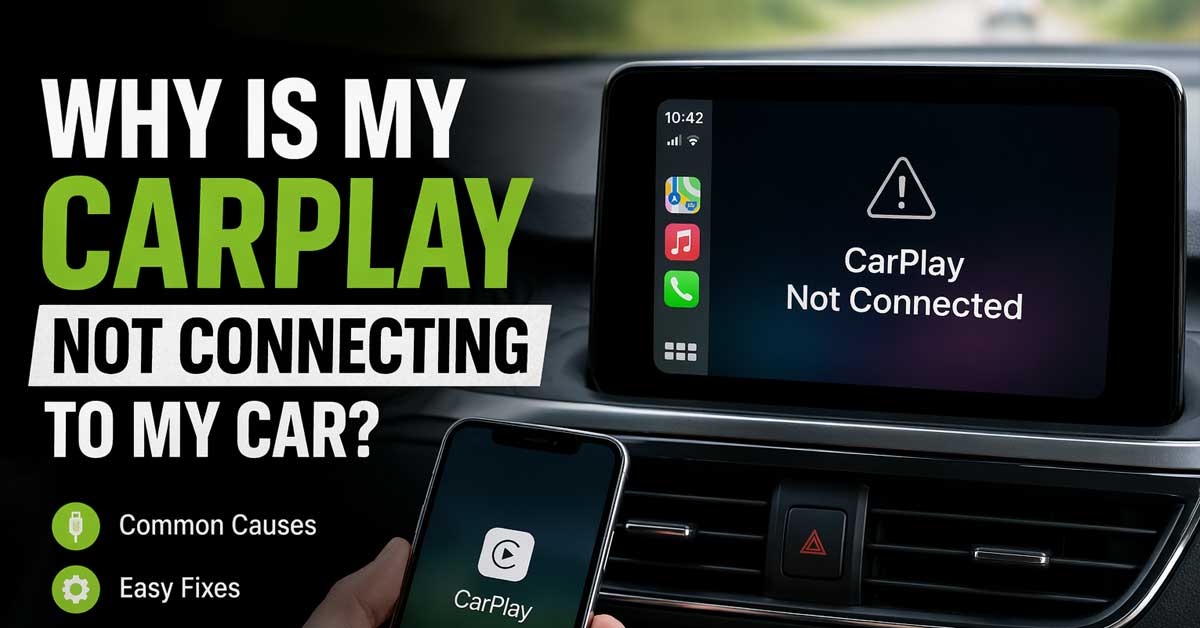

Usually a cable, permissions, or settings issue — here’s how to fix it
CarPlay failing to connect — the screen stays dark, your phone isn’t recognized, or the connection drops repeatedly — is a frustrating problem when you rely on it for navigation, music, and calls while driving.
The fix depends on whether you’re using wired or wireless CarPlay and what’s happening when you try to connect.
cHere’s how to work through it systematically.
Wired vs. Wireless CarPlay — Different Causes
The troubleshooting path differs significantly depending on which type you’re using.
Wired CarPlay connects through a Lightning or USB-C cable from your iPhone to the car’s USB port. Issues almost always involve the cable, the USB port, or iPhone permissions.
Wireless CarPlay connects over Bluetooth and Wi-Fi without a cable. Issues involve Bluetooth pairing, Wi-Fi connectivity, or compatibility between your iPhone and the car’s head unit.
Identify which type you’re using before working through the steps below.

Simple Use and Storage: Tuck the cable away smoothly and use it effortlessly thanks to the tangle-resistant design.
![[Apple MFi Certified] USBC Charging Cable for iPhone 16,2Pack 6ft USB A to Type C Car Charger 60W Fast Charging Cord Fast Data Sync Nylon Braided for iPhone 16 Pro/16 Pro Max/16 Plus/15 iPad](https://m.media-amazon.com/images/I/51Uzj0Zk78L._SL500_.jpg)
【Widely Compatible with USB-C Devices】The USB A to Type-C 60W data cable can not only quickly charge Type-C phones, for iPhone 17 Pro Max iPhone 17 Air ,iPhone 16/16 Pro/16 Pro Max/16 Plus, iPhone 15/15 Pro/15 Pro Max/15 Plus, New iPad Mini, iPad Pro 12.9 in/ 11 in, iPad Air, iPad 10,for Galaxy S24/S23+/S23 Ultra/S22/S22+/S22 Ultra/S21/S20/Note 20,for Pixel, and more phones , but also support fast charging of Type-C laptops and tablets.

Seamless CarPlay Connection: Supports full CarPlay functionality so you can charge your phone, navigate, take calls, and stream music without lag.
Check the Cable (Wired CarPlay)
The cable is the most common cause of wired CarPlay failures. A cable that charges your phone perfectly may still fail for CarPlay — CarPlay requires data transfer in addition to power, and many cheap or damaged cables only handle charging.
Use an Apple-certified (MFi) cable. Non-certified third-party cables frequently fail for CarPlay even when they work for charging. If you’re using a generic cable, switch to an Apple cable or a certified MFi (Made for iPhone) cable and test immediately.
Also inspect the cable for damage — fraying near the connectors, sharp bends, or visible wire damage all cause intermittent CarPlay failures. Try a completely different cable even if the current one looks fine — internal wire damage isn’t always visible.
Check the Lightning or USB-C port on your iPhone for lint, debris, or moisture. Use a flashlight to inspect the port and gently clean it with a dry toothpick or compressed air if needed. A partially blocked port causes inconsistent connections.
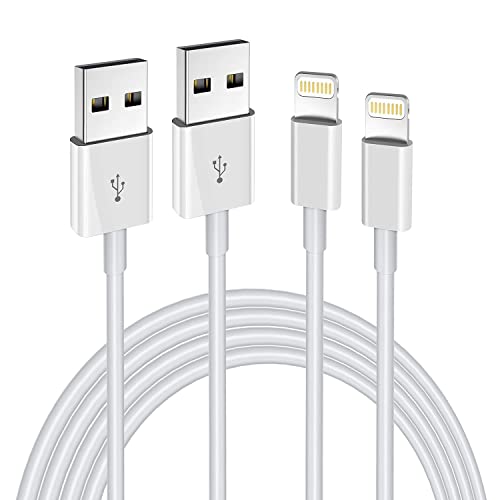
Internationally Certified Materials And Exquisite Design Safe Fast Charging Cables: This iPhone charger cable are made of high purity four-core copper core and smart intelligent chip and high-quality TPE ,with overcharge protection, stable current protection, automatic switching and battery protection design.

High Speed Fast Charging & Data Sync Transfer: iPhone adapter cable is made of high-purity copper core and intelligent chip, featuring with high speed charging up to 2.4 Amps, Which Transmit Data at Up to 480 Mbps, Faster Than Most Regular Cables.
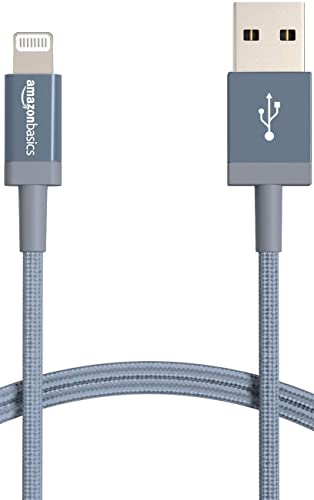
APPLE MFi CERTIFIED: Ensures complete compatibility with iPhone 14/13/12/11/X/XR/XS/8/7/6/6s/5/5s/5c, iPhone Pro 14/13/12/11, IPhone Pro Max 14/13/12/11/XS, iPhone Plus 14/8/7/6/6s, iPhone SE 1st Gen/2nd Gen/3rd Gen, iPhone mini 13/12, iPad Pro 10.5 in/9.7 in, iPad Air 3/2/1, iPad mini 5/4/3/2/1, iPad 9th Gen and older, iPod Touch 5th Gen and older, iPod nano 7th Gen and Beats Pill+
Check the Car’s USB Port
Not all USB ports in cars support CarPlay — many vehicles have multiple USB ports where some are power-only and others support data. A power-only port charges your phone but never initiates a CarPlay connection.
Check your car’s manual to identify which USB port supports CarPlay — it’s often labeled with a smartphone or CarPlay icon, or specified in the manual as the “data” port. Try every USB port in the car if you’re unsure which one supports CarPlay.
Also try a different USB cable in the same port — eliminating the cable as a variable confirms whether the port itself is the issue.

Seamless CarPlay Connection: Supports full CarPlay functionality so you can charge your phone, navigate, take calls, and stream music without lag.
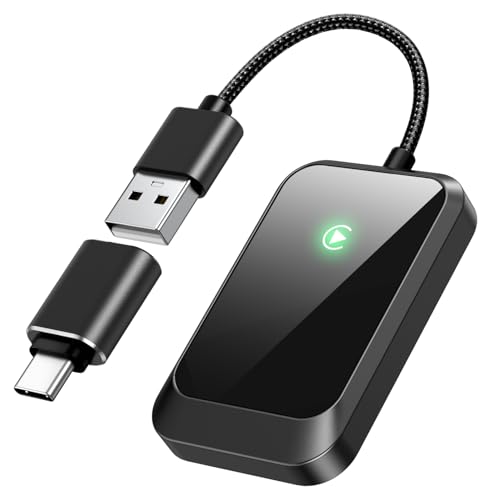
Seamless Wireless Driving: Cut Cables & Stay Focused on the Road,Enjoy reliable wireless carplay connectivity to eliminate cable clutter. Simply plug the wireless carplay adapter into your car’s USB port, and it pairs automatically with your iPhone—no complex setups or long waits. Access apps, manage calls, and stream music effortlessly with a fast, intuitive connection designed for daily driving

The Ultimate Smarter Copilot: Stay on Top of Your Driving- The 3A magic link CarPlay box control everything with a word, Or a touch, Or a twist. Save your 40% of time by quick auto conn and seamless operation, such as navigation, music playing, Siri assistant, phone calls, radio etc(Our Carplay Only Compatible with wired Apple CarPlay Car systems)
Check iPhone CarPlay Permissions
CarPlay must be explicitly enabled on your iPhone — if it’s been disabled in Screen Time restrictions or settings, it won’t connect regardless of cable or port quality.
Go to Settings → General → CarPlay on your iPhone. Your car should appear in the list of available or connected vehicles. If it doesn’t appear, CarPlay hasn’t been set up with this vehicle yet.
Also check Settings → Screen Time → Content and Privacy Restrictions → Allowed Apps. If Screen Time is enabled, make sure CarPlay is allowed. Screen Time restrictions can disable CarPlay entirely without an obvious error message.
Check Siri Is Enabled
CarPlay requires Siri to be enabled — without Siri active, CarPlay won’t function even when everything else is correctly configured.
Go to Settings → Siri and Search and confirm Press Side Button for Siri (or Press Home for Siri on older iPhones) is enabled. Also make sure Listen for Hey Siri is on. If Siri is disabled, enable it and test CarPlay again.
Restart Your iPhone
A simple iPhone restart clears temporary Bluetooth, Wi-Fi, and connectivity states that cause CarPlay to fail. Before going into deeper troubleshooting, restart your iPhone and attempt to connect again.
For wired CarPlay, restart the iPhone, plug it in, and see whether CarPlay initializes. For wireless CarPlay, restart the iPhone, get in the car, and wait for the automatic connection.
Restart the Car’s Infotainment System
The car’s head unit can develop software states that prevent CarPlay from initializing correctly. Restarting it clears these states.
The method varies by car:
Some cars have a dedicated power button for the infotainment system. Pressing and holding it for several seconds restarts the unit.
Turning the car completely off, waiting 30 seconds, and turning it back on restarts the infotainment system on most vehicles.
Some cars allow a system restart through Settings → System → Restart in the infotainment menu.
Consult your car’s manual for the specific restart procedure for your head unit.
Re-Pair CarPlay With Your Car (Wireless)
For wireless CarPlay, the Bluetooth and Wi-Fi pairing between your iPhone and car sometimes becomes corrupted — the car remembers the pairing but the connection fails every time.
Remove the car from your iPhone:
Go to Settings → General → CarPlay. Find your car in the list and tap it. Select Forget This Car. This removes the pairing entirely.
Remove the iPhone from your car:
In your car’s Bluetooth settings, find your iPhone in the paired devices list and delete or forget it.
Re-pair from scratch:
Enable Bluetooth on your iPhone. In your car’s infotainment system, go to Bluetooth or CarPlay settings and select Add New Device or Pair New Phone. Follow the pairing prompts — your iPhone should appear as an available device. Complete the pairing and CarPlay should establish automatically.
Check Bluetooth and Wi-Fi Are Both Enabled (Wireless)
Wireless CarPlay uses both Bluetooth and Wi-Fi simultaneously — Bluetooth for the initial handshake and control signals, Wi-Fi for the high-bandwidth audio and video data. If either is disabled, wireless CarPlay can’t connect.
Go to Settings and confirm both Bluetooth and Wi-Fi are enabled. Don’t just check the Control Center toggles — these can disable Bluetooth and Wi-Fi temporarily without fully turning them off, but for CarPlay purposes confirming in Settings is more reliable.
Also make sure your iPhone isn’t connected to a Wi-Fi network that’s pulling it away from the car’s CarPlay Wi-Fi network — in some cases, an active home or work Wi-Fi connection interferes with the car’s CarPlay Wi-Fi channel. Try turning off Wi-Fi, reconnecting to CarPlay, and then turning Wi-Fi back on.
Update iPhone Software
Outdated iOS versions have known CarPlay bugs — Apple releases CarPlay fixes in iOS updates regularly. If CarPlay stopped working after an iOS update or has never worked correctly, a subsequent update may have the fix.
Go to Settings → General → Software Update and install any pending iOS updates. After updating, restart the iPhone and attempt CarPlay connection.
Update the Car’s Firmware
Car infotainment systems receive firmware updates that fix CarPlay compatibility issues. An outdated head unit firmware can cause connection failures, audio problems, or display issues with newer iPhone models and iOS versions.
Check your car manufacturer’s website or the infotainment system’s settings menu for available updates. Update procedures vary significantly by manufacturer — some update automatically over Wi-Fi, others require downloading to a USB drive. Consult your car’s manual for the specific process.
Reset Network Settings on iPhone
Corrupted network settings — including Bluetooth pairing data and Wi-Fi configurations — cause persistent CarPlay connection failures that survive restarts and re-pairing attempts.
Go to Settings → General → Transfer or Reset iPhone → Reset → Reset Network Settings. This clears all saved Wi-Fi passwords, Bluetooth pairings, and VPN settings — you’ll need to reconnect to Wi-Fi networks and re-pair Bluetooth devices including your car afterward.
After the reset, re-pair CarPlay from scratch as described above. Reset Network Settings resolves persistent connection issues for many users when other fixes haven’t worked.
Check iPhone USB Accessory Settings
iPhone has a USB accessories security setting that can prevent CarPlay from connecting when the phone has been locked for more than an hour.
Go to Settings → Face ID and Passcode (or Touch ID and Passcode). Scroll down to Allow Access When Locked and look for USB Accessories. Make sure this is toggled on. If it’s off, the iPhone blocks USB data connections when locked — preventing CarPlay from initializing when you get in the car.
Check Do Not Disturb While Driving
Focus modes and Do Not Disturb While Driving settings can interfere with CarPlay initialization on some iPhone and iOS configurations.
Go to Settings → Focus → Driving and check whether any settings are restricting connectivity or app access in ways that might affect CarPlay. Disable the Driving focus mode temporarily and test whether CarPlay connects.
Try a Different iPhone If Available
To determine whether the issue is iPhone-specific or car-specific, test with a different iPhone if one is available. If another iPhone connects to CarPlay without issues, the problem is in your iPhone’s settings or hardware. If the other iPhone also fails to connect, the issue is in the car’s head unit.
Contact Apple or Your Car Manufacturer
If CarPlay still won’t connect after all the above steps, the issue may require support from Apple or your car manufacturer.
Apple Support can diagnose iPhone-side issues — Lightning or USB-C port damage, software issues, or hardware faults preventing CarPlay initialization.
Your car dealership or manufacturer can diagnose head unit issues — firmware problems, hardware faults in the USB port or wireless module, or CarPlay module failures that require professional service.
A Quick Checklist by Connection Type
Wired CarPlay:
- Try a different Apple or MFi certified cable
- Try a different USB port in the car — check manual for CarPlay-compatible port
- Clean the iPhone’s Lightning or USB-C port
- Check Settings → General → CarPlay for the car listing
- Check Screen Time → Content Restrictions → CarPlay is allowed
- Confirm Siri is enabled in Settings
- Check Settings → Face ID and Passcode → USB Accessories is on
Wireless CarPlay:
- Confirm Bluetooth and Wi-Fi are both enabled in Settings
- Forget the car in Settings → General → CarPlay
- Remove iPhone from car’s Bluetooth paired devices
- Re-pair from scratch through car’s Bluetooth/CarPlay settings
- Reset Network Settings as a last resort
Both types:
- Restart iPhone and car infotainment system
- Update iOS to latest version
- Update car firmware through manufacturer
- Check Siri is enabled
The Bottom Line
Wired CarPlay failures are almost always a cable or USB port issue — switching to an Apple or MFi certified cable and trying the correct USB port resolves the majority of wired cases immediately. Wireless CarPlay failures are most commonly a corrupted pairing — forgetting the car on both the iPhone and the car’s system and re-pairing from scratch clears most wireless connection problems.
Siri being disabled is the most commonly overlooked cause — CarPlay simply won’t work without Siri active, and the resulting failure looks like a connection issue rather than a permissions issue.
Wired CarPlay needs a good cable and the right port. Wireless CarPlay needs both Bluetooth and Wi-Fi plus a clean pairing. Fix whichever of those is off and CarPlay connects.

POWER DELIVERY 3.0 CHARGE: Delivers incredibly fast charge of up to 4 times faster than a standard 5W USB charger to your USB-C device. Compatible iPhone devices charge up to 50% in as little as 30 minutes.

Wide Compatibility: Compatible with a wide range of iPhone models,including iPhone 6 and newer running iOS 10 or later. Additionally, it supports over 800 car models (compatible with cars from 2015 and later), encompassing major automotive brands and popular vehicles. Note:not compatible for BMW, Skoda, Sony and Tesla models.
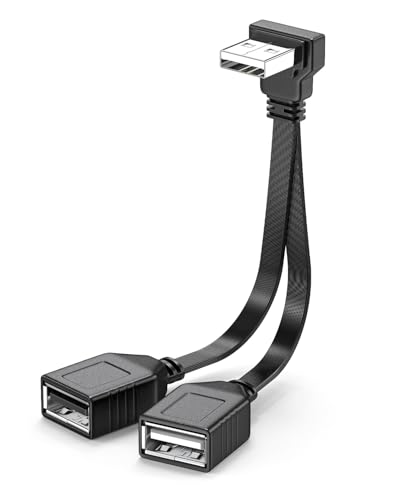
Space-saving 90° design: The right-angle male connector prevents cable protrusion, making it highly suitable for automotive interiors. The black USB Female port is connected to the Carplay system, while the white port charges the device simultaneously.

Meet Ry, “TechGuru,” a 36-year-old technology enthusiast with a deep passion for tech innovations. With extensive experience, he specializes in gaming hardware and software, and has expertise in gadgets, custom PCs, and audio.
Besides writing about tech and reviewing new products, he enjoys traveling, hiking, and photography. Committed to keeping up with the latest industry trends, he aims to guide readers in making informed tech decisions.