
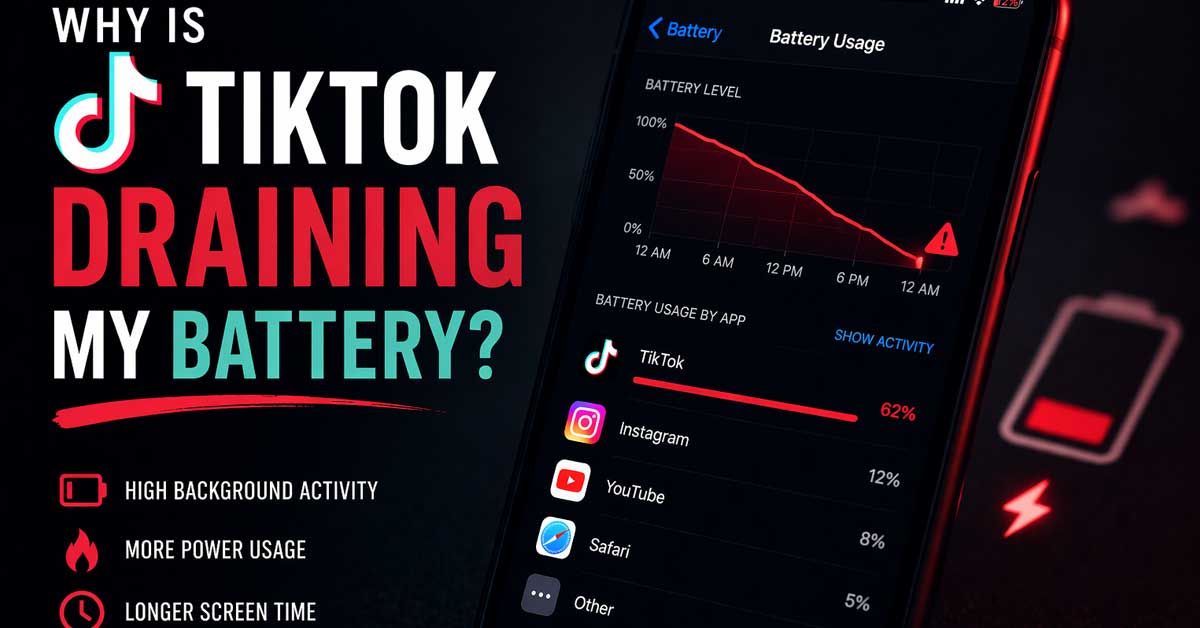

Almost always background activity, video processing, or settings — here’s how to reduce it
TikTok consuming battery faster than almost any other app on your phone is a widely reported experience — and it’s not imaginary.
TikTok is one of the most battery-intensive apps available because of what it does simultaneously: continuous video playback, AI-driven content recommendation processing, live network activity, background data collection, and location services all running at once.
Here’s what’s driving the drain and how to reduce it.
Why TikTok Uses So Much Battery
Understanding the causes helps target the fixes. TikTok drains battery from multiple directions simultaneously:
Continuous video streaming and decoding. Video decoding is one of the most CPU and GPU intensive tasks a phone performs — and TikTok streams video continuously, one clip after another, with no natural stopping point. Unlike a YouTube video that you consciously start and stop, TikTok’s infinite scroll design keeps video playing as long as you’re in the app.
AI recommendation engine running on-device. TikTok’s algorithm processes your behavior in real time — watch time, replays, skips, interactions — to select the next video. This on-device processing adds CPU load on top of the video decoding.
Continuous network activity. TikTok preloads upcoming videos before you reach them to ensure seamless playback. This means your phone is constantly downloading data even for videos you haven’t watched yet.
Background activity. TikTok maintains background processes even when the app isn’t open — syncing data, refreshing notifications, updating content caches.
Screen brightness and GPS. Full-screen video pushes screen brightness toward its maximum, and location services add additional drain.
Check How Much Battery TikTok Actually Uses
Before adjusting settings, confirm TikTok is genuinely the drain source and quantify it.
On iPhone: Go to Settings → Battery. Scroll down to see battery usage by app over the last 24 hours and last 10 days. TikTok’s percentage and hours of use appear here. Tap on TikTok to see how much was from on-screen use versus background activity.
On Android: Go to Settings → Battery → Battery Usage (path varies by manufacturer). Find TikTok in the list and check its consumption percentage.
If TikTok is consuming significantly more battery than other video apps you use for comparable amounts of time, the app itself is the issue rather than just video playback in general.

【Tenveo PTZ Camera and Controller Bundle/Kit】VX20M-4KN(4PCS)+KB200MAX+PC500+PoE - Tenveo 4K 20X Optical Zoom AI Tracking NDI SDI USB HDMI IP Live Streaming Camera + 5-Inch LCD Screen 4D Joystick NDI PTZ Joystick Controller + HDMI Video Switcher Mixer+PoE Swithch, which is ideal for Church Live Service, Video Conference, Wedding, Live Streaming, Broadcast, Online Education, Video Production and House of Worship.

【Tenveo PTZ Camera and Controller Bundle/Kit】VX20M-4KN(3PCS)+KB200MAX+PC500+PoE - Tenveo 4K 20X Optical Zoom AI Tracking NDI SDI USB HDMI IP Live Streaming Camera + 5-Inch LCD Screen 4D Joystick NDI PTZ Joystick Controller + HDMI Video Switcher Mixer+PoE Swithch, which is ideal for Church Live Service, Video Conference, Wedding, Live Streaming, Broadcast, Online Education, Video Production and House of Worship.

【Wide Compatibility】F1TP ACK E6 dummy battery / ACK-E6 camera AC adapter kit replaces LP-E6 / LP-E6N batteries. Compatible with Canon EOS R, Ra, R3, 5D Mark IV/III/II, 6D/6D Mark II, 7D/7D Mark II, 5Ds/5Ds R, 90D/80D/70D/60D. NOTE: NOT compatible with Canon EOS R5, R5C, R5 Mark II, R6, R6 Mark II, R6 Mark III, R7.Please check your camera model before ordering.
Restrict TikTok’s Background Activity
Background activity is the most controllable source of TikTok battery drain — the app consuming power when you’re not actively using it.
On iPhone:
Go to Settings → General → Background App Refresh. Find TikTok and turn it off. This prevents TikTok from refreshing content, syncing data, and running processes when the app isn’t open.
Also check Settings → TikTok for any app-specific permission settings.
On Android:
Go to Settings → Apps → TikTok → Battery. Set it to Restricted or Optimized. Restricted prevents background activity almost entirely. Optimized allows some background activity but limits it.
Also go to Settings → Battery → Battery Optimization and make sure TikTok is set to optimize rather than being excluded from optimization.
[All-New Amaran Ace Lock] Introducing the amaran Ace Lock – an all-new ultra-fast and secure quick-release mount for creating with ease. Simply snap to lock the amaran Ace 25x onto your camera or tripod in one second

[All-New Amaran Ace Lock] Introducing the amaran Ace Lock – an all-new ultra-fast and secure quick-release mount for creating with ease. Simply snap to lock the amaran Ace 25x onto your camera or tripod in one second
Disable Location Services for TikTok
TikTok’s location access contributes to battery drain — GPS is one of the most power-hungry hardware components in a phone, and TikTok uses location data for content personalization and advertising targeting.
On iPhone: Go to Settings → Privacy and Security → Location Services → TikTok. Change from Always or While Using the App to Never. TikTok doesn’t require location access to function — content will still play without it.
On Android: Go to Settings → Apps → TikTok → Permissions → Location and set it to Deny or Only While Using.
Reduce Video Quality in TikTok Settings
Lower video quality means less data to decode — directly reducing CPU and GPU workload and extending battery life during TikTok sessions.
Open TikTok and go to Profile → three lines → Settings and Privacy → Data Saver. Enable Data Saver. This reduces video quality and preloading, which reduces both data usage and battery consumption simultaneously.
The quality reduction is noticeable but most content — particularly shorter clips — looks acceptable at reduced quality on a phone screen.
Limit TikTok Notifications
Notification delivery wakes your phone’s processor and screen repeatedly throughout the day. TikTok sends many notification types — new followers, likes, comments, live streams, and promotional content. Each notification is a small battery hit that adds up.
On iPhone: Go to Settings → Notifications → TikTok. Turn off notifications entirely or select only the notification types you genuinely want.
On Android: Go to Settings → Apps → TikTok → Notifications and disable categories you don’t need.
Also within TikTok: go to Settings and Privacy → Notifications and turn off push notifications for activity categories that aren’t important to you.
Reduce Screen Brightness While Using TikTok
The screen is one of the largest battery consumers on any phone — and TikTok’s full-screen video format pushes screen brightness toward maximum. Reducing brightness while watching TikTok has a direct and meaningful impact on battery consumption.
Enable Auto-Brightness on your phone — it adjusts brightness based on ambient light and typically results in lower average brightness than manual maximum. On iPhone, Auto-Brightness is under Settings → Accessibility → Display and Text Size. On Android it’s typically in Settings → Display → Adaptive Brightness.
When using TikTok in normal indoor conditions, manually reducing brightness to 50 to 70 percent noticeably extends battery life during viewing sessions.
Enable Low Power Mode Before Using TikTok
Low Power Mode on iPhone (and Battery Saver on Android) reduces background activity, lowers screen brightness, and throttles some CPU performance. Using it specifically when you plan to watch TikTok for an extended period reduces battery drain during the session.
On iPhone: Go to Settings → Battery → Low Power Mode or ask Siri. Or add it to Control Center for quick access.
On Android: Go to Settings → Battery → Battery Saver and toggle it on.
The tradeoff is slightly reduced performance and some features being limited — but for passive TikTok viewing this is rarely noticeable.
Update TikTok
Outdated TikTok versions can have battery bugs — inefficient code paths, memory leaks, or background process issues that newer versions fix. TikTok updates frequently and battery optimization improvements appear in updates regularly.
Check the App Store or Google Play for pending TikTok updates and install them. After updating restart the app and monitor battery usage.
Clear TikTok’s Cache
Accumulated cached data can cause TikTok to work harder than necessary — processing or re-processing data that’s become corrupted or overly large.
Within TikTok: go to Profile → three lines → Settings and Privacy → Cache and Cellular Data → Clear Cache. This removes temporary files without deleting your account data.
On Android you can also clear cache through system settings: Settings → Apps → TikTok → Storage → Clear Cache.
Limit TikTok’s Access to Other Data
TikTok requests access to contacts, microphone, camera, and other device data beyond what’s needed for basic use. Some of these permissions involve ongoing background activity that contributes to battery drain.
On iPhone: Go to Settings → TikTok and review all permission toggles. Revoke access to Contacts, Microphone (unless you create content), and Camera (unless you create content) if you primarily use TikTok for viewing.
On Android: Go to Settings → Apps → TikTok → Permissions and review each permission. Deny permissions that aren’t necessary for how you use the app.
Set a Screen Time Limit
The most direct way to reduce TikTok battery drain is spending less time in the app — and TikTok’s infinite scroll design makes sessions longer than intended without a deliberate limit.
TikTok has a built-in screen time management feature: go to Profile → three lines → Settings and Privacy → Screen Time and set a daily limit. When the limit is reached, a notification appears and the app prompts you to stop.
Both iPhone’s Screen Time and Android’s Digital Wellbeing can also enforce per-app time limits at the OS level — harder to override than TikTok’s own reminder.
Check Whether the Problem Is the Battery Itself
On older phones, battery capacity degrades over time — a battery that was 3000 mAh when new may effectively hold 2200 mAh after two years of heavy use. A degraded battery drains faster under any demanding app including TikTok.
Check battery health:
iPhone: Go to Settings → Battery → Battery Health and Charging. If Maximum Capacity is below 80 percent, the battery is significantly degraded. Apple recommends battery replacement below 80 percent capacity.
Android: Battery health varies by manufacturer — Samsung has a built-in battery diagnostic in Settings → Device Care → Diagnostics. Third-party apps like AccuBattery estimate battery health based on charge cycles.
If battery health is poor, TikTok’s high power draw exposes the degraded capacity more than lighter apps do. A battery replacement addresses the root cause rather than just managing TikTok’s consumption.
A Quick Checklist
Work through these for the most impact:
- Disable Background App Refresh for TikTok in phone settings
- Set TikTok to Restricted battery usage on Android
- Turn off location services for TikTok
- Enable Data Saver in TikTok settings
- Reduce or disable TikTok notifications
- Lower screen brightness while watching
- Enable Low Power Mode during extended TikTok sessions
- Revoke unnecessary permissions — contacts, microphone, camera if not creating
- Update TikTok to the latest version
- Clear TikTok cache in app settings
- Set a daily screen time limit in TikTok or phone settings
- Check battery health — replace if below 80 percent on older phones
The Bottom Line
TikTok drains battery aggressively because it combines continuous video streaming, on-device AI processing, constant network preloading, and background data collection simultaneously — a combination that few other apps match. No single setting change eliminates the drain entirely because the drain comes from multiple sources at once.
The highest-impact changes are disabling background activity, turning off location services, enabling Data Saver mode, and reducing screen brightness. Together these meaningfully extend battery life during TikTok sessions without eliminating the app’s core functionality.
TikTok uses battery from every direction at once — restrict the directions you don’t need and the drain drops to something more reasonable.
Encoding & Decoding - Avaiable not only for 1ch HDMI encoding input up to 1080p, but also 3ch RTSP streams decoding input or 2ch USB Webcam, compatible with EXVIST, HK, DH and A-xis's IP camera and works with HK, Logitech's USB2.0 web camera.

【Wide Compatibility 】This 2-pack mini microphone for iPhone works with all Android phones and IOS devices with lightning converter included. This podcast microphone is compatible with all PC devices as well

【Tenveo PTZ Camera and Controller Bundle/Kit】VX20M-4KN(2PCS)+KB200MAX+PC500+PoE - Tenveo 4K 20X Optical Zoom AI Tracking NDI SDI USB HDMI IP Live Streaming Camera + 5-Inch LCD Screen 4D Joystick NDI PTZ Joystick Controller + HDMI Video Switcher Mixer+PoE Swithch, which is ideal for Church Live Service, Video Conference, Wedding, Live Streaming, Broadcast, Online Education, Video Production and House of Worship.

Meet Ry, “TechGuru,” a 36-year-old technology enthusiast with a deep passion for tech innovations. With extensive experience, he specializes in gaming hardware and software, and has expertise in gadgets, custom PCs, and audio.
Besides writing about tech and reviewing new products, he enjoys traveling, hiking, and photography. Committed to keeping up with the latest industry trends, he aims to guide readers in making informed tech decisions.