

Usually normal Windows behavior — here’s what’s using it and whether you should be concerned
Opening Task Manager and seeing RAM usage sitting at 50 percent or higher even when you’re not doing anything demanding is a common source of concern — particularly for users who just upgraded their memory or built a new PC.
In most cases, RAM at 50 percent at idle is completely normal Windows behavior rather than a problem.
Here’s what’s actually using it and when it genuinely warrants attention.
50% RAM Usage at Idle Is Often Normal
The first and most important thing to understand: Windows is designed to use available RAM rather than leave it empty. An operating system that leaves RAM sitting unused is wasting a resource that could be making the computer faster. RAM that isn’t being used for anything can’t speed anything up — RAM that’s being used for caching, prefetching, and background services makes the system more responsive.
The widely used principle in computing is “free RAM is wasted RAM” — Windows actively uses available memory to cache frequently accessed files, preload applications, and maintain background services. Seeing 50 percent RAM usage at idle on a system with 8GB means Windows is making productive use of 4GB rather than leaving it empty.
The question isn’t whether RAM is being used — it’s whether it’s being used productively or wastefully. High RAM usage from caching and system services is productive. High RAM usage from a memory leak or unnecessary background processes is wasteful.

【Memory & Storage】The PC memory has been upgraded to 32GB DDR4 SDRAM for enhanced high bandwidth to easily switch back and forth between open applications; the Hard drive has been upgraded to 1TB PCIe NVMe M.2 SSD for fast boot-up and speedy data transfer

[15.6" FHD Display]: 15.6" FHD (1920 x 1080) IPS 250nits, micro-edge, anti-glare, BrightView, 45% NTSC Display; HP True Vision 720p HD camera with integrated dual array digital microphones.
Check What’s Actually Using the RAM
Before drawing conclusions, identify exactly what’s consuming your RAM.
Open Task Manager (Ctrl + Shift + Esc) and click the Memory column to sort processes by RAM consumption. The highest consumers appear at the top.
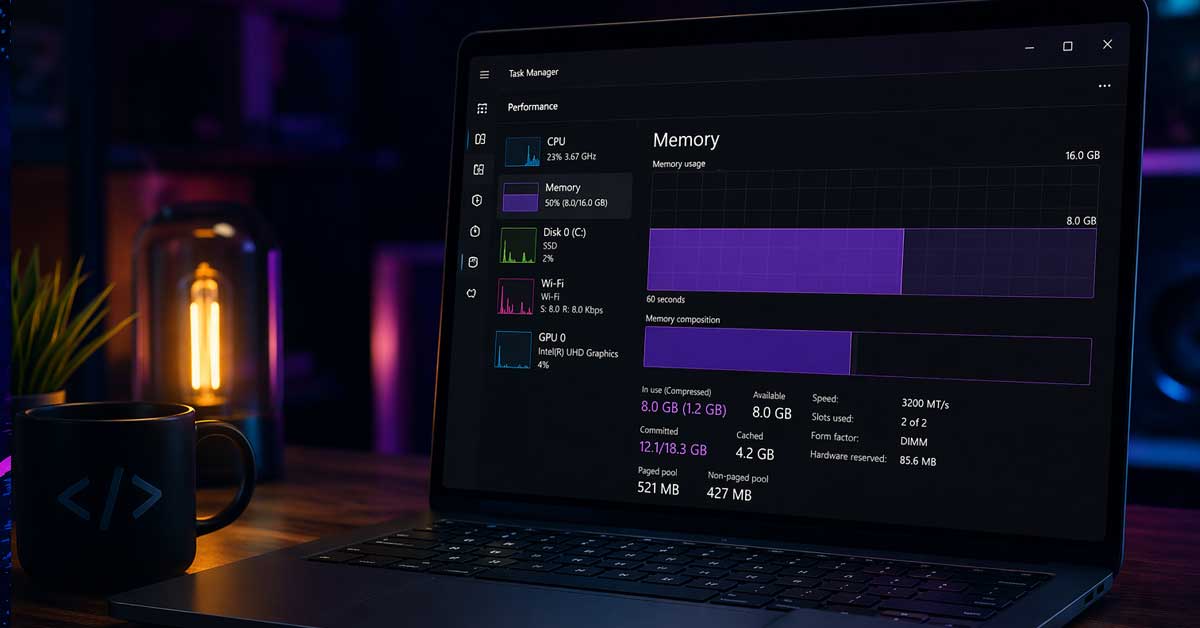
Also go to Task Manager → Performance → Memory for a more detailed view showing:
In Use — RAM actively being used by running processes. Standby — RAM holding cached data that can be immediately reclaimed if a running process needs more memory. Modified — RAM with modified data waiting to be written to disk. Available — RAM that’s immediately available for new processes.
The Standby number is critical here. A large Standby value means Windows has filled that RAM with cached data — file system cache, recently used application data, prefetched content. This cache is immediately reclaimed when any process needs more memory. Standby RAM isn’t being wasted — it’s actively improving system responsiveness by keeping frequently accessed data close at hand.
If most of your 50 percent RAM usage is Standby, the system is healthy and working as designed. If most is In Use, specific processes are consuming it.

Get to work faster up and running: Start the workday faster by SIGNING on with optional fingerprint reader on the power button or with the optional IR camera + Windows Hello for seamless authentication.
【Next-Gen Performance: Beats i5-1135G7 Class】 Power through your to-do list with the 12th Gen Intel Core i3-1215U (6 Cores, up to 4.40 GHz). It delivers faster responsiveness for online classes, video editing, and heavy web browsing, outperforming older i5-1135G7 class processors. Buy "Newer" for a smoother, lag-free experience in all modern applications.

Powerful 6th-generation Intel Core i5-6200U 2.3GHz (Turbo up to 2.8GHz). Skylake
Windows Itself Uses Significant RAM
A modern Windows 11 installation uses 3 to 4GB of RAM just for the operating system, its services, and its background processes — before any user applications are open. On an 8GB system, Windows alone accounts for 37 to 50 percent of total RAM.
Components that contribute to Windows’ baseline RAM usage:
System and compressed memory — the Windows kernel, compressed page data, and core OS components.
Windows processes — dozens of background services run continuously including Windows Update components, Windows Defender, telemetry services, print spooler, audio services, and others.
Desktop Window Manager (DWM) — the process that renders Windows’ visual interface including transparency effects, animations, and window compositing. Uses more RAM on high-resolution displays and with multiple monitors.
Browser and application preloading — Edge sometimes preloads in the background before you open it. Startup apps configured to run at boot add to the baseline.


Size: 8ft wide x 6ft high(98 x 70.9 inches) which is large enough for party decoration or photography. Package include 1 x christmas backdrop, stand not included. You can hang it easily with clips, nails or adhesive tape.
SuperFetch and SysMain Are Filling RAM With Cache
SysMain (formerly called Superfetch) is a Windows service that analyzes your usage patterns and preloads applications you frequently use into RAM before you open them. This makes those applications launch faster — they’re already in memory when you click them.
SysMain is a significant contributor to idle RAM usage on many systems — it fills available memory with preloaded application data, which makes Task Manager show high RAM usage even when you’re not running anything demanding.
This is productive RAM usage, not waste — when you launch a preloaded application it opens faster because SysMain anticipated your needs. The memory immediately clears if another application needs it.
If SysMain’s behavior bothers you — and it’s debatable whether it’s beneficial on SSDs where application load times are already fast — it can be disabled:
Press Windows + R and type services.msc. Find SysMain, right-click it, select Properties, change Startup Type to Disabled, and click Stop. RAM usage at idle drops noticeably after this but application launch times may increase slightly on systems without SSDs.
Running Applications and Browser Tabs
User-running applications account for a significant portion of RAM that’s easy to overlook when checking idle usage. A browser with multiple tabs open consumes substantial RAM — Chrome, Edge, and Firefox use separate processes per tab and can collectively consume 1 to 3GB with a moderate number of tabs.
Check what applications you have open when seeing high RAM usage. Common RAM consumers beyond Windows itself:
Web browsers — particularly with many tabs open. Each tab is a separate process with its own memory allocation.
Antivirus software — Windows Defender and third-party antivirus maintain real-time scanning processes that hold pattern databases and scanning engines in memory continuously.
Communication apps — Discord, Slack, Teams, and similar apps are built on Electron (a web browser framework) and use RAM similar to a browser tab even when minimized.
Startup applications — apps configured to launch at boot run continuously in the background. Go to Task Manager → Startup Apps to see what launches automatically and disable anything you don’t need running all the time.
When 50% RAM Usage Is Actually a Problem
High idle RAM usage is worth investigating when:
RAM usage is consistently above 80 to 90 percent, not just 50 percent. A specific process is consuming unexpectedly large amounts that grow over time — this is a memory leak. The system is using a pagefile heavily — disk activity is constant because Windows is swapping RAM contents to disk. Performance is noticeably sluggish — applications take long to open, the system feels unresponsive.
50 percent idle RAM usage is typically not a problem unless you’re on a system with very limited RAM — 4GB total or less — where 50 percent usage leaves only 2GB for applications.
Memory Leaks From Applications
A memory leak occurs when an application allocates RAM and fails to release it after it’s no longer needed. Over time, a leaking application consumes more and more RAM — usage climbs from 50 percent to 70 percent to 90 percent as the session continues without anything new being opened.
Signs of a memory leak:
RAM usage is moderate at startup but climbs steadily over hours without opening new applications. A specific process in Task Manager shows its memory consumption growing over time. RAM usage returns to normal after a restart but climbs again in the same session.
To identify leaks: Sort Task Manager by memory usage and watch over time. A process whose memory number grows continuously is leaking. Restarting the specific application — not the whole computer — temporarily releases the leaked memory.
Common leak sources include browsers (particularly with certain extensions), communication apps, and some games. Updating the offending application often fixes the leak.
How Much RAM You Have Determines Context
50 percent RAM usage means different things depending on total RAM:
4GB total RAM: 50 percent = 2GB used. Very tight — leaves little headroom for applications. Consider upgrading.
8GB total RAM: 50 percent = 4GB used. Typical and normal for Windows at idle. Adequate for most tasks with moderate headroom.
16GB total RAM: 50 percent = 8GB used at idle. Unusual — something beyond normal Windows processes is consuming significant memory. Worth investigating.
32GB total RAM: 50 percent = 16GB used at idle. Definitely warrants investigation — normal Windows operation doesn’t use 16GB at idle.
If you have 16GB or more and idle usage is consistently at 50 percent, check for specific high-consumption processes in Task Manager rather than assuming it’s normal Windows caching behavior.
Check for Malware
Memory-resident malware — particularly RATs (Remote Access Trojans), cryptocurrency miners, and data exfiltration tools — consumes RAM while hiding from Task Manager. Some sophisticated malware injects itself into legitimate system processes, making its RAM consumption appear to belong to Windows rather than the malware.
If RAM usage seems unexpectedly high and you can’t account for it through visible processes, run Malwarebytes free version for a second-opinion scan. Also use Process Explorer from Microsoft’s Sysinternals suite — it provides more detailed process information than Task Manager and makes injected malware harder to hide.
Upgrade RAM If Consistently Pressured
If 50 percent idle RAM leaves insufficient headroom for your typical workload — you regularly hit 80 to 90 percent when working normally and experience slowdowns — a RAM upgrade is the right solution.
Practical minimum RAM recommendations for current Windows:
8GB — minimum for basic Windows use. Tight for multitasking with a browser and multiple apps.
16GB — comfortable for most users including moderate multitasking, gaming, and office work.
32GB — appropriate for video editing, large virtual machines, heavy development workloads, or users who want significant headroom.
If your system has 8GB and idle usage is genuinely 50 percent, adding another 8GB for 16GB total provides meaningful headroom for normal use without constant pressure on available memory.
A Quick Checklist
Work through these to diagnose your specific situation:
- Check Task Manager → Performance → Memory — look at Standby vs. In Use breakdown
- Sort processes by memory — identify the top consumers
- Check whether Standby is the large component — if so, Windows caching is the cause and it’s normal
- Check open browser tabs — each tab consumes significant RAM
- Check startup apps — Task Manager → Startup Apps — disable unnecessary ones
- Watch whether RAM usage grows over time without opening new apps — indicates a memory leak
- Consider your total RAM — 50% on 8GB is normal, 50% on 32GB warrants investigation
- Run Malwarebytes if usage seems unexplained by visible processes
- Disable SysMain in services.msc if preloading is the cause and you want to reduce it
- Upgrade RAM if 50% idle leaves insufficient headroom for normal workloads
The Bottom Line
RAM at 50 percent idle is almost always normal Windows behavior — the operating system itself uses 3 to 4GB, SysMain fills available memory with cached data, and background services maintain their working sets in memory. Windows is designed to use RAM rather than leave it empty.
The concern threshold isn’t 50 percent — it’s 80 to 90 percent sustained usage that leaves little headroom for applications, or a specific process whose memory consumption grows steadily over time indicating a leak.
Windows fills RAM because empty RAM is wasted RAM — the question is whether that RAM is doing something useful, and almost always it is.

16" WQXGA (2560x1600) IPS LCD, with DCI-P3 99% color expression

【Powerful and Efficient】This small computer is equipped with Alder Lake N150 Quad Core Processor up to 3.6GHz with pre-installed Windows 11 home OS like a conventional computer. It supports Wake on LAN / PXE/ Auto Power on/ RTC Wake, perfect for a wide variety of usages such as basic office tasks, personal use, multimedia streaming, home theater, kiosks, conference, digital signage, astrophotography, WMS, smart home, surveillance and industrial IOT.

Meet Ry, “TechGuru,” a 36-year-old technology enthusiast with a deep passion for tech innovations. With extensive experience, he specializes in gaming hardware and software, and has expertise in gadgets, custom PCs, and audio.
Besides writing about tech and reviewing new products, he enjoys traveling, hiking, and photography. Committed to keeping up with the latest industry trends, he aims to guide readers in making informed tech decisions.