
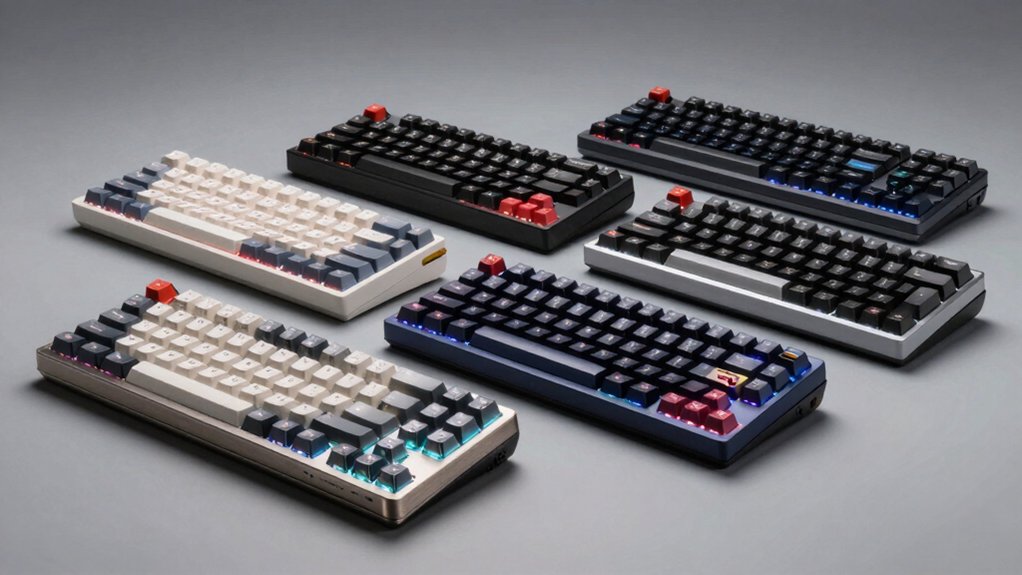

You’ve got options when you’re looking for a reliable auto clicker. Each device handles clicking differently—some use motors, others use capacitive sensing. You’ll need to consider noise level, power source, and compatibility with your setup. The five clickers we’re covering solve common problems like unstable clicks and height adjustment issues, but they approach these solutions in distinct ways.
| Pankia Box Physical Click Keyboard Auto Clicker Mouse |
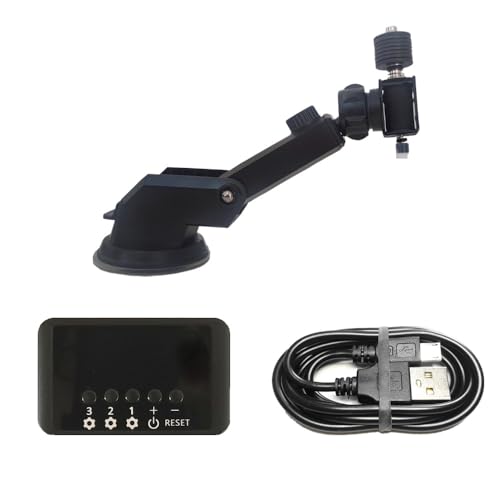
| Versatile All-Rounder | Adjustable Click Speed: Three ports with separate speed adjustments | Power Source: Not specified | Device Adjustability: 3 adjustable clicking arm parts | VIEW LATEST PRICE | Read Our Analysis |
| Physical Click Auto Keyboard Mouse Jiggler Tool |

| Most Durable Build | Adjustable Click Speed: Adjustable click speed with simple setup | Power Source: USB powered | Device Adjustability: Adjustable height and click head position | VIEW LATEST PRICE | Read Our Analysis |
| TAPDRA Computer Keyboard Auto Clicker Game Assistance |
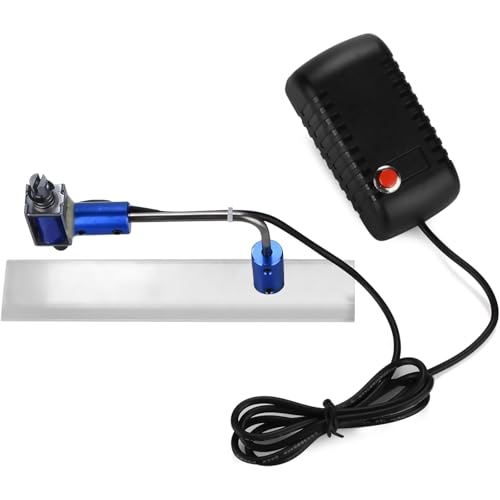
| Game-Focused Option | Adjustable Click Speed: Fixed random clicks (1-30 seconds, non-adjustable) | Power Source: 5V power supply | Device Adjustability: Height adjustment via loosened screws | VIEW LATEST PRICE | Read Our Analysis |
| Keyboard Click Auto Clicker Mouse Jiggler with Presets |

| Most Customizable | Adjustable Click Speed: 5 time-range stages per port; 15 preset functions | Power Source: 5V 3A with power adapter (not PC USB) | Device Adjustability: 3 adjustable arm parts | VIEW LATEST PRICE | Read Our Analysis |
| BlissKiss BM1 Auto Clicker USB-Type C |

| Best Portability | Adjustable Click Speed: 31-speed gears (1 to 33 clicks per second) | Power Source: USB-C connection | Device Adjustability: Fixed design; no adjustments needed | VIEW LATEST PRICE | Read Our Analysis |
More Details on Our Top Picks
Pankia Box Physical Click Keyboard Auto Clicker Mouse
The Pankia Box is a versatile all-rounder designed for users who need consistent, hands-free clicking across multiple applications. You’ll find three adjustable ports that let you customize clicking speeds for different tasks. The device features three clickable arm parts you can modify to match your keyboard layout. Simply position the clicking arm on your keyboard or mouse, and it’ll handle repetitive clicking automatically. You’re able to use it across desktop and laptop computers for various clicking needs. Keep usage under five clicks per second to prevent heat damage. The manufacturer offers a 100% satisfaction guarantee, so you can contact support if you’re unsatisfied with performance.
- Adjustable Click Speed:Three ports with separate speed adjustments
- Power Source:Not specified
- Device Adjustability:3 adjustable clicking arm parts
- Keyboard Compatibility:Keyboard and mouse support
- Noise Level:Not specified
- Build Materials:Not specified
- Additional Feature:Three separate speed ports
- Additional Feature:Hand release functionality
- Additional Feature:Heat damage prevention safety
Physical Click Auto Keyboard Mouse Jiggler Tool
Need a device that clicks continuously without wearing out? The Physical Click Auto Keyboard Mouse Jiggler Tool delivers automated clicking through a motorized mechanism rather than software. You’ll adjust the click head’s height and position to match your keyboard or mouse location, then set your desired click speed using the control dial. The USB-powered device operates quietly without motor overheating. Its sturdy construction resists damage during extended use. Installation takes minutes—simply position the device, plug it in, and activate the motor. You can modify it to function as a mouse mover or jiggler by repositioning components. This all-in-one solution maintains consistent performance across extended sessions, eliminating manual clicking fatigue.
- Adjustable Click Speed:Adjustable click speed with simple setup
- Power Source:USB powered
- Device Adjustability:Adjustable height and click head position
- Keyboard Compatibility:Keyboard and mouse support
- Noise Level:Low-noise operation
- Build Materials:Sturdy construction; durable motor
- Additional Feature:USB powered operation
- Additional Feature:Low-noise motor design
- Additional Feature:Mouse jiggler/mover capability
TAPDRA Computer Keyboard Auto Clicker Game Assistance
TAPDRA’s auto clicker serves gamers who need hands-free keyboard assistance during extended play sessions. You’ll appreciate its random clicking interval of 1–30 seconds, which prevents detection in games. The soft rubber click head protects your keyboard from damage while operating silently. You can position the clicker over any key you’d like to automate. To install it, you’ll loosen the adjustment screws and raise or lower the height to match your keyboard’s thickness. The device runs on safe 5V power and won’t slip off its base thanks to the updated screw design. This setup works with any keyboard regardless of thickness.
- Adjustable Click Speed:Fixed random clicks (1-30 seconds, non-adjustable)
- Power Source:5V power supply
- Device Adjustability:Height adjustment via loosened screws
- Keyboard Compatibility:Compatible with any keyboard thickness
- Noise Level:No noise generated
- Build Materials:Soft rubber click head
- Additional Feature:Random click timing (1-30s)
- Additional Feature:Soft rubber click head
- Additional Feature:Adjustable height fit system
Keyboard Click Auto Clicker Mouse Jiggler with Presets
Want independent control over each clicking port? This device delivers it through three separate ports, each with customizable speed settings across five time-range stages. You’ll adjust clicking frequency from 1 to 10 clicks and set intervals between 0.1 seconds to 60 minutes per port. The adjustable clicking arm features three modifiable parts, letting you position it precisely for keyboard or mouse use. Power the unit via a 5V 3A adapter—never use your PC’s USB port. Compatible with Windows systems, this ambidextrous device works with both left and right-handed users. Its metal and plastic construction provides durability with a one-year warranty backing your purchase.
- Adjustable Click Speed:5 time-range stages per port; 15 preset functions
- Power Source:5V 3A with power adapter (not PC USB)
- Device Adjustability:3 adjustable arm parts
- Keyboard Compatibility:PC keyboard and mouse compatible
- Noise Level:Not specified
- Build Materials:Metal and plastic enclosure
- Additional Feature:15 preset functions included
- Additional Feature:0.1s to 60-minute range
- Additional Feature:1 to 10 clicks adjustable
BlissKiss BM1 Auto Clicker USB-Type C
The BlissKiss BM1 Auto Clicker delivers portability that fits your pocket while powering through repetitive clicking tasks across Android and iOS devices. Simply plug the USB-C connector into your power source and position the clicking head on your screen. Use the three setting buttons to adjust click speed across 31 gears, ranging from one click per 60 seconds to 33 clicks per second. The device memorizes your last gear setting after powering off, eliminating reconfiguration. Its capacitive sensing technology produces zero noise and won’t damage your screen, making it ideal for gaming, live broadcasts, and reward tasks without drawing attention.
- Adjustable Click Speed:31-speed gears (1 to 33 clicks per second)
- Power Source:USB-C connection
- Device Adjustability:Fixed design; no adjustments needed
- Keyboard Compatibility:Multi-device (Android, iOS via USB)
- Noise Level:Zero noise
- Build Materials:Capacitive sensing technology (no mechanical click)
- Additional Feature:33 clicks per second
- Additional Feature:Capacitive sensing technology
- Additional Feature:Last gear parameter memory
Factors to Consider When Choosing an Automated Keyboard Clicker
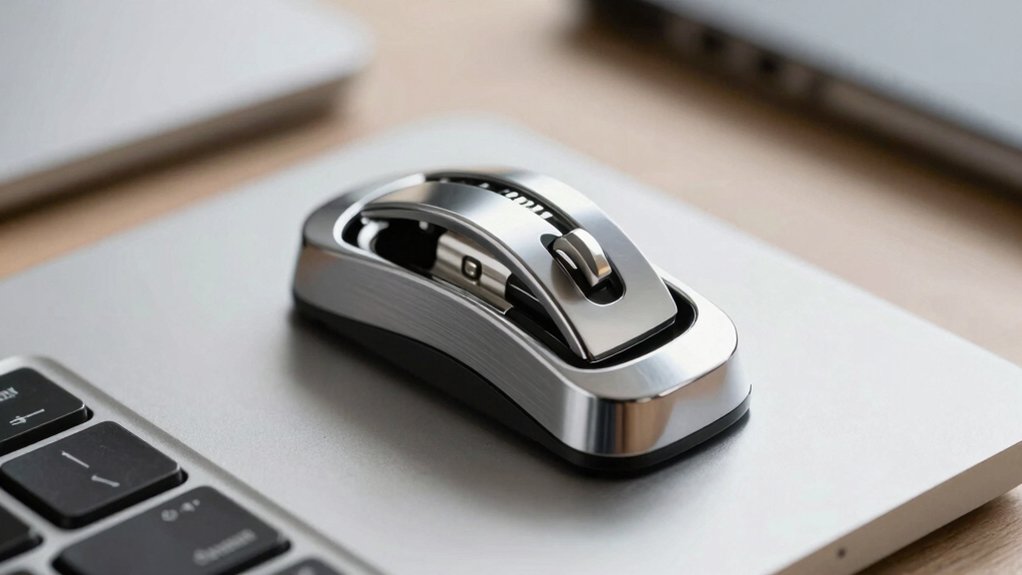
When selecting an automated keyboard clicker, you’ll need to evaluate adjustability and speed control to match your specific clicking requirements, verify compatibility with your operating system and devices, and assess the durability and build quality to ensure long-term reliability. Start by identifying the click speed you need—whether it’s slow clicks for standard typing or rapid clicks for gaming—and confirm the clicker supports that range. Finally, check the manufacturer’s specifications against your hardware to avoid purchasing a product that won’t work with your setup.
Best Automated Keyboard Clicker
Selecting the right automated keyboard clicker requires you to evaluate several key specifications that’ll directly impact your performance and equipment longevity. First, confirm the device offers adjustable speed settings and independent port controls for different tasks. Second, examine the click head’s adjustability and build quality to accommodate various keyboard thicknesses without causing damage. Third, verify low-noise operation and heat management features prevent overheating during extended sessions. Fourth, check compatibility with both keyboard and mouse inputs if you need cross-application functionality. Fifth, confirm easy installation procedures and reputable safety certifications. Finally, prioritize models with setting memory that stores your speed preferences and includes a comprehensive warranty for reliable long-term use and straightforward issue resolution.
Factors to Consider When Choosing Automated Keyboard Clicker
Now that you’ve reviewed what makes a quality clicker, you’ll need to evaluate specific factors that match your particular needs and setup. First, check compatibility with your keyboard and mouse to confirm PC support. Next, assess adjustable speed settings and multiple ports so you can tailor clicking intensity for different tasks. Then examine the click head and arm configurations to ensure they fit your keyboard thickness and hand position. Finally, review the power source requirements, typical USB power needs, and safety guidelines regarding heat generation and overuse recommendations. Consider durability by examining build materials, noise levels, and warranty coverage. These factors work together to guarantee you select a clicker that performs reliably for your specific situation.
Adjustability and Speed Control
How much control do you actually need over clicking speed? Look for devices offering independent speed adjustments per port or head, which let you tailor tapping speeds for different tasks. Check the number of adjustable parts on the clicking arm to gauge how precisely you can position and stabilize the click action. Prefer models with a clearly stated speed range or presets, such as fractional seconds to tens of seconds, to match your desired rhythm. Verify whether the device memorizes last speed settings or requires reconfiguration after power loss for consistent reuse. Consider whether the tool provides both adjustable click intervals and adjustable click counts per session to control total clicking duration. These features determine your ability to customize performance for specific needs.
Compatibility With Your Devices
Once you’ve locked down your speed settings, you’ll need to verify that your chosen auto clicker actually works with your equipment. Start by checking whether the clicker supports your specific devices—keyboard, mouse, or both. Next, confirm compatibility with your operating system, whether that’s Windows, macOS, or mobile platforms. Review the power specifications to determine if you need a USB connection or an external power adapter. Examine the physical mounting options to ensure the clicker fits your keyboard or mouse height and reach requirements. Finally, verify the connector type matches your hardware, such as USB-C or standard USB ports. Taking these steps prevents purchasing a clicker that won’t function with your existing setup.
Durability and Build Quality
What’ll determine whether your auto clicker lasts months or years? Build quality and material selection. Look for devices constructed with metal frames and durable hard plastics that withstand repeated use without degrading. Check that adjustable joints and screw-installed bases stay tight during operation—loose components cause premature failure. Examine the click head design; soft rubber or capacitive sensing options minimize keyboard wear and damage. Verify the motor resists heat buildup through low-noise engineering or heat-dissipating designs, especially for high-frequency clicking that generates sustained heat. Additionally, choose models that retain settings after power loss, preventing repeated reconfiguration that stresses internal components. These durability factors directly impact reliability and longevity, ensuring your clicker performs consistently over extended periods.
Power Supply Requirements
The power source you choose for your auto clicker directly affects its performance and reliability during operation. Check your device’s amperage requirements on the specification label. A dedicated USB power adapter delivers consistent current better than drawing power from your computer’s USB port, which can cause inconsistent clicking speeds or unexpected resets. Match your adapter’s amperage output to the device’s requirements—insufficient power creates unstable performance. If your clicker has USB-C connectivity, you can use modern power banks for portable setups. During extended use sessions, a dedicated adapter reduces heat buildup that degrades performance over time. Ensure your power solution maintains stable voltage so your device retains memorized settings between sessions. Always prioritize adequate amperage for uninterrupted, flawless operation.
Final Thoughts
You’ve reviewed five reliable auto clickers with distinct features. Choose based on your needs: select Pankia Box for adjustable stability, Physical Click for quiet motorized operation, TAPDRA for silent safety, the multi-port option for precision control, or BlissKiss BM1 for USB-C compatibility. Consider your device type, noise tolerance, and required features. Test your chosen clicker before extended use to ensure it meets your workflow demands.

Meet Ry, “TechGuru,” a 36-year-old technology enthusiast with a deep passion for tech innovations. With extensive experience, he specializes in gaming hardware and software, and has expertise in gadgets, custom PCs, and audio.
Besides writing about tech and reviewing new products, he enjoys traveling, hiking, and photography. Committed to keeping up with the latest industry trends, he aims to guide readers in making informed tech decisions.