
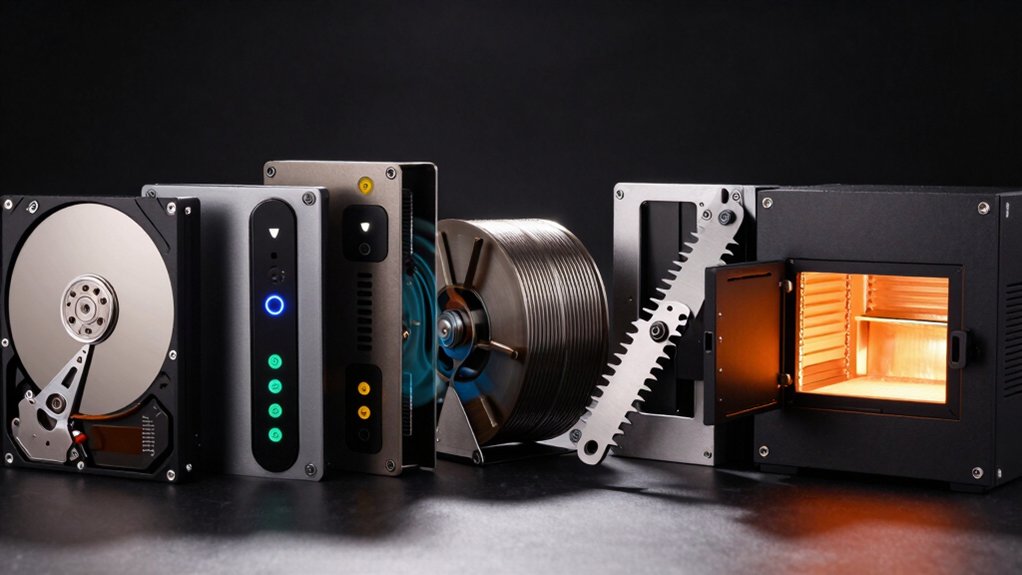

When you need to permanently erase data from hard drives, SSDs, or external storage devices, you’ve got several specialized tools available. Each tool uses different methods—bootable systems, military-grade algorithms, or multi-pass wiping—to ensure your information can’t be recovered. Your choice depends on your device type, operating system compatibility, and how thoroughly you want to sanitize your data. Understanding what each tool offers will help you pick the right solution for your specific situation.
| Lovell DESTRUCT PRO USB Hard Drive Eraser & Data Wipe |

| Military-Grade Standard | Data Destruction Method: Overwrites and erases data | Compatibility: HDD, SSD, external hard drives | Form Factor: USB device | VIEW LATEST PRICE | Read Our Analysis |
| DESTRUCT USB Gadget Military Grade Hard Drive Wiper |

| Most User-Friendly | Data Destruction Method: Data sanitization via USB | Compatibility: Desktop, laptop | Form Factor: 2.5-inch external hard drive | VIEW LATEST PRICE | Read Our Analysis |
| Ralix Hard Drive USB Wiper – Compatible with Windows Mac Linux |

| Cross-Platform Compatible | Data Destruction Method: Secure wipe meeting DoD standards | Compatibility: Windows, Mac, Linux | Form Factor: Bootable USB | VIEW LATEST PRICE | Read Our Analysis |
| Secure Data Wipe USB – Military-Grade Hard Drive Erase Tool |

| Professional Installation-Free | Data Destruction Method: Industry-standard tools (DBAN, ShredOS, Nwipe) | Compatibility: Windows, Linux, BIOS & UEFI PCs/laptops | Form Factor: Bootable USB drive | VIEW LATEST PRICE | Read Our Analysis |
| Beamo Hard Drive and SSD Data Eraser USB |

| Most Versatile Tool | Data Destruction Method: Professional-grade secure erasure | Compatibility: HDD, SSD, flash drives, SD cards | Form Factor: USB plug-and-play | VIEW LATEST PRICE | Read Our Analysis |
More Details on Our Top Picks
Lovell DESTRUCT PRO USB Hard Drive Eraser & Data Wipe
Are you selling, disposing of, or returning a device and worried that factory resets won’t fully protect your data? Lovell DESTRUCT PRO is a USB device that permanently erases hard drives, SSDs, and external drives using military-grade overwriting technology. Simply plug it into your computer’s USB port, boot the device, select your target drive, and let it run. Unlike factory resets, which often leave recoverable files, DESTRUCT PRO overwrites data completely, guaranteeing non-recoverability. The process is straightforward and requires no technical expertise, making it ideal for destroying confidential information before selling or repurposing your device.
- Data Destruction Method:Overwrites and erases data
- Compatibility:HDD, SSD, external hard drives
- Form Factor:USB device
- Ease of Use:Plug into USB, boot, select drive, run
- Primary Use Case:Selling, disposing, factory reset
- Data Recovery Prevention:Guarantees non-recoverable erasure
- Additional Feature:Multi-drive compatibility (HDD/SSD/external)
- Additional Feature:Military-grade destruction technology
- Additional Feature:Non-recoverable data guarantee
DESTRUCT USB Gadget Military Grade Hard Drive Wiper
Need to permanently erase all data before selling your laptop? The DESTRUCT USB Gadget offers military-grade data sanitization in a compact 2.5-inch external drive. Connect it via USB to your desktop or laptop, then initiate the wiping process to remove all files permanently. With 120 MB/s read speeds and 960 Mbps transfer rates, the device efficiently erases sensitive information. The plastic enclosure includes a USB cable and storage case. Weighing just 0.04 pounds, it’s portable for multiple devices. This tool prevents data recovery after you’ve sold or disposed of hardware, ensuring no personal information remains accessible.
- Data Destruction Method:Data sanitization via USB
- Compatibility:Desktop, laptop
- Form Factor:2.5-inch external hard drive
- Ease of Use:Simple plug-and-play process
- Primary Use Case:Selling or disposing hardware
- Data Recovery Prevention:Permanent data destruction
- Additional Feature:120 MB/s read speed
- Additional Feature:Includes storage case/bag
- Additional Feature:960 Mbps data transfer rate
Ralix Hard Drive USB Wiper – Compatible with Windows Mac Linux
Ralix Hard Drive USB Wiper works across Windows, Mac, and Linux platforms, making it ideal if you’re selling or disposing of a computer and need to remove all personal data completely. You’ll boot from the USB drive and follow on-screen instructions to select what gets permanently deleted. The tool meets DoD 5220.22-M Hard Drive Erase Standards, ensuring data destruction is thorough and irreversible. The USB includes a website link with step-by-step guidance plus a customer service email for support. Installation works on all desktops and laptops, regardless of age or technical skill level, giving you full control over your data removal process.
- Data Destruction Method:Secure wipe meeting DoD standards
- Compatibility:Windows, Mac, Linux
- Form Factor:Bootable USB
- Ease of Use:Boot from USB, follow on-screen instructions
- Primary Use Case:Selling computers
- Data Recovery Prevention:Permanently deletes data
- Additional Feature:Cross-platform compatibility (Windows/Mac/Linux)
- Additional Feature:DoD 5220.22-M standards compliance
- Additional Feature:Includes website support resources
Secure Data Wipe USB – Military-Grade Hard Drive Erase Tool
When you’re preparing computers for resale, recycling, or disposal, Secure Data Wipe USB delivers professional installation-free erasure directly from a bootable drive. You plug the USB into your device, boot from it, and access preloaded industry-standard tools like DBAN and ShredOS that permanently sanitize your hard drive. The military-grade data sanitization ensures recovery becomes impossible. This tool works with Windows, Linux, BIOS, and UEFI-based systems on both HDDs and SSDs. You’ll complete secure data removal without installing software, making it ideal for IT professionals and personal users alike.
- Data Destruction Method:Industry-standard tools (DBAN, ShredOS, Nwipe)
- Compatibility:Windows, Linux, BIOS & UEFI PCs/laptops
- Form Factor:Bootable USB drive
- Ease of Use:Plug & play, no installation needed
- Primary Use Case:Selling, recycling, or disposing computers
- Data Recovery Prevention:Military-grade data sanitization
- Additional Feature:Plug & Play installation-free
- Additional Feature:BIOS & UEFI compatible
- Additional Feature:Industry-standard tools (DBAN/ShredOS)
Beamo Hard Drive and SSD Data Eraser USB
Beamo’s most versatile tool securely wipes data from multiple storage devices. You’ll connect this USB device to your computer, then use it to permanently erase information from hard drives, SSDs, flash drives, and SD cards. The plug-and-play interface requires no complicated setup—you simply insert the USB connector and follow the on-screen prompts. Beamo erases data completely, preventing unauthorized recovery attempts. It’s designed for businesses, IT professionals, and individuals who need reliable data destruction. The product includes a one-year warranty against damage and qualifies for Amazon’s 30-day return guarantee, making it a practical choice for secure device disposal.
- Data Destruction Method:Professional-grade secure erasure
- Compatibility:HDD, SSD, flash drives, SD cards
- Form Factor:USB plug-and-play
- Ease of Use:Plug-and-play USB interface
- Primary Use Case:Securely dispose or repurpose storage devices
- Data Recovery Prevention:Prevents unauthorized recovery
- Additional Feature:Supports multiple storage types
- Additional Feature:Professional-grade erasure software
- Additional Feature:1-year damage warranty
Factors to Consider When Choosing a Hard Drive Wiper Data Destruction Tool
When you’re selecting a hard drive wiper tool, you’ll want to evaluate five key factors: compatibility with your operating system, the data erasure standards it supports, how straightforward the setup and interface are, whether it handles all your storage device types, and what security guarantees the vendor provides. Check the tool’s specifications against your system—whether you’re using Windows, Mac, or Linux—and confirm it erases data using recognized standards like NIST or DoD methods. Finally, review the vendor’s warranty or certification to ensure you’re getting reliable, verifiable data destruction that meets your security prerequisites.
Compatibility Across Operating Systems
How do you know if a hard drive wiper will actually work on your system? Check the tool’s documentation for explicit support of Windows, macOS, and Linux. This ensures compatibility across your devices. Next, determine whether the wiper requires booting from USB or runs within your existing OS. Bootable solutions work independently of installed operating systems, making them more versatile. Verify that instructions are OS-agnostic or provided universally. Additionally, confirm compatibility with both BIOS and UEFI firmware systems to cover modern and legacy computers. Finally, confirm the erasure method functions independently of your host OS. This guarantees the wipe works effectively on desktops, laptops, and external drives regardless of which system you’re using.
Data Erasure Standards And Methods
The security of your data destruction depends on which erasure standard and method you choose, as different approaches offer varying levels of protection against data recovery. You’ll find three primary methods: DoD-style multi-pass overwrites, which write random data multiple times across your drive; Secure Erase commands, which use firmware to clear SSDs efficiently; and specialized tools designed for specific drive types. Select DoD 5220.22-M or equivalent standards for maximum assurance. Verify your tool produces tamper-evident logs or certifications proving completion. Consider your drive type—HDDs respond well to multi-pass methods, while SSDs require Secure Erase due to wear-leveling technology. Use only tested software adhering to recognized standards. This approach ensures recovery software cannot locate residual data.
Ease Of Use And Setup
What makes a hard drive wiper truly practical? You need a plug-and-play solution that boots directly from USB without requiring installation. Look for tools that display clear on-screen prompts guiding you through three simple steps: select your target drive, confirm the action, and run the erasure. This straightforward workflow prevents mistakes and saves time. Verify the tool works across Windows, Mac, and Linux if you switch between platforms. Check that your chosen device includes a USB cable and protective case for convenient transport and setup. A quality hard drive wiper requires no additional software installation, ensuring thorough data overwrite through its single-use design. These features combine to make the entire process efficient and accessible for any user level.
Storage Device Type Support
Beyond selecting a tool that’s simple to use, you’ll want to verify it actually supports the specific storage devices you plan to erase. Check whether the tool handles HDDs, SSDs, and external drives—the three main storage types you’re likely to encounter. Look for compatibility with 2.5-inch form factors if you’re working with laptop drives. Confirm the tool supports both internal and external drives accessible through USB interfaces, giving you flexibility across different setups. Cross-platform compatibility matters too; ensure the tool runs on Windows, Mac, or Linux depending on your systems. Finally, verify the tool meets recognized data sanitization standards, such as DOD-era requirements, to guarantee secure erasure across all supported storage types.
Security Level And Guarantees
How much assurance do you actually need that your data’s gone for good? Check whether the tool guarantees irrecoverable destruction, not just “permanent wipe.” Look for compliance with recognized standards like DoD 5220.22-M, which ensures the wiping process meets established security benchmarks. Verify that the tool overwrites data across multiple passes or uses secure erase commands to target all drive areas, including remapped sectors. Distinguish between software-based erasure and hardware-level destruction when comparing options. Confirm stated limitations regarding different drive types—HDDs and SSDs require different approaches. Review whether the manufacturer provides guarantees about preventing recovery by specialized tools. Higher security levels typically involve more passes and stricter compliance certifications, so match the assurance level to your specific data sensitivity requirements.
Warranty And Return Policies
Several key warranty and return policy differences exist across hard drive wiper vendors, and you’ll need to review each one carefully before purchasing. Most vendors offer standard 30-day return windows for defective products, though some extend coverage to 90 days. Check whether the vendor accepts returns for used or refurbished items, as policies vary considerably. Examine the warranty duration—typically one year—and identify what damage is excluded, such as improper use or failure to follow instructions. Some vendors direct you to their specific policy pages rather than listing details upfront. If you’re purchasing internationally, review regional terms, as labeling and coverage may differ from domestic policies. Always consult the exact warranty link before buying to confirm coverage specifics match your needs.
Multi-Drive Capability Requirements
Once you’ve confirmed warranty coverage meets your needs, you’ll want to evaluate whether the tool can handle multiple drives simultaneously or in sequence. Check if it supports various drive types—HDDs, SSDs, and external drives—along with different form factors like 2.5-inch and larger models. Verify compatibility with multiple interfaces including USB 1.1, 2.0, and 3.0 connections. A quality multi-drive tool should operate across Windows, Mac, and Linux environments without requiring separate devices for each system. Confirm the tool provides verification that erasure is complete and non-recoverable on all selected drives. This capability streamlines repeated sanitization tasks across different systems, making your data destruction process efficient and reliable.
Final Thoughts
You’ll want to select a hard drive wiper based on your specific needs. Consider whether you’re erasing HDDs, SSDs, or external drives, then verify the tool supports your operating system. Check if you need multi-pass wiping or military-grade erasure for sensitive data. Plug in your chosen USB tool, follow the on-screen instructions, and confirm the wipe completes successfully before repurposing or disposing of your drive.

Meet Ry, “TechGuru,” a 36-year-old technology enthusiast with a deep passion for tech innovations. With extensive experience, he specializes in gaming hardware and software, and has expertise in gadgets, custom PCs, and audio.
Besides writing about tech and reviewing new products, he enjoys traveling, hiking, and photography. Committed to keeping up with the latest industry trends, he aims to guide readers in making informed tech decisions.