
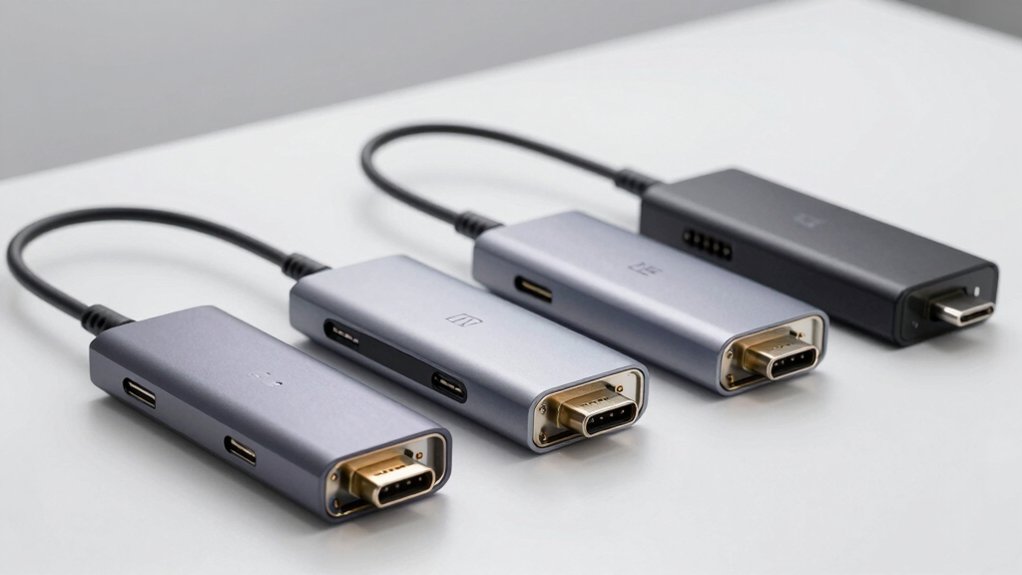

You need an HDMI hub that won’t fail when you’re presenting or working remotely. The right choice depends on whether you’re connecting one or two monitors, how much power your laptop requires, and which ports matter most to your setup. This guide walks you through seven proven hubs—each tested for reliable 4K output, stable data transfer, and consistent performance. Here’s what separates the ones that actually work from the rest.
| Anker 5-in-1 USB-C Hub with 4K HDMI |

| Best All-Around | HDMI Video Output: 4K@30Hz | Total Ports: 5 ports | USB-A Data Ports: 2 USB-A (5Gbps) | VIEW LATEST PRICE | Read Our Analysis |
| Anker 8-in-1 USB-C Docking Station Dual Monitor |

| Best for Dual Monitors | HDMI Video Output: 4K@60Hz (single display) / 4K@30Hz (dual displays) | Total Ports: 8 ports | USB-A Data Ports: 2 USB-A (5Gbps) | VIEW LATEST PRICE | Read Our Analysis |
| Acer USB-C Hub 7-in-1 Multi-Port Adapter with HDMI |

| Best Compatibility Range | HDMI Video Output: 4K@30Hz | Total Ports: 7 ports | USB-A Data Ports: 2 USB-A (5Gbps) | VIEW LATEST PRICE | Read Our Analysis |
| BENFEI USB-C Hub 5-in-1 with 4K HDMI & Power Delivery |

| Best Cable Design | HDMI Video Output: 4K@30Hz | Total Ports: 5 ports | USB-A Data Ports: 3 USB-A (10Gbps) | VIEW LATEST PRICE | Read Our Analysis |
| USB-C Docking Station with Dual Monitor Support |

| Most Display Options | HDMI Video Output: 4K@60Hz (one HDMI) / 4K@30Hz (second HDMI) | Total Ports: 8 ports | USB-A Data Ports: 3 USB-A (480Mbps) | VIEW LATEST PRICE | Read Our Analysis |
| ACASIS USB-C Hub 6-in-1 Multiport Adapter with HDMI |
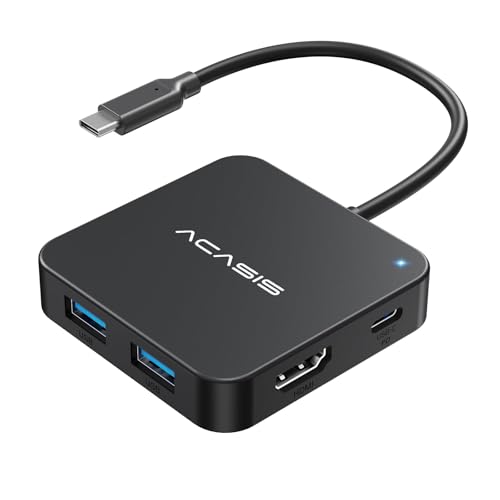
| Fastest Data Transfer | HDMI Video Output: 4K@60Hz | Total Ports: 6 ports | USB-A Data Ports: 3 USB-A (10Gbps) | VIEW LATEST PRICE | Read Our Analysis |
| Anker USB-C Hub 7-in-1 Multi-Port Adapter |

| Best Card Reader Support | HDMI Video Output: 4K@60Hz | Total Ports: 7 ports | USB-A Data Ports: 2 USB-A (5Gbps) | VIEW LATEST PRICE | Read Our Analysis |
More Details on Our Top Picks
Anker 5-in-1 USB-C Hub with 4K HDMI
If you’re looking for a compact hub that won’t drain your laptop’s battery while you’re connecting to an external monitor, the Anker 5-in-1 USB-C Hub delivers 4K video output and pass-through charging up to 85W. The hub includes one HDMI 4K port, one USB-C data port, two USB-A data ports, and one USB-C charging port. You’ll get 4K display output at 30Hz through the HDMI port while transferring data at 5Gbps simultaneously through the USB ports. The 100W power delivery input lets you charge your device while using the hub, though you’ll need to provide your own charger. It’s compatible with MacBooks, Windows laptops, and Chromebooks that support DP Alt Mode. The aluminum design weighs just 1.44 ounces, making it highly portable for travel or daily commuting between workspaces.
- HDMI Video Output:4K@30Hz
- Total Ports:5 ports
- USB-A Data Ports:2 USB-A (5Gbps)
- Power Delivery Support:100W PD input (85W pass-through)
- Data Transfer Speed:5Gbps (USB-C and USB-A ports)
- Additional Port Functions:1 USB-C data port
- Additional Feature:100W USB-C PD charging
- Additional Feature:DP Alt Mode + Power Delivery
- Additional Feature:18-month worry-free warranty
Anker 8-in-1 USB-C Docking Station Dual Monitor
You’ll want the Anker 8-in-1 USB-C Docking Station if you’re working with a laptop that has USB-C connectivity and need to connect two external monitors simultaneously. This hub expands your single USB-C port into eight connections: two HDMI ports support dual 4K displays at 60Hz for one monitor or 30Hz when using both. You’ll also get two USB-A ports, Ethernet, a microSD/SD card reader, and an 85W Power Delivery charging port. The station works with Windows 10/11 and ChromeOS laptops featuring DisplayPort Alt Mode. Note that you’ll need a separate 100W PD wall charger and USB-C cable to operate it fully.
- HDMI Video Output:4K@60Hz (single display) / 4K@30Hz (dual displays)
- Total Ports:8 ports
- USB-A Data Ports:2 USB-A (5Gbps)
- Power Delivery Support:85W PD input
- Data Transfer Speed:5Gbps
- Additional Port Functions:Ethernet (1 Gbps), microSD/SD card reader
- Additional Feature:Dual HDMI 4K display support
- Additional Feature:1 Gbps Ethernet port included
- Additional Feature:microSD/SD card reader
Acer USB-C Hub 7-in-1 Multi-Port Adapter with HDMI
The Acer USB-C Hub 7-in-1 Multi-Port Adapter works best for professionals and remote workers who need to connect multiple devices to a single laptop without sacrificing portability. This aluminum hub expands your USB-C port into seven connections: HDMI 4K@30Hz output, two USB 3.1 ports, one USB-C port, 100W Power Delivery charging, and SD/MicroSD card slots. Verify your device supports USB Type-C DP Alt Mode before connecting video. Connect your power supply to the PD port first to ensure sufficient power. Use the USB-A ports for data transfer up to 5Gbps while simultaneously charging and displaying video, making it ideal for desk setups and travel.
- HDMI Video Output:4K@30Hz
- Total Ports:7 ports
- USB-A Data Ports:2 USB-A (5Gbps)
- Power Delivery Support:100W PD charging
- Data Transfer Speed:5Gbps
- Additional Port Functions:1 USB-C data port, microSD/SD card reader
- Additional Feature:100W Power Delivery charging
- Additional Feature:Aluminum heat dissipation housing
- Additional Feature:Linux compatibility support
BENFEI USB-C Hub 5-in-1 with 4K HDMI & Power Delivery
Built with an aluminum case and silicone woven cable, the BENFEI USB-C Hub works best for professionals and students who need reliable connectivity without frequent replacements. This 5-in-1 hub delivers 4K HDMI output at 30Hz, three USB-A ports for data transfer at 10 Gbps, and 100W power delivery. Connect your laptop’s USB-C port to the hub, then plug your monitor into the HDMI port and your peripherals into the USB-A ports. The 20-centimeter cable stays knot-free during daily transport. Note that your host device must support video output through USB-C. An 18-month warranty and 24-hour support cover your investment.
- HDMI Video Output:4K@30Hz
- Total Ports:5 ports
- USB-A Data Ports:3 USB-A (10Gbps)
- Power Delivery Support:100W PD (approx. 90W available for host)
- Data Transfer Speed:10Gbps (USB 3.2)
- Additional Port Functions:1 USB-C data port
- Additional Feature:25,000+ cable life cycles
- Additional Feature:Silicone woven cable design
- Additional Feature:24-hour response support
USB-C Docking Station with Dual Monitor Support
If you’re working with multiple monitors and need a single connection point for your laptop, an 8-in-1 USB-C docking station delivers the display outputs and power delivery you’re looking for. This docking station supports dual HDMI 4K output, a DisplayPort connection, and VGA compatibility, allowing you to connect up to four displays simultaneously. You’ll get three USB 2.0 ports for peripherals and 100W maximum power delivery to charge your laptop. Ensure your laptop’s USB-C port supports full-featured connectivity including display and charging. Use at least a 65W power adapter for optimal performance. Note that using VGA limits all displays to 1080P resolution, so prioritize DisplayPort for 4K capability.
- HDMI Video Output:4K@60Hz (one HDMI) / 4K@30Hz (second HDMI)
- Total Ports:8 ports
- USB-A Data Ports:3 USB-A (480Mbps)
- Power Delivery Support:100W PD input (87W safe output)
- Data Transfer Speed:480Mbps (USB 2.0)
- Additional Port Functions:DisplayPort (4K@60Hz), VGA (1080P)
- Additional Feature:DisplayPort + VGA outputs
- Additional Feature:Quadruple display capability
- Additional Feature:87W safe laptop output
ACASIS USB-C Hub 6-in-1 Multiport Adapter with HDMI
Need a hub that handles both high-speed data transfers and 4K video output without sacrificing charging capability? The ACASIS 6-in-1 hub delivers 10Gbps data speeds across three USB-A ports and one dedicated data USB-C port, letting you transfer a 1GB file in seconds. Connect your display via the single HDMI port for 4K at 60Hz output. Use the separate 100W USB-C PD port to charge simultaneously while accessing other ports. Verify your laptop supports video over USB-C (USB 4.0, Thunderbolt 3, or 4) before purchasing, since this requirement determines whether HDMI output functions properly.
- HDMI Video Output:4K@60Hz
- Total Ports:6 ports
- USB-A Data Ports:3 USB-A (10Gbps)
- Power Delivery Support:100W PD charging
- Data Transfer Speed:10Gbps
- Additional Port Functions:1 USB-C data port
- Additional Feature:4K 60Hz HDMI output
- Additional Feature:10 Gbps data transfer speed
- Additional Feature:USB 4.0/Thunderbolt compatible
Anker USB-C Hub 7-in-1 Multi-Port Adapter
The Anker USB-C Hub 7-in-1 Multi-Port Adapter works best for you if you’re connecting a laptop or MacBook to multiple peripherals simultaneously without sacrificing performance. This hub delivers 4K video at 60Hz through its HDMI port and supports 85W power delivery charging. You get two USB-A 3.0 ports for data transfers up to 5 Gbps, one USB-C data port, and dual SD/TF card slots. The compact metal design weighs just 67 grams, making it portable. Compatible with Windows, MacBook, USB4, and Thunderbolt 3/4/5 ports, this hub includes an 18-month warranty and supports 30-day returns.
- HDMI Video Output:4K@60Hz
- Total Ports:7 ports
- USB-A Data Ports:2 USB-A (5Gbps)
- Power Delivery Support:85W PD charging
- Data Transfer Speed:5Gbps
- Additional Port Functions:1 USB-C data port, dual SD/TF card slots
- Additional Feature:Dual SD and TF slots
- Additional Feature:4K@60Hz HDMI video output
- Additional Feature:85W PD charging supported
Factors to Consider When Choosing an HDMI Hub for Laptop
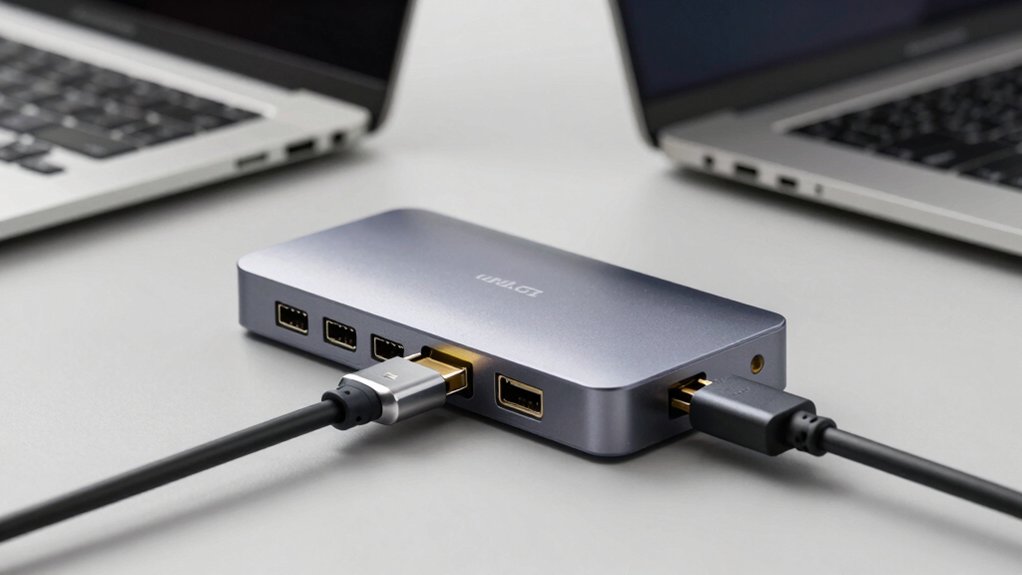
When you’re selecting an HDMI hub for your laptop, you’ll need to evaluate five key factors: display resolution support (check if it handles 4K or 1080p based on your monitor), power delivery capacity (verify it supplies enough watts to charge your device while in use), port variety and count (determine how many USB, HDMI, and other ports you actually need), device compatibility (confirm it works with your specific laptop model and operating system), and data transfer speed (ensure USB 3.0 or faster if you’re moving large files). Start by listing what ports and features your current setup requires, then cross-reference those needs against each hub’s specifications before purchasing. This approach prevents you from buying unnecessary features or, conversely, ending up with a hub that doesn’t meet your demands.
Display Resolution Support
How do you know which resolution your HDMI hub can actually deliver? Check your hub’s specifications for resolution and refresh rate options like 4K@60Hz or 1080p. Next, verify your monitor supports the same specs—mismatched capabilities force downscaling. If you’re connecting multiple displays, expect resolution drops; many hubs output 4K@60Hz with one monitor but drop to 4K@30Hz with two. Confirm your laptop’s USB-C port has DP Alt Mode or Thunderbolt capability, since some hubs require this to transmit video. Finally, account for bandwidth sharing. When your hub handles USB-C data, power delivery, and video simultaneously, total load reduces achievable resolutions. Match all three components—hub, monitor, and laptop—to your desired output for consistent performance.
Power Delivery Capacity
Why does your hub’s power delivery rating matter? Your hub’s PD capacity determines how much charging power it can pass to your laptop during use. Check your hub’s PD-IN rating—typically 60W to 100W—and match it with your charger’s wattage. Your charger must provide at least as much power as the hub’s rating to avoid system warnings or charging failures under load. Verify your laptop’s USB-C port supports Power Delivery before purchasing. If your hub includes multiple high-power outputs, calculate the total power draw to ensure it stays within the hub’s PD specification. Exceeding capacity risks overheating and reduced charging performance. Always prioritize matching your charger wattage to your hub’s maximum PD passthrough rating for reliable operation.
Port Variety And Count
Once you’ve confirmed your hub can deliver adequate power to your laptop, you’ll need to evaluate whether it offers the right mix and quantity of ports for your actual workflow. Look for hubs with 5–7 total ports to handle video output, multiple USB devices, and charging simultaneously without requiring additional hubs. Identify distinct port roles: ensure at least one HDMI output for displays and separate USB-A or USB-C ports for data transfer. If you need dual monitors, choose hubs supporting two HDMI outputs with specified refresh rates like 4K@30Hz or 4K@60Hz. Verify whether video and data ports function concurrently—some hubs restrict video output when high-bandwidth ports are active. Match your port configuration to your specific devices and usage patterns before purchasing.
Device Compatibility Requirements
Before you purchase an HDMI hub, you’ll need to verify that it’s compatible with your specific laptop and devices. Check your laptop’s USB port type—it must be USB-C, USB4, or Thunderbolt 3/4/5 to support video output and data transmission. Confirm the hub supports your operating system, whether that’s Windows, macOS, or ChromeOS, since some models list Linux as unsupported. Match the hub’s HDMI output capabilities to your needs; verify whether it delivers 4K@60Hz or only 4K@30Hz. Finally, check whether data ports function independently from the power delivery port, as some hubs disable data or video when using the PD-only USB-C connection. These compatibility steps prevent purchasing a hub that won’t work with your equipment.
Data Transfer Speed
How fast your hub transfers data depends on several interconnected factors: your laptop’s USB-C port generation, the hub’s internal controller design, and whether you’re simultaneously using HDMI and high-speed peripherals. Most USB-C hubs max out at 5 Gbps for standard ports, though some premium models reach 10 Gbps. Check your hub’s specifications to confirm these ratings. When using HDMI output alongside data transfer, bandwidth may decrease because internal controllers have limited capacity. If you’re connecting external SSDs or fast USB flash drives, verify the hub’s transfer rate beforehand. Avoid using the USB-C power delivery port for charging while transferring large files, as this can create bottlenecks. Match your hub’s capabilities to your actual needs.
Build Quality And Durability
While data transfer speed tells you how fast your hub moves information, build quality determines how long your hub will actually last and perform reliably. Choose aluminum or metal enclosures over plastic housings—they dissipate heat better and resist wear during extended use. Check the cable design: braided or silicone-woven cables resist tangling and fraying compared to standard PVC options. Select a cable length between 15–20 cm to minimize flex stress on connectors. Verify the hub’s weight; aim for 0.04–0.07 kg to balance portability with structural rigidity. Review warranty length—18-month coverage signals manufacturer confidence. Finally, research lifecycle ratings showing bend cycle durability. These concrete specifications directly indicate whether your hub survives daily portable use.
Warranty And Support Coverage
What’s your actual protection if your HDMI hub fails after three months of daily use? Check the warranty period first—aim for at least 12 months, with 18 months being standard. Verify the warranty covers both parts and labor, not just replacements. Next, confirm the manufacturer offers accessible customer support with documented response times, ideally 24 hours or better. Review the return policy for alignment with your needs: look for a 30-day return window and check for restocking fees. Finally, examine the warranty claim process to ensure it’s straightforward. Request written documentation of all support terms before purchasing. A reliable hub should provide worry-free coverage with clear service channels and transparent procedures.
Final Thoughts
When you’re selecting an HDMI hub, match the specs to your needs: confirm 4K output capability, verify power delivery meets your laptop’s requirements, and check USB data speeds. Test compatibility with your device’s connection type—USB-C, Thunderbolt, or DP Alt Mode. Review warranty coverage and customer support options. Compare port configurations against your peripherals. Purchase from retailers offering return policies so you can verify reliable performance before committing.

Meet Ry, “TechGuru,” a 36-year-old technology enthusiast with a deep passion for tech innovations. With extensive experience, he specializes in gaming hardware and software, and has expertise in gadgets, custom PCs, and audio.
Besides writing about tech and reviewing new products, he enjoys traveling, hiking, and photography. Committed to keeping up with the latest industry trends, he aims to guide readers in making informed tech decisions.