
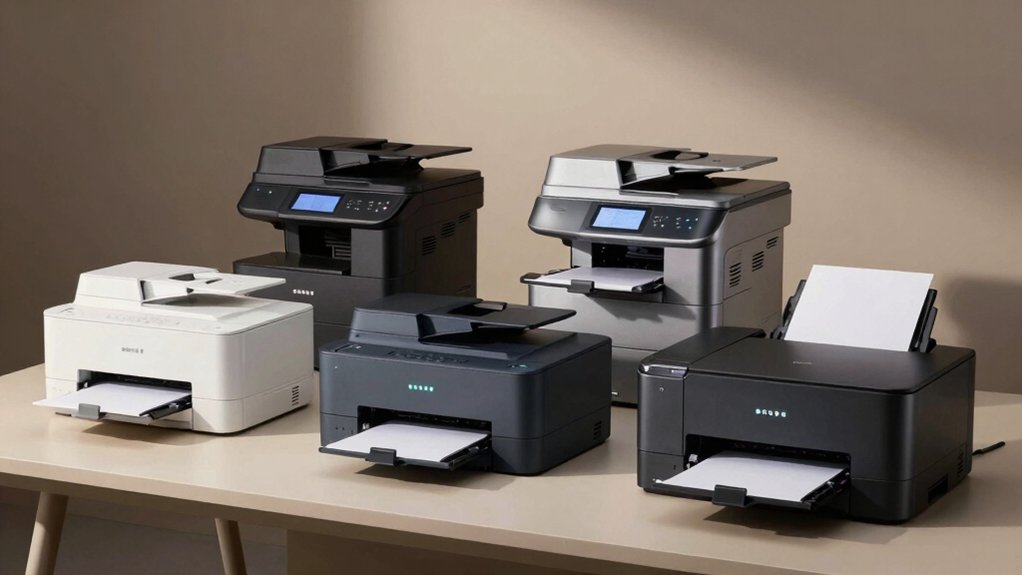

If you’re running Linux and need a reliable printer, you’ll want to focus on models with solid driver support and CUPS compatibility. Brother and HP devices typically offer the best Linux integration, while Canon provides budget-friendly alternatives. Each option comes with specific strengths—some excel at wireless connectivity, others at multifunction capabilities. Understanding which features matter most to your setup will help you avoid compatibility headaches and wasted money on the wrong device.
| Brother HL-L2405W Wireless Monochrome Laser Printer |

| Best for Home Offices | Printer Type: Single-function printer | Print Speed: 30 ppm | Connectivity Options: Wireless (dual-band 2.4/5GHz), USB 2.0 | VIEW LATEST PRICE | Read Our Analysis |
| Brother DCP-L2640DW Wireless Monochrome Laser Printer |

| Most Versatile | Printer Type: 3-in-1 multifunction (printer, scanner, copier) | Print Speed: 36 ppm | Connectivity Options: Wireless (dual-band 2.4/5GHz), Ethernet, USB 2.0 | VIEW LATEST PRICE | Read Our Analysis |
| Brother HL-L2460DW Wireless Monochrome Laser Printer |

| Best Overall | Printer Type: Single-function printer | Print Speed: 36 ppm | Connectivity Options: Wireless (dual-band 2.4/5GHz), Ethernet, USB | VIEW LATEST PRICE | Read Our Analysis |
| HP Laserjet MFP M140w Wireless Black & White Printer |

| Most Compact | Printer Type: 3-in-1 multifunction (printer, scanner, copier) | Print Speed: 21 ppm | Connectivity Options: Wireless, USB 2.0 | VIEW LATEST PRICE | Read Our Analysis |
| Canon imageCLASS MF3010 VP Multifunction Laser Printer |

| Budget-Friendly Pick | Printer Type: 3-in-1 multifunction (printer, scanner, copier) | Print Speed: 19 ppm | Connectivity Options: USB (wired only) | VIEW LATEST PRICE | Read Our Analysis |
More Details on Our Top Picks
Brother HL-L2405W Wireless Monochrome Laser Printer
If you’re setting up a home office that demands reliable, straightforward printing without complexity, the Brother HL-L2405W delivers monochrome output at 30 ppm with a compact footprint designed for desktop spaces. Connect via USB 2.0 for single-device setups or use dual-band wireless (2.4GHz/5GHz) for multi-device printing. Install drivers and use the Brother Mobile Connect App to print from smartphones and tablets. The 250-sheet paper tray handles standard documents, while the manual feed slot accepts envelopes and specialty paper. Advanced security features protect your data during printing. Manage toner levels through the app and consider the Refresh EZ Print Subscription for automatic toner replenishment with potential cost savings.
- Printer Type:Single-function printer
- Print Speed:30 ppm
- Connectivity Options:Wireless (dual-band 2.4/5GHz), USB 2.0
- Paper Tray Capacity:250-sheet main tray
- Mobile/App Support:Brother Mobile Connect app
- Warranty & Support:1-year limited, lifetime free online/phone/chat support
- Additional Feature:Manual feed slot capability
- Additional Feature:Refresh EZ Print Subscription
- Additional Feature:Advanced security features
Brother DCP-L2640DW Wireless Monochrome Laser Printer
Need a printer that handles more than just printing? The Brother DCP-L2640DW combines printing, scanning, and copying in one compact device. It prints at 36 ppm and scans at 23.6 ipm for black documents. You’ll find dual-band wireless connectivity, a 50-page automatic document feeder, and a 250-sheet paper tray standard. The Brother Mobile Connect app lets you print and scan directly from your phone or computer. Linux compatibility works through CUPS drivers that Brother supports. Set up the printer on your network using the wireless setup wizard, then install the appropriate Linux drivers from Brother’s support site. Duplex printing saves paper automatically.
- Printer Type:3-in-1 multifunction (printer, scanner, copier)
- Print Speed:36 ppm
- Connectivity Options:Wireless (dual-band 2.4/5GHz), Ethernet, USB 2.0
- Paper Tray Capacity:250-sheet main tray, 50-page ADF
- Mobile/App Support:Brother Mobile Connect app, Alexa compatible
- Warranty & Support:1-year limited, lifetime free online/phone/chat support
- Additional Feature:50-page auto document feeder
- Additional Feature:Alexa compatibility
- Additional Feature:ENERGY STAR/EPEAT Silver
Brother HL-L2460DW Wireless Monochrome Laser Printer
The Brother HL-L2460DW stands out as the top choice for Linux users who need reliable wireless printing without compatibility headaches. This compact monochrome laser printer delivers 36 ppm with automatic duplex printing, reducing paper waste. You’ll connect via Wi-Fi dual-band (2.4/5 GHz), Ethernet, or USB. The 250-sheet main tray plus rear manual feed handles standard and specialty paper. Use Brother Genuine TN830 or TN830XL toner cartridges, and consider the Refresh EZ Print Subscription for 50% savings and automatic supply delivery. Brother provides free lifetime support through phone, chat, or online resources to resolve any Linux driver issues quickly.
- Printer Type:Single-function printer
- Print Speed:36 ppm
- Connectivity Options:Wireless (dual-band 2.4/5GHz), Ethernet, USB
- Paper Tray Capacity:250-sheet main tray
- Mobile/App Support:Brother Mobile Connect app
- Warranty & Support:1-year limited, lifetime free online/phone/chat support
- Additional Feature:Automatic duplex printing
- Additional Feature:Rear manual feed slot
- Additional Feature:Toner savings up to 50%
HP Laserjet MFP M140w Wireless Black & White Printer
Looking for a compact all-in-one that won’t dominate your desk? The HP M140w delivers printing, scanning, and copying in the world’s smallest multifunction laser printer of its class. It prints up to 21 pages per minute at 600 x 600 dpi resolution. Connect via USB 2.0 or wireless using AirPrint and Mopria—both Linux-compatible protocols. The flatbed scanner handles documents up to 8.5 x 14 inches. Use the HP Smart app to print from your Linux device and manage scan tasks remotely. Its 99-sheet capacity and support for various media types make it practical for small teams managing routine document workflows without space constraints.
- Printer Type:3-in-1 multifunction (printer, scanner, copier)
- Print Speed:21 ppm
- Connectivity Options:Wireless, USB 2.0
- Paper Tray Capacity:99-sheet capacity
- Mobile/App Support:HP Smart app, AirPrint, Mopria certified
- Warranty & Support:1-year limited hardware warranty
- Additional Feature:World’s smallest multifunction printer
- Additional Feature:Flatbed scanner included
- Additional Feature:AirPrint/Mopria certified
Canon imageCLASS MF3010 VP Multifunction Laser Printer
Canon’s imageCLASS MF3010 VP is your budget-friendly pick for small offices needing reliable Linux printing without complexity. This compact multifunction device handles printing, scanning, and copying tasks efficiently. You’ll get 19 pages per minute print speed with a 2,300-page toner yield. The scanner captures up to 600 dpi quality, and the ID Card Copy feature duplicates identification documents easily. Paper capacity reaches 150 sheets, suitable for light daily use. Linux users access print-only functionality directly. The USB connection requires no wireless setup, reducing configuration headaches. Energy saver mode consumes just 1.2 watts during sleep, keeping operational costs minimal.
- Printer Type:3-in-1 multifunction (printer, scanner, copier)
- Print Speed:19 ppm
- Connectivity Options:USB (wired only)
- Paper Tray Capacity:150-sheet capacity
- Mobile/App Support:None specified
- Warranty & Support:1-year limited (standard)
- Additional Feature:ID Card Copy feature
- Additional Feature:Energy saver sleep mode
- Additional Feature:Up to 2,300 page yield
Factors to Consider When Choosing a Laser Printer for Linux
When you’re selecting a laser printer for Linux, you’ll need to verify that Linux drivers are available for your chosen model, confirm the printer connects to your system through USB or network options without requiring proprietary software, and check the pages-per-minute specification to match your volume needs. You should also research the cost of replacement toner cartridges and drums, since these consumables significantly impact long-term expenses, and determine whether you need scanning, copying, or faxing features through multifunction capabilities. These five factors—driver availability, connectivity setup, print speed, consumables cost, and multifunction options—form the foundation for making a printer choice that’ll work reliably with your Linux environment.
Linux Driver Availability
How do you know if a printer will actually work on your Linux system? Check the manufacturer’s specifications first. Look for explicit Linux compatibility statements in product manuals and support pages—don’t assume Windows or macOS listings mean Linux support exists. Next, verify driver availability. Printers supporting CUPS or Gutenprint frameworks typically have reliable, long-term Linux drivers. Research community documentation on Linux forums and printer manufacturer websites to confirm current driver status. Identify whether drivers are open-source or closed-source. Open-source drivers often receive ongoing community maintenance, while closed-source vendor drivers may require additional installation steps, package downloads, or repository enabling. Finally, check for active user reports from other Linux users confirming the specific model works seamlessly on your distribution.
Connectivity and Setup
Beyond driver support, you’ll need to evaluate how a printer connects to your Linux system and whether that connection method integrates well with your setup. Prioritize printers offering Wi-Fi (2.4/5 GHz) or Ethernet connectivity over USB-only models. Network connections let you share the printer across multiple Linux machines without physical cables. When selecting a printer, verify CUPS support—the standard printing system for Linux—and check whether it emulates PostScript or PCL languages. These standards ensure compatibility regardless of your specific distribution. Review the manufacturer’s documentation for Linux-specific setup instructions. Test whether the printer’s web interface functions on Linux browsers. Confirm firmware updates are available and installable through standard methods to maintain security and stability long-term.
Print Speed Performance
What role does print speed play in your Linux printing workflow? Print speed, measured in pages per minute (ppm), directly affects how quickly you complete large document jobs. Most monochrome laser printers deliver 21–36 ppm under standard conditions. Higher ppm reduces wait times when processing multiple documents in Linux queue systems.
Consider your actual printing needs. Text-only documents print faster than graphics-heavy pages. Check driver efficiency for your Linux distribution—suboptimal drivers underutilize your printer’s rated speed.
Evaluate duplex printing capabilities. Two-sided printing effectively increases daily output without boosting single-sided ppm, benefiting multi-page jobs.
Match print speed to your workload. Light users need 21 ppm minimum. Heavy users benefit from 30+ ppm models. Verify Linux driver compatibility before purchasing to ensure you achieve advertised speeds.
Consumables and Cost
Several critical factors determine your long-term printing expenses, and you’ll want to evaluate them before committing to a Linux printer purchase. First, verify that toner cartridges and drum units are readily available for your model—look for high-yield options like TN830XL that reduce cost per page, especially if you print frequently. Second, calculate total cost of ownership by adding the printer’s initial price, per-page toner costs, and drum replacement cycles. Third, check subscription programs like Refresh EZ Print, which bundle supplies and often include trial periods to manage ongoing expenses. Finally, confirm warranty coverage and support availability through multiple channels—online, phone, and live chat—ensuring you can access help when needed without unexpected costs.
Multifunction Capabilities
When you’re evaluating a laser printer for Linux, you’ll want to assess whether a multifunction device—one that combines printing, scanning, and copying—meets your workflow needs and fits your workspace. Check that the model includes an automatic document feeder (ADF) to handle multi-page scanning and copying efficiently. Verify the printer supports Linux-compatible drivers or universal standards like CUPS or IPP for reliable communication and status updates. Confirm that scanning and copying functions are accessible through Linux applications or management utilities. Look for duplex printing capability to reduce paper consumption. Test whether the scanner and copier work with your existing Linux software before purchasing. This assessment ensures you select a device that integrates smoothly into your Linux environment.
Final Thoughts
You’ll find that Brother printers offer the most reliable Linux compatibility with wireless connectivity and affordable supplies. For multifunction needs, choose between Brother’s DCP-L2640DW or HP’s M140w based on your scanning requirements. Canon’s imageCLASS MF3010 works well if you prefer USB-only setup. Before purchasing, verify driver availability for your Linux distribution and check firmware update frequency. This ensures you’ll avoid compatibility issues and maintain long-term support.

Meet Ry, “TechGuru,” a 36-year-old technology enthusiast with a deep passion for tech innovations. With extensive experience, he specializes in gaming hardware and software, and has expertise in gadgets, custom PCs, and audio.
Besides writing about tech and reviewing new products, he enjoys traveling, hiking, and photography. Committed to keeping up with the latest industry trends, he aims to guide readers in making informed tech decisions.