

When you’re setting up a streaming setup, you’ll need a USB video capture card that handles your specific requirements. You’re choosing between 4K input capability, reliable 1080p or 2K output, and low latency performance. Your decision depends on your equipment type, budget, and streaming platform. The right capture card connects your gaming console, camera, or VHS player to your computer seamlessly. But which features matter most for your situation?
| Guermok 4K USB-C HDMI Video Capture Card for Streaming |
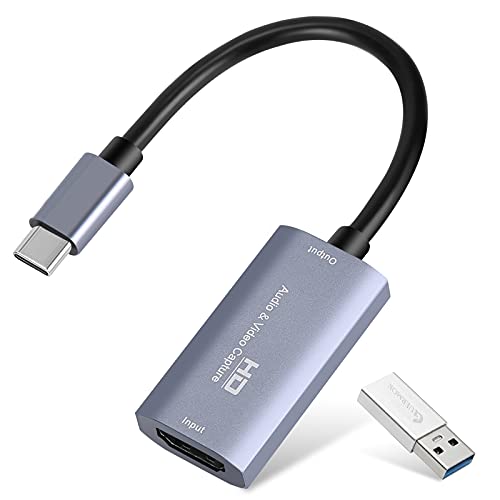
| Best Overall | Maximum Input Resolution: 4K@30Hz | Maximum Output Resolution: 1080P@60Hz or 2K@30Hz | Input Type: HDMI | VIEW LATEST PRICE | Read Our Analysis |
| Capture Card 4K HDMI USB 3.0 for Gaming |
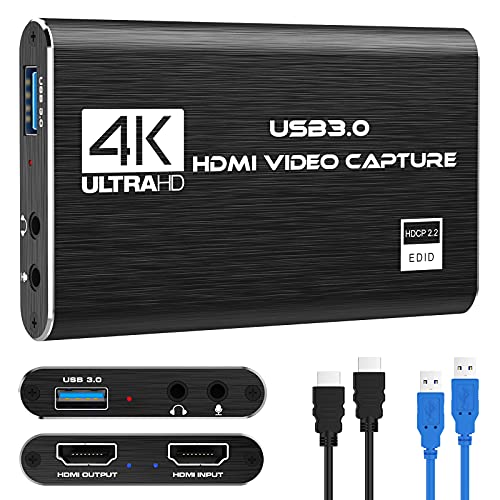
| Best For Gaming | Maximum Input Resolution: 4K@60Hz | Maximum Output Resolution: 2K@30Hz | Input Type: HDMI | VIEW LATEST PRICE | Read Our Analysis |
| Capture Card USB Video Converter for RCA/VHS/DV |

| Best For Archiving | Maximum Input Resolution: 720P | Maximum Output Resolution: 720P | Input Type: RCA composite | VIEW LATEST PRICE | Read Our Analysis |
| VIXLW 4K USB-C HDMI Video Capture Card |

| Best Portability | Maximum Input Resolution: 4K@30Hz | Maximum Output Resolution: 1080P@60Hz or 2K@30Hz | Input Type: HDMI | VIEW LATEST PRICE | Read Our Analysis |
| Acer USB 3.0 HDMI Video Capture Card 4K |

| Best Performance | Maximum Input Resolution: 4K@30Hz | Maximum Output Resolution: 1080P@60Hz | Input Type: HDMI | VIEW LATEST PRICE | Read Our Analysis |
| Audio Express 4K HDMI Video Capture Card |

| Best Budget Option | Maximum Input Resolution: 4K@30Hz | Maximum Output Resolution: 1080P@30Hz | Input Type: HDMI | VIEW LATEST PRICE | Read Our Analysis |
| Avedio VHS to Digital Converter USB Video Capture Card |
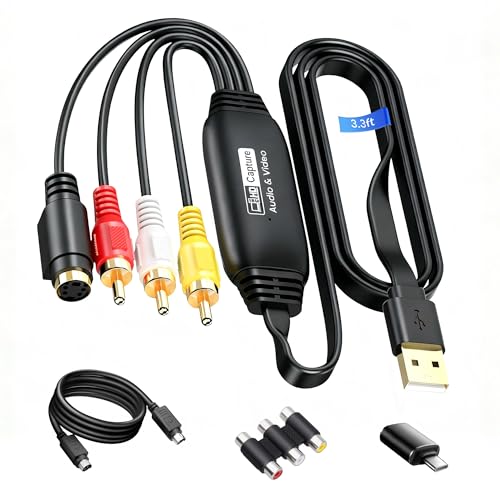
| Best Legacy Support | Maximum Input Resolution: 1920×1080@30Hz | Maximum Output Resolution: 1920×1080@30Hz | Input Type: RCA/S-Video | VIEW LATEST PRICE | Read Our Analysis |
| VHS to Digital Converter USB Video Capture Card |

| Most Versatile | Maximum Input Resolution: 1920×1080 | Maximum Output Resolution: 1080P (variable) | Input Type: RCA/S-Video | VIEW LATEST PRICE | Read Our Analysis |
| Papeaso 4K HDMI to USB Video Capture Card |

| Best Real-Time Streaming | Maximum Input Resolution: 4K@60Hz | Maximum Output Resolution: 1080P@30Hz | Input Type: HDMI | VIEW LATEST PRICE | Read Our Analysis |
| WARRKY Video Capture Card 4K HDMI USB 3.0 |

| Best Build Quality | Maximum Input Resolution: 4K@30Hz | Maximum Output Resolution: 1080P@60Hz | Input Type: HDMI | VIEW LATEST PRICE | Read Our Analysis |
More Details on Our Top Picks
Guermok 4K USB-C HDMI Video Capture Card for Streaming
Looking to stream console gameplay, camera feeds, or classroom content without complicated setup? The Guermok 4K USB-C capture card handles 4K input at 30Hz and outputs 1080p at 60Hz. Plug it into your PS5, Xbox, Switch, or camera via HDMI, then connect the USB-C port to your computer or iPad. No drivers or external power needed. Open OBS Studio, Zoom, or your streaming platform, and you’re capturing immediately. The aluminum chassis keeps temperatures down during extended sessions. Windows, Mac, Linux, and Android all support this device. Disable HDCP on PS5 if your screen goes black. For best results, use USB 3.0 connections and restart OBS after audio setup.
- Maximum Input Resolution:4K@30Hz
- Maximum Output Resolution:1080P@60Hz or 2K@30Hz
- Input Type:HDMI
- USB Interface:USB 3.0/USB-C
- External Power Required:No
- Compatible Operating Systems:Windows, Mac OS, Linux, Android
- Additional Feature:Aluminum alloy heat dissipation chassis
- Additional Feature:Plug and play, no drivers needed
- Additional Feature:Ultra-low latency video transmission
Capture Card 4K HDMI USB 3.0 for Gaming
The Rybozen V316B-FR captures your gaming sessions directly to your PC without requiring external power or driver installation. Connect your gaming device’s HDMI output to the card’s input, then plug the card into your USB 3.0 port. The device auto-detects and adjusts settings automatically. You’ll capture at 1080p resolution while accepting 4K input signals up to 60Hz. Add commentary through the 3.5mm microphone input. Launch OBS, Twitch, or your preferred streaming software, select the card as your video source, and start broadcasting. The card outputs up to 2K30Hz with zero-delay HDMI loop-out for monitoring gameplay on your screen simultaneously.
- Maximum Input Resolution:4K@60Hz
- Maximum Output Resolution:2K@30Hz
- Input Type:HDMI
- USB Interface:USB 3.0
- External Power Required:No
- Compatible Operating Systems:Windows, Mac OS
- Additional Feature:Built-in 3.5mm microphone input
- Additional Feature:HDMI loop-out, zero delay
- Additional Feature:Auto-detects input, adjusts output
Capture Card USB Video Converter for RCA/VHS/DV
If you’ve got stacks of old VHS tapes, VCR recordings, Hi8 camcorder footage, or DV tapes gathering dust, this USB video capture card lets you digitize that analog content for archiving and long-term preservation. The device converts analog RCA composite input to 720P USB output while capturing audio simultaneously—no sound card required. Simply connect your VCR, camcorder, or tape player via RCA cables, plug the capture card into your computer’s USB port, and install the automatic drivers. Use acquisition software like OBS Studio or PotPlayer on Windows, or QuickTime Player on Mac to record your digitized footage. The card supports both NTSC and PAL formats and includes brightness, contrast, hue, and saturation controls for quality adjustments. Works with Windows and Mac OS systems.
- Maximum Input Resolution:720P
- Maximum Output Resolution:720P
- Input Type:RCA composite
- USB Interface:USB
- External Power Required:No
- Compatible Operating Systems:Windows, Mac OS
- Additional Feature:Converts analog RCA to digital
- Additional Feature:Brightness, contrast, hue controls
- Additional Feature:Supports NTSC and PAL
VIXLW 4K USB-C HDMI Video Capture Card
For streamers who move between locations, VIXLW’s 4K USB-C capture card delivers exceptional portability without sacrificing performance. The device captures 4K input at 30Hz and outputs 2K@30Hz or 1080P@60Hz, making it suitable for gaming consoles, cameras, and computers. Setup requires no drivers or external power—simply connect via USB 3.0 or USB-C. Compatible software includes OBS, Zoom, and YouTube Studio. The aluminum shell manages heat effectively while maintaining a lightweight design. Dual-channel audio syncs with video in real-time without lag or frame drops. Your purchase includes the capture card, USB adapter, and manual, backed by a lifetime warranty.
- Maximum Input Resolution:4K@30Hz
- Maximum Output Resolution:1080P@60Hz or 2K@30Hz
- Input Type:HDMI
- USB Interface:USB 3.0/USB-C
- External Power Required:No
- Compatible Operating Systems:Windows, macOS, Linux, Android
- Additional Feature:Real-time dual-channel audio support
- Additional Feature:Lifetime warranty included
- Additional Feature:USB 3.0 to USB-C adapter
Acer USB 3.0 HDMI Video Capture Card 4K
Wondering which capture card delivers reliable 4K input with stable 1080P@60Hz output? The Acer USB 3.0 HDMI Video Capture Card handles both gaming and streaming without requiring external drivers or power. You’ll connect your Switch, PS5, Xbox, or DSLR directly via HDMI, then plug the USB 3.0 cable into your computer or Android device. The built-in mic input lets you add live commentary instantly. OBS, XSplit, and VLC all recognize it immediately. You get loop-out capability for monitoring while streaming, making this card practical for outdoor events and on-the-go content creation across Windows, Mac, and Android platforms.
- Maximum Input Resolution:4K@30Hz
- Maximum Output Resolution:1080P@60Hz
- Input Type:HDMI
- USB Interface:USB 3.0
- External Power Required:No
- Compatible Operating Systems:Windows, Mac, macOS, Android
- Additional Feature:4K loop-out capability supported
- Additional Feature:Mic-in for commentary included
- Additional Feature:1-year warranty provided
Audio Express 4K HDMI Video Capture Card
The Audio Express AXHDCAP captures HDMI video from gaming consoles, cameras, and streaming devices affordably. It outputs 1080p at 30Hz via USB 2.0, making it suitable for streaming to Twitch, YouTube, and Zoom. Setup requires no drivers—just plug the HDMI input cable into your source device and connect the USB output to your computer. Use OBS or similar software to configure your stream settings. The device works on Windows, macOS, and Linux. Note that this card won’t work with USB 3.0 ports and doesn’t add HDMI output to computers. Assure your system has an Intel Core i5 processor, 4GB RAM, and 500MB storage minimum.
- Maximum Input Resolution:4K@30Hz
- Maximum Output Resolution:1080P@30Hz
- Input Type:HDMI
- USB Interface:USB 2.0
- External Power Required:No
- Compatible Operating Systems:Windows 10+, macOS 10.13+, Linux, Android
- Additional Feature:Advanced thermal dissipation built-in
- Additional Feature:Lifetime warranty included
- Additional Feature:Android OTG support enabled
Avedio VHS to Digital Converter USB Video Capture Card
Digitizing old VHS tapes, DVDs, and VCR recordings requires compatible hardware that supports legacy analog formats. The Avedio VHS to Digital Converter accepts RCA and S-Video inputs, converting analog content to digital files up to 1920×1080 resolution at 30Hz. You’ll connect your VCR or DVD player’s output cables to the device, then link it to your computer via USB 2.0. The included software works with OBS and PotPlayer for capturing and editing. You get a 3.3ft USB cable, 5ft S-Video cable, RCA converter, and drivers on CD. This setup handles Windows and Mac systems supporting NTSC/PAL formats, making it practical for digitizing multiple media types efficiently.
- Maximum Input Resolution:1920×1080@30Hz
- Maximum Output Resolution:1920×1080@30Hz
- Input Type:RCA/S-Video
- USB Interface:USB 2.0/Type-C
- External Power Required:No
- Compatible Operating Systems:Windows, Mac OS
- Additional Feature:Supports RCA and S-Video
- Additional Feature:Includes 5ft S-Video cable
- Additional Feature:1-year warranty included
VHS to Digital Converter USB Video Capture Card
If you’ve got old VHS tapes, camcorders, or analog video equipment gathering dust, you’ll find this USB video capture card‘s most versatile solution for converting multiple tape formats to digital files. The device automatically detects NTSC, PAL, and PAL/60 formats, capturing video at 1920×1080 resolution in MP4 format. Simply connect your RCA cables from your VCR or camcorder, plug the USB into your Windows, Mac, or Linux computer, and install the included software. No additional drivers are required. Use OBS or PotPlayer on Windows, or QuickTime Player on Mac to record your digitized footage. The two-year warranty covers defects.
- Maximum Input Resolution:1920×1080
- Maximum Output Resolution:1080P (variable)
- Input Type:RCA/S-Video
- USB Interface:USB 2.0
- External Power Required:No
- Compatible Operating Systems:Windows, Mac OS, Linux, Android
- Additional Feature:Auto-detects NTSC, PAL formats
- Additional Feature:2-year manufacturer warranty included
- Additional Feature:Driverless setup required
Papeaso 4K HDMI to USB Video Capture Card
Want a capture card that streams without noticeable delay? The Papeaso card accepts 4K input at 60Hz and outputs 1080P at 30fps through USB 3.0. You’ll connect your DSLR, gaming console, or camera directly to the card’s HDMI port. The device requires no external power or driver installation, working immediately on Windows, Mac, and Linux. You can loop out the HDMI signal for real-time gameplay while recording simultaneously. Stream directly to Twitch, YouTube, or OBS without compression or lag. The card’s compact design makes it portable for conferences, teaching sessions, and mobile setups. Record high-definition video at 60fps straight to your hard drive for later editing or archiving.
- Maximum Input Resolution:4K@60Hz
- Maximum Output Resolution:1080P@30Hz
- Input Type:HDMI
- USB Interface:USB 3.0
- External Power Required:No
- Compatible Operating Systems:Windows, Mac, Linux
- Additional Feature:HDMI loop-out, real-time streaming
- Additional Feature:No external power supply
- Additional Feature:Ultra-low latency screen sharing
WARRKY Video Capture Card 4K HDMI USB 3.0
The WARRKY Video Capture Card excels for streamers who demand superior durability without sacrificing performance. Its premium aluminum shell and nylon-braided cable withstand heavy use, while the 5Gbps USB 3.0 interface handles 4K input at 30FPS, outputting 1080P at 60FPS. You’ll experience 5ms ultra-low latency via the MS2130 chipset. Setup requires no drivers—simply plug in and start streaming on Windows, macOS, Linux, or iPadOS. Align the WARRKY logos on your adapter for full bandwidth. Use OBS Studio for optimal results. The lifetime warranty and 18-hour support ensure long-term reliability.
- Maximum Input Resolution:4K@30Hz
- Maximum Output Resolution:1080P@60Hz
- Input Type:HDMI
- USB Interface:USB 3.0 Type A/C
- External Power Required:No
- Compatible Operating Systems:Windows, macOS, Linux, iPadOS 17+, Android
- Additional Feature:Nylon-braided cable, 20X durable
- Additional Feature:5ms ultra-low latency chipset
- Additional Feature:Anti-loss string secures adapter
Factors to Consider When Choosing a USB Video Capture Card
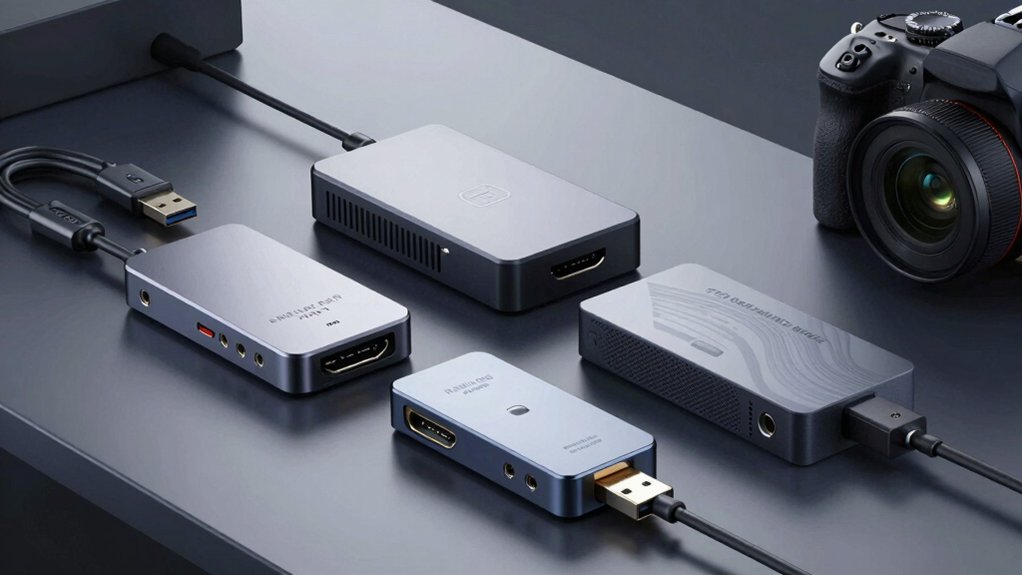
When selecting a USB video capture card, you’ll want to evaluate five key factors: input resolution support (check the maximum resolution your sources provide and match it to the card’s capabilities), output performance specifications (review frame rates and bitrate to ensure smooth streaming), compatibility with your devices (verify that the card works with your camera, console, or computer setup), software integration options (confirm the capture software supports your streaming platform), and portability and design (assess whether you need a compact device or can use a larger stationary model). Start by listing your specific streaming requirements—such as 1080p at 60fps or 4K at 30fps—then cross-reference each capture card against these needs. Finally, test the software with your intended platform before purchasing to avoid compatibility issues.
Input Resolution Support
How much resolution detail do you actually need from your capture card? First, check your source device’s maximum output—whether it’s 1080p, 2K, or 4K. Next, verify the capture card’s input specification, which shows what resolution it accepts. However, don’t assume input resolution determines your final video quality. Many cards accept 4K input but output only 1080p or 2K, so your recorded footage will match the output resolution, not the input. Also examine the refresh rate paired with resolution. 4K at 30Hz captures smoothly for static content, while 4K at 60Hz handles fast motion better. Finally, confirm USB requirements—4K input typically needs USB 3.0 or higher. Match your capture card’s output capability to your actual streaming or recording goals.
Output Performance Specifications
Output resolution capabilities vary considerably across capture cards, and you’ll need to match them to your streaming or recording goals rather than assuming input specs determine final quality. Most cards max out at 1080p60 or 2K30, even when accepting 4K inputs. Check your card’s actual output limits before purchasing. Loop-through connections let you monitor video in real-time without delay by bypassing the encoding process entirely. For audio, determine whether you want embedded sound from your source or separate microphone input for commentary. Latency matters significantly—USB 3.0 connections with MJPEG codec support deliver faster processing than USB 2.0 with YUY2. Test your specific setup to confirm latency meets your streaming requirements.
Compatibility With Devices
Before purchasing a capture card, you’ll need to verify that it works with your specific computer, devices, and streaming setup. Check your computer’s operating system—Windows, macOS, or Linux—against the capture card’s compatibility list. Next, match your hardware ports: confirm whether you need USB 2.0, USB 3.0, or USB-C connections. Then verify input resolution support matches your camera or console output, such as 4K@30Hz or 1080p@60Hz. If capturing from gaming consoles like PS5, Switch, or Xbox, confirm the card supports those devices and whether you’ll need to disable HDCP. For mobile or tablet streaming, check OTG and iOS or Android compatibility. These steps ensure your capture card integrates seamlessly with your entire setup.
Software Integration Options
Which software you’ll use for streaming or recording should directly influence your capture card choice, since not all cards work equally well with every platform. Check the manufacturer’s specifications for explicit software compatibility lists that include OBS Studio, Zoom, VLC, or PotPlayer. Verify whether the card auto-detects as a webcam without requiring driver installation, which streamlines your setup process. Confirm that your chosen software supports the card’s input and output formats—for example, 4K input with 1080p/60fps output capability. Research low-latency features like loop-out HDMI paths if you’re streaming to Twitch or YouTube, as these directly affect real-time performance. Finally, confirm platform support across Windows, macOS, Linux, or Android OTG depending on your workflow requirements.
Portability And Design
When you’re selecting a USB video capture card for mobile streaming or field recording, the physical design and connectivity options directly impact your ability to work efficiently outside a studio. Choose aluminum alloy chassis models that minimize weight without sacrificing durability. Prioritize USB-C or USB 3.0 connections for fast data transfer and broad device compatibility. Look for dual power options or models requiring no external power supply, which eliminates dependency on outlet access. Select slim-profile designs that fit easily into camera bags alongside other equipment. Verify included accessories such as USB-C adapters and cables to reduce additional purchases. Low-latency performance, measured in milliseconds, maintains real-time audio and video synchronization during live streaming. These design features collectively enable reliable, portable capture solutions for outdoor productions.
Latency And Speed
Beyond selecting a portable device, you’ll want to measure how fast your capture card processes video from input to output—a metric called latency that directly affects your streaming quality. USB 3.0 and USB-C connections deliver lower latency than USB 2.0 because they support higher bandwidth. Your input resolution and frame rate matter too; 4K@30Hz creates more delay than 1080p@60Hz due to encoding demands. Check whether your capture card offers passthrough or loop-out features, which let you monitor gameplay in real time without waiting for the software pipeline. Test end-to-end latency using your actual streaming software like OBS or Zoom, since manufacturer claims don’t always match real-world performance with your specific setup.
Warranty And Support
A capture card’s warranty and support options directly protect your investment and determine how quickly you’ll get help if something goes wrong. Check the warranty length before purchasing—options range from 60 days to lifetime coverage. Longer warranties typically signal stronger post-purchase support. Verify where coverage applies: some warranties are Amazon-specific while others reference manufacturer or marketplace terms. Review return policies carefully, as most allow 30-day returns with conditions like unopened or non-defective status. Compare support responsiveness across brands; some offer 18-hour rapid response times. Always examine product-page warranty details to confirm scope, duration, and required proof of defect. This step prevents surprises if you need to file a claim later.
Final Thoughts
You should select a USB video capture card based on your specific needs: choose USB 3.0 for reliable 1080p/2K output, or USB-C for faster 4K input. Verify compatibility with OBS, Zoom, and VLC before purchasing. Prioritize driver-free operation and aluminum housing for durability. Consider built-in mic options if you need audio input. Test loop-out monitoring capabilities to ensure real-time preview during streaming. Compare your budget against these features to find the best match.

Meet Ry, “TechGuru,” a 36-year-old technology enthusiast with a deep passion for tech innovations. With extensive experience, he specializes in gaming hardware and software, and has expertise in gadgets, custom PCs, and audio.
Besides writing about tech and reviewing new products, he enjoys traveling, hiking, and photography. Committed to keeping up with the latest industry trends, he aims to guide readers in making informed tech decisions.