


Accent marks — also called diacritics — appear in dozens of languages and are essential for correct spelling, pronunciation, and meaning. Whether you’re writing in French, Spanish, German, Portuguese, or any other accented language, this guide covers every way to type accent marks on any device.
What Are Accent Marks?
Accent marks are small symbols added to letters to indicate a change in pronunciation, tone, or meaning. In many languages, leaving out an accent mark is a spelling error — and in some cases, it changes the word entirely. For example, in Spanish, el means “the” while él means “he.”
The most common accent marks you’ll encounter are:
| Accent | Name | Example |
|---|---|---|
| ´ | Acute accent | é, á, í, ó, ú |
| ` | Grave accent | è, à, ù |
| ^ | Circumflex | ê, â, î, ô, û |
| ¨ | Umlaut / Diaeresis | ë, ä, ï, ö, ü |
| ~ | Tilde | ñ, ã, õ |
| , | Cedilla | ç |
| ° | Ring above | å |
| – | Macron | ā, ē, ī, ō, ū |

【Package Contain】This Light Color Map Themed Letters Combo Pack Set total includes 66 pieces of 3.9''x3.9''uppercase letters form A to Z,98 pieces of 3.9''x3.9''lowercase letters form a to z,30 pieces of 3.9''x3.9''numbers form 0 to 10,72 pieces of 3.9''x3.9''punctuation marks and 15 sheets glue points,you can stick them on a variety of objects as you like.

The wall mural is cut into 4 pieces for easy installation, each in 66"x24",total size is 66"x96" (Height x Width)

Set of 4 placemats - Each table mat is 12.5 inches long x 18.5 inches wide. Made in Türkiye.
How to Type Accents on Windows
Method 1: Alt Codes (Numpad)
Windows supports inserting accented characters using Alt codes. Make sure Num Lock is on, hold Alt, type the numeric code on the numpad, then release Alt.
Acute accents (´)
| Character | Alt Code |
|---|---|
| á | Alt + 160 |
| é | Alt + 130 |
| í | Alt + 161 |
| ó | Alt + 162 |
| ú | Alt + 163 |
| Á | Alt + 0193 |
| É | Alt + 0201 |
Grave accents (`)
| Character | Alt Code |
|---|---|
| à | Alt + 133 |
| è | Alt + 138 |
| ì | Alt + 141 |
| ò | Alt + 149 |
| ù | Alt + 151 |
Circumflex (^)
| Character | Alt Code |
|---|---|
| â | Alt + 131 |
| ê | Alt + 136 |
| î | Alt + 140 |
| ô | Alt + 147 |
| û | Alt + 150 |
Umlaut / Diaeresis (¨)
| Character | Alt Code |
|---|---|
| ä | Alt + 132 |
| ë | Alt + 137 |
| ï | Alt + 139 |
| ö | Alt + 148 |
| ü | Alt + 129 |
Other common accents
| Character | Alt Code |
|---|---|
| ñ | Alt + 164 |
| ç | Alt + 135 |
| å | Alt + 134 |
| æ | Alt + 145 |
| œ | Alt + 0156 |
Method 2: Unicode Input (Microsoft Word)
In Microsoft Word, you can type the Unicode code point followed by Alt + X to convert it to the accented character.
For example:
- Type 00E9 then press Alt + X → produces é
- Type 00F1 then press Alt + X → produces ñ
- Type 00E7 then press Alt + X → produces ç
Method 3: Character Map
- Open Start and search “Character Map”
- Browse or search for the accented letter you need
- Click Select, then Copy
- Paste it into your document
Method 4: Change Keyboard Language (Best for Frequent Use)
If you regularly type in a foreign language, adding that language’s keyboard layout is the most efficient long-term solution.
- Go to Settings > Time & Language > Language & Region
- Click Add a language and choose your target language
- Switch between keyboard layouts using Windows key + Space
Common layouts to add: French (AZERTY), Spanish (QWERTY Español), German (QWERTZ), Portuguese (Brazil or Portugal).

2.4G, Bluetooth 5.2, and Wired Modes: Switch seamlessly between three connection modes. Connect up to three devices via Bluetooth 5.2, or use the 2.4 GHz wireless or Type-C wired modes for stable, high-speed performance across setups


1)(USA Layout only)Fit for MacBook Pro 13, 15, 17 with or w/out Retina Display(2015 or Older Version)and for MacBook Air 13" Release 2012.2013.2014.2015 ,Wireless Keyboard Model:MC184LL/B
How to Type Accents on Mac
Mac makes typing accents significantly easier than Windows, with two excellent built-in methods.
Method 1: Press and Hold (Easiest)
On macOS, simply press and hold any vowel or supported letter and a popup menu will appear showing all available accent options. Click the character you want or press the corresponding number key.
For example:
- Hold e → choose from è, é, ê, ë, ē, ě
- Hold a → choose from à, á, â, ä, æ, ã, å, ā
- Hold n → choose from ñ
- Hold c → choose from ç
- Hold u → choose from ù, ú, û, ü, ū
This works in virtually every app on macOS.
Method 2: Option Key Shortcuts
Mac has dedicated keyboard shortcuts for accent marks using the Option key. Press the Option shortcut first, release, then type the letter.
| Accent | Shortcut | Then type | Result |
|---|---|---|---|
| Acute (´) | Option + E | a, e, i, o, u | á, é, í, ó, ú |
| Grave (`) | Option + ` | a, e, i, o, u | à, è, ì, ò, ù |
| Circumflex (^) | Option + I | a, e, i, o, u | â, ê, î, ô, û |
| Umlaut (¨) | Option + U | a, e, i, o, u | ä, ë, ï, ö, ü |
| Tilde (~) | Option + N | a, n, o | ã, ñ, õ |
| Cedilla | Option + C | — | ç |
| Ring (å) | Option + A | — | å |
| Æ ligature | Option + ‘ | — | æ |
Method 3: Character Viewer
- Press Control + Command + Space
- Search for the accented character by name (e.g., “e acute”)
- Double-click to insert

230 TOTAL PIECES - 61 uppercase letters, 95 lowercase letters, 20 numbers 0-9, 40 punctuation marks, 14 Spanish accent marks


【Package Contain】This Vintage Map Themed Letters Combo Pack Set total includes 66 pieces of 3.9''x3.9''uppercase letters form A to Z,98 pieces of 3.9''x3.9''lowercase letters form a to z,30 pieces of 3.9''x3.9''numbers form 0 to 10,68 pieces of 3.9''x3.9''punctuation marks and 15 sheets glue points,you can stick them on a variety of objects as you like.
How to Type Accents on iPhone and iPad
Method 1: Press and Hold (Built-In)
Just like on Mac, iOS supports accent popups natively. Press and hold any letter on the keyboard and a row of accented variants will appear. Slide your finger to the one you want and release.
This works for: a, c, e, i, l, n, o, s, u, y, z — and their uppercase versions.
Method 2: Switch Keyboard Language
- Go to Settings > General > Keyboard > Keyboards
- Tap Add New Keyboard and choose a language
- Switch keyboards while typing by tapping the globe icon on the keyboard
How to Type Accents on Android
Method 1: Press and Hold
Like iOS, most Android keyboards support press-and-hold for accented characters. Press and hold a letter and a popup of variants will appear.
Method 2: Add a Language Keyboard
- Go to Settings > General Management > Language and Input
- Open your keyboard settings (e.g., Gboard)
- Tap Languages and add your target language
- Switch between keyboards using the globe or language icon while typing
Method 3: Gboard Symbols
In Gboard, tap ?123 then =< to access additional symbols, or use the emoji panel to search for specific characters.
How to Type Accents in Microsoft Word
Word has several dedicated methods beyond the general Windows techniques:
Built-In Keyboard Shortcuts (Word Only)
| Accent | Shortcut | Example |
|---|---|---|
| Acute (´) | Ctrl + ‘ then letter | Ctrl + ‘ + e → é |
| Grave (`) | Ctrl + ` then letter | Ctrl + ` + a → à |
| Circumflex (^) | Ctrl + Shift + ^ then letter | Ctrl + Shift + ^ + o → ô |
| Umlaut (¨) | Ctrl + Shift + : then letter | Ctrl + Shift + : + u → ü |
| Tilde (~) | Ctrl + Shift + ~ then letter | Ctrl + Shift + ~ + n → ñ |
| Cedilla | Ctrl + , then c | Ctrl + , + c → ç |
| Ring (å) | Ctrl + Shift + @ then a | Ctrl + Shift + @ + a → å |
Insert > Symbol
Go to Insert > Symbol > More Symbols, filter by font and subset (e.g., “Latin Extended-A”), find your character, and click Insert.
How to Type Accents in HTML and CSS
For web developers, accented characters should always be encoded properly to ensure cross-browser compatibility:
| Character | HTML Entity | Unicode |
|---|---|---|
| é | é | é |
| è | è | è |
| ê | ê | ê |
| ë | ë | ë |
| á | á | á |
| à | à | à |
| â | â | â |
| ä | ä | ä |
| ñ | ñ | ñ |
| ç | ç | ç |
| ü | ü | ü |
| ö | ö | ö |
| å | å | å |
| æ | æ | æ |
| œ | œ | œ |
Best practice: If your HTML file is saved as UTF-8 (which it should be), you can paste accented characters directly into your HTML without needing entities. Always include
<meta charset="UTF-8">in your<head>.
Accents by Language: Quick Reference
Spanish
Key characters: á, é, í, ó, ú, ü, ñ, ¡, ¿
- Most common need: ñ and vowels with acute accents
French
Key characters: à, â, æ, ç, é, è, ê, ë, î, ï, ô, œ, ù, û, ü, ÿ
- Most common need: é, ç, and circumflex vowels
German
Key characters: ä, ö, ü, Ä, Ö, Ü, ß
- Most common need: umlauts and the ß (eszett/sharp S)
Portuguese
Key characters: á, â, ã, à, ç, é, ê, í, ó, ô, õ, ú
- Most common need: ã, õ, and cedilla
Italian
Key characters: à, è, é, ì, í, î, ò, ó, ù, ú
- Most common need: grave accents on final vowels
Quick Reference Cheat Sheet
| Method | Windows | Mac | iPhone | Android |
|---|---|---|---|---|
| Easiest | Alt codes (numpad) | Hold the letter | Hold the letter | Hold the letter |
| In Word/Pages | Ctrl + accent shortcut | Option + accent key | — | — |
| Full access | Character Map | Character Viewer | Add language keyboard | Add language keyboard |
| Best for frequent use | Add language keyboard | Add language keyboard | Add language keyboard | Add language keyboard |
Final Thoughts
For casual or occasional use, the press-and-hold method on Mac and mobile and Alt codes on Windows will cover most needs. If you regularly write in another language, adding that language’s keyboard layout is by far the most efficient solution — you’ll type naturally without thinking about codes or shortcuts. Developers working in HTML should use named entities or simply ensure their files are UTF-8 encoded and paste characters directly. Either way, accented characters are more accessible than ever across every modern platform.

The English keyboard stickers are made of matte finish material, it is waterproof, can be used for long time without fading or wearing off.

The Best GIFT for any occasion
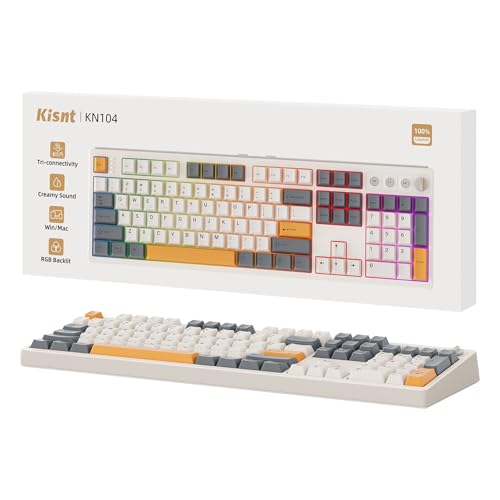
【Inspiration of KN104】 Expanding from the 75% compact layout to a 100% full-size form, the KN104 retains the premium sound and performance of the KN85, while upgraded standard 104-key layout with number pad, it’s better for your daily productivity and data entry. When you need quick adjustments to volume or backlight in daily use, the dedicated knob is much more convenient. Three media keys for play/pause, next, and previous, give you direct, hands-on access without key combinations.

Meet Ry, “TechGuru,” a 36-year-old technology enthusiast with a deep passion for tech innovations. With extensive experience, he specializes in gaming hardware and software, and has expertise in gadgets, custom PCs, and audio.
Besides writing about tech and reviewing new products, he enjoys traveling, hiking, and photography. Committed to keeping up with the latest industry trends, he aims to guide readers in making informed tech decisions.