
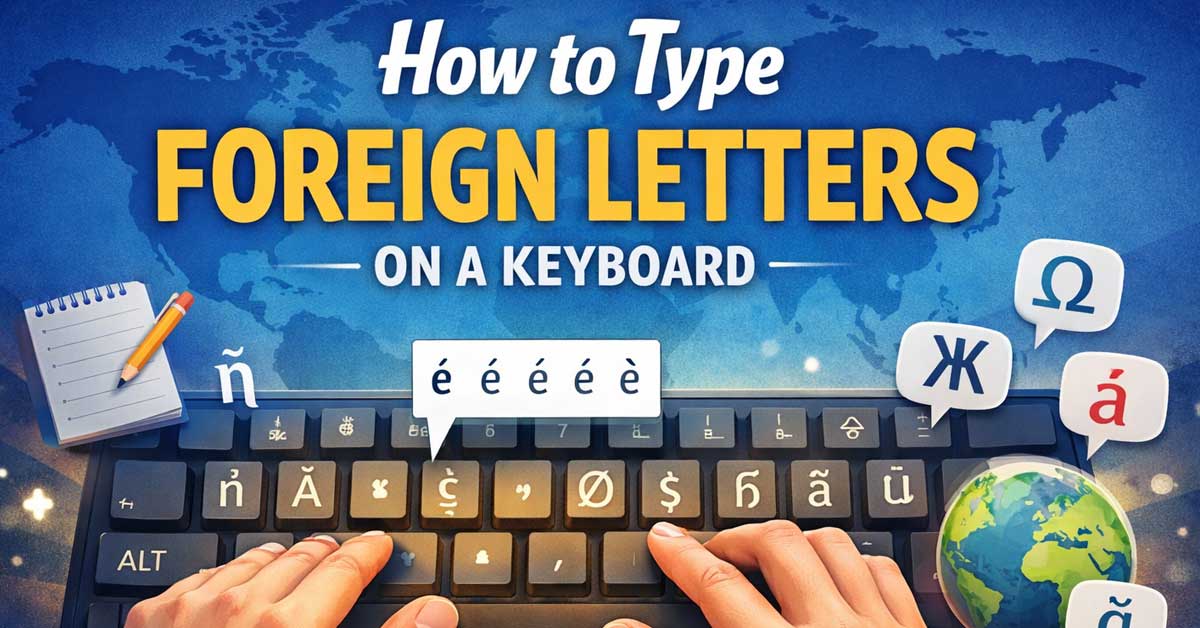

A comprehensive guide to accented and special characters across every platform
Typing letters from other languages — accented vowels, special consonants, characters with diacritical marks — is something most keyboards handle poorly by default but every platform supports through built-in shortcuts, keyboard layouts, and input methods.
The right approach depends on how often you need foreign letters and which languages you’re working with.
Here’s every method organized from quickest for occasional use to most efficient for regular use.
The Three Approaches
Before getting into specifics, understanding the three main approaches helps you choose the right one for your situation.
Long press or popup menus — hold a key and a popup shows accent variants. Zero setup, works immediately, best for occasional use.
Dead key sequences — press a modifier combination to place a floating accent, then press the letter. Two keystrokes, no setup on Mac, requires US International keyboard on Windows. Best for regular but not constant use.
Foreign language keyboard layouts — add a language keyboard and switch to it when needed. Every character is on a dedicated key. Best for writing entire documents in another language.

87 Keys Double Shot PBT Keycaps ; Ansi US International Layout ; Cherry MX Switches

✅ PREMIUM OPTICAL SWITCHES: The GK61 comes equipped with Optical mechanical switches that deliver ultimate performance and reliability, designed for enduring and intense usage.

𝐌𝐞𝐜𝐡𝐚𝐧𝐢𝐜𝐚𝐥 𝐁𝐫𝐨𝐰𝐧 𝐒𝐰𝐢𝐭𝐜𝐡𝐞𝐬: The brown switches of gaming keyboards offer a tactile feedback when the key is actuated. The tactile bump from Brown switches of our backlit keyboard is less pronounced compared to other switches like Blue switches of mechanical keyboards, making them suitable for both typing and gaming without being too noisy.
Mac — All Foreign Characters
Method 1: Long Press Any Key
Hold down any letter key and a popup appears showing every accented variant for that letter. Press the corresponding number or click the character.
- Hold A → shows à á â ä å ã æ ā and others
- Hold E → shows è é ê ë ē and others
- Hold U → shows ù ú û ü ū and others
- Hold N → shows ñ
- Hold C → shows ç
- Hold O → shows ò ó ô ö õ œ ø ō and others
This works for every letter with accented variants and requires no setup. For uppercase versions, activate Caps Lock or hold Shift before the long press.
Method 2: Option Dead Keys
Mac uses Option key combinations to place floating accents. Press the Option combination first, then press the letter to apply the accent:
Acute accent (á é í ó ú): Option + E, then the vowel Grave accent (à è ì ò ù): Option + `, then the vowel Circumflex (â ê î ô û): Option + I, then the vowel Umlaut/diaeresis (ä ë ï ö ü): Option + U, then the vowel Tilde (ã ñ õ): Option + N, then the vowel Ring (å): Option + Shift + A directly Cedilla (ç): Option + C directly Macron (ā ē ī ō ū): Option + A, then the vowel
For uppercase accented letters, use Shift + the vowel as the second keystroke.
Method 3: Direct Option Shortcuts
Some characters are produced directly without a dead key sequence:
- ß (German sharp S): Option + S
- æ (ae ligature): Option + ‘
- ø (O with stroke): Option + O
- å (A with ring): Option + Shift + A
- ç (C cedilla): Option + C
- ñ (N tilde): Option + N
- œ (OE ligature): Option + Q
- ¿ (inverted question mark): Option + Shift + ?
- ¡ (inverted exclamation): Option + 1

Full 3-System Compatibility & Wide Device Support: Perfectly compatible with Android, iOS and Windows three major systems. Works seamlessly with Samsung tablets, iPads, iPhones, laptops, smartphone, android, iOS, windows etc

Can't Connect the Bluetooth? Please reset the keyboard and then reconnect the Bluetooth: 1. Turn on the keyboarad; 2. Press and hold the first and the last key at the top row of the keyboard until all indicators start flashing; 3. Bluetooth light flickers quickly, auto entering Bluetooth pairing mode (If not, press Fn + 1 or 2); 4. Search and find "Wireless keyboard".

Mini Bluetooth Keyboard: Highly compatible with bluetooth enable devices, perfect for iPad, iOS, iPhone, Samsung Tablet, Android,Windows etc
Windows — All Foreign Characters
Method 1: US International Keyboard (Recommended for Regular Use)
Adding the US International keyboard is the single most impactful change for Windows users who type foreign characters regularly. It adds dead key functionality to your existing keyboard — no new keys to learn, just modifier sequences.
To add it: Go to Settings → Time and Language → Language and Region → your language → Options → Add a Keyboard → United States-International. Switch between keyboards using Windows + Space.
With US International active:
Acute (á é í ó ú): Press ‘ (apostrophe) then the vowel Grave (à è ì ò ù): Press **** (backtick) then the vowel **Circumflex (â ê î ô û):** Press **^** (Shift + 6) then the vowel **Umlaut (ä ë ï ö ü):** Press **"** (Shift + ') then the vowel **Tilde (ã ñ õ):** Press **~** (Shift + ) then the vowel Cedilla (ç): Press ‘ then c
For standalone punctuation with US International: Follow the punctuation with a space to produce the regular character rather than a dead key — type ‘ then Space for a plain apostrophe.
Method 2: Alt Codes
Hold Alt and type the decimal code on the numeric keypad. Num Lock must be on.
Common accented characters:
| Character | Alt Code | Character | Alt Code |
|---|---|---|---|
| á | Alt + 0225 | Á | Alt + 0193 |
| é | Alt + 0233 | É | Alt + 0201 |
| í | Alt + 0237 | Í | Alt + 0205 |
| ó | Alt + 0243 | Ó | Alt + 0211 |
| ú | Alt + 0250 | Ú | Alt + 0218 |
| à | Alt + 0224 | À | Alt + 0192 |
| è | Alt + 0232 | È | Alt + 0200 |
| â | Alt + 0226 | Â | Alt + 0194 |
| ê | Alt + 0234 | Ê | Alt + 0202 |
| ä | Alt + 0228 | Ä | Alt + 0196 |
| ö | Alt + 0246 | Ö | Alt + 0214 |
| ü | Alt + 0252 | Ü | Alt + 0220 |
| ñ | Alt + 0241 | Ñ | Alt + 0209 |
| ç | Alt + 0231 | Ç | Alt + 0199 |
| ß | Alt + 0223 | — | — |
| å | Alt + 0229 | Å | Alt + 0197 |
| æ | Alt + 0230 | Æ | Alt + 0198 |
| ø | Alt + 0248 | Ø | Alt + 0216 |
| œ | Alt + 0156 | Œ | Alt + 0140 |
Method 3: Add a Specific Language Keyboard
For writing extensively in one language, add that language’s keyboard directly:
Go to Settings → Time and Language → Language → Add a Language. Search for your language, add it, and add the keyboard layout. Switch using Windows + Space.
With the language keyboard active, every special character has a dedicated key in its natural position — ñ on the Spanish keyboard, ß on the German keyboard, ç on the French keyboard.


104 KEYS: Computer keyboard wired is a 104 key design with full functionality for long hours of work and gaming.

iPhone and iPad
Method 1: Long Press Any Key
Tap and hold any letter key — a popup appears showing every accented variant for that letter. Slide to the desired character and release.
This is the universal iOS method and works for every common accented character across all languages without any setup. It’s the same experience as the Mac long press.
Common long press characters:
- Hold A → à á â ä å ã æ
- Hold E → è é ê ë
- Hold I → ì í î ï
- Hold O → ò ó ô ö õ œ ø
- Hold U → ù ú û ü
- Hold N → ñ
- Hold C → ç
- Hold S → ß ś š
Method 2: Add a Language Keyboard
Go to Settings → General → Keyboard → Keyboards → Add New Keyboard. Add any language and its keyboard becomes available through the globe icon or by swiping the space bar.
With a language keyboard active, special characters appear on dedicated keys. Switching keyboards mid-message is smooth — tap the globe icon to cycle through your configured keyboards.
Method 3: Text Replacement
Go to Settings → General → Keyboard → Text Replacement and set up shortcuts for characters you use frequently — mapping nyo to ñ, ss to ß, and so on.
Android (Gboard)
Method 1: Long Press Keys
Tap and hold any letter key on Gboard — accented variants appear in a popup row. Slide to the desired character and release.
Gboard’s long press covers the most common accented characters for every major European language without any configuration.
Method 2: Add Language Keyboard
In Gboard, go to Settings → Languages → Add Keyboard. Add any language — its special characters become available on a dedicated keyboard accessible through the globe icon.
Method 3: Gboard Symbol Search
Tap the G logo in Gboard and search by character name — “e acute,” “n tilde,” “c cedilla” — to find and insert characters that aren’t on long press.
Method 4: Other Android Keyboards
SwiftKey has particularly strong multilingual support — it can handle multiple languages simultaneously and predict text in mixed-language input without switching keyboards. For users who regularly mix languages, SwiftKey is worth considering over Gboard.
Chromebook
Method 1: Unicode Input
Press Ctrl + Shift + U, type the Unicode hex code, then press Enter or Space:
Common codes:
- á: 00e1 | é: 00e9 | í: 00ed | ó: 00f3 | ú: 00fa
- à: 00e0 | è: 00e8 | ì: 00ec | ò: 00f2 | ù: 00f9
- â: 00e2 | ê: 00ea | î: 00ee | ô: 00f4 | û: 00fb
- ä: 00e4 | ë: 00eb | ï: 00ef | ö: 00f6 | ü: 00fc
- ñ: 00f1 | ç: 00e7 | ß: 00df | å: 00e5
Method 2: Add Input Method
Go to Settings → Device → Keyboard → Input Methods and add your language’s input method. The special characters picker (Search + Shift + Space) also provides browsable access to Unicode characters.
Linux
Method 1: Unicode Input
Press Ctrl + Shift + U, type the hex code, then press Enter. Same codes as Chromebook above. Works consistently across all major Linux distributions and desktop environments.
Method 2: Compose Key
The Compose key is Linux’s most powerful character input method — logical two-character sequences produce special characters:
To set up: Go to your desktop’s keyboard settings and assign a Compose key — typically the right Alt, right Windows key, or Scroll Lock.
Common Compose sequences:
- Compose + ‘ + a → á (apostrophe + vowel = acute)
- Compose + ` + e → è (backtick + vowel = grave)
- Compose + ^ + o → ô (caret + vowel = circumflex)
- Compose + ” + u → ü (quote + vowel = umlaut)
- Compose + ~ + n → ñ (tilde + letter = tilde accent)
- Compose + , + c → ç (comma + c = cedilla)
- Compose + s + s → ß (s + s = German sharp S)
- Compose + a + e → æ (a + e = ae ligature)
- Compose + o + e → œ (o + e = oe ligature)
- Compose + / + o → ø (slash + o = O stroke)
- Compose + o + a → å (o + a = A ring)
The Compose key logic is intuitive once you understand the pattern — the sequence visually suggests the resulting character.
Microsoft Word (Any Platform)
Method 1: Built-In Accent Shortcuts
Word has dedicated shortcuts that work on both Windows and Mac regardless of keyboard layout:
- Acute (á): Ctrl + ‘ (apostrophe), then the vowel
- Grave (à): Ctrl + ` (backtick), then the vowel
- Circumflex (â): Ctrl + Shift + ^ (caret), then the vowel
- Umlaut (ä): Ctrl + Shift + : (colon), then the vowel
- Tilde (ã/ñ): Ctrl + Shift + ~ (tilde), then the letter
- Cedilla (ç): Ctrl + , (comma), then c
- Ring (å): Ctrl + Shift + @, then a or A
- Slash (ø): Ctrl + /, then o or O
For uppercase versions, use Shift + the vowel as the second keystroke.
Method 2: Alt + X (Windows Word Only)
Type the Unicode hex code then immediately press Alt + X — Word converts it to the character. Type 00E9 then Alt + X to get é.
HTML and Web Development
html
<!-- Named entities for common characters -->
á Á <!-- á Á -->
é É <!-- é É -->
í Í <!-- í Í -->
ó Ó <!-- ó Ó -->
ú Ú <!-- ú Ú -->
à À <!-- à À -->
è È <!-- è È -->
â Â <!-- â Â -->
ê Ê <!-- ê Ê -->
ä Ä <!-- ä Ä -->
ö Ö <!-- ö Ö -->
ü Ü <!-- ü Ü -->
ñ Ñ <!-- ñ Ñ -->
ç Ç <!-- ç Ç -->
ß <!-- ß -->
å Å <!-- å Å -->
æ Æ <!-- æ Æ -->
ø Ø <!-- ø Ø -->
œ Œ <!-- œ Œ -->In UTF-8 encoded HTML documents (which all modern HTML should be), typing the characters directly is also perfectly valid and often more readable than entities.
LaTeX
latex
% Standard text mode accents
\'a     % á  acute
\`a     % à  grave
\^a     % â  circumflex
\"a     % ä  umlaut
\~n     % ñ  tilde
\c{c}   % ç  cedilla
\aa     % å  a with ring
\ss     % ß  sharp S
\ae     % æ  ae ligature
\oe     % œ  oe ligature
\o      % ø  o with stroke

% With UTF-8 inputenc — type directly
\usepackage[utf8]{inputenc}
% Then type á, é, ñ, ü etc. directly in source

% For non-Latin scripts, use XeLaTeX or LuaLaTeX
% with fontspec and appropriate font
Non-Latin Scripts
For languages that don’t use the Latin alphabet, the approach is different from accent-based input:
Chinese, Japanese, Korean: Use an IME (Input Method Editor) — built into Windows, Mac, and mobile. Type phonetic romanization and the IME suggests characters. Add these through language settings on any platform.
Arabic, Hebrew: Right-to-left keyboards available through language settings on all platforms. Arabic keyboard on Windows, Mac, and mobile.
Russian, Greek, Ukrainian: Cyrillic and Greek keyboards available through language settings. Some people use phonetic Cyrillic layouts that map Cyrillic letters to phonetically similar Latin keys.
Thai, Hindi, other scripts: Dedicated keyboard layouts available through language settings on all major platforms.
The process on every platform is the same: add the language through language settings, a new keyboard layout becomes available, and you switch to it using the language switcher.
Choosing the Right Long-Term Setup
If you occasionally need a few specific characters: Long press on mobile (zero setup) and Alt codes on Windows (no setup needed) handle occasional use without changing anything.
If you write mixed English with regular accents — writing about café culture, résumés, naïve, jalapeño, über: US International keyboard on Windows and Option dead keys on Mac are the cleanest approaches. Both keep your existing keyboard feel while adding accent capability.
If you write full documents in another language: Add that language’s keyboard and switch to it when writing in that language. Spanish, French, German, Italian, Portuguese, and most European languages have keyboard layouts that put their special characters on direct keys.
If you work in multiple languages simultaneously: A keyboard with customizable keys, a hardware keyboard designed for multilingual use, or a text expander with shortcuts for all characters you use regularly is the most efficient long-term investment.
Quick Method Reference by Platform
| Platform | Occasional Use | Regular Use |
|---|---|---|
| Mac | Long press key | Option dead keys |
| Windows | Alt codes | US International keyboard |
| iPhone / iPad | Long press key | Add language keyboard |
| Android | Long press key | Add language in Gboard |
| Chromebook | Unicode input | Add input method |
| Linux | Unicode input | Compose key |
| Word (any) | Insert → Symbol | Ctrl + accent shortcuts |
The Bottom Line
For occasional foreign characters, long press is the universal answer — it works on Mac, iPhone, and Android without any setup, and covers the vast majority of accented letters across European languages. On Windows, Alt codes fill the same occasional-use role.
For regular use, the investment in the right input method pays off immediately: US International keyboard on Windows for accent dead keys, Option dead keys already built into Mac, and adding the relevant language keyboard on mobile for direct key access.
Long press handles it on Mac and mobile with no setup. US International keyboard handles it on Windows with one setup. Add a language keyboard when you write that language regularly enough to justify dedicated keys.
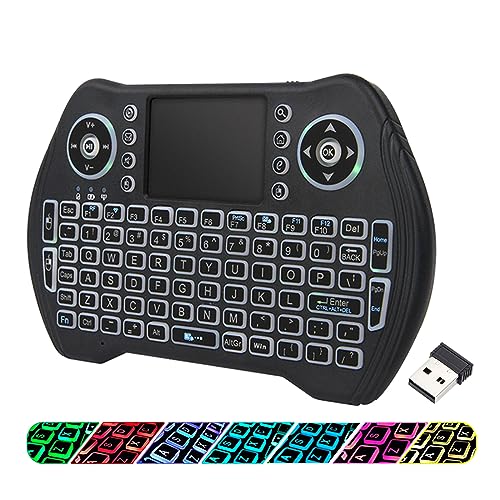
♚【Easy to use】 This wireless keyboard and mouse combo just need to plug the USB receiver into your device and use it. Plug the USB cable to the charging port easily charging (on the top left of the keyboard).

Media-Friendly: The K400 Plus wireless touch TV keyboard gives you integrated, comfortable control of your PC-to-TV entertainment, eliminating the clutter of a separate keyboard and mouse
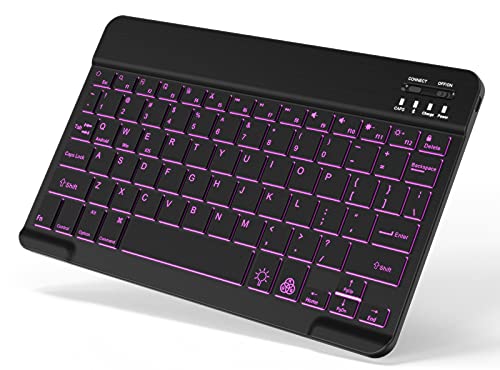
7-Color LED Backlit: This Bluetooth keyboard has a 7 colors backlight mode, 1 breathing light mode, and 3 brightness levels. Even in the dark, it makes your typing more easily and conveniently. You can turn the lights on/off and adjust the backlight mode by the light bulb key, and switch colors among red, yellow, purple, green, ice blue, blue, and white by the RGB key. When the keyboard is idle, the light will automatically turn off to save power.

Meet Ry, “TechGuru,” a 36-year-old technology enthusiast with a deep passion for tech innovations. With extensive experience, he specializes in gaming hardware and software, and has expertise in gadgets, custom PCs, and audio.
Besides writing about tech and reviewing new products, he enjoys traveling, hiking, and photography. Committed to keeping up with the latest industry trends, he aims to guide readers in making informed tech decisions.