
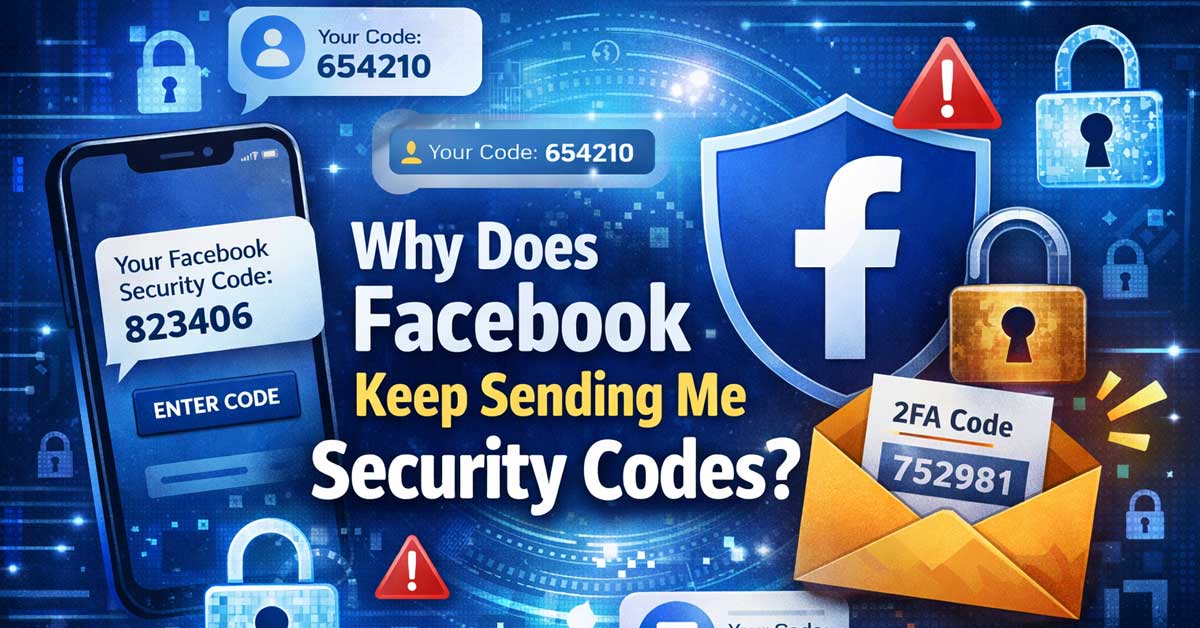

Almost always a login attempt or security setting — here’s what’s causing it and what to do
Receiving unexpected security codes from Facebook — texts or emails with six-digit verification codes you didn’t request — is something that needs attention rather than ignoring.
Unexpected security codes almost always mean someone is attempting to log into your account, though in some cases it’s a setting on your own account generating them automatically.
Here’s what’s causing it and exactly what to do.
What Facebook Security Codes Are
Facebook sends security codes in two main scenarios:
Two-factor authentication codes — sent when someone attempts to log into your account and Facebook requires a verification code as a second factor. The code is required to complete the login.
Login confirmation codes — sent when Facebook detects a login from an unrecognized device or location and wants to verify it’s actually you.
If you’re receiving codes you didn’t request, someone or something is triggering these scenarios on your account. The critical question is whether it’s an unauthorized person trying to access your account or a legitimate process you’ve forgotten about.

Ultra-Compact FIDO2 Security Key - Plug-and-stay or carry on a keychain. This USB-A hardware security key offers portable, always-on protection for desktop and mobile use. (Item Size: 0.75 X 0.74 IN x 0.25 IN)

POWERFUL SECURITY KEY: The YubiKey 5C NFC is the most versatile physical passkey, protecting your digital life from phishing attacks. It ensures only you can access your accounts.
![FIDO2 Security Key [Folding Design] Thetis Universal Two Factor Authentication USB (Type A) for Multi-Layered Protection (HOTP) in Windows/Linux/Mac OS,Gmail,Facebook,Dropbox,SalesForce,GitHub](https://m.media-amazon.com/images/I/319b82vXgEL._SL500_.jpg)
Passwordless World - A revolutionary new way to protect your account info. By being FIDO2 certified by the world’s largest ecosystem for standard-based, interoperable authentication, FIDO2 makes everyday log-in experience effortless and passwordless yet more secure than generic password style security. **Note: FIDO2 does NOT support Mac log-in.
Someone Is Attempting to Log Into Your Account
This is the most common cause of unexpected security codes. Someone has your email address or phone number and your password — or is guessing passwords — and is attempting to log in. Facebook sends the code to your phone or email as the second factor, which the attacker doesn’t have. Your account is currently protected by the two-factor authentication stopping them at the code step.
The fact that you’re receiving codes means your two-factor authentication is working. But receiving them also means someone has at least your password and is actively attempting access.
Act immediately:
Change your Facebook password right now from a trusted device. Go to Settings → Security and Login → Change Password. Use a strong, unique password you haven’t used anywhere else.
After changing your password, go to Settings → Security and Login → Where You’re Logged In and click Log Out of All Sessions. This terminates every active session including any the attacker may have established.
Review Settings → Security and Login → Recent Security Activity for any logins from unfamiliar devices or locations. If you see logins you don’t recognize, your account may have been accessed before the two-factor code stopped further attempts.

FALL DETECTION TECHNOLOGY: The Freedom Alert Mini goes beyond traditional safety devices with patented fall detection that automatically initiates a call with emergency services. This life-saving feature guarantees a swift response when accidents occur, providing an extra layer of protection for users.

How this WIFI APP Caregiver Pager Works: When the elderly/disabled/kids press the call button, the hub will sound an alarm, at the same time, the smartphone APP will receive a warning alert, no matter the phone is in another city or province, you can receive a instant warning alert anywhere, and it will also record every calling record.
Your Credentials Were Exposed in a Data Breach
If an attacker has your password, it likely came from a data breach of another service where you used the same password. When large websites are breached, the stolen email and password combinations are sold and used to attempt logins across many other services — including Facebook. This is called credential stuffing.
Check whether your email has been in a known breach at haveibeenpwned.com. If your email appears in breaches, change your password on every service where you used the same password as the breached site.
Using a unique password for every service eliminates credential stuffing entirely — a breached password from one site can’t open any other account.

ATTENTION-GRABBING: When door or window is opened, the extremely loud 120dB alarm helps wake/alert homeowner or renter, helps deter intruder and possibly notifies neighbors (audible up to 1,500-feet/457-meters away)

Versatile And Secure: Prepare for emergency situations! Provide lifelong protection for loved ones and valuable equipment! If you lose your bag, the finder only needs to scan the luggage tag QR code and submit their contact information online; You will receive an email containing the contact information of the searcher; Enable retrieval. and you will get the location of the other party (provided that they allow you to obtain the location)

【What do you get?】 DIY Wifi home security systems: 1x120 DB speaker, 1x power cord, 4 x infrared sensor, 2x remote control, 1x instruction manual, and our lifelong friendly service. Our DIY home burglar security alarm system features speakers that connect to up to 30 wireless detectors, 10 remote controls, 10 door magnetic sensors, and a maximum sound of 120 decibels to deter thieves or thieves.
You’re Being Targeted by a Specific Person
If the login attempts are persistent — you’re receiving multiple codes per day or codes at consistent times — someone specifically targeting your account may be behind them rather than an automated credential stuffing attack.
Consider who might want access to your Facebook account and whether anyone you know has reason to attempt it. Change your password, enable two-factor authentication if it isn’t already on, and consider whether your password could have been observed or guessed by someone who knows you.
A Device You Own Is Logged Out and Trying to Reconnect
Your own device may be generating the codes. If Facebook is installed on a phone or tablet that was recently logged out — perhaps after a software update, an app reinstall, or a session expiry — the device may be attempting to reauthenticate and triggering the code. You might not have noticed the app is prompting for login on that device.
Check every device where you have Facebook installed. Open the app on each one and look for any login prompt or reauthentication request. Completing the login on your own device stops the codes.
Also check whether a family member or partner uses a shared Facebook account or uses your credentials on their device — their device attempting to reconnect generates codes that come to your phone.
A Third-Party App Is Triggering Verification
Third-party apps and services connected to your Facebook account sometimes trigger security verifications — particularly apps that regularly access your Facebook data and encounter session expiry or permission changes.
Go to Settings → Security and Login → Apps and Websites and review connected apps. If any look unfamiliar or are apps you no longer use, remove their access. An app that’s continuously accessing your account and encountering authentication issues can generate repeated code requests.
Your Phone Number or Email Is Used on Multiple Accounts
If your phone number or email is associated with more than one Facebook account — perhaps an old account you forgot about, a test account, or an account created in your name by someone else — login attempts to any of those accounts also send codes to your contact information.
Try logging into Facebook and check whether any account recovery flow suggests multiple accounts associated with your phone number. If you find an account you don’t recognize, report it to Facebook through the Report a Problem feature.
Facebook’s Automatic Login Verification
Facebook sometimes sends verification codes automatically when it detects what it considers unusual access patterns — a new browser, a different IP address, or a login from a new location — even for legitimate logins. If you recently logged in from an unfamiliar location, a new device, or through a VPN, Facebook may have sent a verification code as a precaution.
If the timing of the codes corresponds to your own recent login attempts from new locations or devices, the codes are legitimate security checks rather than signs of unauthorized access.
What to Do If Codes Keep Coming
If you’re receiving codes repeatedly and you’ve already changed your password, there are additional steps to lock down your account and stop the attempts.
Review and strengthen two-factor authentication:
Go to Settings → Security and Login → Two-Factor Authentication. Check which method is configured. If you’re using SMS codes, consider switching to an authenticator app — Google Authenticator, Authy, or Microsoft Authenticator — which generates codes locally rather than sending them via SMS. SMS codes can be intercepted through SIM swapping; authenticator app codes cannot.
Enable login alerts:
Go to Settings → Security and Login → Get Alerts About Unrecognized Logins. Turn on alerts for both notifications and email. This tells you immediately when a login occurs from a new device or location so you can respond quickly.
Check for saved passwords in browsers or apps that may be compromised:
If your Facebook password was saved in a browser or password manager that was compromised, the attacker has your current credentials regardless of how unique the password is. Check your browser’s saved passwords and your password manager for any signs of unauthorized access.
Should You Ignore the Codes?
No. Ignoring unexpected security codes is the wrong response even if your account seems fine right now.
If someone is attempting to log in, they have at least your email and password. That password needs to be changed immediately. The codes stopping them today stop working the moment two-factor authentication is disabled or bypassed — and there are social engineering attacks specifically designed to convince people to share their verification codes.
Never share a security code with anyone who contacts you claiming to be from Facebook, a friend who needs help, or any other party. Legitimate Facebook processes never require you to share a code with another person. Sharing the code gives the attacker the second factor they need to complete the unauthorized login.
A Quick Checklist
Work through these steps immediately if you’re receiving unexpected codes:
- Change your Facebook password to a strong unique password right now
- Log out of all sessions in Settings → Security and Login
- Review recent security activity for unrecognized logins
- Check all your devices for Facebook login prompts needing reauthentication
- Check haveibeenpwned.com for data breaches involving your email
- Switch to an authenticator app for two-factor authentication instead of SMS
- Enable login alerts for unrecognized devices
- Review connected apps and remove any you don’t recognize
- Never share the code with anyone who contacts you asking for it
The Bottom Line
Unexpected Facebook security codes almost always mean someone is attempting to log into your account with your password. The two-factor code is currently stopping them — but the password needs to be changed immediately because they have it.
Change the password, log out of all sessions, and switch to an authenticator app for two-factor authentication. These three steps together eliminate the immediate threat and significantly harden the account against future attempts.
The code arriving in your phone means two-factor authentication is working — but it also means someone has your password. Change it now.

FIDO2/Passkey Authentication – Secure, passwordless login with supported platforms. Check if your intended service supports hardware keys before purchase. Works with Gmail, Facebook, GitHub, Dropbox, and more.

FIDO2/Passkey Authentication – Secure, passwordless login with supported platforms. Check if your intended service supports hardware keys before purchase. Works with Gmail, Facebook, GitHub, Dropbox, and more.
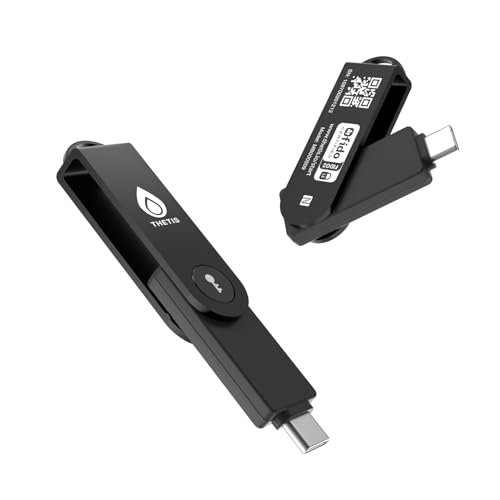
FIDO2 Level 2 Passkey Authentication: Enable secure, passwordless sign-in on supported services using a certified FIDO2 Level 2 hardware key. Works with Gmail, Facebook, GitHub, Dropbox, and more. Please verify that your intended service supports hardware security keys before purchase.

Meet Ry, “TechGuru,” a 36-year-old technology enthusiast with a deep passion for tech innovations. With extensive experience, he specializes in gaming hardware and software, and has expertise in gadgets, custom PCs, and audio.
Besides writing about tech and reviewing new products, he enjoys traveling, hiking, and photography. Committed to keeping up with the latest industry trends, he aims to guide readers in making informed tech decisions.