

Usually a connection, cache, or browser issue — here’s what’s causing it and how to stop it
Facebook prompting you to reload the page — whether it’s a banner at the top of the feed, a full-screen message, or a pop-up that keeps appearing — is one of those recurring annoyances that can have several different causes.
Sometimes it’s Facebook pushing an update. Sometimes it’s your connection dropping briefly. Sometimes it’s a browser or cache problem. The fix depends on which scenario applies to you.
Here’s how to identify what’s causing it and make it stop.
Facebook Is Pushing a Live Update
This is the most common and most benign cause. Facebook is a live web application that updates constantly — new posts, comments, reactions, and notifications come in continuously. Facebook also regularly pushes code updates to its web app without requiring you to navigate away.
When a code update deploys while you have Facebook open, Facebook detects that your browser is running an older version of the page and prompts you to reload so the new code takes effect. This is normal behavior and happens more frequently during periods when Facebook is actively rolling out changes.
If the reload prompt appears occasionally and reloading resolves it, this is almost certainly the cause and there’s nothing to fix. It’s Facebook doing maintenance while you’re using it.
If the prompt appears constantly — appearing again within seconds of reloading — something else is going on.

EASY TO USE - The tester will automatically detect the pin position, the release time of the action, and the consistency of the relay in each test phase. If the tester lights up the green LED light, the relay is normal; if the red LED light is on, the relay is abnormal. USA Patented.

Finds the problems like high corrosive resistance, shorts to ground, open circuits quickly

[SAFE TROUBLESHOOTING AND TESTING] Test all speakers of all cars with this phase meter, including small tweeters, door speakers, and subwoofers.
Your Internet Connection Is Dropping
An unstable internet connection causes Facebook to lose its real-time connection to the server — and when that connection drops and reestablishes, Facebook often prompts you to reload to resync the page state.
If you’re on Wi-Fi, check your signal strength. A weak or fluctuating Wi-Fi signal causes the brief drops that trigger reload prompts even when the connection looks like it’s technically active. Move closer to your router or switch to a wired connection and see if the prompts stop.
Run a speed test at fast.com or speedtest.net and watch for fluctuating results — a connection that varies significantly between tests is unstable enough to cause repeated Facebook reload prompts.
Restarting your modem and router with a full 60-second power cycle clears many connection instability issues that cause this behavior.

[Dual Channel Input] The tester supports dual channel signal input with four adjustable frequencies (40hz 350hz 2khz 14hz) and four internal resistors (56ω 220ω 1kω 20kω). this flexibility ensures precise and adaptable testing for various components.
[Dual Channel Input] The tester supports dual channel signal input with four adjustable frequencies (40hz 350hz 2khz 14hz) and four internal resistors (56ω 220ω 1kω 20kω). this flexibility ensures precise and adaptable testing for various components.
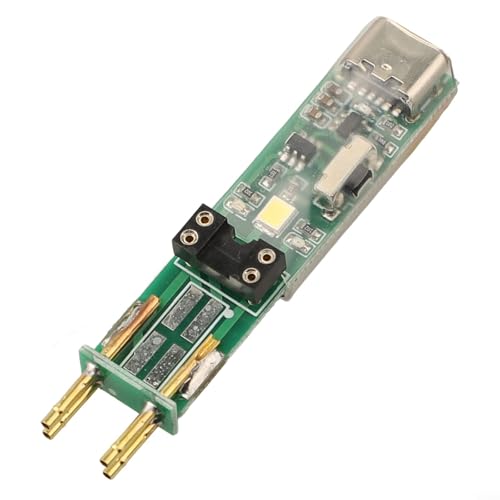
[VERSATILE 4-PIN OPTOCOUPLER TESTING] - Compatible with both plug-in and for SMD 4-pin optocouplers, this tester is for accurate online detection and circuit board diagnostics in electronic repairs.
Browser Cache and Cookies
A stale or corrupted browser cache causes Facebook to get confused about the state of the page, prompting repeated reloads because the cached version conflicts with what the server is sending.
Press Ctrl + Shift + Delete in Chrome, Edge, or Firefox to open the clear browsing data dialog. Select Cached Images and Files and Cookies and Other Site Data, set the time range to All Time, and clear. Close the browser completely, reopen it, and log back into Facebook.
This resolves the reload prompt for a significant number of people — particularly when the prompt appeared suddenly after a period of working fine.
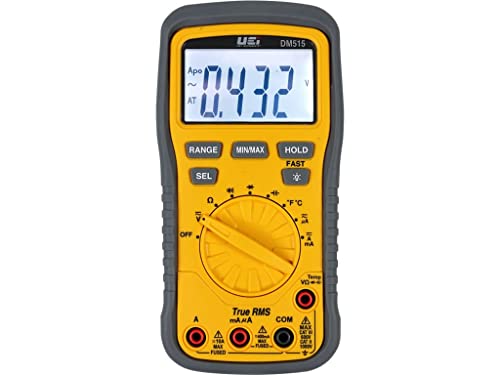
👷🏼♂️High Safety Rating – The DM515 offers top of the line safety with rantings of CATIII at 600V and CATII at 1000V.
![True Mods 7-Way Blade Trailer Wiring Tester [Nickel-Plated Copper Terminals] [Continuity Test] [Rugged Material] 7-Pin Trailer Light Wire Circuit Tester](https://m.media-amazon.com/images/I/41DK1k9EsPL._SL500_.jpg)
STRAIGHTFORWARD TRAILER LIGHT TESTING - Simply plug the tester into the tow vehicle, turn on the lights, and check the easy to read LEDs.

Automatically discover and instantly generate a topology map of your networks using theLink-Live reporting and analysis platform
A Browser Extension Is Interfering
Extensions that modify web pages — ad blockers, script blockers, privacy tools, page refreshers — can interfere with Facebook’s JavaScript in ways that cause the page to detect a problem and prompt for a reload.
Test by opening Facebook in incognito or private mode where most extensions are disabled by default. Press Ctrl + Shift + N in Chrome or Edge, Ctrl + Shift + P in Firefox. If the reload prompt doesn’t appear in incognito, an extension is the cause.
Go to your browser’s extensions page and disable them one at a time, testing Facebook after each. The extension that brings the prompt back when re-enabled is the culprit. Either remove it or add Facebook to its whitelist.
Facebook’s WebSocket Connection Is Failing
Facebook uses a persistent WebSocket connection to push real-time updates — new messages, notifications, and feed updates — without you having to manually refresh. When this WebSocket connection fails or can’t be established, Facebook falls back to prompting you to reload the page manually to get fresh content.
WebSocket failures can be caused by:
Firewall or security software blocking the connection. Some corporate firewalls, antivirus programs, and network security tools block WebSocket connections as a precaution. If you’re on a work network or using security software that filters traffic, this may be blocking Facebook’s real-time connection.
A VPN routing the connection incorrectly. VPNs can interfere with WebSocket connections depending on the protocol and server used. Try disabling the VPN temporarily and see if the reload prompts stop.
Proxy settings interfering. If your browser or system is configured to use a proxy, that proxy may not properly support WebSocket connections. Check your proxy settings and try disabling them for testing.
The Facebook Tab Has Been Open Too Long
Leaving a Facebook tab open for an extended period — many hours or overnight — causes the page state to drift significantly from what’s on the server. Cached JavaScript, expired session tokens, and accumulated state changes all contribute to a page that Facebook determines needs a refresh.
This is particularly common if you leave Facebook open in a background tab while using your computer for other things. The tab goes stale, Facebook detects the drift, and prompts for a reload when you switch back to it.
Reloading the tab periodically or closing and reopening Facebook when you come back to it after a long absence prevents this from accumulating. It’s not a fix so much as a habit that avoids the issue.
Multiple Facebook Tabs or Windows
Having Facebook open in more than one tab or window simultaneously can cause session conflicts that trigger reload prompts in one or both instances. The two tabs compete for the same session state, causing Facebook’s systems to flag inconsistencies.
Close all but one Facebook tab and see if the reload prompt stops. Keeping a single Facebook tab open avoids the session conflict entirely.
Facebook App vs. Browser
If you’re using Facebook in a mobile browser rather than the Facebook app, the browser version is more prone to reload prompts than the native app. The app maintains its connection differently and handles updates more gracefully than a mobile browser tab.
If you’re on mobile and experiencing constant reload prompts in your browser, switch to the Facebook app — available on both Android and iOS. The app version of Facebook handles these connection and update scenarios more reliably.
If you’re already using the app and seeing reload prompts, clear the app cache. On Android, go to Settings → Apps → Facebook → Storage → Clear Cache. On iPhone, offload and reinstall the app via Settings → General → iPhone Storage → Facebook → Offload App.
A Broader Facebook Outage or Issue
Occasionally Facebook itself is having a problem that causes widespread reload prompts across many users simultaneously. This can happen during deployments, infrastructure issues, or when Facebook’s servers are under unusual load.
Check Downdetector.com and search for Facebook to see if others are reporting the same issue. If there’s a spike in reports, the problem is on Facebook’s end and will resolve on its own without any action on your part.
A Quick Checklist
Work through these in order based on how frequently the prompt appears:
- Occasional prompt — this is normal Facebook update behavior, reload and continue
- Frequent prompt after a long session — close and reopen the Facebook tab
- Constant prompt regardless of reloading — clear browser cache and cookies
- Prompt only in regular browsing, not incognito — disable extensions one by one
- Prompt on unstable connection — restart router, switch to wired, run speed test
- Prompt on VPN — disable VPN and test
- Multiple Facebook tabs open — close all but one
- On mobile browser — switch to the Facebook app instead
- Widespread issue — check Downdetector for Facebook outage reports
The Bottom Line
Facebook’s reload prompt is almost always caused by one of three things: a legitimate code update being pushed, an unstable internet connection dropping the real-time sync, or a browser cache issue causing the page state to conflict with the server. The first is normal and occasional. The second and third are fixable.
A cache clear and connection check resolve the majority of cases where the prompt appears more frequently than it should. Extension interference and WebSocket blocking account for most of what remains.
Facebook asking you to reload is its way of saying the page has drifted from what’s on the server — usually a quick fix gets it back in sync.

💪【15+ Diagnostic Car Services for Automotive System】Multiple functions - almost covering the probe tools on the market. With ✅Multimeter function, ✅Oscilloscope mode, ✅Continuity testing, ✅Relay test, ✅Activating components in your hand, ✅Power supply/ground detecting/open & short testing, ✅Trailer lights testing, ✅Signal circuit testing, ✅Checking for Bad Ground Contacts, ✅Clean the Injectors, ✅20FT extension cable & LED light,✅ AC/DC voltage/resistance/diode/frequency testing.

Complete OBD2 Functions: Autel Maxilink ML529 OBD2 code reader is characterized by complete OBD2 functions including O2 Sensor Test, Read/Clear DTCs, Live Data Stream, Freeze Frame Data etc. for Car Owners or Dyers to quickly address car emission problems
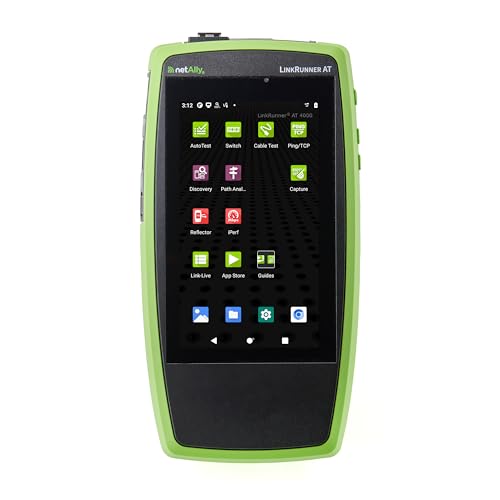
Automatically discover and instantly generate a topology map of your networks using theLink-Live reporting and analysis platform

Meet Ry, “TechGuru,” a 36-year-old technology enthusiast with a deep passion for tech innovations. With extensive experience, he specializes in gaming hardware and software, and has expertise in gadgets, custom PCs, and audio.
Besides writing about tech and reviewing new products, he enjoys traveling, hiking, and photography. Committed to keeping up with the latest industry trends, he aims to guide readers in making informed tech decisions.