
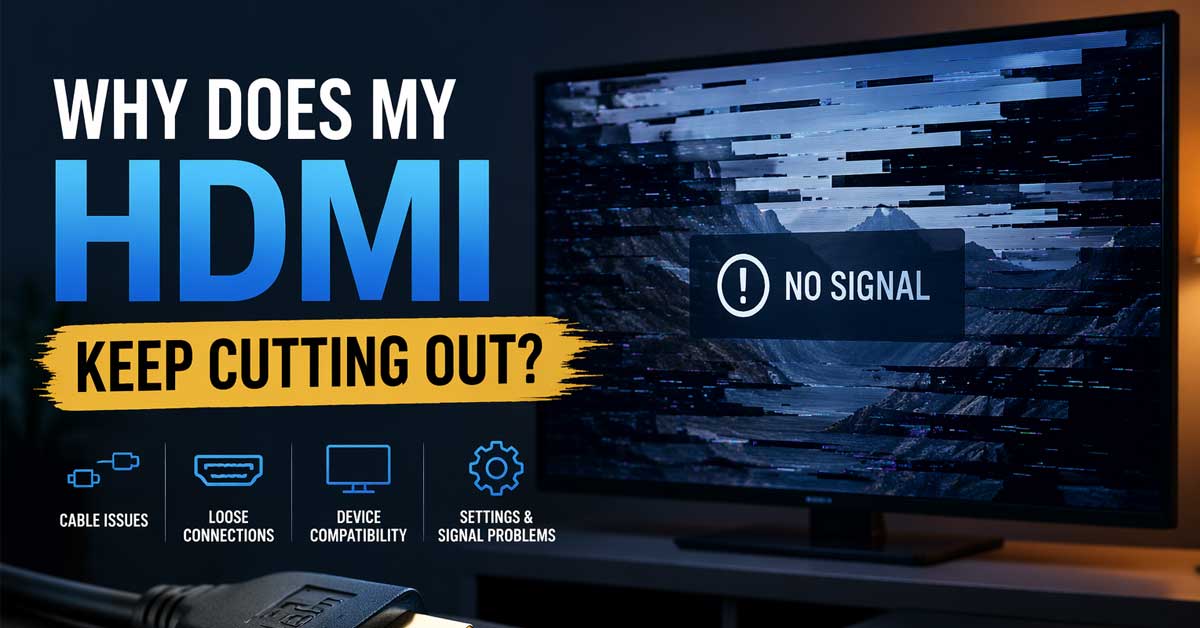

Usually a cable, connection, or driver issue — here’s how to find it and fix it
An HDMI connection that cuts out — the screen goes black briefly and comes back, the display loses signal intermittently, audio drops while video continues, or the connected display disconnects and reconnects repeatedly — is a frustrating problem that disrupts work and entertainment.
The cause is almost always physical rather than software, though driver and settings issues contribute in specific scenarios. Here’s how to identify what’s causing the drops and stop them.
The Cable Is the Most Common Cause
Start here before anything else. HDMI cables degrade over time and with repeated connection and disconnection cycles. The internal conductors and shielding break down — sometimes invisibly — causing intermittent signal loss that looks like a driver or hardware problem but is actually the cable failing.
Signs the cable is the cause:
Cutting out happens at the same point in the cable when it’s moved or bent. The problem appeared gradually rather than suddenly. The cable is more than three to four years old or has been connected and disconnected many times. The cable has any visible kinking, sharp bends, or damage near the connectors.
Try a different HDMI cable first. This takes thirty seconds and immediately tells you whether the cable is the cause. If the cutting out stops with a replacement cable, the original cable is faulty. Replace it with a cable rated for your resolution — HDMI 2.0 for 4K at 60Hz, HDMI 2.1 for 4K at 120Hz.
Cable length matters too. HDMI has practical length limits — standard cables work reliably up to about 15 feet (4.5 meters). Beyond that, signal integrity degrades and intermittent cutouts become common. If you’re using a long HDMI cable, signal loss is the likely cause. Use an active HDMI cable or an HDMI extender with signal amplification for longer runs.
![Warrky USB C to HDMI Cable 4K, [10FT / 3M, Braided, High Speed] Thunderbolt 3 to HDMI Adapter Compatible for New iPad, MacBook Pro/Air, iMac, Galaxy S20 S10 S9 S8, Surface, Dell, HP](https://m.media-amazon.com/images/I/41zK2JsIccL._SL500_.jpg)
[Effortless Plug & Play] Crystal-clear and vibrant 4K@60Hz resolution backward compatible for 1440P@60Hz and 1080P@122Hz. Instantly mirror or extend UHD content from your Type-C phone, tablet, laptop, and desktop computer to larger displays like monitors, TVs, and projectors. Leave behind the worries of unstable WiFi and the hassle of drivers. HDCP compliance lets you enjoy media streaming without any limitations. 𝗣𝗹𝗲𝗮𝘀𝗲 𝗡𝗼𝘁𝗲: 𝗧𝗵𝗶𝘀 𝗶𝘀 𝗮 𝗼𝗻𝗲-𝘄𝗮𝘆 𝗰𝗮𝗯𝗹𝗲, 𝗱𝗲𝘀𝗶𝗴𝗻𝗲𝗱 𝗲𝘅𝗰𝗹𝘂𝘀𝗶𝘃𝗲𝗹𝘆 𝗳𝗼𝗿 𝘁𝗿𝗮𝗻𝘀𝗺𝗶𝘀𝘀𝗶𝗼𝗻 𝗳𝗿𝗼𝗺 𝗨𝗦𝗕-𝗖 𝗵𝗼𝘀𝘁 𝗱𝗲𝘃𝗶𝗰𝗲𝘀 𝘁𝗼 𝗛𝗗𝗠𝗜 𝗱𝗶𝘀𝗽𝗹𝗮𝘆𝘀.
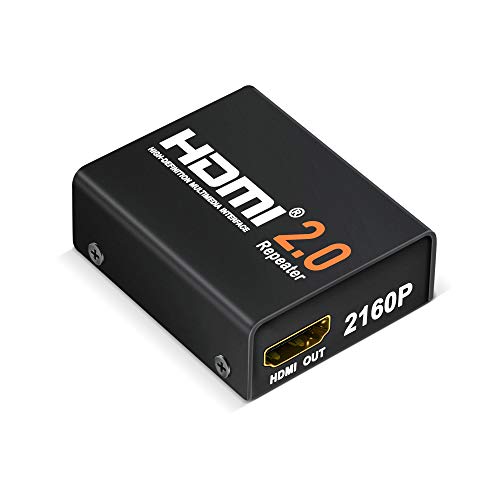
Support HDMI 2.0 and backward compatible with HDMI 1.x version. Support serial data rate up to 18 Gbps (Data transfer rate:18 Gigabits per second), support ultra-high resolution 4K/2K @ 60 Hz format. Support 3D transmission, HDCP 2.2

These certified premium high speed HDMI cables are the only HDMI cables to be tested and Certified by HDMI authorized test centers to ensure they support all features in the latest HDMI specification.
The Physical Connection Is Loose
HDMI connectors wear out with repeated plugging and unplugging. The port on the computer, on the TV, or on the monitor can develop a loose fit where the cable doesn’t make consistent contact — small vibrations, temperature changes, or the cable’s own weight cause brief disconnections.
Test by gently wiggling the cable at both ends while the display is connected. If the display flickers or cuts out when you move the cable near a connector, that connector — either the cable end or the port itself — is the source of the intermittent connection.
Try the cable in a different HDMI port on both the source and the display if multiple ports are available. A port that’s physically worn or damaged produces intermittent signal loss that a different port on the same device doesn’t.

【HDMI 2.0 Cable 4K Ultra HD HDR】Long 75 Foot HDMI Cable 4K Ultra HD.Up to 4K@60Hz,Backward Compatible 2K@120Hz/60HZ/30HZ 1080p 720P,Use 21:9 Aspect Ratio Provides A New Experience Of Wide-angle Theater.Provides Mirror Mode,Extended Mode And Game Interactive Mode.
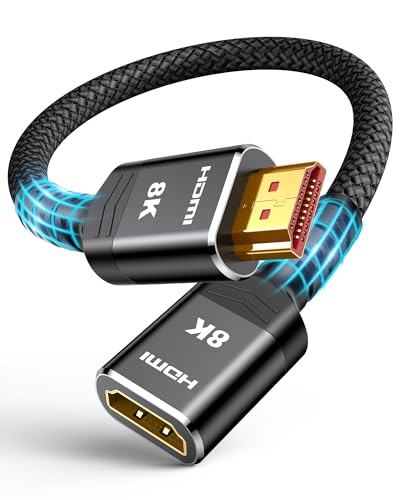
COMPATIBLE and UPGRADE: Highwings 8k HDMI extender 2.1 can achieve all the functions of a 4k HDMI extension 2.0 (4k@60hz, 4k@30hz, etc.) and enhance the features based on HDMI 2.0; It addresses issues like flickering screens and insufficient bandwidth

Fiber Optic HDMI Cable supports HDMI 2.0,High-speed 8Gbps, 4K@60HZ, HDR10, YUV 4:4:4 8bit, HDCP2.2, CEC, EDID, Dolby TrueHD, 3D, ARC etc.
Resolution or Refresh Rate Is Too High for the Cable or Port
HDMI bandwidth requirements scale with resolution and refresh rate. A cable or port that technically works at 1080p may cut out intermittently at 4K because the bandwidth demand exceeds what the cable or port can reliably sustain.
This is particularly common when using an older HDMI 1.4 cable with a 4K source — HDMI 1.4 supports 4K but only at 30Hz, and attempting 4K at 60Hz or higher causes intermittent signal loss.
Go to Display Settings → Advanced Display and try reducing the resolution or refresh rate. If the cutting out stops at a lower setting, the cable or port can’t support the current bandwidth requirement. Upgrade to an HDMI 2.0 or 2.1 cable for higher resolutions and refresh rates.

Are tight spaces giving you a problem connecting your HDMI cable

This Port Saver helps to put less stress on the internal ports of your devices
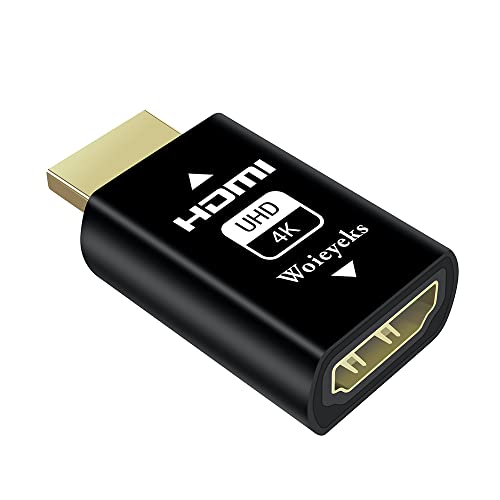
HDMI edid emulator-Bi-directional transmission signal,Signal source can be male or female,When your display is in multi-screen splicing mode, if one of the wires is loose or the screen is removed, the computer system will not re-identify or arrange the remaining desktops, Instead, the current settings are fixed.
GPU Driver Issues
Outdated or corrupted GPU drivers cause intermittent HDMI disconnections — the driver fails to maintain the handshake with the display and the connection briefly drops. This is more likely to be the cause if the cutting out started after a driver update, a Windows update, or after installing new software.
Download the latest GPU driver from your manufacturer:
- NVIDIA: nvidia.com/drivers
- AMD: amd.com/support
- Intel: intel.com/content/www/us/en/download-center
For a thorough fix, use DDU — Display Driver Uninstaller to completely remove the existing driver before installing the new one. Residual corrupted driver files can cause intermittent issues that a standard update doesn’t resolve.
After installing the new driver, restart and monitor whether the cutting out continues.
HDCP Handshake Failures
HDCP (High-bandwidth Digital Content Protection) requires a continuous handshake between the source device and the display. When this handshake briefly fails — due to a cable quality issue, a port problem, or a firmware incompatibility — the display cuts out momentarily while the handshake reestablishes.
HDCP handshake failures are more common with:
Protected content — streaming video, Blu-ray playback, and some game console output requires HDCP and is more sensitive to handshake interruptions than regular desktop display.
HDMI switches, splitters, and AV receivers in the signal chain — each additional device in the chain is another point where the HDCP handshake can fail.
Older displays that support HDCP 1.x trying to receive HDCP 2.2 content.
If cutting out happens specifically during protected content playback but not during general desktop use, HDCP handshake issues are the likely cause. Try connecting the source directly to the display without any HDMI switch or splitter in the path.
HDMI Switches and Splitters
Every HDMI switch, splitter, hub, or AV receiver in the signal chain is a potential source of intermittent signal loss. These devices introduce their own HDCP handshake complexity, add signal processing latency, and can have firmware bugs that cause periodic disconnections.
Test by connecting the source device directly to the display with a single HDMI cable — bypassing any switches, splitters, or AV receivers. If the cutting out stops, the intermediate device is the cause. Check for firmware updates for the switch or splitter, or replace it with a higher-quality unit.
Power Management Is Turning Off the Display
Windows power management settings can cause the display to go black in a way that looks like HDMI cutting out but is actually the display being turned off by the OS due to inactivity.
Go to Settings → System → Power and Sleep. Check the Screen settings — if the display is set to turn off after a short period, it may activate during pauses in activity that feel like HDMI drops.
Also go to Device Manager → Display Adapters → your GPU → Properties → Power Management and uncheck Allow the Computer to Turn Off This Device to Save Power if that option is present.
The GPU or HDMI Port Is Overheating
GPUs that run hot reduce clock speeds and can produce intermittent output failures including HDMI cutouts — particularly during gaming or video rendering when GPU load and temperature are highest.
Download HWMonitor or MSI Afterburner and check GPU temperature while performing the activity that causes cutouts. If the GPU is consistently above 85 to 90°C when cutouts occur, thermal throttling is a contributing factor.
Clean dust from the GPU’s fans and heatsink using compressed air. Ensure adequate case airflow. Consider reapplying thermal paste on older GPUs where the original compound has dried out.
The Display’s Firmware or Settings
Some TVs and monitors have settings that cause HDMI signal drops — power saving features that switch off unused inputs, CEC (Consumer Electronics Control) that sends power commands that interrupt the signal, or auto-input switching that briefly disconnects when it searches for active sources.
Check your display’s settings for:
HDMI CEC — also called Anynet+ (Samsung), Bravia Sync (Sony), SimpLink (LG), or similar brand-specific names. CEC allows devices to control each other but can cause unexpected signal interruptions. Try disabling CEC on the display and testing.
Auto Power Off or Power Saving — settings that reduce power to unused inputs can momentarily drop the HDMI signal.
HDMI Signal Format — some TVs have an Enhanced or Standard HDMI signal format option. If set to Enhanced when the source outputs Standard signals or vice versa, intermittent handshake failures occur. Try changing the signal format setting on the TV’s HDMI input settings.
Also check whether a firmware update is available for your TV or monitor — manufacturers release firmware updates that address HDMI compatibility and stability issues.
USB-C to HDMI Adapter Issues
If your connection involves a USB-C to HDMI adapter or cable, the adapter itself is a common source of intermittent cutouts. Adapter quality varies enormously — budget adapters often have poor signal integrity that causes drops, particularly at higher resolutions and refresh rates.
Test with a different adapter from a reputable brand. Also check that the USB-C port being used supports DisplayPort Alternate Mode — not all USB-C ports on all devices support video output. Plugging a video adapter into a USB-C port that only supports data causes no signal or intermittent signal.
Electrical Interference
Strong electromagnetic interference near the HDMI cable degrades signal quality and causes intermittent cutouts. HDMI cables are relatively well-shielded but high-interference environments — near large power supplies, fluorescent lighting ballasts, or other high-frequency equipment — can overcome standard cable shielding.
If cutouts correlate with specific events — a device turning on nearby, certain lighting conditions — try rerouting the cable away from potential interference sources. Use a higher-quality cable with better shielding if interference is unavoidable.
Check Windows Event Viewer
When HDMI disconnects occur, Windows Event Viewer records display-related events that can identify the specific cause.
Press Windows + R, type eventvwr.msc, and press Enter. Navigate to Windows Logs → System. Look for events with sources like display, igfx, or nvlddmkm (NVIDIA) that appeared at the time of a cutout. The event details often point directly at whether the issue is driver-related, a power management event, or a hardware fault.
A Quick Checklist
Work through these in order:
- Try a different HDMI cable — first and most impactful test
- Check cable length — over 15 feet may need active cable or extender
- Wiggle cable at both ends while connected to check for loose physical connections
- Try a different HDMI port on source and display
- Reduce resolution or refresh rate to test bandwidth limitations
- Update or clean-reinstall GPU drivers using DDU
- Bypass HDMI switches and splitters and connect directly
- Disable HDMI CEC on the display
- Check display power saving and auto-input settings
- Monitor GPU temperature with HWMonitor during cutout-causing activities
- Check Windows power management screen and device settings
- Try a different USB-C to HDMI adapter if one is in the chain
- Check Event Viewer for display-related errors at cutout times
The Bottom Line
HDMI cutting out is almost always a cable quality issue, a loose physical connection, or a bandwidth mismatch between the cable spec and the resolution being used. Trying a different cable and checking the physical connection at both ends together resolve the majority of cases — often in under two minutes.
For cutouts that survive a cable swap, GPU driver updates and disabling HDMI CEC on the display cover most remaining causes. Deep hardware issues — overheating, failing ports, or damaged signal chains — are the exception rather than the rule.
HDMI cuts out when the signal can’t get through reliably — a better cable, a tighter connection, or a lower bandwidth demand almost always solves it.

Real 8K HDMI certified cable: The HDMI cables pass HDMI 2.1 Certified. The HDMI Cable delivers 10K 8K@60Hz and 4K@240Hz higher resolution, 4 times higher than 4K@60Hz. The advanced technology makes a remarkable improvement in image clarity and sharpness
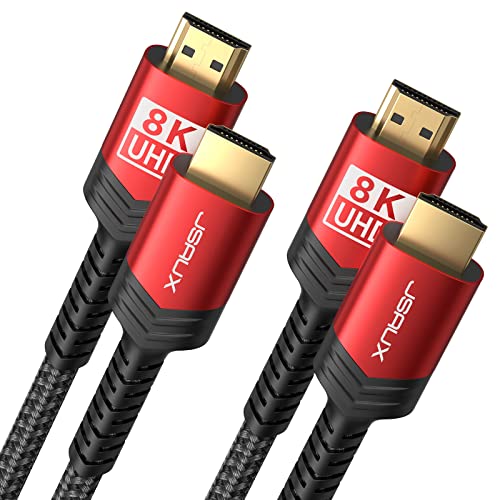
Upgrade to 8K HDMI 2.1 Cable: JSAUX HDMI Cables supports 48Gbps high bandwidth, Mirror & Extend mode, Ultra HD 8K(4320p), Ultra HD 4K(2160p), QHD 2K(1440P), FHD 1080p, HD 720P, HDCP 2.2 & 2.3, 48-Bit Deep Color HDR, Audio Return Channel(ARC), Enhanced Audio Return Channel (eARC), Dynamic HDR, Auto Low Latency Mode (ALLM), Variable Refresh Rate (VRR), Quick Media Switching (QMS), Quick Frame Transport (QFT), HDR10, CEC, DTS:X, Dolby Atmos,Dolby Vision, Dolby TrueHD 7.1 audio, 3D.
![Silkland Certified HDMI 2.1 Cable, [4K@240Hz 144Hz 120Hz, 8K@60Hz] 1440P Ultra High Speed HDMI Cable 48Gbps (Upgrade Braided), HDR10+, eARC, HDCP 2.3, Compatible for Xbox/PS5/PS4/Roku TV-6.6ft](https://m.media-amazon.com/images/I/41Ns4mhmH+L._SL500_.jpg)
【HDMI 2.1 Certification】Only 1% of HDMI cables on the market have passed HDMI 2.1 certification. Scan with the QR code Scanner app for verification

Meet Ry, “TechGuru,” a 36-year-old technology enthusiast with a deep passion for tech innovations. With extensive experience, he specializes in gaming hardware and software, and has expertise in gadgets, custom PCs, and audio.
Besides writing about tech and reviewing new products, he enjoys traveling, hiking, and photography. Committed to keeping up with the latest industry trends, he aims to guide readers in making informed tech decisions.