
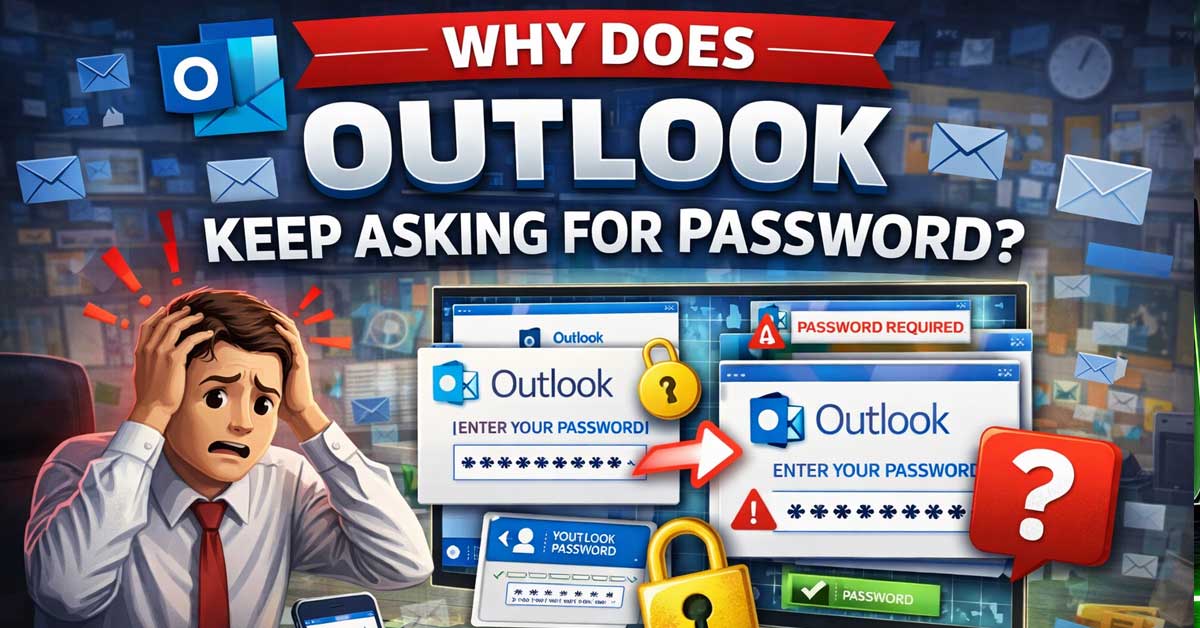

A persistent and frustrating loop — here’s what’s causing it and how to stop it
Outlook repeatedly prompting for your password — even after you enter it correctly — is one of the most consistently reported Outlook problems across every version of the application. You type your credentials, click OK, and a few minutes later the same dialog appears again.
The issue is almost never that your password is wrong. It’s that Outlook is failing to store, retrieve, or validate the credentials it already has. Here’s what’s actually causing it and how to fix it for good.
Why This Happens: The Core Reasons
Before getting into fixes, understanding the root causes helps explain why certain solutions work.
Corrupted credential cache. Windows stores saved passwords in the Credential Manager. When Outlook’s stored credentials become corrupted or outdated — after a password change, a security update, or a profile issue — Outlook can’t authenticate successfully and keeps prompting for fresh input it then fails to save.
Modern authentication conflicts. Microsoft has been transitioning accounts from basic authentication (username and password) to modern authentication (OAuth tokens). When Outlook is configured for one but the server expects the other, authentication fails in a loop.
Outlook profile corruption. The Outlook profile stores account configuration including authentication settings. A corrupted profile causes persistent credential failures regardless of whether the password itself is correct.
Account security changes. A recent password change, a new two-factor authentication requirement, or a security policy change on the server side invalidates previously cached credentials and triggers repeated prompts until the new credentials are properly stored.
Exchange or Microsoft 365 connectivity issues. Server-side configuration problems, expired SSL certificates, or Autodiscover failures can cause Outlook to repeatedly fail authentication even with correct credentials.
Remove Saved Credentials From Windows Credential Manager
This is the most effective first step and resolves the loop for the majority of users.
Windows Credential Manager stores saved passwords for applications including Outlook. When these stored credentials are outdated or corrupted — which happens after password changes, account migrations, or security updates — Outlook keeps pulling the bad credentials, failing authentication, prompting you, and then storing the new ones incorrectly, perpetuating the loop.
Press Windows + R, type control panel, and press Enter. Go to User Accounts → Credential Manager → Windows Credentials. Look for any entries related to Microsoft Office, Outlook, MicrosoftOffice, or your email domain. Remove all of them.
Then close Outlook completely, reopen it, and enter your credentials fresh when prompted. This time let Windows save them properly — make sure the checkbox to remember credentials is checked when the prompt appears.

Protect your accounts with strong two-factor authentication using USB-A and NFC. GoTrust Idem Key delivers hardware-backed protection from phishing, stolen credentials, and...
Check and Clear the Office Credential Cache
Beyond Windows Credential Manager, Office maintains its own credential cache separately. This also needs to be cleared when the loop persists.
Close Outlook completely. Open File Explorer and navigate to:
C:\Users[username]\AppData\Local\Microsoft\Office\16.0\Licensing
Delete the contents of this folder. Also navigate to:
C:\Users[username]\AppData\Roaming\Microsoft\Protect
If there are any folders inside with long alphanumeric names, these may contain cached identity tokens. Clearing these forces Office to reauthenticate from scratch.
Reopen Outlook and sign in fresh when prompted.

Overcurrent Protection: This cartridge automotive fuse protects circuit devices in the circuit from overcurrent damage by automatically breaking the circuit when the current exceeds the rated value. When the current returns to normal, the fuse will automatically reset and restore the circuit connection.

Overcurrent Protection: This cartridge automotive fuse protects circuit devices in the circuit from overcurrent damage by automatically breaking the circuit when the current exceeds the rated value. When the current returns to normal, the fuse will automatically reset and restore the circuit connection.

Practical Function: This car fuse features a reset design. When the circuit triggers protection due to overload or short circuit, the controller intelligently monitors the current. Once the abnormality is resolved, the internal structure automatically resets, quickly restoring circuit connectivity. Additionally, the stable overload and overcurrent protection mechanism continuously safeguards electrical equipment, ensuring the long-term stable operation of the vehicle's electrical system.
Sign Out of Office Completely and Sign Back In
Outlook maintains a signed-in Office identity separate from your email account credentials. If this Office identity is out of sync — particularly after a password change or a Microsoft account security update — it causes persistent credential prompts even when the email account credentials are correct.
In Outlook, go to File → Office Account. Under User Information, click Sign Out. Close Outlook completely. Reopen it, go back to File → Office Account, and sign back in with your Microsoft account credentials.
Also check whether you’re signed into Windows itself with the same Microsoft account. Go to Settings → Accounts → Your Info and confirm the Windows account matches what Outlook is trying to authenticate with. Mismatches between the Windows account identity and the Office account identity cause credential loops that this sign-out and sign-in cycle fixes.
Check the “Always Prompt for Credentials” Setting
Outlook has a setting that forces a credential prompt every time it connects — and it’s easy to accidentally enable or have enabled through a policy. If this is on, no amount of credential caching will stop the prompts.
In Outlook, go to File → Account Settings → Account Settings. Select your email account and click Change. Click More Settings → navigate to the Security tab. Look for a checkbox labeled Always Prompt for Logon Credentials. If it’s checked, uncheck it. Click OK and restart Outlook.
This setting is occasionally enabled by Group Policy in corporate environments — if it keeps turning back on, your IT administrator has applied a policy that enforces credential prompts and the setting can’t be permanently changed from your end.
Fix Modern Authentication Settings
Modern authentication — OAuth — is required for Microsoft 365 accounts and is increasingly required for Exchange accounts. If Outlook is configured to use basic authentication when the server requires modern authentication, it fails in a loop because the authentication method itself is wrong, not just the credentials.
Check whether modern authentication is enabled in Outlook:
Go to File → Options → Trust Center → Trust Center Settings → Email Security. Look for modern authentication settings. If your organization uses Microsoft 365, modern authentication should be enabled.
Check via the Registry if needed:
Press Windows + R, type regedit, navigate to:
HKEY_CURRENT_USER\Software\Microsoft\Office\16.0\Common\Identity
Look for a DWORD value named EnableADAL. If it exists and is set to 0, modern authentication is disabled. Set it to 1 to enable it. If it doesn’t exist, create it as a DWORD with value 1.
After making this change, clear your credentials from Credential Manager as described above and restart Outlook.
Create a New Outlook Profile
A corrupted Outlook profile causes persistent credential problems that survive cache clears and credential resets because the corruption lives in the profile configuration itself. Creating a fresh profile eliminates this entirely.
Go to Control Panel → Mail → Show Profiles → Add. Create a new profile with a different name, set up your email account in the new profile, and set Outlook to always use the new profile.
Before deleting the old profile, confirm the new one works correctly — emails load, calendar syncs, credentials are accepted and saved. Once confirmed, the old profile can be removed.
Profile creation takes a few minutes and re-downloads your email headers from the server. On a large mailbox this initial sync takes time but is otherwise seamless.
Check Your Antivirus and Security Software
Antivirus programs with email scanning features can intercept Outlook’s authentication requests and break the credential flow in ways that produce repeated password prompts. The antivirus sits between Outlook and the mail server, examines the connection, and sometimes disrupts the authentication handshake.
Temporarily disable your antivirus’s email protection component — not the entire antivirus — and test whether Outlook stops prompting. If it does, the antivirus is interfering. Look for an exclusion setting for Outlook or for your mail server’s address in the antivirus configuration, or check the antivirus vendor’s documentation for known Outlook compatibility issues.
Check Autodiscover
Autodiscover is the service Outlook uses to automatically find and configure your mail server settings. When Autodiscover is broken or pointing to the wrong server, Outlook can’t properly establish its connection and falls back to repeated credential prompts as it tries and fails to connect correctly.
Test Autodiscover in Outlook:
Hold Ctrl and right-click the Outlook icon in the system tray. Select Test E-mail AutoConfiguration. Enter your email address, uncheck Use Guessmart and Secure Guessmart, check Use Autodiscover, and click Test. The results show whether Autodiscover is returning correct server settings.
If Autodiscover is failing or returning incorrect settings, the fix depends on your mail provider. For Microsoft 365, Autodiscover should work automatically with correct credentials. For Exchange on-premises, your IT administrator needs to verify the Autodiscover DNS records are correct.
For Microsoft 365 and Exchange Online Specifically
Microsoft 365 accounts have specific credential behavior tied to the modern authentication token system that differs from traditional mail accounts.
Check whether your Microsoft 365 password has recently changed. If it has, you need to remove all cached credentials from Credential Manager, sign out of Office completely, and sign back in with the new password. The old cached tokens are invalid and won’t stop being used until they’re explicitly removed.
Check whether multi-factor authentication has been enabled on your account. If MFA was recently turned on by your organization, Outlook needs to go through the modern authentication flow — which includes MFA — to generate a valid token. Outlook 2016 and later handles this natively. Older versions of Outlook may not support MFA and need to be updated.
Check whether basic authentication has been disabled by your organization. Microsoft has been rolling out basic authentication deprecation across Microsoft 365 tenants. If your organization’s tenant has disabled basic authentication and Outlook is configured to use it, the connection will fail repeatedly. Updating to a current version of Outlook and enabling modern authentication resolves this.
Check for Windows Updates
Missing Windows updates can leave known authentication issues unpatched. Microsoft regularly releases fixes for credential handling bugs in Windows and Office through Windows Update.
Go to Settings → Windows Update → Check for Updates and install anything pending. Restart after updates complete and test Outlook.
Repair the Office Installation
A corrupted Office installation can cause credential handling failures that no amount of settings changes will fix because the underlying code is damaged. Office has a built-in repair tool that fixes this without requiring a full reinstall.
Go to Control Panel → Programs → Programs and Features. Find Microsoft Office in the list, right-click it, and select Change. Choose Quick Repair first — it takes a few minutes and fixes most installation issues without requiring an internet connection. If Quick Repair doesn’t resolve the problem, run Online Repair — it takes longer but performs a more thorough restoration of all Office files.
A Quick Checklist
Work through these in order:
- Remove Outlook credentials from Windows Credential Manager
- Clear Office credential cache from AppData folders
- Sign out of Office via File → Office Account and sign back in
- Uncheck Always Prompt for Credentials in account security settings
- Enable modern authentication via registry ENABLEADAL value
- Create a new Outlook profile to eliminate profile corruption
- Disable antivirus email scanning temporarily to test for interference
- Test Autodiscover via Ctrl + right-click on system tray icon
- Check for recent password or MFA changes on the account
- Run Office Quick Repair from Control Panel
- Install pending Windows updates
The Bottom Line
Outlook’s persistent password prompts are almost always a credential caching problem, a modern authentication misconfiguration, or a corrupted profile — not a wrong password. The credential manager clear and fresh sign-in resolve the majority of cases. Modern authentication settings and profile recreation handle most of what remains.
For corporate Microsoft 365 environments specifically, recent changes to basic authentication deprecation and MFA requirements have caused a wave of these issues — updating Outlook and ensuring modern authentication is enabled is the fix that addresses those cases permanently.
Outlook isn’t forgetting your password — it’s failing to use the one it already has. Clear the cache and give it a clean start.

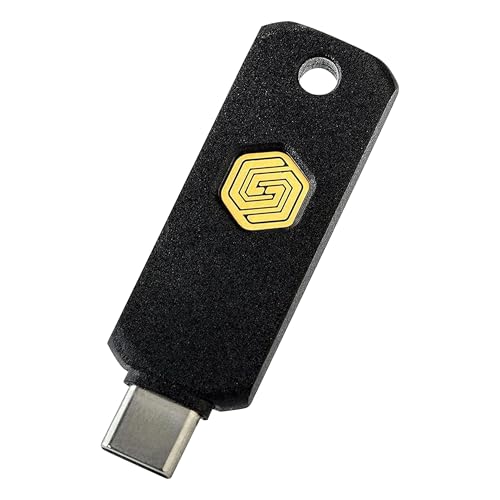
Protect your accounts with strong two-factor authentication using USB-C and NFC. GoTrust Idem Key delivers hardware-backed protection from phishing, stolen credentials, and unauthorized access across enterprise and cloud platforms.
![FIDO U2F Security Key, Thetis [Aluminum Folding Design] Universal Two Factor Authentication USB (Type A) for Extra Protection in Windows/Linux/Mac OS, Gmail, Facebook, Dropbox, SalesForce, GitHub](https://m.media-amazon.com/images/I/414cv-4SxrL._SL500_.jpg)
Protect Online Account - Offer a strong factor authentication to your online account. Never lose your accounts through password theft, phishing, hacking or keylogging scams.

Meet Ry, “TechGuru,” a 36-year-old technology enthusiast with a deep passion for tech innovations. With extensive experience, he specializes in gaming hardware and software, and has expertise in gadgets, custom PCs, and audio.
Besides writing about tech and reviewing new products, he enjoys traveling, hiking, and photography. Committed to keeping up with the latest industry trends, he aims to guide readers in making informed tech decisions.