

A surprisingly common problem — and usually a quick fix
You’re playing Roblox on a PC or laptop and the game gives you a mobile layout — touch controls on screen, buttons sized for fingers, a UI that clearly wasn’t designed for a mouse and keyboard. Or a game flat-out tells you that certain features aren’t available on mobile, even though you’re sitting at a desktop. Roblox incorrectly detecting your device as mobile is a real and well-documented issue, and it almost always comes down to one of a handful of causes.
You’re Playing Through a Web Browser
This is the most common cause by a significant margin.
When you launch Roblox through a browser — Chrome, Firefox, Edge, Safari — instead of the dedicated Roblox desktop app, Roblox can misread your device type. Browsers don’t always pass device information to web applications the same way a native app does, and Roblox’s detection can fail as a result.
The fix is straightforward: download and use the Roblox desktop app instead of playing through the browser.
Go to roblox.com, download the desktop client for Windows or Mac, and launch games through that rather than the browser. The desktop app communicates your device type correctly and the mobile detection issue almost always disappears.
If you’re already using the desktop app and still seeing the problem, keep reading.

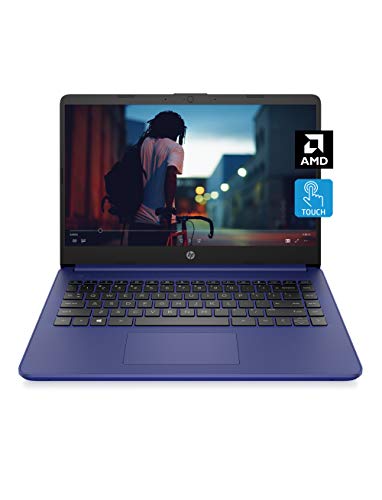
Touch Screen Type :Adaptive.Aspect Ratio:16:9

1.1 GHz (boost up to 2.4GHz) Intel Celeron N5030 Quad-Core
Your Browser Has a Mobile User Agent
If you do prefer playing through a browser, your browser may be set to identify itself as a mobile device — and Roblox is reading that signal instead of your actual hardware.
This happens most commonly when:
- You previously enabled a mobile view or responsive design mode in your browser’s developer tools and forgot to turn it off
- A browser extension is spoofing your user agent as a mobile device
- Your browser settings have been changed manually at some point
To check and fix this in Chrome:
Press F12 to open Developer Tools. Look for the device toolbar icon at the top of the panel — it looks like a small phone and tablet. If it’s highlighted or active, click it to turn it off. Close Developer Tools and reload Roblox.
To check in Firefox:
Press F12, go to the Responsive Design Mode button (also looks like a phone/tablet icon), and make sure it’s not active.
Also check your extensions. Any extension related to user agent switching, mobile testing, or browser spoofing could be causing this. Disable extensions one at a time to identify the culprit, or try launching the browser in incognito/private mode — which disables most extensions by default — and see if Roblox detects your device correctly there.
You’re Using a Touchscreen Device
If your PC or laptop has a touchscreen, Roblox may be detecting the touch capability and treating your device as mobile — even if you’re using a mouse and keyboard for everything.
This is a known issue with touchscreen laptops and 2-in-1 devices like the Microsoft Surface. Roblox’s device detection looks at input capabilities, and a touchscreen registers as a mobile-style input method regardless of what you’re actually using to interact with the game.
A few things that help:
Disable the touchscreen temporarily. On Windows, go to Device Manager → Human Interface Devices, find your touchscreen device, right-click it, and select Disable. Test Roblox with the touchscreen disabled and see if the detection corrects itself. Re-enable it afterward if you need it.
Use the desktop app rather than a browser. The desktop client handles touchscreen laptops more reliably than browser-based play in most cases.
Check game-specific settings. Some Roblox games have manual platform toggles in their settings menus. Look for a settings gear icon in-game and see if there’s an option to switch the control scheme or interface layout to PC mode.

[This is a Copilot+ PC] — A new AI era begins. Experience enhanced performance and AI capabilities with Copilot+ PC, boosting productivity with security and privacy in mind

1.1 GHz (boost up to 2.4GHz) Intel Celeron N5030 Quad-Core

14” Diagonal HD Touchscreen BrightView WLED-Backlit (1366 x 768), Intel Graphics,
The Game Itself Is the Problem
Not every Roblox detection issue is a system or browser problem — sometimes the individual game is at fault.
Some Roblox games have poorly written device detection scripts that misidentify players. If Roblox itself and other games work fine but one specific game always thinks you’re on mobile, the bug lives in that game’s code — not in your setup.
In this case your options are limited:
- Check if the game has a settings menu with a platform or control scheme option
- Report the bug to the game’s developer through the game page or their community channels
- Check if other players have reported the same issue on the game’s community forum or on Reddit — there may be a known workaround
There’s no universal fix for a game-level detection bug since you can’t change another developer’s code.
Outdated Roblox App or Client
Running an outdated version of Roblox can cause all kinds of unexpected behavior, including device detection problems. Roblox updates frequently, and older versions can develop compatibility issues with the platform’s backend systems.
Make sure your Roblox app or desktop client is fully up to date:
- On Windows, open the Microsoft Store or the Roblox launcher and check for updates
- On Mac, check the App Store or redownload the client from roblox.com
- On a browser, clearing your cache and reloading ensures you’re running the latest web version
Windows Tablet or Tablet Mode
If you’re on a Windows device and have Tablet Mode enabled, Windows itself may be signaling to applications that you’re on a touch-first mobile device.
Check whether Tablet Mode is active by looking in your Action Center (the notification icon in the taskbar). If Tablet Mode is on, turn it off. This can affect how Roblox and other applications read your device type.
On Windows 11, Tablet Mode works differently than on Windows 10 and may not be directly toggleable in the same way — but checking your display and input settings for any touch-first configurations is still worth doing.
A Quick Checklist
Work through these in order:
- Switch from browser to the Roblox desktop app if you haven’t already
- Check browser developer tools for active mobile emulation or responsive design mode
- Check browser extensions for user agent switchers — try incognito mode to test
- Disable touchscreen temporarily if you’re on a touchscreen laptop or 2-in-1
- Turn off Tablet Mode on Windows if it’s active
- Update Roblox to the latest version
- Check in-game settings for a manual platform or control scheme option
- Check if it’s game-specific by testing other Roblox games
The Bottom Line
The most common fix is switching from a browser to the Roblox desktop app. That single change resolves the mobile detection problem for the majority of people who encounter it. If you’re already on the desktop app, a touchscreen being detected as a mobile input method or an active mobile emulation setting in your browser developer tools are the next most likely causes.
If the problem is isolated to one specific game, it’s a developer-side bug and the best you can do is report it and look for a workaround in that game’s community.
Roblox isn’t broken — it’s just reading the wrong signal. Pointing it at the right one usually takes two minutes.

Meet Ry, “TechGuru,” a 36-year-old technology enthusiast with a deep passion for tech innovations. With extensive experience, he specializes in gaming hardware and software, and has expertise in gadgets, custom PCs, and audio.
Besides writing about tech and reviewing new products, he enjoys traveling, hiking, and photography. Committed to keeping up with the latest industry trends, he aims to guide readers in making informed tech decisions.