
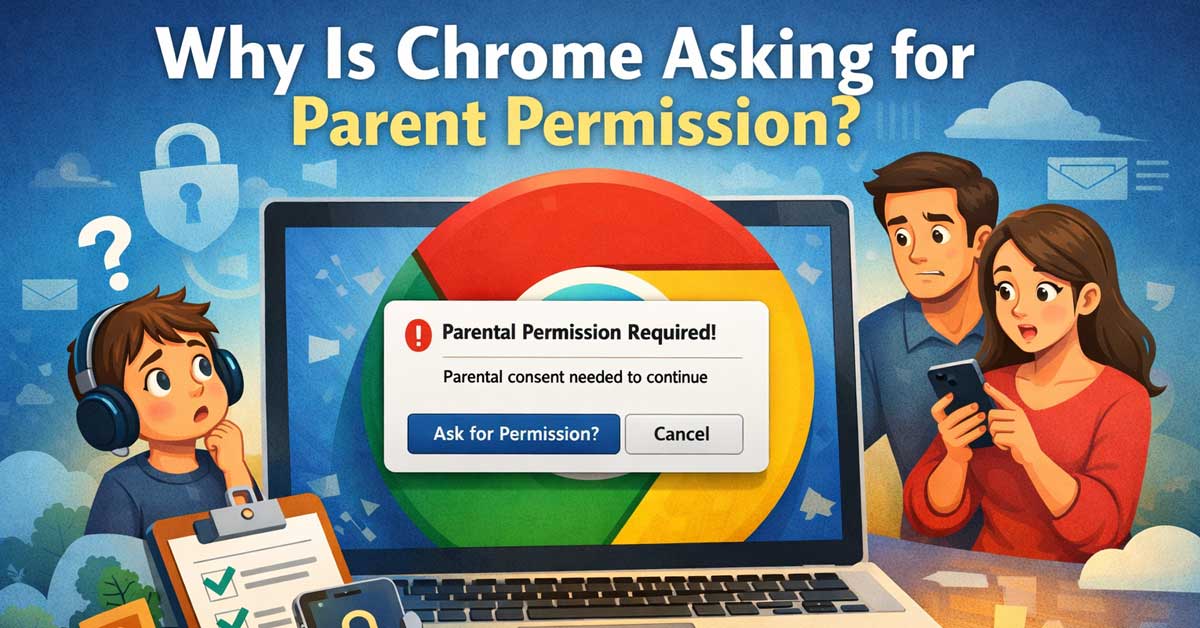

A Family Link restriction — here’s why it appears and what controls it
Chrome asking for parent permission before opening a website means the device or Google account is enrolled in Google Family Link — Google’s parental controls system.
The prompt isn’t a bug, a glitch, or something Chrome decided to do on its own.
It’s Family Link working as designed, restricting access to websites and requiring parental approval before certain content can be viewed.
Here’s why it happens, what controls it, and how to manage it from both the parent and child side.
What Google Family Link Is
Google Family Link is a parental supervision system that lets parents manage their child’s Android device or Chromebook, monitor app usage, set screen time limits, and control which websites can be accessed. It works through a parent’s Google account supervising a child’s Google account.
When Family Link is active on an account, Chrome on that device filters web content based on the supervision settings the parent has configured. Websites that fall outside the allowed categories — or that haven’t been explicitly approved — trigger the permission prompt rather than loading directly.
The prompt appears because a supervised account is signed into Chrome on that device. It doesn’t matter whether the device is a phone, tablet, Chromebook, or a shared family computer — the supervision follows the Google account, not the hardware.

Google Kids Space & Pre-installed Educational Games - Spark Curiosity & Fun! Introduce your child (ages 3+) to a world of learning and play with Google Kids Space. Explore a variety of pre-installed, curated apps and games focused on creativity and safety education. Activities like animal coloring, storytelling, and puzzles are designed to encourage exploration and discovery.
Google Kids Space & Pre-installed Educational Games - Spark Curiosity & Fun! Introduce your child (ages 3+) to a world of learning and play with Google Kids Space. Explore a variety of pre-installed, curated apps and games focused on creativity and safety education. Activities like animal coloring, storytelling, and puzzles are designed to encourage exploration and discovery.
Google Kids Space & Pre-installed Educational Games - Spark Curiosity & Fun! Introduce your child (ages 3+) to a world of learning and play with Google Kids Space. Explore a variety of pre-installed, curated apps and games focused on creativity and safety education. Activities like animal coloring, storytelling, and puzzles are designed to encourage exploration and discovery.
Why a Specific Site Is Being Blocked
Family Link uses several layers of filtering to determine what a supervised account can access.
The default setting for supervised accounts filters out content Google categorizes as mature — adult content, gambling, alcohol, and similar categories. Beyond that, parents can configure specific settings:
Try to block mature sites — Google’s automated filtering that blocks content based on category.
Approved sites only — a stricter setting where only websites explicitly added to an approved list are accessible. Everything else requires permission.
All sites allowed — the most permissive setting where Chrome doesn’t filter by default.
If a site is triggering the permission prompt, it either falls into a filtered category under the current settings or the account is in approved-sites-only mode and the site isn’t on the list.

【PACKING LIST】: This package includes 2* tracker tags, 2* lanyards, 2* CR2032 batteries ( has built-in this product), 1 battery replacement tool, 1 user manual and friendly customer service. This tracker no monthly fees - enjoy complete peace of mind with no subscriptions or hidden costs.

【PACKING LIST】: This package includes 1 air tracker tags, 1 lanyards, 1 CR2032 batteries ( has built-in this product), 1 battery replacement tool, 1 user manual and friendly customer service. This tracker no monthly fees - enjoy complete peace of mind with no subscriptions or hidden costs.

【PACKING LIST】: This package includes 4 air tracker tags, 4 lanyards, 4 CR2032 batteries ( has built-in this product), 1 battery replacement tool, 1 user manual and friendly customer service. This tracker no monthly fees - enjoy complete peace of mind with no subscriptions or hidden costs.
If You’re the Child Seeing This Prompt
When the permission prompt appears, Chrome gives you the option to send an approval request to your parent or guardian. Tapping or clicking Ask parent sends a notification to the parent’s Family Link app on their device.
The parent receives the request, sees which website is being requested, and can approve or deny it directly from the Family Link app. If they approve, the site loads. If they deny, it remains blocked. Parents can also approve a site for future visits so the same prompt doesn’t keep appearing for that website.
You can’t bypass the permission prompt without the parent’s approval — it’s enforced at the account level by Google’s servers, not just by a local browser setting. Clearing Chrome’s cache, using incognito mode, or changing Chrome settings won’t remove it on a supervised account.

Google Kids Space & Pre-installed Educational Games — Immerse your child in Google Kids Space, featuring a wide selection of pre-installed safety education games and apps designed for children aged 3 and up. From animal coloring to storytelling and puzzles, each activity is carefully curated to stimulate creativity and learning.

【New Android 16 Kids Tablet (with Case)】 Designed for children aged 3-12, fthis latest aiprotablet kids tablet features a T606 Octa-core processor and the latest Android 16 operating system, with speeds up to 2.0GHz. All functions have been comprehensively upgraded, effectively blocking junk ads. It boasts 24GB (4+20GB) of RAM, 64GB of internal storage, and supports microSD card expansion up to 2TB (sold separately), allowing children to enjoy a smooth learning and entertainment experience.

【Android 14 Tablet】Kids tablet with latest Android 14 OS, empowering the tablet with more personalised settings, smoother and more convenient to use. Also this 10 inch tablet is equipped with octa-core CPU with up to 2.0GHz, which not only meets the needs of children's games and videos, but also has all the functions of an adult tablet
If You’re the Parent Managing This
The Family Link parent app gives you full control over how Chrome filters content for your child’s account.
Download or open the Family Link app on your phone (available on Android and iPhone). Select your child’s account and go to Controls → Content Restrictions → Google Chrome.
From here you can:
Change the filtering level. Switch between Allow all sites, Try to block mature sites, and Only allow approved sites. Choosing Allow all sites removes the permission prompts entirely for supervised browsing.
Approve or block specific websites. Under Approved Sites and Blocked Sites, add specific URLs. Approved sites always load without a permission prompt. Blocked sites always require approval or are always denied depending on your configuration.
Respond to permission requests. When your child sends an approval request for a specific site, a notification appears in the Family Link app. Review the site and approve or deny from there.
If This Is Appearing on a Personal or Adult Device
If you’re an adult seeing Chrome ask for parent permission on a device you use for yourself, a supervised Google account has been signed into Chrome on that device — either intentionally or accidentally.
Check which Google account is active in Chrome. Click the profile icon in the top right corner of Chrome. If the account shown is a child’s supervised account, that’s the source of the prompt.
Sign into Chrome with your own adult Google account by clicking the profile icon, selecting Add, and signing into your personal Google account. Switch Chrome to use your account rather than the supervised one.
If the supervised account was added to the device accidentally — perhaps a child used the device to sign into something — you can remove it from Chrome by going to Chrome Settings → You and Google → Other People and removing the supervised profile.
If Family Link Was Set Up Accidentally
Some users find their account is supervised without fully understanding how it happened. This sometimes occurs when:
A Google account was created for someone under 13 — Google automatically applies Family Link supervision to accounts that declare an age under 13 during signup. This supervision persists until the account holder turns 13, at which point they can choose to manage the account independently.
An adult created a supervised account for a child and that account is still signed into a device.
A device was set up using a child’s account rather than an adult account.
If you’re over 13 and your account is supervised, you can request to manage your own account independently. Go to myaccount.google.com and look for Family Link supervision settings. When you reach 13, Google allows you to remove parental supervision with parental consent — or at 18, without needing parental consent.
Removing Family Link Supervision Entirely
If the supervised account no longer needs supervision — a child has grown up, the family no longer uses Family Link, or it was set up accidentally — supervision can be removed through the Family Link parent app.
Open the Family Link app on the parent’s device. Select the child’s account. Go to Settings → Account Info → Stop Supervision. Confirm the removal.
After stopping supervision, the Google account becomes a standard unsupervised account. Chrome on the child’s device will no longer filter content or require permission prompts.
Note that this permanently removes supervision from the account and can’t be reapplied to the same account after removal. Google requires creating a new supervised account if parental controls need to be reinstated.
A Quick Checklist
Work through these based on your situation:
- Child seeing the prompt — tap Ask Parent to send an approval request
- Parent managing the prompt — open Family Link app → Controls → Content Restrictions → Google Chrome
- Adult seeing the prompt on personal device — check which Google account is active in Chrome and switch to your own account
- Account supervised accidentally — check myaccount.google.com for supervision status
- Remove supervision entirely — Family Link app → child’s account → Settings → Stop Supervision
The Bottom Line
Chrome asking for parent permission means Google Family Link is active on the Google account signed into Chrome on that device. It’s not a Chrome malfunction — it’s the supervision system working correctly.
For parents, the Family Link app is where all the controls live — adjusting filtering levels, approving specific sites, and responding to permission requests all happen there. For children or adults who don’t need supervision, the fix is either adjusting the filtering settings in Family Link or signing Chrome in with an unsupervised adult account instead.
Chrome isn’t being overcautious on its own — a supervised account is telling it to ask. The controls for that supervision live in the Family Link app.

WIFI ENABLED GARAGE DOOR: The Aladdin Connect garage door controller gives you the ability to monitor, open and close your garage door with your smartphone or smart device...

Meet Ry, “TechGuru,” a 36-year-old technology enthusiast with a deep passion for tech innovations. With extensive experience, he specializes in gaming hardware and software, and has expertise in gadgets, custom PCs, and audio.
Besides writing about tech and reviewing new products, he enjoys traveling, hiking, and photography. Committed to keeping up with the latest industry trends, he aims to guide readers in making informed tech decisions.