


A common complaint with specific causes — here’s what’s actually happening and how to bring it under control
Opening Task Manager and finding Microsoft Edge consuming gigabytes of RAM is a jarring experience — especially when you only have a few tabs open. Edge’s memory usage is higher than most people expect, and there are specific reasons why. Some of it is intentional design, some of it is configuration, and some of it is genuine bloat that can be trimmed back significantly with the right settings.
Here’s what’s actually going on and what to do about it.
How Edge Handles Memory by Design
Before diving into fixes, it helps to understand why modern browsers use so much memory in the first place.
Edge — like Chrome, which shares the same Chromium engine — runs each tab, each extension, and various background processes as separate isolated processes. This is intentional. If one tab crashes, the others keep running. If a malicious page tries to escape its sandbox, it can’t access data from other tabs. The isolation is a security and stability feature, not waste.
The tradeoff is that each isolated process carries its own memory overhead. Ten tabs don’t just use ten times the memory of one tab — each process has its own runtime, its own copy of certain resources, and its own overhead on top of the content it’s rendering. This is why even modest browsing sessions in modern browsers look alarming in Task Manager.
That said, Edge does have specific behaviors beyond the baseline Chromium model that push memory usage higher — and those are worth addressing.

Features a slate design for providing you with the ultimate portability and comfortable usability 13" (2880 x 1920) screen allows a great view of movies and TV shows and yet...
Too Many Tabs Open
This is the most straightforward cause and the most common. Every open tab holds its page content, scripts, images, and state in memory — even tabs you haven’t looked at in hours.
Modern web pages are heavier than they look. A news site with autoplay video, ad scripts, and analytics trackers can consume 200-400MB on its own. Ten tabs like that adds up fast.
The most direct fix is simply closing tabs you aren’t using. If you want to keep a page for later without keeping it open, bookmark it or use Edge’s Collections feature to save it for reference without holding it in memory.
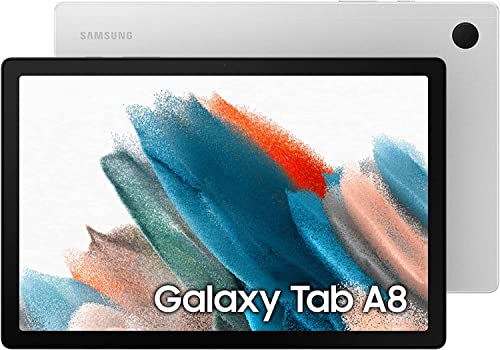
A SCREEN EVERYONE WILL LOVE: Whether your family is streaming or video chatting with friends, the Galaxy Tab A8 tablet brings out the best in every moment on a 10.5" LCD screen

LEVEL UP – Synergize your work and play with the Lenovo Idea Tab Pro. It’s lightweight, jam-packed with battery life, and has the AI-enhanced smarts to make studying a breeze. “Google and Gemini are trademarks Google LLC. Check responses. Compatibility and availability varies.

Charger NOT Included, 10.9" 90Hz adaptive refresh, TFT LCD, 1320 x 2112 px, ~228 ppi density, 8000mAh Battery, S-Pen & 256GB Micro SD Card Included
Edge’s Startup Boost and Background Running
Edge runs in the background by default even when you’ve closed it. Microsoft built in a feature called Startup Boost that pre-loads Edge when Windows starts, keeping it partially running in the background so it opens faster when you need it.
This means Edge is using memory even when you think it’s closed. It also means Edge processes show up in Task Manager when you’re not actively using the browser at all.
To disable it, go to Edge Settings → System and Performance. Turn off Startup Boost and turn off Continue Running Background Extensions and Apps When Microsoft Edge is Closed. Both are enabled by default and both consume memory without any open tabs.
After disabling these and restarting, you’ll notice Edge’s background memory footprint drops significantly.
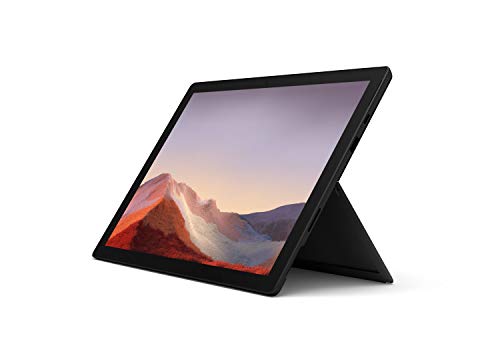
Next-gen, best-in-class laptop with the versatility of a studio and tablet, so you can type, touch, draw, write, work, and play more naturally

AMD A6-9220e accelerated processor; Dual-core processing. AMD A6 APU handles the AMD Radeon graphics alongside the central processor to balance the load, enabling great performance, rapid multitasking and immersive entertainment.

The elegant slate design lets this tablet fit comfortably in your hands
Extensions Are a Major Contributor
Browser extensions run as their own processes and consume memory continuously — including when you’re not actively using them. An ad blocker, a password manager, a grammar tool, a coupon finder, and a tab manager running simultaneously can add hundreds of megabytes of overhead on top of your tabs.
Open Edge’s Task Manager — press Shift + Esc while Edge is open — to see a breakdown of exactly how much memory each tab and extension is using individually. This often reveals that one or two extensions are consuming far more than expected.
Disable or remove extensions you don’t actively use. Go to edge://extensions and audit what’s installed. Extensions that seemed useful when you added them but rarely get touched are dead weight on your memory budget. Removing even two or three unused extensions can make a noticeable difference.
Sleeping Tabs: The Built-In Memory Saver
Edge has a feature called Sleeping Tabs that automatically puts inactive tabs to sleep after a period of inactivity, freeing up the memory they were using. When you click back to a sleeping tab it reloads — a brief delay in exchange for significant memory savings.
Go to Edge Settings → System and Performance and check that Save Resources with Sleeping Tabs is enabled. You can configure how long a tab needs to be inactive before it sleeps — the default is a few minutes but you can set it shorter.
You can also add exceptions for specific sites you want to stay active — a web app you’re working in, a music streaming page, anything where losing state would be inconvenient. Everything else can sleep.
This single feature can cut Edge’s memory usage by 30-50% on sessions with many tabs, and it’s built in with no setup beyond enabling it.
Edge’s Memory Saver Feature
Beyond Sleeping Tabs, newer versions of Edge include a dedicated Memory Saver mode that goes further — aggressively freeing memory from background tabs to prioritize the active tab and other applications.
Go to Edge Settings → System and Performance and look for Memory Saver. Enable it if it isn’t already on. You can configure it with three levels of intensity and add site exceptions the same way as Sleeping Tabs.
Memory Saver and Sleeping Tabs work together — Sleeping Tabs handles the tab-level sleep behavior while Memory Saver handles the broader memory allocation strategy. Both enabled together produce the most significant reduction.
Edge’s Built-In Features Add Overhead
Microsoft has bundled a significant number of features into Edge that run in the background and consume memory regardless of whether you use them.
Things worth disabling if you don’t use them:
Go to Edge Settings → Privacy, Search and Services and scroll through what’s enabled. Shopping features, price comparison, coupons, and Microsoft Rewards tracking all run background processes.
Go to Edge Settings → Appearance and disable visual features you don’t need — some cosmetic features consume more resources than they appear to.
Go to Edge Settings → New Tab Page and simplify the new tab page layout. The default new tab page loads news feeds, weather, and background images that consume memory every time a new tab opens.
None of these individually make a dramatic difference, but disabling several unused built-in features together meaningfully reduces Edge’s background memory footprint.
Check for Memory Leaks
A memory leak occurs when a web page or extension claims memory and never releases it, causing memory usage to grow continuously over time rather than staying stable.
If Edge’s memory usage seems to grow steadily throughout a browsing session even without opening new tabs, a memory leak is likely. Signs include Edge getting progressively slower over a long session, memory usage that only drops when you restart Edge entirely, and specific tabs that show ballooning memory in Edge’s Task Manager.
The most common source is a specific website — particularly web apps with complex JavaScript that runs continuously. Open Edge’s Task Manager (Shift + Esc) and watch which tabs are growing over time. Reloading the offending tab periodically resets its memory footprint. If a particular site consistently causes leaks, it’s a bug in that site’s code.
Extensions can also leak memory. If memory grows even on a blank new tab page, an extension is likely the cause — disable them one at a time to identify which one.
Hardware Acceleration
Hardware acceleration offloads rendering work from the CPU to the GPU, which generally improves performance and reduces CPU usage. However on some hardware configurations it can actually increase overall system memory pressure — particularly on systems where the GPU shares memory with the CPU (most laptops and systems with integrated graphics).
Go to Edge Settings → System and Performance and check whether Use Hardware Acceleration When Available is enabled. If your system has integrated graphics, try disabling it and observe whether memory usage changes. On dedicated GPU systems, hardware acceleration generally helps more than it hurts and should stay on.
Update Edge
Running an outdated version of Edge can mean running known memory management bugs that Microsoft has already fixed in newer releases.
Go to edge://settings/help or Settings → Help and Feedback → About Microsoft Edge. Edge will check for and install updates automatically from this page. Restart after updating and see whether the memory behavior improves.
Microsoft releases Edge updates frequently — sometimes weekly — and memory management improvements show up in these updates regularly.
Consider Your System’s RAM Capacity
Sometimes the honest answer is that the system simply doesn’t have enough RAM for modern browsing workloads. Edge is a resource-intensive application running on top of an operating system that itself needs several gigabytes, and modern websites are heavier than ever.
On a system with 4GB of RAM, Edge with several tabs will genuinely consume a large percentage of available memory — not because something is wrong but because the demands of modern browsing exceed what 4GB comfortably handles.
If you’ve applied all the settings adjustments and Edge still feels like it’s consuming too much, 8GB is now effectively the minimum for comfortable everyday browsing, and 16GB gives meaningful headroom. A RAM upgrade is a more permanent fix than any settings adjustment for genuinely RAM-constrained systems.
A Quick Checklist
- Disable Startup Boost in Settings → System and Performance
- Disable background running when Edge is closed
- Enable Sleeping Tabs and set a short inactivity timer
- Enable Memory Saver in Settings → System and Performance
- Audit and remove unused extensions via edge://extensions
- Open Edge Task Manager (Shift + Esc) to identify memory-heavy tabs or extensions
- Disable unused built-in features in Privacy, Search and Services settings
- Simplify the new tab page to reduce load on each new tab
- Check hardware acceleration — disable if on integrated graphics
- Update Edge to the latest version via edge://settings/help
The Bottom Line
Edge uses a lot of memory partly by design and partly because of default settings that prioritize performance and features over memory efficiency. Startup Boost, background running, extensions, and built-in features all add to the baseline before you’ve opened a single tab.
Enabling Sleeping Tabs and Memory Saver, disabling Startup Boost and background running, and auditing your extensions are the highest-impact changes. Together they can cut Edge’s memory footprint substantially without meaningfully affecting your browsing experience.
Edge isn’t broken — it’s just prioritizing speed over efficiency by default. A few settings changes shift that balance considerably.

A SCREEN EVERYONE WILL LOVE: Whether your family is streaming or video chatting with friends, the Galaxy Tab A8 tablet brings out the best in every moment on a 10.5" LCD screen.Card description: Dedicated


A SCREEN EVERYONE WILL LOVE: Whether your family is streaming or video chatting with friends, the Galaxy Tab A8 tablet brings out the best in every moment on a 10.5" LCD screen

Meet Ry, “TechGuru,” a 36-year-old technology enthusiast with a deep passion for tech innovations. With extensive experience, he specializes in gaming hardware and software, and has expertise in gadgets, custom PCs, and audio.
Besides writing about tech and reviewing new products, he enjoys traveling, hiking, and photography. Committed to keeping up with the latest industry trends, he aims to guide readers in making informed tech decisions.