
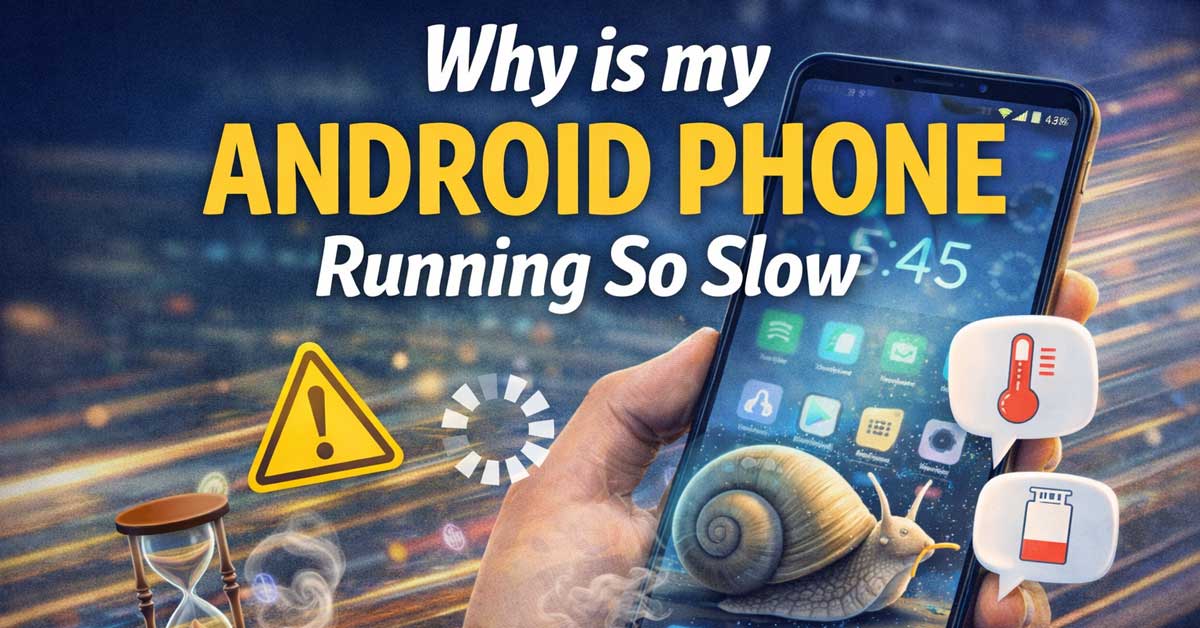

Almost always storage, background apps, or software — here’s what’s causing it and how to fix it
An Android phone that’s noticeably slower than it used to be — apps taking longer to open, the interface lagging, animations stuttering, or everything feeling sluggish compared to when the phone was new — has specific, addressable causes.
Some slowdowns are fixable in minutes. Some require more involved cleanup. A few point toward hardware aging that has no complete fix.
Here’s how to identify what’s slowing your phone and what to do about it.
Restart the Phone First
Before anything else, restart your phone if you haven’t recently. Android phones are often left running for days or weeks without a restart — background processes accumulate, memory gets fragmented, and temporary files pile up. A full restart clears all of this and often produces an immediate and noticeable speed improvement.
Hold the power button, select Restart (not Power Off — a full restart rather than a shutdown and manual boot). After it comes back up, use it normally for a few minutes and assess whether the slowness has improved before continuing to other fixes.

Variable Speed Control:Equiped with 3 speeds model:5000rpm, 10000rpm ,15000rpm, more speeds for you choosing to do polishing, cleaning, engraving or other D.I.Y. tasks. USB...
Storage Is Too Full
A phone with storage near capacity slows down significantly. Android needs free space to write temporary files, cache app data, and perform background operations. When storage drops below roughly 10 to 15 percent of total capacity, performance degrades noticeably — the system struggles to find space for routine operations.
Check your storage: go to Settings → Storage and see how much space is used versus available. If you’re at 90 percent or more, storage is almost certainly contributing to slowness.
Free up space by:
Deleting photos and videos that are backed up to Google Photos — they’re safely in the cloud and don’t need to also live on the device.
Going to Settings → Storage → Other Apps and reviewing which apps are consuming the most space. Delete apps you no longer use and clear cache for large apps you do use.
Clearing the Downloads folder — old APKs, documents, and files accumulate there unnoticed.
Offloading streaming apps’ offline content — downloaded Spotify playlists, Netflix episodes, and podcast episodes can consume gigabytes.

⚙️ View all background apps & running services

⚙️ View all running apps & system processes

quick access to app settings of a specific app
Too Many Background Apps
Android runs many processes simultaneously and some apps continue consuming CPU and RAM in the background long after you’ve stopped using them. When background processes accumulate, available RAM for the app you’re actively using shrinks — causing lag and slow load times.
Go to Settings → Apps and look at which apps are running. Some apps are legitimately active in the background — messaging, email, navigation. Others — games, shopping apps, social media — have no reason to run continuously.
For apps that don’t need background activity, go to Settings → Apps → [app name] → Battery → Restrict Background Activity or Background Usage Limits depending on your Android version. This prevents the app from running unnecessarily when you’re not using it.
Also check Settings → Battery → Battery Usage to see which apps are consuming the most battery — high battery consumption almost always correlates with high CPU usage that contributes to slowness.

clear cache cache clean


DUAL SIM CELL PHONE:C24 Ultra smartphone supports much wider frequency bands.Dual SIM cell phone allows you to flexibly change carriers and choose your own data plan.
Too Many Apps Running at Startup
Some apps configure themselves to launch at startup and run from the moment your phone boots. Even apps you rarely use can start automatically and consume resources from the first minute of operation.
Go to Settings → Apps and look for a Startup Manager or Auto-Start section — the exact location varies by Android manufacturer. Samsung, Xiaomi, Huawei, and OnePlus all have manufacturer-specific startup management in their Settings apps. Disable auto-start for apps that don’t genuinely need to run from boot.
Manufacturer Bloatware and Background Services
Many Android phones ship with pre-installed apps — manufacturer apps, carrier apps, third-party trials — that run background services regardless of whether you use them. These apps consume RAM and CPU that could go toward apps you actually use.
Review your installed apps and disable any pre-installed apps you don’t use. Go to Settings → Apps → [app name] → Disable. You can’t uninstall most pre-installed apps but disabling them stops them from running entirely.
Animations Are Set Too Slow
Android’s transition animations — the sliding and fading effects when opening apps or switching between screens — have a speed multiplier you can adjust. If these are set to the default or above, the animations take longer than necessary and the phone feels slower than it is even when the underlying performance is fine.
To access animation settings, you need to enable Developer Options first:
Go to Settings → About Phone → Software Information. Find Build Number and tap it seven times. You’ll see a message saying you’re now a developer.
Go to Settings → Developer Options. Find these three settings and set each to 0.5x or Animation off:
- Window Animation Scale
- Transition Animation Scale
- Animator Duration Scale
After changing these settings, your phone’s interface will feel noticeably more responsive — not because anything is faster, but because the animations that make transitions feel slow have been shortened or removed.
The Phone Needs a Software Update
Outdated Android versions and outdated app versions can cause performance issues — bugs that cause memory leaks, CPU spikes, or inefficient resource usage. Updates frequently include performance improvements and bug fixes.
Go to Settings → Software Update and check for any pending system updates. Install them and restart.
Also open the Google Play Store → Profile icon → Manage Apps and Device and update all apps. Outdated apps sometimes have performance bugs that newer versions fix.
Cache Partition Is Corrupted
Android maintains a system cache that stores temporary data for faster operation. When this cache becomes corrupted, it can cause system-wide slowness and instability. Clearing the cache partition forces Android to rebuild it fresh.
The method for clearing the cache partition varies by manufacturer and Android version. On older Android phones, it required booting into recovery mode. On many modern Android phones, it’s accessible through:
Settings → Storage → Cached Data — tap to clear all cached data.
Or for individual app caches: Settings → Apps → [app name] → Storage → Clear Cache.
Clearing the cache doesn’t delete personal data — it only removes temporary files that the system and apps rebuild automatically.
A Poorly Optimized or Misbehaving App
A single badly coded app can slow the entire phone — consuming excessive CPU, leaking memory, or running intensive background processes. If slowness started around the time you installed a specific app, that app may be the cause.
Think back to when the slowness started. Did it coincide with installing a particular app or updating an existing one? Go to Settings → Battery → Battery Usage and look for any app consuming an unusually high percentage of battery — this often correlates with CPU abuse.
Try uninstalling recently added apps one at a time and testing performance after each removal. If the phone speeds up significantly after removing a specific app, that app was the cause.
Live Wallpapers and Widgets
Live wallpapers and home screen widgets consume CPU and battery continuously — the live wallpaper is always rendering and widgets are always polling for updated information. On mid-range and older phones, multiple active widgets and a live wallpaper can measurably impact performance.
Switch to a static wallpaper and remove widgets you don’t actively use. This is a small change individually but can add up when combined with other optimizations.
The Phone Is Overheating
Android phones throttle CPU and GPU performance when they get too hot — reducing processing speed to protect the hardware. A phone that’s slow specifically during charging, in direct sunlight, or after extended use may be throttling due to heat rather than having a software or storage problem.
Let the phone cool down in a shaded area and test performance afterward. If it speeds up after cooling, thermal management is the cause. Check whether a case is trapping heat and consider removing it during intensive use. Also check whether a specific app is generating excessive heat — battery usage stats show CPU-intensive culprits.
The Phone’s Hardware Is Aging
This is the honest answer for phones more than three or four years old. Modern apps are developed for current hardware specifications. As apps are updated to use newer features and more complex interfaces, they require more processing power, more RAM, and faster storage than older hardware provides. The phone isn’t getting slower — the software requirements are growing faster than the hardware can keep up.
Signs that aging hardware is the primary cause:
The phone was noticeably faster two years ago with the same usage patterns. Performance issues affect every app rather than specific ones. The fixes above provide minimal improvement.
Options for aging hardware slowness:
Stick to lighter-weight alternatives to demanding apps — Lite versions of Facebook, Chrome, and other popular apps are available on the Play Store and perform significantly better on older hardware.
Factory reset the phone — this removes accumulated software cruft and returns the phone to a clean state. It won’t make old hardware fast but it eliminates software bloat as a contributing factor. Back up everything before resetting.
Consider upgrading — if the phone is more than four years old and performance has become genuinely disruptive to daily use, no amount of optimization fully compensates for hardware that’s outpaced by modern software.
Factory Reset as a Last Resort
A factory reset is the nuclear option — it wipes the phone completely and returns it to a fresh out-of-box state. It eliminates every software cause of slowness simultaneously: accumulated cache, bloated storage, background processes, corrupted data, misbehaving apps.
Before resetting, back up everything to Google Photos (for photos), Google Drive (for app data and files), and note which apps you’ll need to reinstall.
Go to Settings → General Management → Reset → Factory Data Reset. After resetting, restore from backup and reinstall only the apps you actually need — avoid reinstalling everything from your previous setup, which would recreate the same bloat.
A factory-reset phone running only the apps you regularly use almost always feels significantly faster than a heavily used phone of the same age.
A Quick Checklist
Work through these in order of impact:
- Restart the phone if it hasn’t been restarted recently
- Check storage — free up space if above 85 to 90 percent full
- Check battery usage for apps consuming excessive resources
- Restrict background activity for apps that don’t need it
- Disable auto-start for apps in Startup Manager settings
- Disable pre-installed apps you don’t use
- Set animations to 0.5x in Developer Options
- Update Android and all apps through Settings and Play Store
- Clear app caches in Settings → Storage
- Uninstall recently added apps if slowness is recent
- Switch to static wallpaper and remove unused widgets
- Let the phone cool down if it’s warm to the touch
- Factory reset if nothing else produces adequate improvement
The Bottom Line
An Android phone running slow is almost always caused by full storage, background apps consuming RAM and CPU, or accumulated cache and software bloat. Freeing up storage, restricting unnecessary background activity, and reducing animation speed together produce the most immediate improvement for most phones.
For phones more than three to four years old, hardware aging is an increasingly significant factor that software fixes can only partially address — a factory reset removes software contributors but can’t replace the processing power that modern apps require.
Android slows down when it’s given too much to manage and too little space to work with — clear the storage, quiet the background apps, and speed almost always improves.
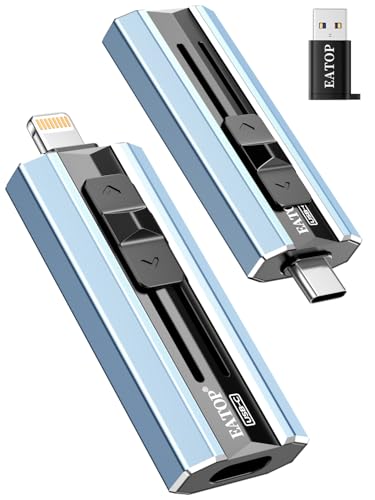
【High Capacity & Effortless Backup】This Compatibility iPhone USB storage flash drive easily handles today’s larger 4K videos, high-resolution photos, and contacts. Easy backup frees up space instantly, so you’ll never miss capturing important moments. Perfect for iPhone, iPad, Android and PC users. (Note: For iPhone/iPad No App Required; For Android only Needs OTG Enabled, No Extra App.)

Advanced Memory Optimizer Features:

About Memory Booster - RAM Optimizer

Meet Ry, “TechGuru,” a 36-year-old technology enthusiast with a deep passion for tech innovations. With extensive experience, he specializes in gaming hardware and software, and has expertise in gadgets, custom PCs, and audio.
Besides writing about tech and reviewing new products, he enjoys traveling, hiking, and photography. Committed to keeping up with the latest industry trends, he aims to guide readers in making informed tech decisions.