
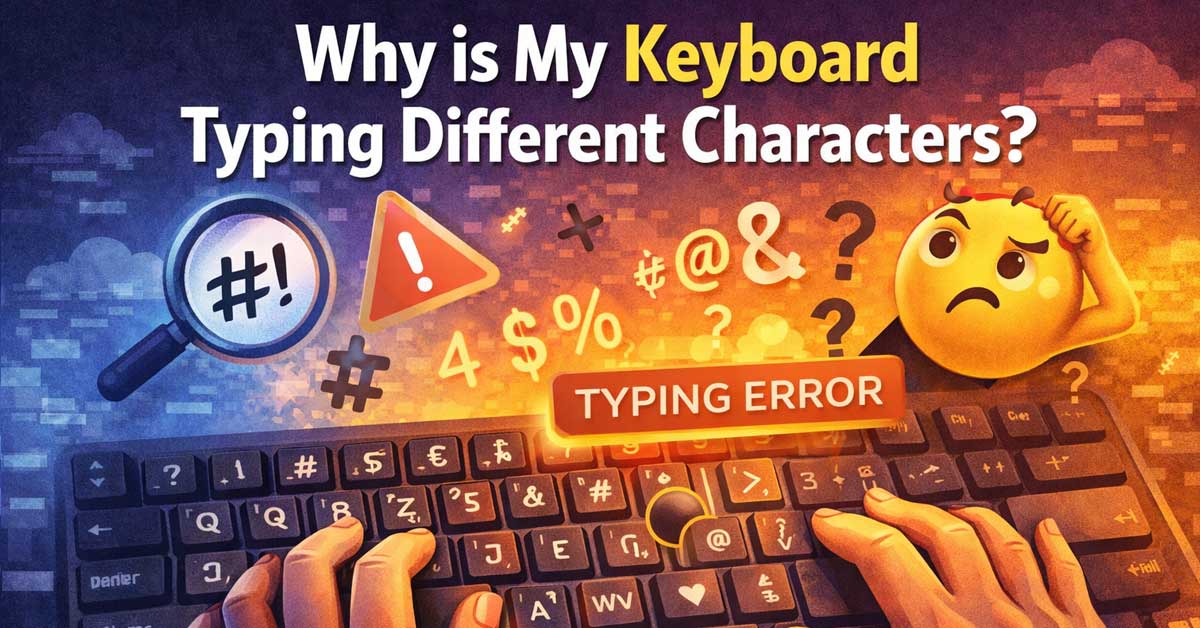

Almost always a keyboard layout or language setting — here’s what changed and how to fix it
Pressing a key and getting a completely different character than expected — the @ symbol appearing where you expect a quotation mark, numbers appearing instead of letters, or symbols shifting to unexpected keys — is disorienting but almost always has a simple explanation.
The keyboard itself is almost never broken. What changed is how the operating system is interpreting your keypresses, and that’s a software setting that’s easy to fix.
Here’s what’s causing it and how to restore normal behavior.
A Different Keyboard Layout Got Activated
This is the cause in the vast majority of cases. Operating systems support multiple keyboard layouts simultaneously — US QWERTY, UK QWERTY, AZERTY (French), QWERTZ (German), Dvorak, Colemak, and many others — and it’s easy to accidentally switch between them through a keyboard shortcut.
Symptoms that point to a layout switch:
The @ and ” keys are swapped — classic sign of switching between US and UK keyboard layouts.
The Z and Y keys are swapped — classic sign of switching between QWERTY and QWERTZ (German) layouts.
The Q, W, A, and Z keys are in unexpected positions — suggests switching to AZERTY (French) layout.
Numbers appearing instead of letters on the right side of the keyboard — NumLock may have been activated.
On Windows, the default shortcut to switch keyboard layouts is Windows + Space or Alt + Shift. These are easy to trigger accidentally, particularly the Alt + Shift combination during normal typing. Pressing the shortcut again cycles through available layouts.
Look at the language/input indicator in the system tray — the bottom right of the taskbar near the clock. It shows the current input language as a two or three letter code (ENG, FRA, DEU, etc.) or a flag. If it shows a different language than expected, click it and select the correct layout.
On Mac, the equivalent shortcut is Ctrl + Space or Cmd + Space for switching input sources. Check the input menu in the menu bar — the flag or keyboard icon — and switch back to your intended layout.

This keycap set contain 124pcs pbt backlit keycaps and 1pcs keycap puller
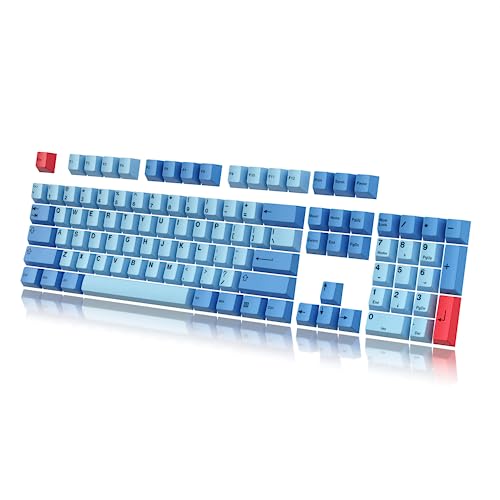
DURABLE PBT – The Keys are made with a Dye Sub process and from extra thick PBT for great readability and pleasant touch. The material is extra durable to increase longevity and make the Caps fade resistant.

This keycap set has 143pcs pudding keycaps(contain 1.75u shift) and 1pcs keycap puller
NumLock Is Turned On
If pressing certain letter keys produces numbers instead, NumLock is the cause — particularly on laptops where the numeric keypad is overlaid on part of the letter keyboard.
On many laptop keyboards, pressing Fn + NumLock or just NumLock activates a numeric overlay that converts a section of letter keys into a numeric keypad (U becomes 4, I becomes 5, O becomes 6, J becomes 1, K becomes 2, and so on).
Press NumLock or Fn + NumLock to toggle it off. The letters immediately return to normal.
The NumLock indicator light — if your keyboard has one — shows whether it’s active.

Wired keyboard with 105 keys

German Keyboard: bluetooth 3.0 keyboard, easy to connect, specially designed German version keyboard.

Flexible Keys: This pink wired german keyboard features quiet keys guarantee smooth manipulation and a good tactile feel. Withstanding over 1 million keystrokes, these keys remain responsive and unobstructed. By minimizing key travel, it enhances typing efficiency and comfort.
Wrong Language Input Is Set as Default
Beyond accidentally switching layouts, your system may have a different keyboard layout set as the default — either because software installed a new layout, because someone else changed the settings, or because a system update reset preferences.
On Windows:
Go to Settings → Time and Language → Language and Region. Check which language is set as the primary language and which keyboard layouts are associated with it. Click the language and go to Language Options → Keyboards — remove any keyboard layouts you don’t use and keep only your intended one.
Also go to Settings → Time and Language → Typing → Advanced Keyboard Settings and confirm the override language is set to your intended layout.
On Mac:
Go to System Settings → Keyboard → Input Sources. Review the list of input sources and remove any you didn’t intentionally add. Make sure your correct keyboard layout is set as the primary source.


【ENHANCE YOUR WORKSPACE】Whether you are working from home or taking online courses, our keyboard will give you slim size, comfortable and ergonomic feel. Purpose built for Windows/Apple/Androids Systems, it features a 78-key layout, 6 multimedia keys, 10 languages, 13 shortcut keys, and visually stunning aluminum body.

104 KEYS: Computer keyboard wired is a 104 key design with full functionality for long hours of work and gaming.
Sticky Keys or Filter Keys Are Active
Windows Accessibility features can change how the keyboard behaves in ways that look like wrong characters being typed.
Sticky Keys makes modifier keys (Shift, Ctrl, Alt) remain active after being pressed once — this causes subsequent keypresses to be interpreted as if a modifier is held, producing unexpected characters.
Filter Keys introduces delays and ignores repeated keypresses in ways that can make the keyboard seem to be misregistering what you type.
Go to Settings → Accessibility → Keyboard and check whether Sticky Keys or Filter Keys are enabled. If either is on, toggle them off.
Sticky Keys can be accidentally activated by pressing Shift five times rapidly — a shortcut designed for accessibility that catches people off guard.
The Wrong Character Set in a Specific Application
Sometimes the keyboard works correctly system-wide but produces wrong characters in one specific application. This is usually a font or character encoding issue in that application rather than a system-wide keyboard problem.
Test by opening Notepad or another simple text editor and typing the same keys. If the correct characters appear in Notepad but not in the original application, the issue is application-specific — check the application’s language and encoding settings.
In Microsoft Word specifically, AutoCorrect sometimes replaces characters automatically in ways that look like wrong keys are being typed. Go to File → Options → Proofing → AutoCorrect Options and check whether any unexpected substitutions are configured.
A Modifier Key Is Stuck
A physically stuck modifier key — Shift, Ctrl, Alt, or AltGr — causes every subsequent keypress to behave as if that modifier is held. This produces the wrong characters across the entire keyboard.
Press each modifier key deliberately — Shift, Ctrl, Alt, and if your keyboard has one, AltGr — to physically unstick any that might be pressed in slightly. Listen for a click that indicates the key releasing properly.
Also check whether any key is physically obstructed — debris under a key, a damaged keycap, or something resting on the keyboard.
AltGr Key Behavior
The AltGr key (right Alt on many keyboards, or Alt + Ctrl on US keyboards) accesses a third character layer on keyboards that support it. If something is causing AltGr to register as held — a sticky key, a driver issue, or a layout that maps it unexpectedly — characters that look like symbols from a foreign keyboard appear.
This is particularly common after switching to a European keyboard layout that uses AltGr extensively. Test by pressing the right Alt key deliberately and then typing — if symbols appear with just the Alt key, the AltGr behavior is active. Check your keyboard layout settings and ensure you’re using the intended layout.
Remote Desktop or Virtual Machine Keyboard Mapping
If you’re typing inside a remote desktop session, a virtual machine, or a cloud-based computer, the keyboard layout of the remote system may differ from your local keyboard. Your local keystrokes get remapped to the remote system’s layout, producing mismatched characters.
Check the keyboard settings of the remote system or virtual machine independently of your local settings. In Remote Desktop, go to the remote computer’s language settings and verify the layout matches your physical keyboard. In virtual machine software, look for keyboard mapping options in the VM’s settings.
Third-Party Software Remapping the Keyboard
Keyboard remapping software — AutoHotkey scripts, gaming software like Razer Synapse or Logitech G Hub, accessibility tools, or custom key mappers — can remap keys in ways that produce unexpected characters. If you have any such software installed, check whether it has an active profile that includes key remappings.
Close remapping software or disable active profiles and test whether normal keyboard behavior returns. If it does, review and edit the active profile to remove unintended remappings.
Driver or Hardware Issue
If none of the above apply, a keyboard driver issue or hardware fault may be the cause. This is the least common scenario but worth addressing if software fixes don’t work.
Update the keyboard driver: Open Device Manager, expand Keyboards, right-click your keyboard, and select Update Driver. Alternatively uninstall the driver and restart — Windows reinstalls it automatically.
Test with a different keyboard: Plug in an external USB keyboard and test whether it produces correct characters. If the external keyboard works correctly, your primary keyboard has a hardware issue. If the external keyboard also produces wrong characters, the issue is software — keyboard layout or driver — rather than hardware.
A Quick Checklist
Work through these in order:
- Check the language indicator in the system tray (Windows) or menu bar (Mac) — switch back to the correct layout
- Press Windows + Space or Alt + Shift to cycle back to your intended layout
- Check NumLock status — press NumLock or Fn + NumLock if numbers are appearing instead of letters
- Go to Settings → Accessibility → Keyboard — disable Sticky Keys and Filter Keys if active
- Go to Settings → Language settings — remove unused keyboard layouts
- Press each modifier key (Shift, Ctrl, Alt, AltGr) to unstick any physically pressed ones
- Check for remapping software — disable profiles in gaming or accessibility software
- Test in a different application — Notepad — to confirm whether it’s system-wide or app-specific
- Update or reinstall keyboard driver in Device Manager
- Test with an external keyboard to rule out hardware fault
The Bottom Line
A keyboard typing wrong characters is almost always a keyboard layout switch — either accidentally triggered by the Windows + Space or Alt + Shift shortcut, or a different layout set as default. Checking the language indicator in the system tray and switching back to the correct layout resolves it in seconds.
NumLock causing numbers instead of letters, and Sticky Keys causing modifier-related character shifts, cover the majority of remaining cases. Both are one-keypress fixes once identified.
The keyboard isn’t broken — the operating system thinks you want a different layout. Find where it switched and switch it back.

Easy to Use - Our USB wired numpad does not require any driver or battery; easy to install, plug and play, gives you a stable connection.
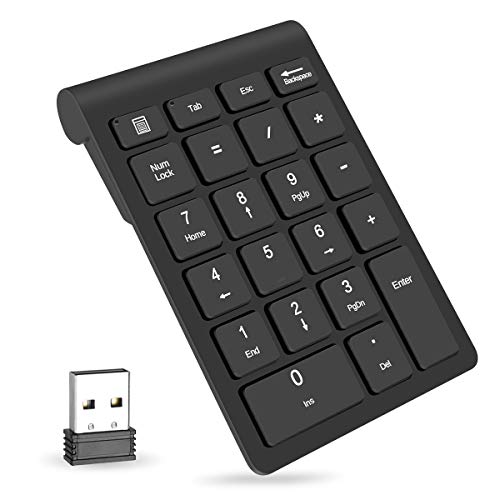
1.Number Pad for Laptop: Foloda number pad supports NumLock, ESC, Tab, Delete etc. With shortcut key which can open the computer calculator directly. The Multi - Function 10 keys USB keypad is a must - have laptop accessories. It's more unique than most keyboards, perfectly catering to the needs of laptop users who require efficient numeric input during work, study or financial accounting tasks.

MECHANICAL BLUE SWITCH - Professional blue switches mechanical numpad provides quick triggering, tactile feedback and audible click when a keystroke is registered. Perfect for typing, programming, and playing strategy games.(Warm Tips: not hotswap switch)

Meet Ry, “TechGuru,” a 36-year-old technology enthusiast with a deep passion for tech innovations. With extensive experience, he specializes in gaming hardware and software, and has expertise in gadgets, custom PCs, and audio.
Besides writing about tech and reviewing new products, he enjoys traveling, hiking, and photography. Committed to keeping up with the latest industry trends, he aims to guide readers in making informed tech decisions.