
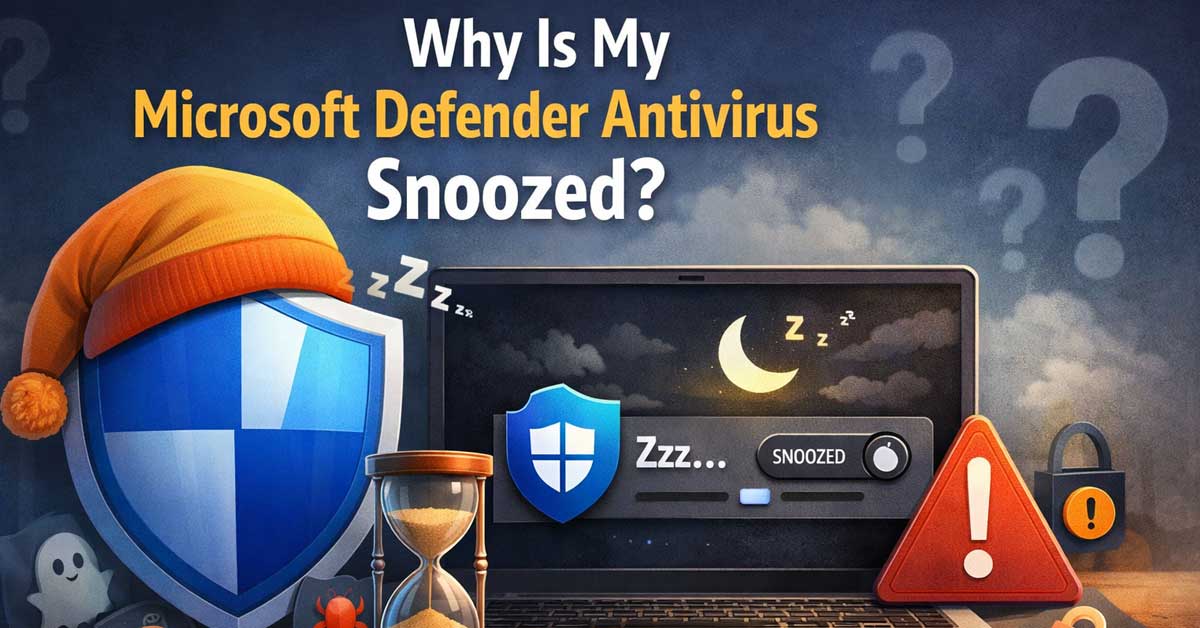

A third-party antivirus or settings change caused it — here’s what it means and how to fix it
Opening Windows Security and seeing “Microsoft Defender Antivirus is snoozed” — or a similar message indicating Defender is turned off or inactive — is alarming when you’re not sure why it happened or what it means for your protection.
Snoozed doesn’t mean broken and it doesn’t mean you’re unprotected in most cases, but understanding why it happened and how to address it is important.
Here’s exactly what causes it and what to do.
What “Snoozed” Actually Means
Microsoft Defender uses the term “snoozed” to describe a state where its real-time protection has been temporarily or permanently disabled — usually because another antivirus product took over protection duties. This is distinct from Defender being turned off manually.
When Windows detects a third-party antivirus program that’s actively running and providing real-time protection, it automatically steps back and lets that product handle protection instead. Defender’s real-time protection enters a snoozed state to avoid conflicts between two competing security products scanning files simultaneously.
This is intentional design and in many cases it’s the correct behavior — running two real-time antivirus scanners simultaneously causes performance problems and can produce conflicts. Windows is managing this automatically.
The snoozed state is different from Defender being fully disabled. In the snoozed state, Defender’s scheduled scans and other features may still run periodically, and it can reactivate automatically if the third-party antivirus is removed or expires.
10 Powerful Tools in One Bootable USB – Includes system repair, data recovery, antivirus, disk cloning, partitioning, and diagnostics utilities.

Intel Core Ultra 7 (Series 2) 8-Core

You Have a Third-Party Antivirus Installed
This is the most common cause of the snoozed message by a significant margin. Any of the following installed and running on your system will cause Defender to snooze:
Norton, McAfee, Kaspersky, Bitdefender, Avast, AVG, ESET, Malwarebytes Premium, Trend Micro, or any other real-time antivirus product.
Go to Windows Security → Virus and Threat Protection. Look at the provider information on this page. If it shows a third-party antivirus as your active protection provider rather than Microsoft Defender, that product is what’s protecting you and Defender snoozed itself intentionally.
If the third-party antivirus is working correctly, this is fine — you’re protected by that product and Defender is staying out of the way to avoid conflicts.
If the third-party antivirus has expired, been disabled, or is malfunctioning, you may have a gap in protection — Defender is snoozed and the other product isn’t actively protecting you. This is when the snoozed message becomes a genuine concern.

Replace Part Number: This Power Window Switch Compatible with Can-Am Left Hand Driver Power Window Switch OEM Part Number 710004979 Replace 705800048


Fitment: Fit for Can-Am Defender HD8 2016-2019, fit for Can-Am Defender HD10 2016-2019, fit for Can-Am Defender Max HD8 2018, fit for Can-Am Defender Max HD10 2018-2019
The Third-Party Antivirus Has Expired
A very common scenario that creates a genuine protection gap: you had a trial antivirus — often pre-installed on a new PC — that has now expired. The expired product is still technically installed and registered with Windows Security Center, which keeps Defender snoozed, but the expired product no longer provides active real-time protection.
Check whether any antivirus software on your system has an expired subscription. Go to Windows Security → Virus and Threat Protection and check the provider. Click Open App or navigate to the third-party antivirus and check its subscription status.
If the third-party product has expired, you have two options:
Renew the subscription to restore protection through that product — Defender remains snoozed but you’re covered.
Uninstall the third-party antivirus entirely — Windows detects its removal and automatically unsnoozed Defender, restoring Microsoft’s built-in protection.

DEVICE SECURITY - Award-winning McAfee antivirus, real-time threat protection, protects your data, phones, laptops, and tablets

ALL-IN-ONE PROTECTION – award-winning antivirus, total online protection, works across compatible devices, Identity Monitoring, Secure VPN

How to Wake Up Defender Manually
If you want to re-enable Defender’s real-time protection without uninstalling the third-party antivirus — for example, to run a second-opinion scan — you can temporarily activate Defender from Windows Security.
Go to Windows Security → Virus and Threat Protection → Manage Settings. Toggle Real-Time Protection on.
Note: If a third-party antivirus is still installed and running, Windows may snooze Defender again automatically after a period. This is the intended behavior. To make Defender the permanent active protection, remove the third-party antivirus first.
Uninstall the Third-Party Antivirus to Restore Defender
If you want Microsoft Defender as your primary protection, uninstalling the third-party antivirus is the cleanest path.
Go to Settings → Apps → Installed Apps and find the third-party antivirus. Click Uninstall and follow the prompts.
For a thorough removal, use the antivirus vendor’s dedicated removal tool rather than only the standard Windows uninstaller. Antivirus software installs deeply into the OS and standard uninstallers sometimes leave residual components that continue to interfere with Defender:
- Norton: Norton Remove and Reinstall tool
- McAfee: McAfee Consumer Product Removal (MCPR)
- Avast/AVG: Avast Uninstall Utility
- Kaspersky: Kavremover tool
- Bitdefender: Bitdefender Uninstall Tool
Download the removal tool from the vendor’s official support page and run it after the standard uninstall. After running the removal tool, restart your computer.
After restarting, go to Windows Security → Virus and Threat Protection and confirm Defender shows as active and real-time protection is on.
Defender Was Manually Disabled
If no third-party antivirus is installed but Defender still shows as snoozed or turned off, real-time protection may have been manually disabled — by you, by another user, by a script, or by software that modified the setting.
Go to Windows Security → Virus and Threat Protection → Manage Settings and check whether Real-Time Protection is toggled off. If it’s off and no third-party antivirus is present, toggle it back on.
If the toggle is grayed out and you can’t enable it, a Group Policy setting or a registry modification is blocking Defender from running. This is more common on domain-joined work computers where IT policy manages Defender’s state.
Group Policy Is Disabling Defender
On work or school computers, Group Policy administered by your IT department can disable or snooze Defender deliberately — either because a managed security product is deployed instead or because of specific security policies.
Press Windows + R, type gpedit.msc, and navigate to Computer Configuration → Administrative Templates → Windows Components → Microsoft Defender Antivirus. Look for Turn Off Microsoft Defender Antivirus — if it’s set to Enabled, Group Policy is deliberately disabling Defender.
On a managed work machine, this is likely intentional and shouldn’t be changed without IT authorization. Contact your IT administrator if you’re concerned about your protection status on a work device.
Tamper Protection Is Disabled
Windows Defender’s Tamper Protection prevents unauthorized changes to Defender’s settings — including attempts by malware to disable real-time protection. If Tamper Protection is off, other software can snooze or disable Defender more easily.
Go to Windows Security → Virus and Threat Protection → Manage Settings and scroll down to Tamper Protection. Make sure it’s toggled on. With Tamper Protection enabled, only authorized processes and the Windows Security interface can modify Defender’s state.
Malware Disabled Defender
Some malware specifically targets Windows Defender and attempts to disable it to avoid detection. If Defender was snoozed unexpectedly and no third-party antivirus is present, malware interference is worth considering.
Boot into Windows Safe Mode — press Shift while clicking Restart, then Troubleshoot → Advanced Options → Startup Settings → Restart → press 4. In Safe Mode, most malware is inactive.
In Safe Mode, try re-enabling Defender’s real-time protection. If it enables successfully in Safe Mode but gets disabled again after returning to normal mode, malware is actively disabling it.
Use Microsoft’s Malicious Software Removal Tool (MSRT) — available through Windows Update or from Microsoft’s website — and run a full scan in Safe Mode. Also run Malwarebytes free version for a second-opinion scan.
Windows Security Center Service Issues
The Security Center service tracks and reports the status of security software on your system. If this service is malfunctioning, it may incorrectly report Defender as snoozed even when it’s functioning normally.
Press Windows + R, type services.msc, and press Enter. Find Security Center in the list. Right-click it and select Restart. Also check that its Startup type is set to Automatic (Delayed Start).
After restarting the service, open Windows Security and check whether the snoozed message persists.
Check Windows Security Using PowerShell
For a definitive check of Defender’s actual status, PowerShell provides more detailed information than the Windows Security interface.
Open PowerShell as administrator — search for PowerShell, right-click, Run as Administrator. Run:
powershell
Get-MpComputerStatusThis returns a detailed report of Defender’s status. Look for:
AMRunningMode — should show Normal for active protection. RealTimeProtectionEnabled — should show True. AntivirusEnabled — should show True. IsTamperProtected — should show True if Tamper Protection is on.
If these values don’t reflect what Windows Security shows, there’s a discrepancy between the reported status and actual state — worth reporting to Microsoft or investigating further.
A Quick Checklist
Work through these in order:
- Check Windows Security → Virus and Threat Protection for the active protection provider
- Check whether third-party antivirus is installed — and whether its subscription is active
- Renew or uninstall the third-party antivirus depending on whether you want to keep it
- Use vendor removal tools for thorough antivirus uninstallation
- Toggle Real-Time Protection on in Manage Settings if it’s off and no third-party AV is present
- Enable Tamper Protection if it’s disabled
- Check Group Policy on work or school computers — contact IT if managed
- Scan for malware in Safe Mode if Defender is disabled unexpectedly with no other explanation
- Restart Security Center service in services.msc
- Run Get-MpComputerStatus in PowerShell for a detailed status check
The Bottom Line
Microsoft Defender showing as snoozed is almost always caused by a third-party antivirus product — active, expired, or partially uninstalled — that Windows detected and deferred to. If that product is working correctly, you’re protected and the snoozed state is appropriate. If the product has expired or been partially removed, you have a protection gap that needs addressing either by renewing the product or uninstalling it completely to let Defender resume.
For the cleanest outcome when switching back to Defender, use the third-party antivirus vendor’s dedicated removal tool rather than just the standard Windows uninstaller — residual components are the most common reason Defender stays snoozed after an apparent uninstall.
Defender snoozed itself because something else said it would handle protection — check whether that something else is actually doing its job.

Compatibility: For CAN-AM Defender, Defender MAX

Replace Part Number: This Power Window Switch Compatible with Can-Am Left Hand Driver Power Window Switch OEM Part Number 710004979 Replace 705800048

OEM BRP Product, Part Number: 710004979. Replaces: 705800048

Meet Ry, “TechGuru,” a 36-year-old technology enthusiast with a deep passion for tech innovations. With extensive experience, he specializes in gaming hardware and software, and has expertise in gadgets, custom PCs, and audio.
Besides writing about tech and reviewing new products, he enjoys traveling, hiking, and photography. Committed to keeping up with the latest industry trends, he aims to guide readers in making informed tech decisions.