

A mirror effect setting — here’s what’s causing it and how to fix it
Joining a Teams meeting and noticing that your virtual background appears flipped — text in the background is backwards, a logo appears mirrored, or the room behind you looks reversed — is a specific and fixable issue.
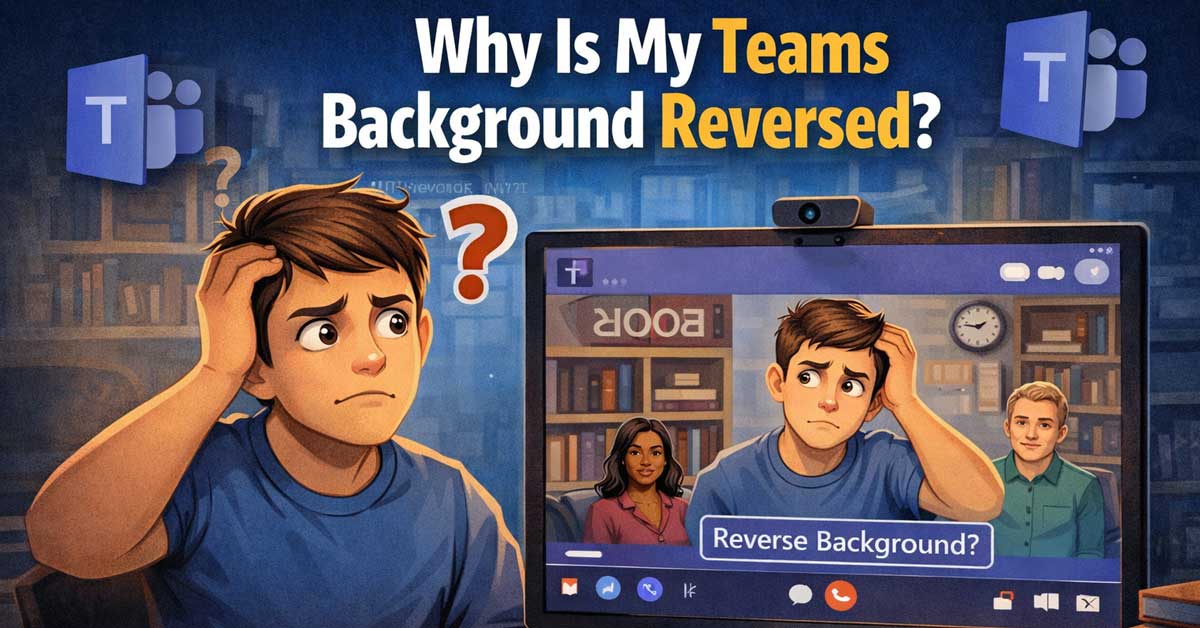
The background itself isn’t reversed. Your video preview is mirrored, which makes the background appear backwards to you even though meeting participants see it correctly.
Here’s what’s happening and how to control it.
How Teams Handles Video Preview vs. What Others See
This is the core thing to understand before anything else. Teams — like most video conferencing software — mirrors your camera preview by default. This means what you see of yourself in the preview window is a mirror image of what your camera is actually capturing.
The mirror effect on your preview is intentional. Humans are accustomed to seeing themselves in mirrors and find a mirrored preview more natural-feeling than a non-mirrored one. When you move your right hand, the preview shows your left hand moving — matching what you expect from a mirror.
Your participants do not see a mirrored image. They see the raw camera output — which is not mirrored. So if your shirt has text on it, you see the text backwards in your preview but participants see it correctly.
Where this causes problems with virtual backgrounds: If you position a specific virtual background — a branded backdrop, a scene with text, a logo — it appears correctly to participants but looks reversed in your own preview. The background isn’t actually reversed. Your mirrored preview is making it look that way.


1080p HD widescreen sensor - For superior sharpness and image quality.
Confirm Whether It’s Actually Reversed for Participants
Before changing any settings, confirm whether the background really is reversed for participants or just in your preview.
Ask a participant whether text or logos in your background appear correctly. Take a screenshot during a meeting and examine it — screenshots capture what participants see, not the mirrored preview. Join a test meeting with yourself using a second device.
If participants see the background correctly and only your own preview looks reversed, no fix is needed — the behavior is working as intended. If participants also see it reversed, continue through the fixes below.


The Mirror My Video Setting in Teams
Teams has an explicit setting to control video mirroring — though its behavior is counterintuitive and has changed across Teams versions.
During a meeting, click the three dots (More Options) in the meeting controls. Look for Video Effects or Turn off mirror my video in the options. Toggling this setting changes whether your preview is mirrored — it does not change what participants see.
Outside of a meeting:
Go to Settings → Devices → Camera. Some Teams versions show a Mirror my video toggle here in the camera preview section. Toggle it and observe whether the preview changes direction.
In the New Teams client, go to Settings → Video Effects → Camera and look for the mirror toggle in the camera settings section.

【The Only Waterproof, Dustproof, Shockproof, and High-Temperature Resistant Rear View Mirror】This IP67-rated mirror withstands high-pressure water jets, with an...
Choosing a Background Orientation That Works Either Way
A practical solution that avoids the technical issue entirely is selecting or creating a virtual background that looks correct regardless of mirroring — backgrounds without text, logos, or directional elements that reveal the mirror effect.
Symmetrical backgrounds — a centered bookshelf, a plain office scene, a solid color — look identical whether mirrored or not. If you regularly use branded backgrounds with text or logos, creating a pre-flipped version of the background that looks correct in your mirrored preview will appear reversed to participants — which defeats the purpose. The correct approach is using the raw unflipped background and accepting that your preview looks reversed to you.
The Background Is Reversed Because the Camera Is Physically Mounted Backwards
Less common but worth checking: if you’re using an external webcam that was mounted or positioned facing a specific direction — on a monitor arm, clipped backwards, or integrated into a setup with a reflective surface — the camera itself may be capturing a mirrored image.
Check whether your camera is mounted facing forward correctly. If the camera physically captures a mirrored image (because it’s facing a mirror, for example), rotating or remounting it corrects the issue at the hardware level.
Third-Party Virtual Camera Software
If you’re using OBS Virtual Camera, Snap Camera, or similar virtual camera software to manage your Teams video feed, the mirroring behavior may be coming from that software rather than Teams itself.
These tools process your video before sending it to Teams and have their own flip and mirror controls. Open your virtual camera software and check whether a horizontal flip is applied. Disabling or enabling the flip in the external software changes what Teams receives.
In OBS for example, right-click the video capture source, select Filters, and look for any flip transformation applied. Remove it if you want to restore the natural orientation.
GPU or Driver Affecting Camera Output
On some systems, GPU driver settings or camera driver settings apply transformations to the video output before applications receive it. This is uncommon but can cause the camera to output a pre-mirrored image to all applications including Teams.
Check your webcam’s driver software if it has a companion app — Logitech Camera Settings, for example — for any flip or mirror options applied at the driver level. Disable any horizontal flip applied there.
A Quick Summary
| Scenario | Cause | Fix |
|---|---|---|
| Background reversed only in your preview | Normal mirror preview behavior | No fix needed — participants see it correctly |
| Background reversed for participants too | Camera or software flipping output | Toggle Mirror My Video setting or fix virtual camera software |
| Background reversed only with virtual camera software | Software applying a flip | Remove flip in OBS or other virtual camera software |
| Background reversed because camera is mounted wrong | Physical camera orientation | Remount camera correctly |
The Bottom Line
A reversed Teams background in your own preview is almost always the normal mirror effect that Teams applies to your camera preview — what you see of yourself is mirrored, which makes backgrounds with directional content appear reversed to you but correctly oriented to participants. No fix is needed in this case.
If participants are also seeing the background reversed, the Mirror My Video toggle in Teams settings or a flip transformation in virtual camera software is the cause — toggling or removing it corrects what participants see.
Your preview is a mirror — what looks backwards to you is almost always forwards to everyone else.

Good stability/attachment to monitor, laptop, and desktop scenarios

720p HD widescreen video - 720p sensor captures true HD quality video at up to 30 fps.


Meet Ry, “TechGuru,” a 36-year-old technology enthusiast with a deep passion for tech innovations. With extensive experience, he specializes in gaming hardware and software, and has expertise in gadgets, custom PCs, and audio.
Besides writing about tech and reviewing new products, he enjoys traveling, hiking, and photography. Committed to keeping up with the latest industry trends, he aims to guide readers in making informed tech decisions.