
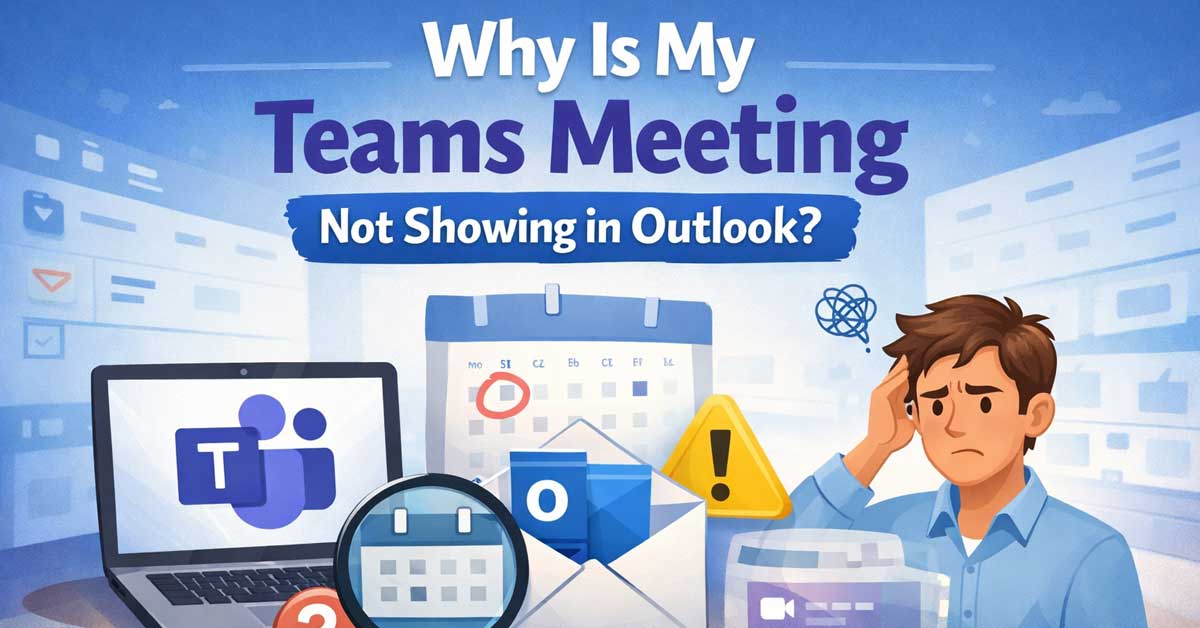

Usually a calendar sync, add-in, or account issue — here’s how to find it and fix it
Teams meetings disappearing from Outlook, not appearing after they’re created, or showing in Teams but not syncing to your Outlook calendar is a common and genuinely disruptive problem.
The cause almost always lives in one of three areas: the Teams Outlook add-in isn’t working, the calendar sync between Teams and Exchange is broken, or there’s an account or configuration mismatch.
Here’s how to work through each one.
Check the Teams Meeting Add-In in Outlook
The Teams Meeting add-in is the bridge between Teams and Outlook — it’s what creates the Join Microsoft Teams Meeting link in calendar events and what allows meetings scheduled in Teams to appear in Outlook. If this add-in is disabled, missing, or crashed, meetings stop syncing between the two applications.
Open Outlook and go to File → Options → Add-ins. At the bottom of the page, check the Manage dropdown — it should say COM Add-ins. Click Go.
Look for Microsoft Teams Meeting Add-in for Microsoft Office in the list. There are three things to check:
If it’s listed and checked — the add-in is active. The problem lies elsewhere.
If it’s listed but unchecked — check the box to enable it and click OK. Restart Outlook and test.
If it’s not listed at all — the add-in isn’t installed or has been removed. This requires a Teams repair or reinstall to restore it.


Create custom inputs without a keyboard

Surface Hub 3No matter where your meeting takes you
Check the Disabled Add-Ins List
Outlook automatically disables add-ins that crash repeatedly or slow down its startup. The Teams add-in frequently ends up here after a crash or a failed update.
Go to File → Options → Add-ins. At the bottom, change the Manage dropdown to Disabled Items and click Go. If the Teams Meeting add-in appears here, select it and click Enable. Restart Outlook and check whether meetings now appear.
Also change the dropdown to Inactive Application Add-ins and check there — add-ins in this list aren’t active and may need to be moved to the active list.

【All-In-One Smart Digital Frame Calendar】: This smart electronic calendar combines digital calendar, smart chore chart, digital picture frame, meal planner, alarm clock on one 24 inch digital wall calendar that seamlessly help organize and track every family, learning, sport or office schedule easily. Our Nethgrow smart calendar assign different colors and tasks to each members, so that everyone know their own duty very well, makes life simple and organized.

The Ultimate Smart Family Planner: A WiFi-enabled digital calendar and smart touchscreen organizer designed to simplify family scheduling. Assign unique colors and tasks to each family member for seamless coordination. Perfect as your reliable 2025 wall calendar and beyond in the future, keeping everyone in sync effortlessly.mother's day gift

【All-In-One Family Hub】The digital wall calendar simplifies your life by combining a digital family calendar, chore chart for family, and task manager. Assign unique colors and tasks to each member for instant clarity on schedules and responsibilities, reducing chaos and keeping everyone on track.The perfect gift for mom who keeps everyone organized
Restart Both Teams and Outlook
A straightforward restart of both applications resolves sync issues that accumulate during long sessions. Close both completely — not just minimize them.
For Teams, right-click the Teams icon in the system tray and select Quit. For Outlook, close the window and confirm it’s not running in the background via Task Manager.
Wait 30 seconds, reopen Teams first, let it fully load, then open Outlook. Check whether the meeting sync has restored.
Designed for Your Windows and Apple Devices | Install premium Office apps on your Windows laptop, desktop, MacBook or iMac. Works seamlessly across your devices for home,...
Check That Both Apps Use the Same Account
Teams and Outlook must be signed into the same Microsoft 365 account for calendar sync to work. If Teams is signed into a work account and Outlook is connected to a personal Microsoft account — or vice versa — meetings from one won’t appear in the other.
In Teams, click your profile picture in the top right and note which account is shown. In Outlook, go to File → Office Account and check the signed-in account. Both should show the same email address and the same organizational domain.
If they’re different, sign Teams out and back in with the matching account, or reconfigure Outlook to use the account that Teams is on.
Check Calendar Sync Settings in Teams
Teams has its own calendar sync settings that control how it interacts with Exchange and Outlook. If these are misconfigured or disabled, meetings created in Teams don’t push to the Outlook calendar.
In Teams, click your profile picture and go to Settings → Calendar. Check the settings available — depending on your Teams version and organization configuration, you may see options controlling how Teams handles calendar events and meeting invitations.
Also check that your Teams calendar is actually showing meetings. In the Teams left sidebar, click Calendar. If meetings you’ve created or been invited to appear here but not in Outlook, the issue is specifically in the sync between Teams and your Exchange mailbox rather than Teams itself.
Verify Exchange Calendar Permissions
Teams reads from and writes to your Exchange mailbox calendar to create and display meetings. If your Exchange account has restricted calendar permissions — which sometimes happens after account migrations, IT policy changes, or security updates — Teams can’t write meeting data to the calendar and nothing appears in Outlook.
This is more common on work accounts where IT administrators control Exchange configuration. If you’re on a managed account, contact your IT department and ask them to verify that Teams has the necessary permissions to access your Exchange calendar. They can check this through the Exchange Admin Center.
Repair the Teams Installation
A corrupted Teams installation frequently causes the Outlook add-in to stop working. The repair process restores missing or corrupted files without uninstalling Teams or losing your data.
Go to Settings → Apps → Installed Apps and find Microsoft Teams. Click the three dots next to it and select Modify or Repair if available. Let the repair process complete and restart your computer.
If repair isn’t available as an option, uninstall Teams, restart your computer, and reinstall from teams.microsoft.com. After reinstalling, open Teams first and let it fully initialize before opening Outlook — this gives the add-in time to register properly with Outlook.
Repair the Microsoft 365 Installation
If the Teams add-in appears in Outlook’s disabled or inactive list and won’t stay enabled, the Microsoft 365 installation itself may have corrupted files affecting how Office and Teams integrate.
Go to Control Panel → Programs → Programs and Features. Find Microsoft 365 or Microsoft Office in the list, right-click it, and select Change → Quick Repair. Quick Repair runs in a few minutes and fixes most installation issues without requiring internet access.
If Quick Repair doesn’t resolve it, run Online Repair — this takes longer but does a comprehensive restoration of all Office files from Microsoft’s servers. Restart after the repair completes and check whether the Teams add-in registers correctly with Outlook.
Check Group Policy and IT Admin Settings
On managed work devices, Group Policy settings can prevent the Teams add-in from loading in Outlook or restrict how calendar sync functions. These settings are applied by your organization’s IT department and can’t be changed from a standard user account.
Press Windows + R, type gpedit.msc, and navigate to User Configuration → Administrative Templates → Microsoft Outlook to check for any policies restricting add-ins. If you see relevant policies and you’re on a work device, report the issue to your IT department rather than trying to override the policies yourself.
Also check File → Options → Trust Center → Trust Center Settings → Add-ins in Outlook. If Require Application Add-ins to be Signed by Trusted Publisher is checked, the Teams add-in may be blocked if its certificate isn’t in your trusted publishers list.
Check Outlook Calendar Permissions for Shared Calendars
If the meeting is showing in someone else’s Teams calendar but not in a shared Outlook calendar, the issue is with shared calendar permissions rather than the core sync.
Go to the calendar in Outlook that should show the Teams meetings. Right-click it and check Properties → Permissions. Verify that the relevant accounts have permission to view and write calendar items. The person who created the meeting needs write permission to the calendar for the event to appear there.
Check for New Outlook vs Classic Outlook
Microsoft has been rolling out a New Outlook — a redesigned version with a different architecture. The Teams add-in behavior differs between Classic Outlook and New Outlook.
If you’re running New Outlook (identified by a toggle switch in the top right of the Outlook window), Teams meeting integration works differently — it relies on calendar sync through the cloud rather than a COM add-in. Make sure your account is properly connected in New Outlook → Settings → Accounts and that calendar sync is enabled there.
If Teams meetings appear in Classic Outlook but not New Outlook, switching back to Classic Outlook via the toggle temporarily resolves the issue while Microsoft continues developing New Outlook compatibility.
Force a Calendar Sync
Sometimes the calendar simply needs a manual sync push to catch up after a connection interruption or a sync error.
In Outlook, go to Send/Receive → Send/Receive All Folders or press F9. This forces Outlook to sync with your Exchange server and may pull in Teams meetings that were waiting to sync.
In Teams, closing and reopening the Calendar view forces Teams to refresh its calendar data from Exchange, which can push pending meeting data to Outlook as well.
A Quick Checklist
Work through these in order:
- Check the Teams add-in in Outlook — File → Options → Add-ins → COM Add-ins — make sure it’s enabled
- Check Disabled Items in the same Add-ins menu for a suppressed Teams add-in
- Restart both Teams and Outlook completely
- Verify both apps use the same Microsoft account
- Check Teams Calendar settings in Teams → Settings → Calendar
- Contact IT if on a managed work account — Exchange permissions or Group Policy may be the cause
- Repair Teams through Settings → Apps → Modify
- Run Quick Repair on Microsoft 365 through Control Panel → Programs
- Check Trust Center add-in signing requirements in Outlook Options
- Force sync with F9 in Outlook and refresh the Teams calendar view
- Check New Outlook vs Classic Outlook if you recently switched
The Bottom Line
Teams meetings not showing in Outlook almost always comes down to the Teams add-in being disabled or missing, an account mismatch between the two applications, or a sync issue between Teams and Exchange.
The add-in check and account verification together resolve the majority of cases — particularly the common scenario where the add-in ended up in Outlook’s Disabled Items list after a crash.
For managed work accounts where the add-in check and account verification don’t resolve it, Exchange permissions and Group Policy settings are almost always the cause — and those require IT involvement rather than local troubleshooting.
Teams and Outlook share a calendar through an add-in and an Exchange connection — when either breaks, meetings stop appearing. Fix the add-in first, then check the connection.

All-In-One Smart Hub With No Mandatory Subscription: Simplify your life with the calendar that offers all core features without a mandatory subscription. Enjoy seamless calendar syncing, tasks, meal, and photo displays without fees. For power users, our optional Member Plus ($2.99/mo) offers advanced Email Import to convert PDFs or spreadsheets into events and expands user sharing beyond the standard 20 members. It is a budget-friendly home electronics choice that keeps your household organized

TCS will sync each calendar individually, which means you can create and update events on specific calendars.
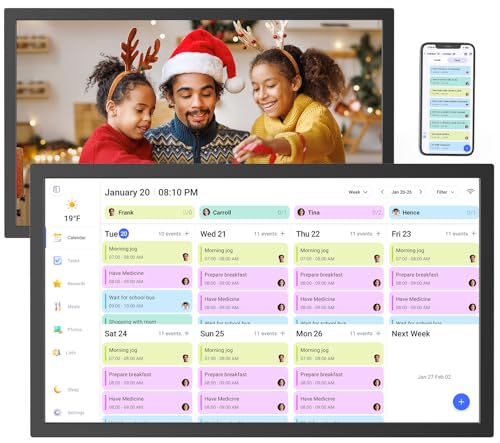
【All-In-One Smart Calendar Picture Frame】: This smart electronic calendar combines digital calendar, smart chore chart, digital picture frame, meal planner, alarm clock on one 24 inch electronic calendar for wall that seamlessly help organize and track every family, learning, sport or office schedule easily. Our large digital calendar assign different colors and tasks to each members, so that everyone know their own duty very well, makes life simple and organized.

Meet Ry, “TechGuru,” a 36-year-old technology enthusiast with a deep passion for tech innovations. With extensive experience, he specializes in gaming hardware and software, and has expertise in gadgets, custom PCs, and audio.
Besides writing about tech and reviewing new products, he enjoys traveling, hiking, and photography. Committed to keeping up with the latest industry trends, he aims to guide readers in making informed tech decisions.