
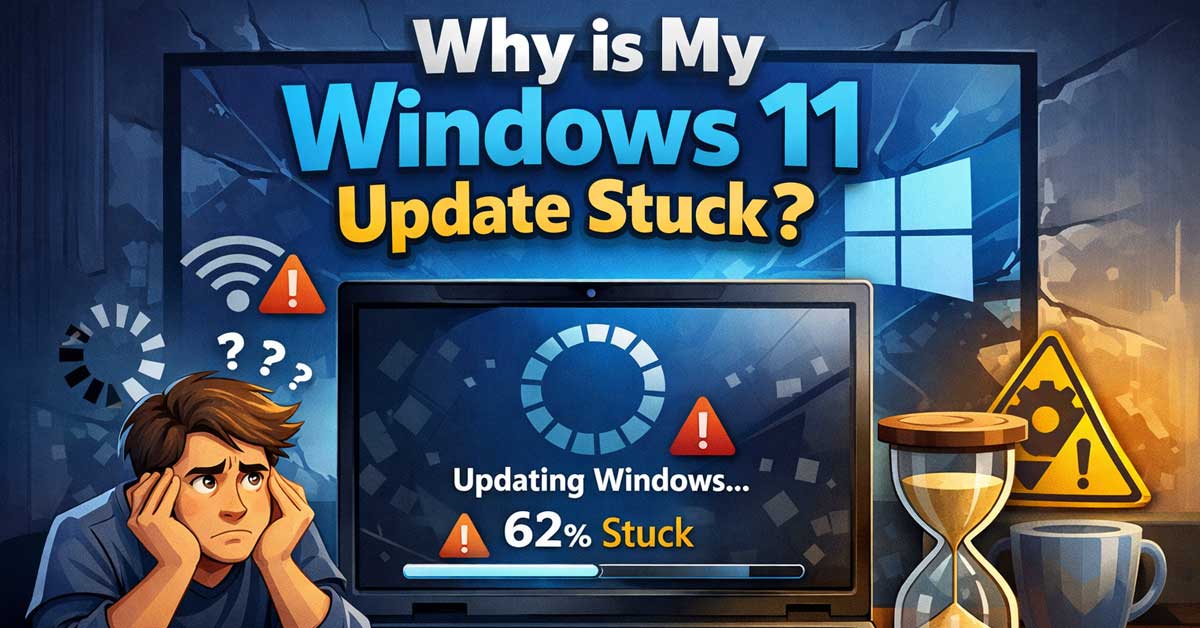

Almost always a download, disk space, or service issue — here’s how to get it moving
A Windows 11 update that stops progressing — frozen at a percentage for hours, stuck on “Downloading” with no movement, or looping through restarts without completing — is one of the more anxiety-inducing Windows experiences.
Most stuck updates have a specific, fixable cause.
Here’s how to identify what’s happening and get the update through.
First: How Long Has It Actually Been?
Before troubleshooting, confirm the update is genuinely stuck rather than just slow. Large Windows updates — particularly feature updates — can take 30 minutes to several hours to download and install depending on your internet speed, your hardware, and how much processing Windows needs to do.
A progress bar that hasn’t moved for 20 minutes isn’t necessarily stuck. One that hasn’t moved in two or more hours almost certainly is.
Also check whether your computer is doing anything productive — listen for hard drive activity, watch CPU usage in Task Manager. If the system is churning away even without visible progress changes, the update may be working in the background. If everything is quiet and nothing is moving, it’s genuinely stuck.
SAFE & BEAUTIFUL: These flameless taper candles allow you to have a perfect environment at night, safe and secure; no need to worry about potential fire hazards, secondhand...
Restart and Try Again
A simple restart resolves a surprising number of stuck updates. Windows update processes sometimes deadlock — a component waiting on another component that’s waiting on the first — and a restart clears the deadlock and lets the process begin fresh.
If the update is stuck before rebooting, press and hold the power button to force a shutdown. If it’s stuck during a restart with the spinning circle, wait at least 30 minutes — Windows sometimes looks frozen during a complex installation phase but is actually working. If nothing changes after 30 minutes, force a shutdown.
After restarting, go to Settings → Windows Update → Check for Updates. Windows may resume from where it left off or start fresh — either way it usually progresses further than before.
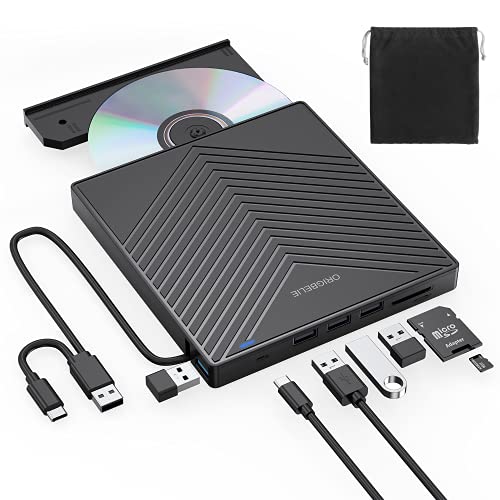
【EXTERNAL CD DRIVE FOR LAPTOP】- Considering that most of the latest laptops have not been added to the built-in CD/DVD drive, so you can’t insert CDs or DVDs directly into your laptop to listen to music, watch movies, data backup or install systems. The external CD drive that ORIGBELIE newly released is a good solution. No need for additional drivers. PLUG and PLAY. The CD Rom external drive for laptop has strong error correction, anti-skid and quiet capabilities.

🔧 All-in-One Recovery & Installer USB – Includes bootable tools for Windows 11 Pro, Windows 10, and Windows 7. Fix startup issues, perform fresh installs, recover corrupted systems, or restore factory settings with ease.

✅ Beginner watch video instruction ( image-7 ), tutorial for "how to boot from usb drive", Supported UEFI and Legacy
Check Your Internet Connection
Windows updates download from Microsoft’s servers and require a stable connection. A slow, intermittent, or congested connection causes downloads to stall — the update progress bar freezes at a percentage while Windows waits for data that isn’t arriving reliably.
Run a speed test and check for connection instability. If you’re on Wi-Fi, switching to a wired ethernet connection significantly improves download reliability for large update files. A connection that feels fine for browsing may be too unstable for sustained large file downloads.
Also check whether other devices or applications are consuming bandwidth heavily — video streaming, large downloads, or active backups competing for bandwidth can stall a Windows update download.

Less chaos, more calm. The refreshed design of Windows 11 enables you to do what you want effortlessly.

Hyper Speed Gigabit: The USB C Ethernet Adapter delivers stable data transfer speeds up to 1Gbps; and backward compatible with 100Mbps/10Mbps/1Mbps networks. supports uninterrupted large downloads at maximum speed.(NOTE:1:To reach 1Gbps, ensure the use of CAT6 & up Ethernet cables,2:Please make sure to plug the USB-C port into your type-C devices completely..)

Does Not Fix Hardware Issues - Please Test Your PC hardware to be sure everything passes before buying this USB for Windows 11 Software Recovery USB.
Free Up Disk Space
Windows updates require available disk space — both for downloading the update package and for the installation process. If your system drive is running low, the update fails or stalls without a clear error message.
Feature updates typically require 20 to 40GB of free space. Quality updates require less but still need headroom. Go to Settings → System → Storage and check available space on your C: drive.
If space is low, use Storage Sense or manually clear:
- Temporary files in Settings → System → Storage → Temporary Files
- The Windows Update cache (covered below)
- Old Windows installations from previous updates — look for Windows.old folder
- Downloads folder contents you no longer need
- Emptying the Recycle Bin
After freeing space, attempt the update again.
Clear the Windows Update Cache
The Windows Update download cache sometimes becomes corrupted, causing updates to stall or fail repeatedly at the same point. Clearing it forces Windows to redownload clean update files from Microsoft’s servers.
Steps to clear the update cache:
Open Command Prompt as administrator — search for cmd, right-click, Run as Administrator. Run these commands in order, pressing Enter after each:
net stop wuauserv
net stop cryptSvc
net stop bits
net stop msiserver
These stop the Windows Update services. Then navigate to and delete the SoftwareDistribution folder contents:
Press Windows + R, type %SystemRoot%\SoftwareDistribution\Download and press Enter. Select all files in this folder and delete them. Don’t delete the folder itself — just its contents.
Return to Command Prompt and restart the services:
net start wuauserv
net start cryptSvc
net start bits
net start msiserver
Restart your computer and check for updates again. Windows redownloads the update files from scratch.
Run the Windows Update Troubleshooter
Windows includes a built-in troubleshooter specifically for update issues. It detects and automatically fixes many common problems including service failures, corrupted cache files, and permission issues.
Go to Settings → System → Troubleshoot → Other Troubleshooters. Find Windows Update in the list and click Run. Let the troubleshooter complete its scan and apply any fixes it finds. Restart afterward and attempt the update again.
Check Windows Update Services
Windows Update depends on several background services running correctly. If any of these are stopped or in an error state, updates stall.
Press Windows + R, type services.msc, and press Enter. Look for and check the status of:
Windows Update — should be set to Automatic (Delayed Start), status Running.
Background Intelligent Transfer Service (BITS) — should be set to Automatic (Delayed Start).
Cryptographic Services — should be set to Automatic, status Running.
Windows Installer — should be set to Manual.
If any required service is stopped, right-click it and select Start. If it’s set to Disabled, right-click, select Properties, change the Startup type to Automatic, and start the service.
Check for Conflicting Software
Antivirus software and security tools sometimes interfere with Windows Update — scanning update files in real time, blocking certain network connections, or interrupting the installation process. This is a known issue with several security products.
Temporarily disable your antivirus’s real-time protection — not the full antivirus, just the real-time scanning component — and attempt the update again. If it proceeds, add Windows Update components to your antivirus exclusion list rather than leaving protection disabled permanently.
Also check whether a VPN is active. VPNs can interfere with Windows Update’s connection to Microsoft’s servers. Disable the VPN temporarily and test.
Use the Windows Update Assistant
For major feature updates that are stuck, Microsoft provides the Windows Update Assistant — a standalone tool that downloads and installs the update outside of the standard Windows Update mechanism.
Go to microsoft.com/software-download/windows11 and download the Windows 11 Installation Assistant. Run it and let it handle the update directly. This approach bypasses many of the issues that cause in-place Windows Update to stall.
Run System File Checker and DISM
Corrupted Windows system files can prevent updates from completing. The System File Checker and DISM tools scan and repair system file corruption.
Open Command Prompt as administrator and run:
DISM /Online /Cleanup-Image /RestoreHealthThis downloads and restores any corrupted system image files. It requires an internet connection and takes 10 to 20 minutes. After DISM completes, run:
sfc /scannowThis scans and repairs corrupted system files using the restored image as a reference. Restart after both complete and attempt the update again.
Check for Pending Reboot Requirements
Sometimes Windows is waiting for a previous update to finish before it can apply the current one. A pending reboot from an earlier update blocks subsequent updates from progressing.
Go to Settings → Windows Update and look for any message about a pending restart. If one exists, restart your computer to complete the pending update first, then check for new updates and attempt the stuck one again.
Check Your System Drive’s Health
A failing hard drive or SSD causes Windows updates to stall when the installation process encounters bad sectors or read/write errors. If updates consistently stall at the same percentage, disk health issues may be contributing.
Open Command Prompt as administrator and run:
chkdsk C: /f /rSchedule the check disk scan for the next restart when prompted. Let it run — it takes time but identifies and attempts to repair drive errors that could be blocking the update.
Reset Windows Update Components
If multiple approaches haven’t worked, resetting all Windows Update components to their default state is a more thorough fix than clearing the cache alone.
Microsoft provides a Windows Update Reset Script or you can run the reset manually. Open Command Prompt as administrator and run these commands:
net stop wuauserv
net stop cryptSvc
net stop bits
net stop msiserver
ren C:\Windows\SoftwareDistribution SoftwareDistribution.old
ren C:\Windows\System32\catroot2 catroot2.old
net start wuauserv
net start cryptSvc
net start bits
net start msiserver
This stops the services, renames the existing cache folders (which forces Windows to create fresh ones), and restarts the services. Restart your computer and check for updates.
Manual Update Installation
If Windows Update itself keeps failing, downloading and installing the update manually bypasses the update mechanism entirely.
Go to catalog.update.microsoft.com and search for your specific update by its KB number — visible in Windows Update when the stuck update is listed. Download the update package directly and run the installer. This installs the update without going through Windows Update’s download and processing pipeline.
A Quick Checklist
Work through these in order:
- Confirm it’s actually stuck — wait at least two hours before troubleshooting
- Restart your computer and check for updates again
- Check internet connection stability and switch to wired if on Wi-Fi
- Free up disk space — ensure at least 20 to 40GB available for feature updates
- Run Windows Update Troubleshooter in Settings → Troubleshoot
- Clear the Windows Update cache by stopping services and deleting SoftwareDistribution contents
- Check Windows Update services are running in services.msc
- Temporarily disable antivirus real-time protection and VPN
- Run DISM and sfc /scannow to repair system file corruption
- Use Windows Update Assistant for stuck feature updates
- Run chkdsk to check drive health
- Reset Windows Update components using the rename method
- Install manually from Microsoft Update Catalog using the KB number
The Bottom Line
A stuck Windows 11 update is almost always caused by a corrupted download cache, insufficient disk space, a stopped service, or a conflicting security application. The update troubleshooter and cache clear together resolve the majority of cases without needing to go deeper.
For feature updates specifically, the Windows Update Assistant is often the most reliable path when the in-built update mechanism keeps stalling — it’s Microsoft’s own tool designed exactly for situations where the standard update path isn’t working.
Windows updates don’t get permanently stuck — they get blocked by something specific. Find the block and the update goes through.

Insert this USB. Boot the PC. Then set the USB drive to boot first and repair or reinstall Windows 11

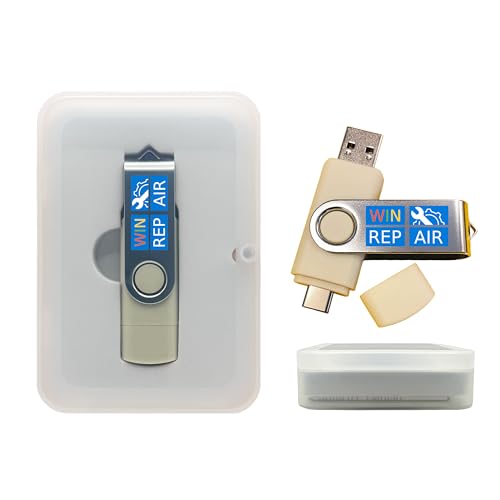
Dual USB-A & USB-C Bootable Drive – compatible with nearly all Windows PCs, laptops, and tablets (UEFI & Legacy BIOS). Works with Surface devices and all major brands.

Meet Ry, “TechGuru,” a 36-year-old technology enthusiast with a deep passion for tech innovations. With extensive experience, he specializes in gaming hardware and software, and has expertise in gadgets, custom PCs, and audio.
Besides writing about tech and reviewing new products, he enjoys traveling, hiking, and photography. Committed to keeping up with the latest industry trends, he aims to guide readers in making informed tech decisions.