


Usually a signal, equipment, or congestion issue — here’s how to find it and fix it
Xfinity internet running significantly slower than the speed you’re paying for — pages loading slowly, streaming buffering, downloads crawling — has specific causes that are worth working through systematically.
Some of these you can fix yourself in minutes.
Some require Xfinity to address on their end.
Here’s how to identify where the problem lives and what to do about it.
Run a Speed Test First
Before troubleshooting anything, establish a baseline by running a speed test. Go to fast.com or speedtest.net and run a test while connected directly to your modem or router via ethernet cable — not Wi-Fi. This gives you the most accurate reading of what speed is actually reaching your home.
Compare the result against the speed tier you’re paying for. If you’re on a 400 Mbps plan and getting 380 Mbps on ethernet, your internet is working correctly and any slowness is a Wi-Fi or device issue. If you’re getting 50 Mbps on a 400 Mbps plan, something is genuinely wrong with the connection.
Run the test multiple times at different points during the day — particularly during peak evening hours (7 to 10 PM). Consistent slowness indicates a persistent problem. Slowness only during peak hours points toward network congestion.
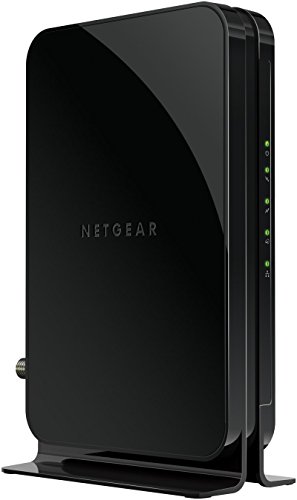
Save monthly rental fees: Model CM500 replaces your cable modem, saving you up to Dollar 168/yr in equipment rental fees.

FIRST GENERATION xfi pod version; Only compatible with Xfinity rented routers/modems; DOES NOT WORK WITH COMCAST; Not compatible with consumer owned routers; Essentially, if you are not monthly renting your modem/router from Xfinity, you cannot use this device, as it is not compatible with your network setup

BUILT FOR FASTEST MULTI-GIG SPEEDS: Best for cable provider plans up to 2.5Gbps.
Restart Your Modem and Router
This is the first practical step and resolves a surprising number of slow internet complaints. Modems and routers accumulate memory errors, stale connection tables, and software glitches over time. A full restart clears these and often restores full speed.
Unplug your modem from power. If your router is separate, unplug that too. Wait a full 60 seconds — not just a few seconds. Plug the modem back in first and wait for all lights to stabilize (usually one to two minutes). Then plug the router back in and wait another minute.
Test speed again after a full restart before continuing to any other troubleshooting.

VERSATILE CABLE TESTING: Cable tester for data (RJ45) terminated cables and patch cords, ensuring comprehensive testing capabilities
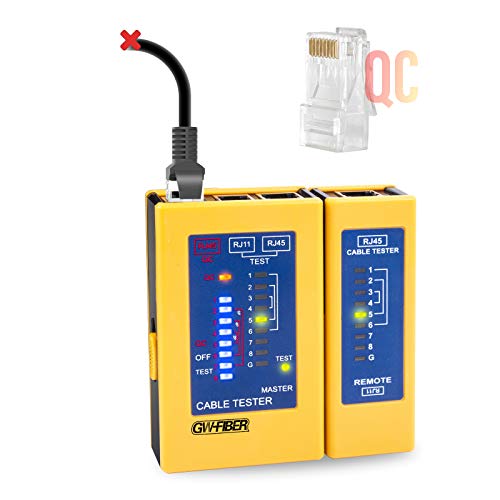
[[Upgraded]], this is ethernet cable tester, support cat8/cat7/cat6e/cat5 cable cat6 tester and ethernet port test adaptive 10/100/1000 Base-T, compatible high speed, if you are an engineer, you should have a high speed network cable tester.
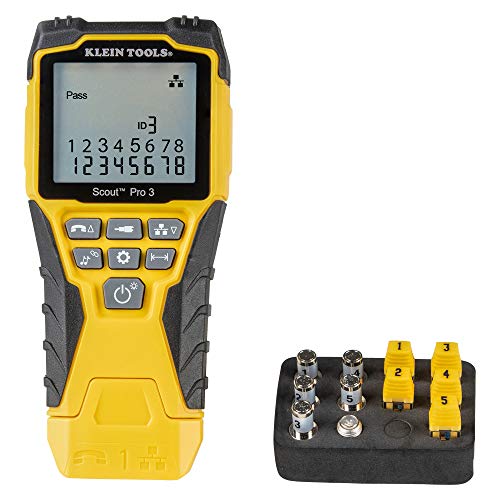
VERSATILE CABLE TESTING: Cable tester tests voice (RJ11/12), data (RJ45), and video (coax F-connector) terminated cables, providing clear results for comprehensive testing
Check the Xfinity App for Outages and Signal Issues
The Xfinity app provides real-time information about your service status, signal levels, and any outages in your area.
Open the Xfinity app and go to Internet → Troubleshoot. Xfinity runs a diagnostic on your connection and reports signal problems, outages, or equipment issues. This is often the fastest way to find out if the problem is on Xfinity’s side rather than yours.
Also check downdetector.com/status/xfinity for widespread reported outages in your area. If many people in your area are reporting slow speeds simultaneously, the issue is on Xfinity’s network infrastructure and nothing you do locally will fix it.
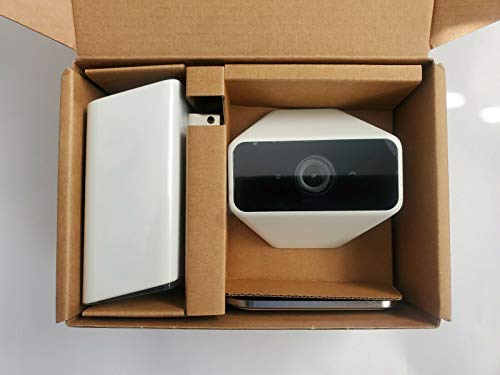

Secure and monitor your home with Xfinity Home door/window sensors, and create rules to get real-time alerts if any door or window is opened unexpectedly.
1st Generation / Ver 1.0 / Will not work with any other provider accept designated provider
Check Your Modem’s Signal Levels
Xfinity’s cable internet service requires specific signal levels to operate at full speed. If the signal entering your home is too weak or too strong, your modem compensates by reducing throughput — which shows up as slow speeds, high latency, and packet loss.
Access your modem’s diagnostic page by typing 10.0.0.1 in your browser’s address bar (for Xfinity gateway devices). Log in with the admin credentials (often printed on the modem label). Look for Signal or Status pages showing downstream and upstream signal levels.
Healthy signal ranges for Xfinity cable modems:
- Downstream power: -7 to +7 dBmV (ideally close to 0)
- Downstream SNR: 33 dB or higher
- Upstream power: 38 to 48 dBmV
Levels significantly outside these ranges indicate a signal problem — either in the cable line entering your home, a splitter causing signal loss, corroded connections, or an issue with Xfinity’s line to your house. If your signals are out of range, contact Xfinity to send a technician to check the line quality.
Check Your Equipment
Old or underpowered equipment is one of the most common causes of slow Xfinity speeds — particularly for customers who have upgraded their speed tier without upgrading their modem.
Check your modem’s DOCSIS version. DOCSIS is the standard Xfinity cable modems use. DOCSIS 3.0 modems support speeds up to around 300 Mbps. If you’re on a plan faster than 300 Mbps and using a DOCSIS 3.0 modem, the modem itself is the bottleneck. DOCSIS 3.1 modems support gigabit speeds and are required for Xfinity’s faster tiers.
If you’re renting an Xfinity gateway, check whether it’s a current model — Xfinity’s xFi Gateway devices are updated periodically and older rental equipment may not support your current plan’s full speed.
Check your router if you have a separate one. An older router with 100 Mbps ethernet ports (Fast Ethernet rather than Gigabit Ethernet) caps wired speeds at 100 Mbps regardless of what your modem provides. Check your router’s specifications for Gigabit Ethernet support.
Wi-Fi vs. Wired Speed Difference
If your ethernet speed test is fast but Wi-Fi is slow, the problem isn’t Xfinity — it’s your Wi-Fi setup. Wireless speeds are affected by many factors that have nothing to do with your internet service provider.
Distance from the router. Wi-Fi signal weakens with distance and through walls. A device two rooms away from your router may only get 20% of the signal strength it would get directly next to it.
Wi-Fi band. The 2.4 GHz band has longer range but lower speeds. The 5 GHz band has shorter range but significantly higher speeds. If your device is connected to 2.4 GHz when 5 GHz is available, switching can dramatically improve speeds.
Router placement. A router tucked in a closet, in a corner, or near other electronics performs significantly worse than one placed centrally and elevated. Move your router to a more central location.
Wi-Fi congestion. In dense apartment buildings or neighborhoods, competing Wi-Fi networks on the same channels cause interference. Log into your router and change the Wi-Fi channel — channels 1, 6, or 11 are non-overlapping on 2.4 GHz. Use WiFi Analyzer (Android) or Wireless Diagnostics (Mac) to see which channels neighboring networks are using and pick the least congested one.
Check for Network Congestion
Xfinity operates on a shared network — the cable infrastructure in your neighborhood is shared among nearby subscribers. During peak usage hours when many people in your area are streaming, gaming, and browsing simultaneously, available bandwidth gets divided and everyone’s speeds drop.
This is called network congestion and it’s one of the most common causes of slow Xfinity speeds that’s outside your control. Consistent slowness specifically in the evenings — typically 7 to 10 PM — is the classic congestion pattern.
If congestion is the cause, your options are limited: schedule bandwidth-heavy tasks (large downloads, backups) for off-peak hours like early morning, or contact Xfinity to report the consistent congestion — enough reports from an area can prompt infrastructure upgrades.
Check for Data Cap Throttling
Xfinity imposes a 1.2 TB monthly data cap on most residential plans. If you exceed this cap, Xfinity charges for additional data or in some cases throttles speeds. Check your current data usage in the Xfinity app under Account → Internet → Data Usage.
If you’re approaching or have exceeded 1.2 TB, this may be contributing to slow speeds. Xfinity offers an unlimited data add-on that removes the cap for a monthly fee. Reducing usage — particularly from streaming in high resolution, large file transfers, and cloud backups — can help if you consistently approach the limit.
Check Connected Devices and Bandwidth Usage
Other devices on your network consuming bandwidth reduce available speed for everything else. A device running a large backup, a family member streaming 4K video, a gaming console downloading an update, and a smart TV running background updates can collectively saturate even a fast connection.
Log into your router’s admin interface and look at connected devices and their bandwidth usage. Identify anything consuming unusually large amounts of bandwidth and pause or schedule those activities. Some routers support Quality of Service (QoS) settings that let you prioritize traffic for specific devices or activities.
Check for Malware or Unauthorized Users
Malware on a device in your network can consume bandwidth continuously — sending data, participating in botnets, or mining cryptocurrency. Similarly, unauthorized users who have accessed your Wi-Fi network use your bandwidth without your knowledge.
Check your router’s connected device list for any devices you don’t recognize. Change your Wi-Fi password to a strong unique password if you see unfamiliar devices or if your password hasn’t been changed in years.
Run a malware scan on computers showing consistently slow speeds — Malwarebytes detects most browser-hijacking and bandwidth-consuming malware that standard antivirus misses.
Check Cables and Connections
Physical cable issues cause slow speeds that diagnostics sometimes don’t catch clearly. The coaxial cable connecting Xfinity’s service to your modem, and the ethernet cables connecting your modem to your router and devices, can degrade over time.
Inspect the coaxial cable for any physical damage — kinks, crushing, sharp bends, or corrosion at the connectors. Coaxial connectors that are loose, corroded, or improperly installed cause signal loss that slows your connection.
Check ethernet cables connecting your modem, router, and devices. Cat 5e cables support up to 1 Gbps. Older Cat 5 (not Cat 5e) cables are limited to 100 Mbps. Replace any cables that look damaged or are older than five to seven years.
Consider Upgrading Your Speed Plan
If your speed test results match your plan’s speed but the speed simply isn’t enough for your household’s usage — multiple 4K streams, remote work video calls, gaming, and general browsing simultaneously — upgrading to a faster tier is the appropriate solution rather than troubleshooting.
Xfinity offers multiple speed tiers. Calculate your household’s typical concurrent usage — each 4K stream needs roughly 25 Mbps, video conferencing uses 5 to 10 Mbps per call, gaming uses 3 to 6 Mbps — and compare against your current plan speed. If concurrent usage regularly approaches or exceeds your plan speed, an upgrade makes sense.
Contact Xfinity Support
Some issues require Xfinity to fix on their end — degraded line quality, node congestion, infrastructure problems, or provisioning issues that affect only your account.
Contact Xfinity through xfinity.com/support, the Xfinity app, or by calling. When contacting support:
Mention the speed test results you’ve documented — actual speeds versus plan speed.
Note the times of day when slowness is worst.
Report whether the issue is specific to Wi-Fi or also present on wired ethernet.
Mention that you’ve already restarted your equipment — this moves the conversation past basic troubleshooting faster.
If Xfinity’s diagnostic shows signal issues, ask for a technician visit to check the line quality from the street to your home. Line quality issues often show up as marginal signal levels that need physical inspection and repair to resolve.
A Quick Checklist
Work through these in order:
- Run a speed test on ethernet and compare against your plan speed
- Restart modem and router with a full 60-second power cycle
- Check the Xfinity app for outages or signal issues on your account
- Check modem signal levels at 10.0.0.1 for out-of-range values
- Verify modem supports your speed tier — DOCSIS 3.1 for plans over 300 Mbps
- Check whether slowness is Wi-Fi or also ethernet — different causes
- Check Wi-Fi band, channel, and router placement if Wi-Fi is the issue
- Check data usage in the Xfinity app for throttling near the 1.2 TB cap
- Check for bandwidth-heavy background activity on connected devices
- Check for unauthorized devices on your network
- Inspect coaxial and ethernet cables for damage or degradation
- Contact Xfinity if signal levels are out of range or congestion is consistent
The Bottom Line
Slow Xfinity internet is almost always caused by one of four things: a modem or router that needs a restart, a signal quality issue on the coaxial line, Wi-Fi interference or placement, or network congestion during peak hours. The speed test on ethernet versus Wi-Fi immediately tells you whether the problem is the internet service itself or your internal network.
Equipment age is the most commonly overlooked factor — a DOCSIS 3.0 modem on a gigabit plan is a guaranteed bottleneck. Checking the modem’s DOCSIS version against your plan speed takes thirty seconds and often reveals an obvious explanation.
Run the speed test on ethernet first — that single result tells you whether Xfinity is the problem or your home network is.

40Gbps 2000Mhz High Speed: Cat 8 ethernet cable data transfer speeds up to 40Gbps and supports bandwidth up to 2000Mhz, which is 4x faster than the Cat 7. It is backward compatible with Cat7/6a/6/5 and can reduce latency for superior signal quality
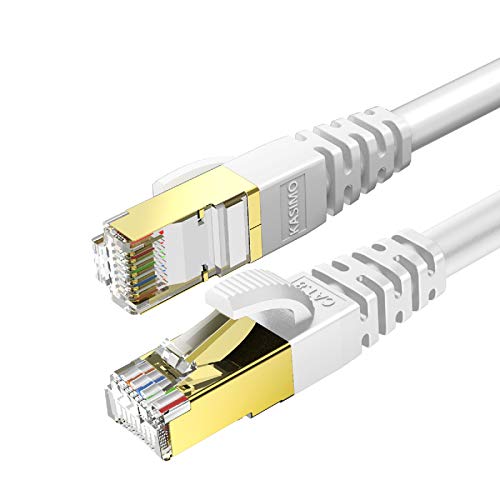
🚀 HIGH-SPEED ETHERNET CABLE: Our ethernet cable 50 ft support bandwidth up to 2000MHz and up to 40Gbps data transmission speed that is 4x than the frequency of CAT 7 cable, so you can connect to your LAN segments and networking gear at maximum speeds and surf the net, playing games, stream videos, audio, music, and other data at high speed without worrying about lagging and waste time for waiting.

High-Speed Cat 6 Ethernet Cable Performance: True cat6 ethernet cable 24awg gauge spec supports up to 10 Gbps/550 MHz for fast data on your ethernet network ideal for streaming, gaming, work, and smart home devices.

Meet Ry, “TechGuru,” a 36-year-old technology enthusiast with a deep passion for tech innovations. With extensive experience, he specializes in gaming hardware and software, and has expertise in gadgets, custom PCs, and audio.
Besides writing about tech and reviewing new products, he enjoys traveling, hiking, and photography. Committed to keeping up with the latest industry trends, he aims to guide readers in making informed tech decisions.