

A combination of image dimensions and format choices — here’s how to post photos that display in full
Posting an image to X and having it automatically cropped into a tight preview that cuts off the important parts is one of the platform’s most consistently frustrating behaviors.
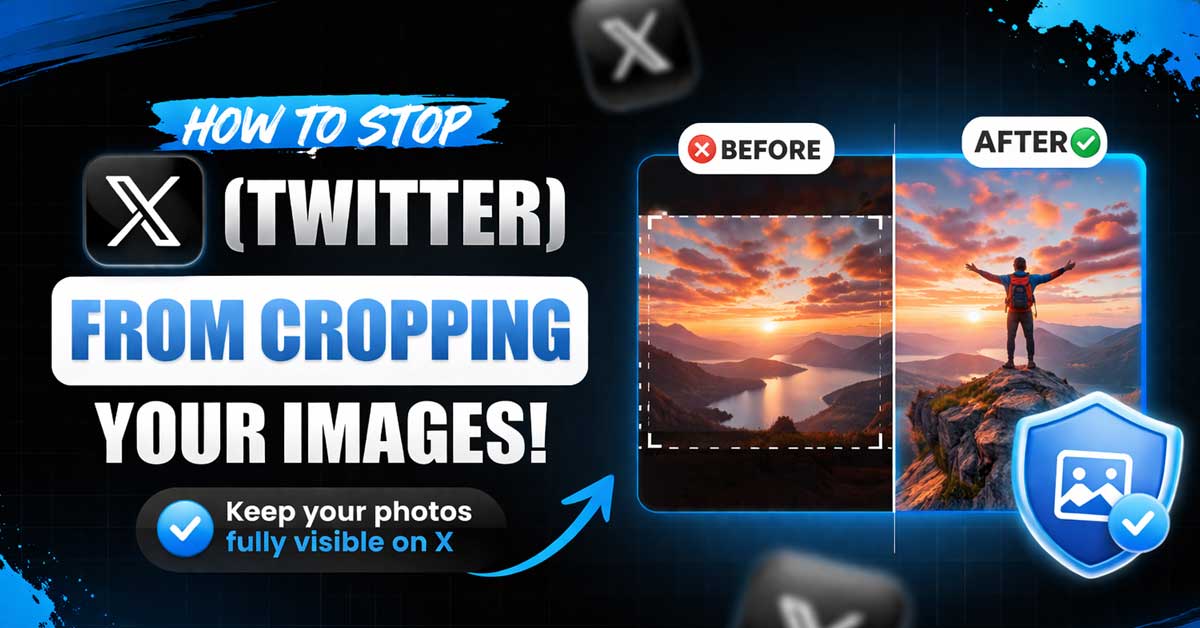
X crops images in the timeline to fit its preview cards, which means tall images get cut down to a landscape strip and wide images lose their sides.
The fix isn’t a setting — it’s understanding how X decides what to show and formatting your images accordingly before you post.
Why X Crops Images
X crops images in the timeline preview to maintain a consistent feed layout. When multiple posts appear one after another, X enforces a maximum preview height so the feed doesn’t get overwhelmed by a single tall image. The cropped preview is what users see while scrolling — clicking or tapping the image opens the full uncropped version.
The crop is applied automatically based on the image’s aspect ratio relative to X’s preview dimensions. X also uses a saliency algorithm that attempts to identify the most important part of the image and center the crop there — but this algorithm is imperfect and frequently cuts off faces, text, and key visual elements.
The Aspect Ratios X Displays Without Cropping
X displays images without cropping when they fall within specific aspect ratio ranges. Understanding these ranges is the core of avoiding unwanted crops.
Single image posts: X displays images without cropping when the aspect ratio is between 2:1 (landscape) and 3:4 (portrait). Images within this range display in full in the timeline preview. Images outside this range get cropped to fit.
The ideal single image aspect ratio for guaranteed full display is 16:9 — standard widescreen format. Images at 16:9 display completely without any cropping in the preview.
Square images (1:1) also display without cropping and are one of the most reliable formats for X posts.
Very tall portrait images — taller than 3:4 — get the most aggressive cropping since X needs to reduce significant height to fit its preview card.
Very wide landscape images — wider than 2:1 — also get cropped on the sides.
Resize Your Images Before Posting
The most reliable fix is resizing images to a compatible aspect ratio before uploading. If your image is 3:4 or wider, X will display it fully. If it’s taller than 3:4, crop or resize it before posting.
For a photo that’s very tall — a portrait shot, a screenshot of a long conversation, an infographic — either crop it to a more compatible ratio before posting or split it into multiple images in a multi-image post.
Target dimensions for single images:
- 1200 x 675 pixels at 16:9 — standard recommendation, displays perfectly
- 1200 x 1200 pixels at 1:1 — square, always displays fully
- 1200 x 900 pixels at 4:3 — slightly portrait, displays fully
- Maximum recommended width: 4096 pixels
- Maximum file size: 5MB for images
Use Multi-Image Posts Strategically
When you post multiple images in a single tweet, X arranges them in a grid layout. The cropping behavior in multi-image posts is different from single image posts — and sometimes more aggressive since X has to fit multiple images into the same card space.
For two images side by side, X crops both to roughly square or slightly portrait crops. For three images, one image gets more space than the other two. For four images, all four appear in a 2×2 grid with square crops.
If image integrity matters, posting images individually rather than in a multi-image post gives you more control over how each one displays. Each image in a solo post follows the single-image aspect ratio rules above.
The 1:1 Square Is Your Most Reliable Format
If you’re unsure about aspect ratios and want a format that always works, square images at 1:1 are the safest choice. X never crops square images — they always display fully in the preview regardless of content.
Cropping your images to square before posting — centering on the most important content — ensures full display at the cost of some of the original frame. For many images this is a worthwhile tradeoff.
Add White Space or Borders to Tall Images
If you have a tall image you don’t want to crop, adding white or colored borders to the sides to bring it closer to a 16:9 or 1:1 aspect ratio before posting is a common workaround. This pads the image to a compatible ratio without removing any content.
The border approach works particularly well for infographics, tall screenshots, and vertical photography where the full length of the image matters. The resulting post may look slightly different from a borderless image but it displays the complete content.
For Screenshots of Long Content
Screenshots of long conversations, threads, or documents are among the most commonly cropped content on X because they’re inherently tall and narrow. A few approaches handle these better than posting a single tall screenshot.
Crop into sections. Break the long screenshot into multiple pieces each at a compatible aspect ratio and post them as a multi-image post or as a thread with one image per tweet.
Use a screenshot tool that formats for social media. Apps like Otter.ai for conversations, or general screenshot formatters, can wrap long content into a more X-friendly layout.
Use X’s own thread format. For long text content, posting as a thread of tweets rather than a screenshot avoids the cropping issue entirely — text in tweets is never cropped the way images are.
Check Before Posting Using X’s Preview
X shows a preview of how your image will appear before you send the tweet. After attaching an image in the compose window, X displays how it will look in the timeline — including any cropping. If the preview shows your image cropped in a way you don’t like, adjust the image before posting.
The compose window also allows manual crop adjustment in some versions of the X app — after attaching an image, look for an edit or crop option that lets you choose which part of the image appears in the preview. This doesn’t change the full image that opens when clicked, but it lets you control what portion appears in the timeline preview.
X’s Saliency Crop Algorithm
X uses an AI-based saliency detection algorithm to choose the crop point when cropping is unavoidable — it tries to identify the most visually important part of the image and center the crop there. Faces, high-contrast areas, and recognized objects influence where the crop falls.
The algorithm is imperfect and has been widely criticized — X acknowledged in 2021 that the algorithm showed bias in how it cropped images of people. The algorithm was subsequently changed but saliency-based cropping still produces unexpected results on images with unusual content distribution.
For predictable results, don’t rely on the saliency algorithm — format your images to compatible aspect ratios before posting so the algorithm never needs to make a crop decision.
A Quick Reference
| Image Type | Best Approach |
|---|---|
| Standard photo | Resize to 16:9 or 1:1 before posting |
| Square graphic or logo | Post at 1:1 — never cropped |
| Tall portrait photo | Crop to 3:4 maximum before posting |
| Very tall screenshot | Split into sections or add side borders |
| Multiple images | Post individually for better control |
| Long text screenshot | Use X threads instead |
The Bottom Line
X crops images because its timeline preview enforces aspect ratio limits — images between 2:1 wide and 3:4 tall display in full, everything else gets cropped. The fix is formatting images to fall within that range before posting rather than hoping X’s cropping algorithm does something useful with them.
The 16:9 and 1:1 formats are the two most reliable choices — every image posted at those ratios displays completely in the timeline preview with no cropping.
X will crop whatever doesn’t fit its preview card — give it an image that already fits and there’s nothing left to crop.

Meet Ry, “TechGuru,” a 36-year-old technology enthusiast with a deep passion for tech innovations. With extensive experience, he specializes in gaming hardware and software, and has expertise in gadgets, custom PCs, and audio.
Besides writing about tech and reviewing new products, he enjoys traveling, hiking, and photography. Committed to keeping up with the latest industry trends, he aims to guide readers in making informed tech decisions.