
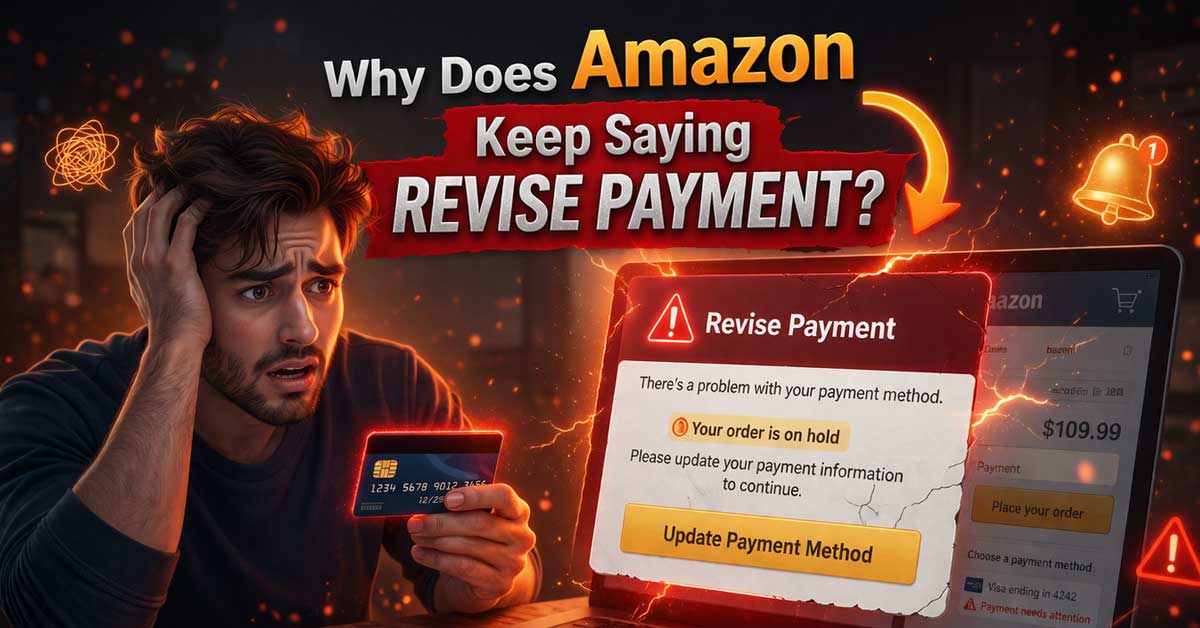

Almost always a card issue or billing problem — here’s what’s causing it and how to fix it
Amazon prompting you to revise your payment method — either when placing an order, when an order is already processing, or repeatedly on an existing order — means the payment method on file isn’t working for that transaction.
The prompt itself tells you something specific is wrong with the payment, and the fix depends on which of several common causes applies to your situation. Here’s how to identify and resolve it.
The Card Was Declined by Your Bank
The most common cause of a revise payment prompt is a straightforward card decline from your bank or card issuer — not from Amazon. Amazon attempted to charge your card, the card issuer rejected the transaction, and Amazon is asking you to provide a payment method that will go through.
Banks decline cards for several reasons that aren’t always obvious:
Insufficient funds or credit limit reached. The most direct cause — the card doesn’t have enough available balance or credit for the transaction amount.
Fraud detection. Banks automatically flag unusual purchases — a large order, a purchase from an unfamiliar merchant category, an order shipping to a different address than your billing address, or a purchase made after a period of inactivity. The bank blocks it as a precaution.
Daily spending limit reached. Many cards have daily transaction limits that can be hit by a combination of purchases throughout the day, not just a single large Amazon order.
Card reported lost or stolen. If you reported your card and received a replacement, the old card number is deactivated even if you haven’t updated it on Amazon yet.
The fix: Call your bank or check your banking app to see if a decline was recorded and why. Banks can often approve a specific transaction or temporarily raise limits once you confirm the purchase is legitimate. Then attempt the Amazon order again or try a different payment method.
Your Card Information on Amazon Is Outdated
An expired card, a changed card number, or an updated billing address that hasn’t been reflected on Amazon causes payment failures. Amazon stores card details at the time you add them — any subsequent changes to the card need to be updated manually.
Go to Account → Payment Methods. Review each saved card and check:
Expiration date. If the card has expired, update the expiration date to the new card’s date. If you received a completely new card number, you’ll need to add it as a new card rather than updating the existing entry.
Billing address. If you’ve moved since adding the card, the billing address on Amazon may no longer match what the bank has on file. Banks use address verification as a fraud check — a mismatch between the billing address Amazon submits and the address the bank has for the card can cause a decline.
Card number. If your card was reissued with a new number — due to expiration, fraud, or a bank transition — the old number is invalid. Add the new card number.
The Order Amount Exceeds Your Available Balance
For debit cards and prepaid cards, the available balance must cover the full order amount including shipping and any applicable taxes. Amazon places an authorization hold for the full amount before the order ships — if the available balance drops between when you placed the order and when the hold is placed, the payment fails.
This can happen when multiple pending charges hit your account simultaneously, when a recent transaction cleared and reduced your balance, or when the order total is slightly higher than expected due to tax calculations.
Check your available balance in your banking app. If the balance is close to the order total, the difference between your balance and the order total including all fees may be causing the decline. Adding funds or switching to a credit card resolves it.
Amazon’s Verification Process for New Cards
When you add a new payment method to Amazon, the platform sometimes runs a small verification charge — typically $1 or less — to confirm the card is valid and the billing information matches. This verification charge is refunded but the card may show as unverified in the meantime.
If you recently added a card and immediately tried to place an order, the revise payment prompt may appear because the verification hasn’t cleared yet. Wait a few minutes, check that the card shows as verified in your payment methods, and try the order again.
The Payment Method Isn’t Accepted for This Purchase
Certain payment types have restrictions on Amazon that can cause a revise payment prompt for specific order types even when the payment method works for regular purchases.
Prepaid cards are sometimes not accepted for subscription services, pre-orders, or orders being shipped to an address different from the billing address.
Gift cards can only be applied to eligible purchases and can’t cover all order types — subscription renewals and certain third-party seller orders may require a credit or debit card regardless of gift card balance.
Amazon Store Card has credit limits and may decline if the purchase would exceed the available credit even if the card itself is in good standing.
Check whether your payment type has any restrictions for the specific order type you’re placing.
Amazon Pay or Third-Party Payment Issues
If you’re using Amazon Pay, a bank transfer, or a regional payment method, these have their own verification and processing systems that can produce revise payment prompts for reasons specific to those methods.
For Amazon Pay, check the Amazon Pay section of your account for any alerts or required actions. For bank transfers, verify that your bank account information is current and that the account has sufficient funds. For regional payment methods, check whether there are any service outages or account-specific issues.
A Temporary Bank or Amazon Processing Issue
Occasionally a revise payment prompt is caused by a temporary processing issue — either on Amazon’s payment processing side or on your bank’s authorization side — rather than a genuine problem with your card.
If your card details are current, your balance is sufficient, and there’s no fraud flag, try the following:
Wait a few minutes and attempt the purchase again without changing anything. Temporary processing issues often resolve within minutes.
Try a different browser or the Amazon app if you’re on desktop — occasionally session issues affect payment processing.
Check Amazon’s service status page and your bank’s app for any reported issues.
Multiple Failed Attempts May Lock Payment Processing
Repeatedly attempting a declined payment can cause your bank to further restrict the card — banks sometimes add additional blocks after multiple failed attempts to the same merchant as a fraud protection measure.
If you’ve tried the same card several times on Amazon without success, stop attempting and contact your bank directly to understand the decline reason before trying again. Your bank can clear any secondary blocks that accumulated from the repeated attempts.
How to Update Your Payment Method
Once you’ve identified the cause, updating your payment information on Amazon is straightforward.
Go to Account → Payment Methods. To update an existing card, click Edit next to it and update the relevant fields — expiration date, billing address, or card number. To add a new card, click Add a Payment Method and enter the full card details.
For an order that’s already placed and showing revise payment, go to Your Orders, find the affected order, and click Change Payment Method on the order detail page. Select a valid payment method or add a new one. Amazon reattempts the charge with the updated payment method.
Set a Backup Payment Method
Amazon allows you to set a backup payment method that automatically processes if your primary method fails. This prevents revise payment prompts from blocking orders when a temporary card issue occurs.
Go to Account → Payment Methods and look for the option to set a Default Payment Method and add a backup. With a backup card on file, Amazon attempts the backup automatically rather than stopping and prompting you to intervene.
A Quick Checklist
Work through these to identify and fix the cause:
- Check your bank app for any decline notifications or fraud alerts
- Call your bank if a decline is showing — confirm the reason and authorize the charge
- Check card expiration date in Account → Payment Methods
- Verify billing address on Amazon matches what your bank has on file
- Check available balance if using a debit or prepaid card
- Wait and retry if you recently added the card — verification may be pending
- Try a different payment method to confirm whether the issue is card-specific
- Don’t retry the same declined card repeatedly — contact your bank first
- Update the payment method on the specific order in Your Orders if already placed
- Add a backup payment method to prevent future interruptions
The Bottom Line
Amazon’s revise payment prompt almost always means the card issuer declined the transaction — not that something is wrong with Amazon’s system or your account. The most common causes are fraud detection flags, outdated card details, and insufficient balance.
Checking your bank app for the decline reason is the fastest path to understanding exactly what happened and fixing it. Most bank declines are resolved quickly once you contact the issuer — either by confirming the purchase is legitimate or by updating the card details on Amazon to match what the bank has on file.
Amazon isn’t rejecting your payment — your bank is. Find out why the bank said no and the fix becomes straightforward.

Meet Ry, “TechGuru,” a 36-year-old technology enthusiast with a deep passion for tech innovations. With extensive experience, he specializes in gaming hardware and software, and has expertise in gadgets, custom PCs, and audio.
Besides writing about tech and reviewing new products, he enjoys traveling, hiking, and photography. Committed to keeping up with the latest industry trends, he aims to guide readers in making informed tech decisions.