
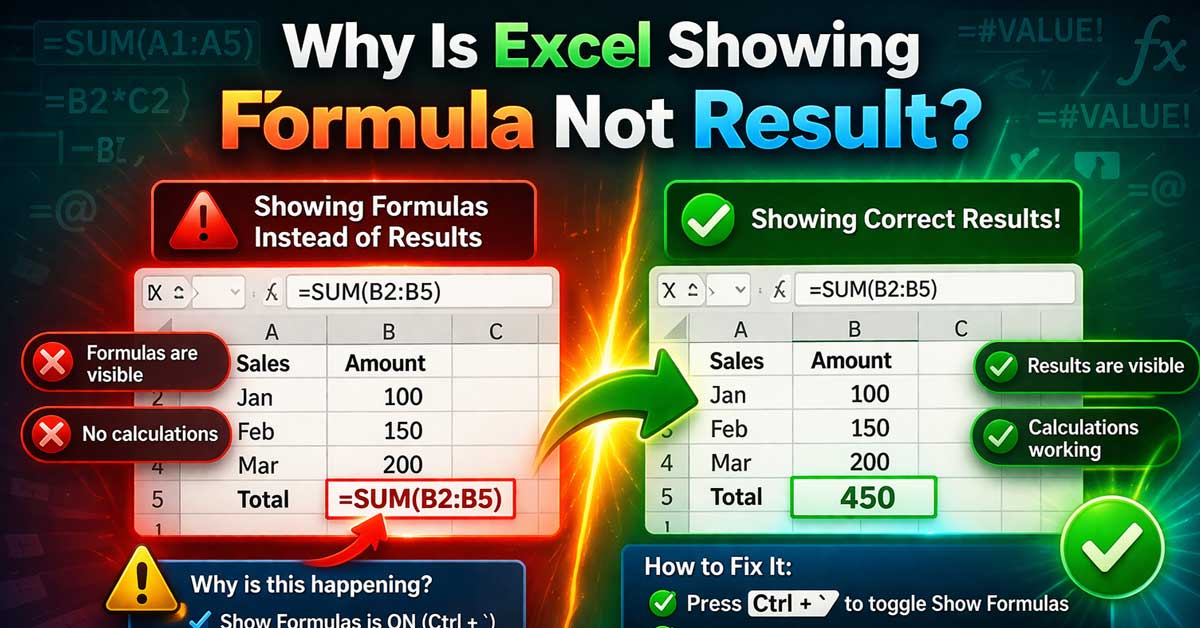

Almost always a formatting or settings issue — here’s what’s causing it and how to fix it
Typing a formula into Excel and seeing =SUM(A1:A10) displayed in the cell instead of the calculated result is one of Excel’s most common beginner frustrations — and it catches experienced users off guard too when it appears unexpectedly.
There are a handful of specific causes, each with a direct fix.
Here’s how to identify which one applies and correct it.
Show Formulas Mode Is Turned On
This is the most common cause by a significant margin. Excel has a built-in mode called Show Formulas that displays every formula in its cell rather than its result — useful for auditing a spreadsheet, disorienting when accidentally activated.
The keyboard shortcut for Show Formulas is Ctrl + ` (Ctrl and the backtick key, which sits to the left of the 1 key on most keyboards). It’s easy to trigger accidentally, particularly on laptops where keys are close together.
To fix it: Press Ctrl + ` again to toggle Show Formulas off. Every formula in the sheet immediately displays its result instead.
You can also check and change this setting through the ribbon: go to Formulas → Formula Auditing → Show Formulas. If the button is highlighted or active, click it to turn it off.
The Cell Is Formatted as Text
This is the second most common cause and slightly trickier to identify because it looks identical to Show Formulas mode but affects individual cells rather than the whole sheet.
When a cell is formatted as Text, Excel treats everything you type as a literal text string — including formulas. A cell formatted as Text that contains =SUM(A1:A10) displays the formula text rather than calculating it.
How to check: Select the cell showing the formula. Look at the Number Format dropdown in the Home tab — if it says Text, that’s the cause.
How to fix: Change the cell format from Text to General or Number. Select the cell, go to Home → Number Format dropdown and select General. Then click in the formula bar and press Enter to force Excel to re-evaluate the cell content. Without that Enter press, Excel may keep displaying the formula even after the format change.
Why it happens: A common scenario is importing data from a CSV or external source where cells come in formatted as Text. Another is typing an apostrophe before a formula — '=SUM(A1:A10) — which forces text treatment.
The Formula Starts With a Space
If there’s a space before the equals sign — =SUM(A1:A10) instead of =SUM(A1:A10) — Excel doesn’t recognize it as a formula. A formula must start with the equals sign as the very first character in the cell.
Click in the formula bar and check whether there’s a space before the =. Delete any leading spaces and press Enter.
The Cell Has a Leading Apostrophe
An apostrophe at the start of a cell value tells Excel to treat the content as text regardless of what follows. This is a deliberate Excel feature — useful for storing numbers as text or preventing date auto-formatting — but it causes formulas to display as text when applied accidentally.
A leading apostrophe isn’t visible in the cell itself but you can see it in the formula bar when the cell is selected — it appears as '=SUM(A1:A10).
To fix: Delete the content and retype the formula without the apostrophe. Or double-click the cell to enter edit mode, navigate to the beginning of the content, and delete the apostrophe character.
The Formula Is Wrapped in Quotation Marks
A formula wrapped in quotes is a text string, not a formula. Typing "=SUM(A1:A10)" with quotation marks around it tells Excel you want to store the text literally rather than evaluate it as a formula.
Check the formula bar for quotation marks around the formula. Remove them and the cell evaluates correctly.
AutoCalculation Is Turned Off
This is a less common but important cause — not the same as showing formula text, but related. If calculations are set to Manual, formulas may show stale results or appear not to update, which can be confused with a formula display issue.
Go to Formulas → Calculation Options and check whether it’s set to Automatic or Manual. If Manual, change it back to Automatic. You can also press F9 to force a recalculation of the entire workbook immediately.
The Entire Column or Sheet Is Formatted as Text
If an entire column was formatted as Text before formulas were entered, every formula in that column displays as text. This is a common issue when working with imported data where columns arrive pre-formatted.
Select the entire column by clicking the column header. Change the format to General in the Home tab Number Format dropdown. Then select all the formula cells in that column — you may need to select them and use Find and Replace with a trick to force re-evaluation:
Press Ctrl + H to open Find and Replace. In the Find What field type =. In the Replace With field also type =. Click Replace All. This replaces every = with itself, forcing Excel to re-evaluate each cell.
Checking and Fixing Multiple Cells at Once
If multiple cells across the sheet are showing formulas, a combination of approaches clears them efficiently.
First check Show Formulas mode — Ctrl + ` — to see if that’s the blanket cause. If toggling it off fixes everything, you’re done.
If only some cells are affected, the issue is likely cell-level Text formatting. Select all affected cells, change to General format, and use the Find and Replace = trick to force re-evaluation of all of them at once.
A Quick Checklist
Match your symptom to the right fix:
- All formulas showing on the sheet — press Ctrl + ` to toggle Show Formulas off
- Only specific cells showing formula text — check if those cells are formatted as Text
- Formula bar shows apostrophe before the formula — delete the apostrophe
- Formula bar shows quotes around the formula — remove the quotation marks
- Formula starts with a space — delete the leading space before the equals sign
- Entire column affected after import — select column, change to General, use Find and Replace = trick
The Bottom Line
Excel showing a formula instead of a result is almost always caused by Show Formulas mode being active or the cell being formatted as Text. Ctrl + ` fixes the first in one keystroke. Changing the cell format to General and pressing Enter fixes the second in two steps.
The apostrophe and quotation mark causes are less common but worth knowing — they’re easy to introduce accidentally and equally easy to fix once you know to look for them in the formula bar.
Excel is displaying exactly what you told it to — a text string that looks like a formula. Tell it the cell contains a formula instead and it calculates immediately.

Meet Ry, “TechGuru,” a 36-year-old technology enthusiast with a deep passion for tech innovations. With extensive experience, he specializes in gaming hardware and software, and has expertise in gadgets, custom PCs, and audio.
Besides writing about tech and reviewing new products, he enjoys traveling, hiking, and photography. Committed to keeping up with the latest industry trends, he aims to guide readers in making informed tech decisions.