
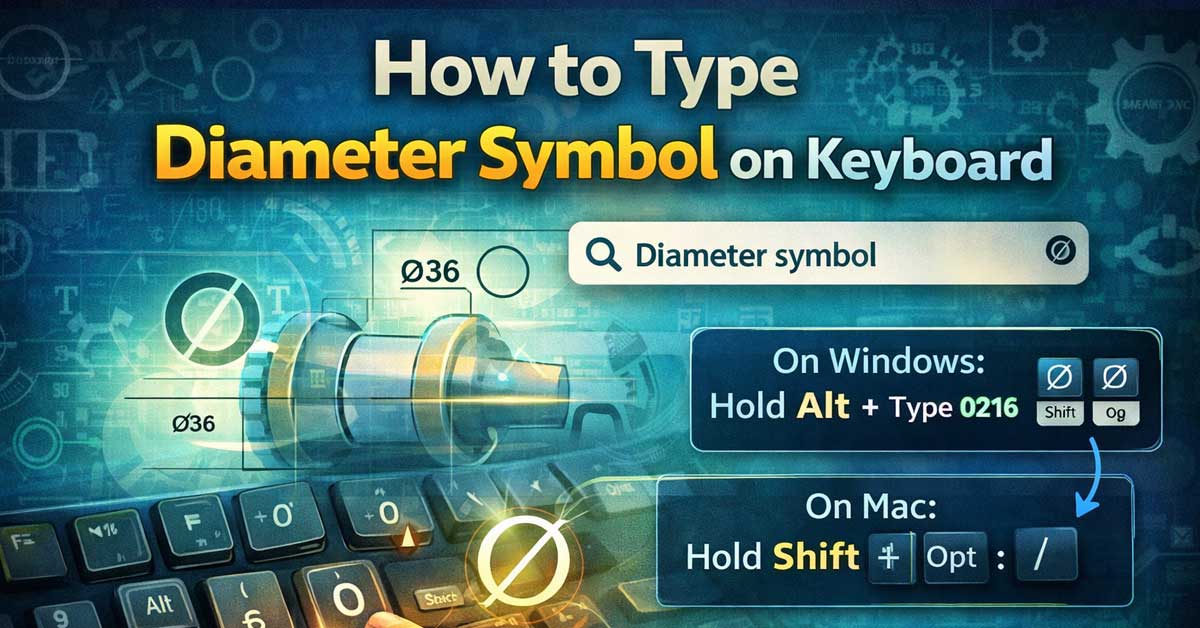

Not on any standard key — here’s the fastest method on every platform
The diameter symbol ⌀ (Unicode U+2300) appears in engineering drawings, technical specifications, manufacturing documents, and anywhere dimensions of circular objects are specified.
It looks similar to the Greek letter phi (φ) and the empty set symbol (∅) but is a distinct character with its own Unicode code point.
Every platform has a reliable method to produce it, though it’s less accessible than more common symbols and requires knowing which character you actually need.
The Three Similar-Looking Symbols Worth Distinguishing
Before getting into methods, it’s worth clarifying which symbol you actually need — these three are frequently confused:
⌀ — the diameter sign (U+2300). The correct symbol for engineering and technical drawings indicating diameter of a circular feature.
∅ — the empty set symbol (U+2205). A mathematical symbol indicating the empty set or null set. Looks very similar to ⌀ but has different mathematical meaning.
φ or Φ — lowercase and uppercase phi, Greek letters (U+03C6 and U+03A6). Used in mathematics and physics. Also visually similar but distinct.
In engineering and manufacturing contexts, ⌀ (U+2300) is technically correct. In practice, many technical documents use ∅ or even the Greek phi as a diameter symbol — particularly in older documentation and when the correct character wasn’t easily accessible. If you’re working to a specific standard, check which character that standard requires.
Windows
Method 1: Alt Code
Hold Alt and type 8960 on the numeric keypad. Release Alt and ⌀ appears.
- Num Lock must be on
- Use the numeric keypad only — not the number row
- Doesn’t work on laptops without a dedicated numpad
Method 2: Character Map
Search for Character Map in the Start menu. In the search box within Character Map, type diameter or navigate to Unicode code point 2300. Copy and paste. Works on any Windows machine.
Method 3: System-Wide Text Expansion
Use PhraseExpress, AutoHotkey, or Espanso to map a trigger like \dia or diam to ⌀ system-wide. Works in every application.
A simple AutoHotkey script:
::\dia::⌀Mac
Method 1: Character Viewer
Press Control + Command + Space to open the Character Viewer. Search diameter and double-click ⌀ to insert.
This is the most reliable Mac method — the diameter sign doesn’t have a dedicated keyboard shortcut on Mac, making the Character Viewer the standard approach.
Method 2: Text Replacement
Go to System Settings → Keyboard → Text Replacements and map a trigger like \dia or diam to ⌀. Works system-wide across every Mac app after a one-time setup — the most practical solution for regular use.
iPhone and iPad
Method 1: Text Replacement
Go to Settings → General → Keyboard → Text Replacement. Add ⌀ as the phrase and a trigger like \dia as the shortcut. Auto-expands in any text field after setup.
This is the most practical iOS method — the standard keyboard doesn’t include ⌀ as a long-press option.
Method 2: Copy and Keep Accessible
Copy ⌀ from a reference source and keep it in a note or clipboard manager for easy access when needed on mobile.
Android
Method 1: Gboard Symbol Search
In Gboard, tap the G logo and use the search function. Type diameter and ⌀ may appear as an insertable option depending on your Gboard version.
Method 2: Text Replacement
In Gboard settings, go to Dictionary → Personal Dictionary, select your language, and add ⌀ with a shortcut like \dia. Expands automatically as you type.
Method 3: Unicode Keyboard Apps
Third-party keyboard apps with full Unicode character support provide direct access to technical symbols including ⌀. Apps like Symbols Keyboard or similar specialty keyboards include engineering symbols.
Chromebook
Method 1: Unicode Input
Press Ctrl + Shift + U, type 2300, then press Enter or Space. ⌀ appears at your cursor immediately.
Method 2: Special Characters Picker
Press Search + Shift + Space to open the emoji and special characters panel. Search diameter and select ⌀ if it appears.
Linux
Method 1: Unicode Input
Press Ctrl + Shift + U, type 2300, then press Enter. Works consistently across most Linux distributions.
Method 2: Compose Key
With a Compose key configured, some distributions support sequences for technical symbols. Check your specific compose key table — availability varies by distribution.
Microsoft Word (Any Platform)
Method 1: Alt + X
Type 2300 then immediately press Alt + X. Word converts the Unicode code point to ⌀ instantly.
This is the fastest Word method — no numpad required, works on laptops.
Method 2: Insert Symbol With AutoCorrect
Go to Insert → Symbol → More Symbols. In the character set, navigate to the Technical block or search for diameter. Find ⌀, click Insert, then click AutoCorrect to set a trigger like \dia that Word converts automatically as you type.
Method 3: Alt Code
Hold Alt and type 8960 on the numpad.
Google Docs
The Alt code works on Windows inside Docs. On Mac, use the Character Viewer.
Go to Insert → Special Characters, search diameter, and click ⌀ to insert. For regular use, an OS-level text replacement is more efficient than the Insert menu each time.
AutoCAD and Technical Drawing Software
Engineering and CAD software often has built-in diameter symbol support through their own text editors.
In AutoCAD: Type %%C in text commands to insert the diameter symbol. This is AutoCAD’s internal code for the diameter symbol and works in single-line text (DTEXT), multiline text (MTEXT), and dimension annotations. AutoCAD renders %%C as ⌀ in the drawing.
In other CAD applications: Check the application’s special character documentation — most engineering software has its own shorthand for the diameter symbol similar to AutoCAD’s %%C approach.
Technical Documentation and Markup
In technical documentation contexts:
HTML:
html
⌀ <!-- decimal -->
⌀ <!-- hex -->
⌀ <!-- direct character -->LaTeX: The diameter symbol isn’t in standard LaTeX. Common approaches include:
latex
\usepackage{wasysym}
\diameter    % provides ⌀ from the wasysym package

% Alternative using \varnothing from amssymb (visually similar)
\usepackage{amssymb}
\varnothing  % empty set symbol often used as diameter substitute
Using the Empty Set as a Diameter Symbol Substitute
In many real-world technical documents, the empty set symbol ∅ (U+2205) is used as a diameter indicator rather than the true diameter sign ⌀ (U+2300). This is technically incorrect but widely accepted in practice — particularly in older documentation and informal specifications.
If your workflow or organization uses ∅ as the diameter symbol, it’s more accessible than ⌀:
- Windows: Alt + 8709 on numpad
- Mac: Option + J (on some keyboard layouts) or Character Viewer
- Word: Type 2205 then Alt + X
- HTML: ∅ or ∅
- LaTeX: \emptyset or \varnothing
Use the technically correct ⌀ when working to a specific standard that requires it. Use ∅ when compatibility with existing documentation or wider accessibility matters more than technical precision.
Quick Reference Table
| Platform | Fastest Method | Shortcut |
|---|---|---|
| Windows | Alt code (numpad) | Alt + 8960 |
| Mac | Character Viewer or text replacement | Control + Command + Space |
| iPhone / iPad | Text replacement | Set \dia → ⌀ in settings |
| Android | Gboard search | Search “diameter” in G menu |
| Chromebook | Unicode input | Ctrl + Shift + U, 2300 |
| Linux | Unicode input | Ctrl + Shift + U, 2300 |
| Microsoft Word | Code conversion | Type 2300 then Alt + X |
| AutoCAD | Text command code | %%C in text commands |
The Bottom Line
The diameter symbol ⌀ is less accessible than most common symbols — there’s no dedicated keyboard shortcut on any major platform and even the Character Viewer requires knowing what to search for.
The Word Alt + X method (type 2300, press Alt + X) is the fastest approach for document work. Text replacement shortcuts are the right investment for anyone who uses the symbol regularly across multiple applications.
For CAD work, AutoCAD’s %%C code is the most practical solution — purpose-built for exactly this use case and available without any special setup.
The diameter symbol is just four Unicode digits away in Word — type 2300 and press Alt + X. Set up a text replacement for everything else.

Meet Ry, “TechGuru,” a 36-year-old technology enthusiast with a deep passion for tech innovations. With extensive experience, he specializes in gaming hardware and software, and has expertise in gadgets, custom PCs, and audio.
Besides writing about tech and reviewing new products, he enjoys traveling, hiking, and photography. Committed to keeping up with the latest industry trends, he aims to guide readers in making informed tech decisions.